

Email Signature
Set the display name and plain-text signature Cooper adds to email sent from your connected Gmail or Outlook mailbox, and see exactly which emails get the signature and which don't.
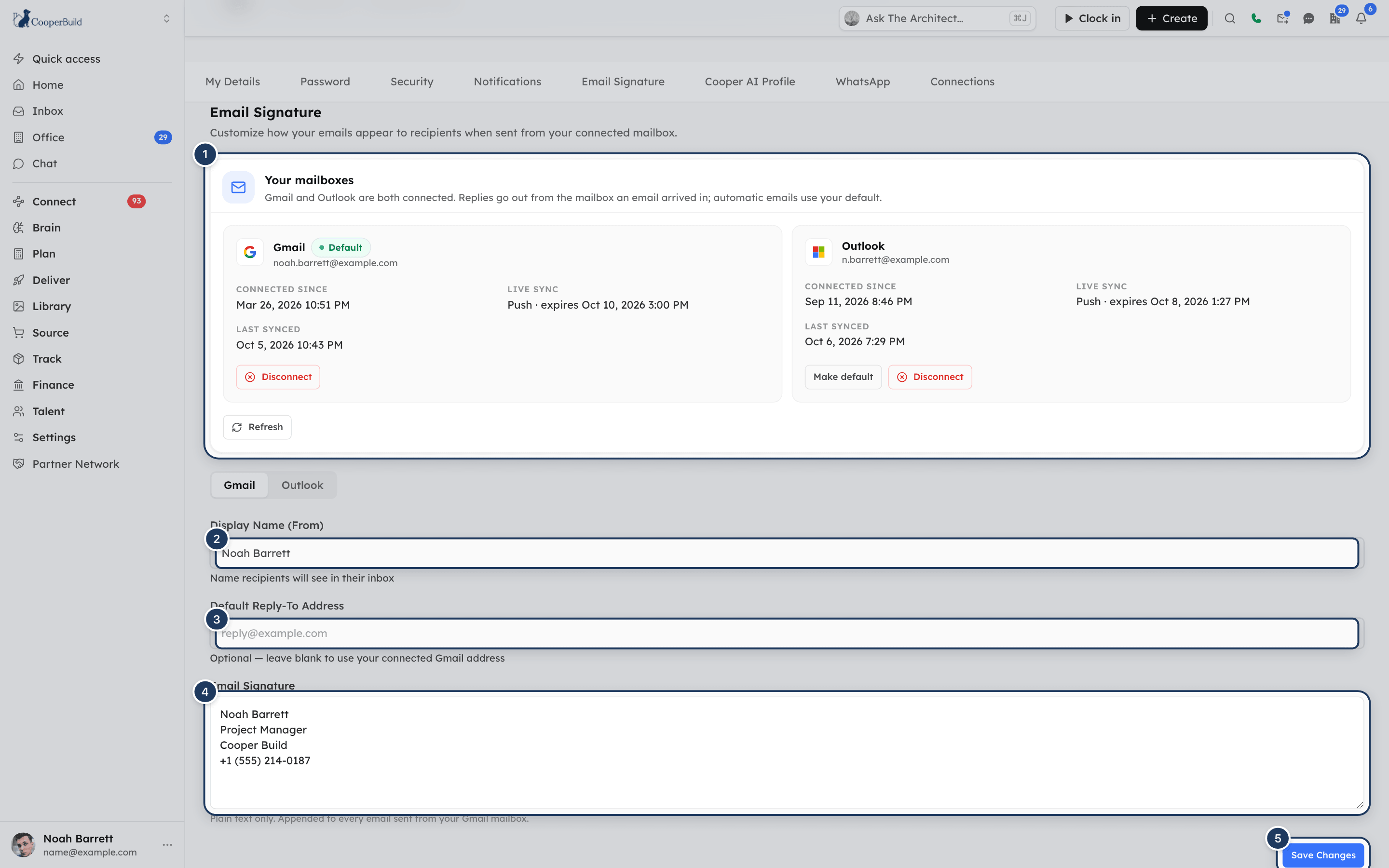
The Email Signature tab is where you control how your email looks to the people you write to from Cooper. You set the display name recipients see in their inbox and a signature that Cooper adds to the end of every email it sends from your connected Gmail or Outlook mailbox. The same tab shows your connected mailboxes, so you can also connect, disconnect and choose a default mailbox here.
The settings are personal. They belong to your own mailbox, and nobody else in your workspace can see or change them.
Key concepts
| Term | What it means |
|---|---|
| Mailbox | The Gmail or Microsoft 365 (Outlook) account you connected to Cooper. You can connect one of each. See Inbox. |
| Display name | The name shown next to your address in the recipient's inbox, for example "Jane Smith". |
| Signature | Plain text that Cooper adds to the end of an email when it sends it from your mailbox. |
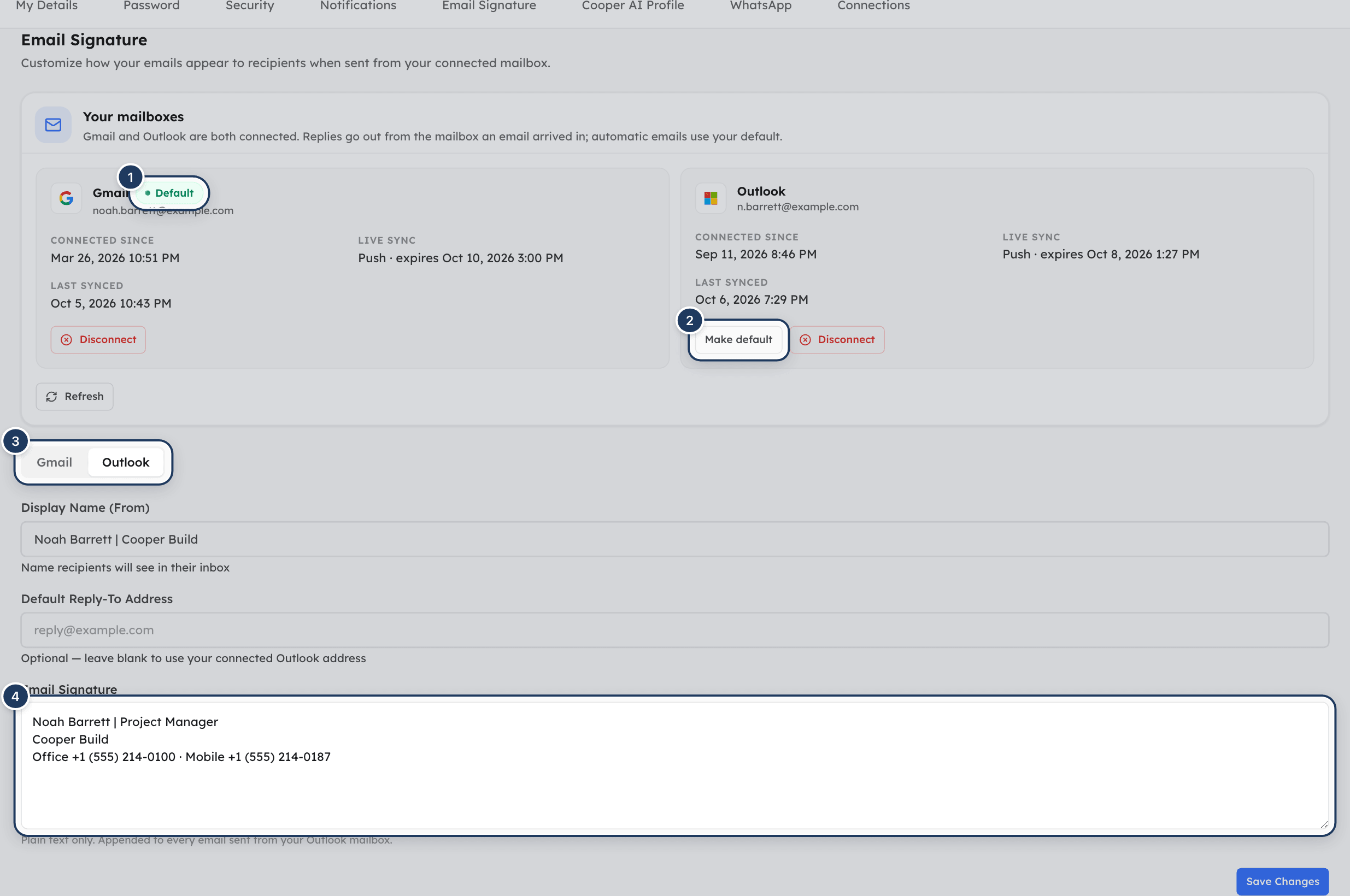
| Default mailbox | With Gmail and Outlook both connected, the mailbox Cooper uses for automatic emails, such as meeting invitations and sequence emails. |
| Email profile | Cooper's name for the display name and signature together. Each connected mailbox has its own. |
Open the Email Signature tab
- At the bottom of the sidebar, click your name (or your picture if the sidebar is collapsed).
- Click Account settings.
- Click the Email Signature tab.
The page address is /auth/profile-settings/email.
Every signed-in user can open this tab. It needs no admin permission, because it only changes your own mailbox.
Set your display name and signature
Connect a mailbox first
Your display name and signature are stored with a connected mailbox. If the card at the top says No mailbox connected, click Continue with Google or Continue with Microsoft and finish signing in. See Connect your Gmail or Outlook mailbox.
Pick the mailbox (two mailboxes only)
If you have Gmail and Outlook both connected, click the Gmail or Outlook tab above the fields. Each mailbox has its own display name and signature. With one mailbox there are no tabs.
Enter your display name
In Display Name (From), type the name you want recipients to see, for example "Jane Smith".
Write your signature
In Email Signature, type your signature, for example your name, job title, company and phone number. Use plain text only.
Save
Click Save Changes. Cooper confirms with Email profile saved. With two mailboxes, the message names the mailbox, for example Gmail email profile saved.
The new signature applies to email you send after you save. Emails already sent don't change.
Which emails get your signature
Cooper adds your signature when it sends an email from your own connected mailbox. It does this at the moment of sending, for every kind of email that goes out through your mailbox.
| Signature added? | |
|---|---|
| A new email you write in Inbox | Yes |
| A reply, reply-all or forward you send in Inbox | Yes |
| An email an AI agent sends for you from your mailbox, after you approve it | Yes |
| A draft, once you send it from Cooper | Yes, when it is sent |
| A sequence (campaign) email sent from your mailbox | Yes |
| A meeting invitation Cooper sends from your mailbox as the host | Yes |
| A follow-up nudge or email reply you send from an action item | Yes |
| A draft that is saved but not sent | No. The signature is added only when the email is sent. |
| A draft you finish and send in Gmail or Outlook itself, outside Cooper | No. Cooper only signs email that it sends. |
| An email an agent sends through your workspace's shared email service instead of your mailbox | No |
| An email an agent hands you as a "mailto" link to send from your own email app | No |
| A meeting invitation Cooper sends from its own address because your mailbox couldn't send it | No |
| Notifications Cooper sends from its own address, such as task, mail and security emails | No |
With Gmail and Outlook both connected, the signature of the mailbox that sends the email is used:
- A new email uses the mailbox whose tab is open in Inbox.
- A reply always goes from the mailbox the thread arrived in, with that mailbox's signature.
- Automatic emails use your default mailbox.
What the signature looks like to recipients
- In the plain-text version of the email, Cooper adds a blank line, a line with two dashes (
--) and then your signature. - In the formatted version, Cooper adds the signature below your message, after a thin grey line, in smaller grey text.
The copy of a sent email that you see in Cooper's Inbox shows the message you wrote, without the signature. The recipient's copy, and the copy in your Gmail or Outlook Sent folder, include it.
AI agents show you a preview before they send an email for you. The preview shows the message body only. The signature is added when the email is sent.
Change your display name
- Open the Email Signature tab.
- If you have two mailboxes, pick the Gmail or Outlook tab.
- Change Display Name (From).
- Click Save Changes.
If you leave Display Name (From) empty, Cooper sends with your email address only. Gmail then shows the name from your Google account's "Send mail as" setting, and Outlook shows the name on your Microsoft account.
Remove your signature
- Open the Email Signature tab.
- If you have two mailboxes, pick the Gmail or Outlook tab.
- Delete all the text in Email Signature.
- Click Save Changes.
Emails you send after that have no signature.
About the Default Reply-To Address field
The Default Reply-To Address field is meant to send replies to a different address than the mailbox you send from. At the moment Cooper doesn't save this field. After you leave and reopen the tab it is empty again, and replies to your emails go to the address of the mailbox that sent them.
Replies go to your mailbox
Until the reply-to setting is saved, recipients who click Reply answer the Gmail or Outlook address you sent from.
Manage your mailboxes on this tab
The card at the top of the tab is the same mailbox card described in Inbox. From here you can:
- Connect a mailbox with Continue with Google or Continue with Microsoft, or add the second one with Connect Gmail or Connect Outlook.
- See each mailbox's Connected since, Live sync and Last synced details.
- Click Make default to choose the default mailbox when two are connected.
- Click Disconnect to remove a mailbox.
- Click Refresh to reload the connection status.
If you disconnect a mailbox and later connect the same kind of mailbox again (Gmail or Outlook), your saved display name and signature for it come back.
Fields reference
| Field | Required | What it means |
|---|---|---|
| Display Name (From) | No | The name recipients see in their inbox. Empty means your address only. |
| Default Reply-To Address | No | Shown on the form but not saved at the moment. See About the Default Reply-To Address field. |
| Email Signature | No | Plain text added to the end of every email sent from this mailbox. Empty means no signature. |
| Gmail / Outlook tabs | Only with two mailboxes | Which mailbox's display name and signature you are editing. |
Permissions
- Every signed-in user can set their own display name and signature. No admin permission is needed.
- You need a connected Gmail or Outlook mailbox. The settings are stored with that mailbox.
- Nobody else, including admins, can see or change your signature in Cooper.
Tips and best practices
- Keep the signature short. Name, title, company and one phone number is enough. Long signatures crowd short replies.
- Write each line clearly. The plain-text version keeps your line breaks. Some email apps show the formatted version, so make sure the signature still reads well if the lines run together.
- Don't repeat your name. AI agents end the emails they write for you with a sign-off. If your signature also starts with your name, consider starting it with your job title instead. You can set how agents sign off in Cooper AI Profile.
- Set a signature for each mailbox. With Gmail and Outlook both connected, fill in both tabs. A mailbox with no signature sends without one.
- Set a display name. Without one, recipients may see whatever name your Google or Microsoft account has, which may be out of date.
Troubleshooting
Your display name and signature are stored with a connected mailbox, so Cooper can't save them without one. Click Continue with Google or Continue with Microsoft in the card at the top of the tab, finish signing in, then click Save Changes again.
Check how the email was sent. Cooper adds the signature only to email sent from your connected mailbox through Cooper. It doesn't add it to drafts you finish in Gmail or Outlook, to email an agent sent through your workspace's shared email service instead of your mailbox, or to Cooper's own notification emails. See Which emails get your signature. If you have two mailboxes, check that the mailbox that sent the email has a signature.
That's expected. Cooper's Inbox shows the message you wrote, without the signature. Open the email in your Gmail or Outlook Sent folder, or ask the recipient, to see the signed version.
That's expected. The preview shows the message body. Cooper adds the signature when the email is sent from your mailbox.
Cooper doesn't save this field at the moment. Replies go to the address of the mailbox that sent the email. See About the Default Reply-To Address field.
Set Display Name (From) and click Save Changes. If the field is empty, Gmail uses your "Send mail as" name and Outlook uses your Microsoft account name. With two mailboxes, set the name on both the Gmail and Outlook tabs.
Each mailbox has its own signature. Click the Gmail tab, check its signature, then click the Outlook tab and check that one. Replies always use the signature of the mailbox the thread arrived in.
Cooper couldn't save your changes. Refresh the page and try again. If it keeps happening, check that your mailbox is still connected in the card at the top of the tab.
Your workspace has restricted email access for your role. Ask your administrator to give you access to email.
For AI agents
No MCP tool reads or changes the display name or signature. The user sets them on this tab (/auth/profile-settings/email). If a user asks an agent to change their signature, send them to this tab.
The signature still affects the email tools:
| Tool | Signature behaviour |
|---|---|
email_inbox_manage (send, reply) | Sends from the user's connected mailbox. The signature of the sending mailbox is appended at send time. A reply uses the thread's own mailbox and its signature. |
comm_send_email (mode: "send") | When the email goes out through the user's linked mailbox (provider: "auto" with a mailbox linked, or provider: "gmail"), the signature is appended. When it goes through the workspace's SendGrid or Resend service (provider: "tenant", or auto with no mailbox), no signature is added. |
comm_send_email (mode: "save_draft") | Saves a draft with no signature. The signature is added if the draft is later sent through Cooper. |
comm_send_email (mode: "mailto") | Returns a link. Cooper adds nothing. |
Rules for agents:
- Previews don't include the signature. The
draft/previewoutput ofcomm_send_emailand themode: "preview"output ofemail_inbox_manageshow the body only. When you show the user a preview, you can say that their saved signature will be added below the message. - Don't type the signature into the body. If the user has a signature, it is appended automatically, and writing it out yourself duplicates it. Write the body with a normal sign-off, following the user's AI profile email rules.
- The From name comes from Display Name (From). The
comm_send_emaildraft returnsfrom.nameSourceandfrom.nameSourceNote. WhennameSourceisgmail_accountoroutlook_account, no display name is set in Cooper; tell the user they can set one on this tab. replyTois not applied. The Default Reply-To Address on this tab is not stored, and thereplyToparameter ofcomm_send_emailis not passed to the sending mailbox or service. Don't promise the user a custom reply-to address.- No mailbox:
requiresSetup: truewith asetupUrlpointing at this tab means the user must connect Gmail or Outlook here first.
Related
- Inbox: connect Gmail or Outlook, and read and send email.
- Cooper AI Profile: how agents write, sign off and send on your behalf.
- My Details: your name and contact details in Cooper.
- Connections: connect your own accounts in other systems.
Last updated on
Notifications
Choose, preview, turn down and turn off every sound Cooper makes, including the chat message tone, the notification bell, the office door knock and call ringtones, and set quiet hours when nothing makes a sound.
Cooper AI Profile
Your Cooper AI Profile tells Cooper's agents how to write emails, place calls and answer you, who never to contact, and when not to call or text. It also shows everything agents have learned about how you work, so you can pin it, forget it, pause it or delete it.