

Notifications
Choose, preview, turn down and turn off every sound Cooper makes, including the chat message tone, the notification bell, the office door knock and call ringtones, and set quiet hours when nothing makes a sound.
The Notifications tab is where you control every sound Cooper makes: the tone for a new chat message, the tone for the notification bell, the knock when someone is at your office door, and the sounds for calls. You can pick a different sound for each one, hear it before you choose, set how loud it is, switch it off, or silence everything at once. Quiet hours keep Cooper silent at the same time every day.
Your sound settings are your own. They are saved to your account, so they follow you to every browser you sign in on. Nobody else, including admins, can change them.
Key concepts
| Term | What it means |
|---|---|
| Sound | Something that happens in Cooper and makes a noise, such as a chat message or an incoming call. Each has its own switch, volume and, for most, a choice of sounds. |
| All sounds | One switch over every sound. Off means Cooper makes no sound at all. |
| Overall volume | A level applied on top of every sound's own volume. At 50%, a sound set to 80% plays at 40%. |
| Quiet hours | A daily window, in your local time, when Cooper makes no sound. Calls can still ring if you allow it. |
| Held during calls | While you are in a call, a meeting or an office room, Cooper keeps message and notification tones quiet so they don't go out over your microphone. This happens automatically and isn't a setting. |
Open the Notifications tab
- Click your name at the bottom of the sidebar.
- Click Account settings.
- Click the Notifications tab.
The page address is /auth/profile-settings/notifications. The page is titled Notifications & sounds.
Every signed-in user can open this tab. It needs no role permission.
If the settings can't load, the page says Sound settings could not be loaded. Cooper is still using your last saved sounds on this device. Cooper keeps playing the sounds you last saved; reload the page to try again.
Where your sound settings are saved
Your sound settings are saved to your Cooper account on the server, not just in your browser.
- No Save button. Every change takes effect at once, so you can hear it, and is saved to your account straight after.
- Every browser. The same settings apply on every computer and browser where you sign in. The page says These follow you to every browser and to the Cooper app.
- Per workspace. If you belong to more than one workspace, each workspace has its own sound settings. Set them in each one.
- A copy on each device. Cooper also keeps a copy in your browser, so the right sound plays the moment a page loads, even before your settings arrive from the server or when you are offline.
- Defaults until you change something. Until you change a setting, the page says Using the defaults. Any change here follows you to every browser and to the Cooper app.
If a change to one sound can't be saved, Cooper says Could not save that. It will apply on this device only. The change works in this browser until Cooper next loads your saved settings, then goes back to what is saved. Make the change again when you are back online.
Every sound Cooper makes
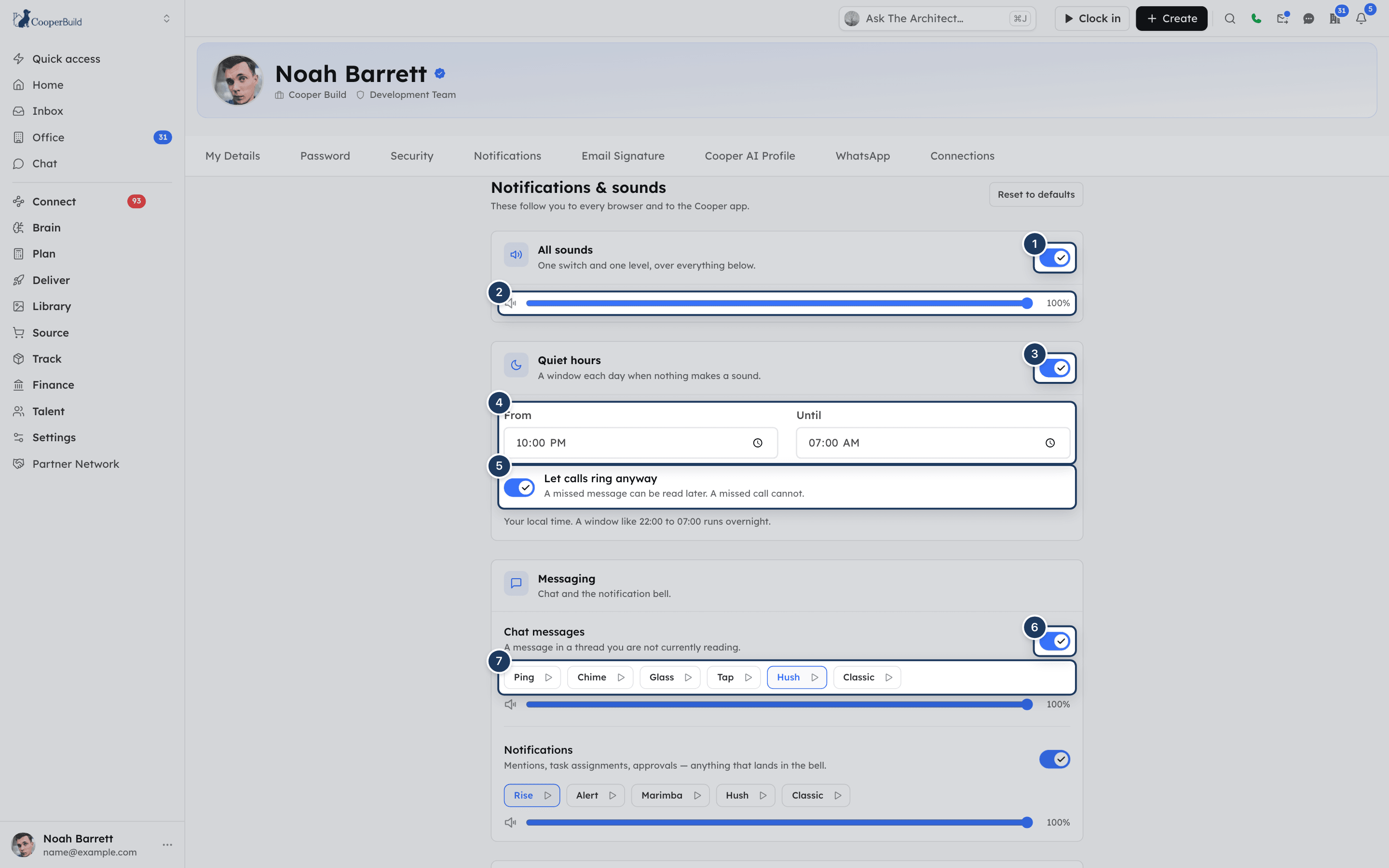
The page groups the sounds into three cards: Messaging, Office and Calls.
| Card | Sound | When it plays | Choices | Default sound | Default volume |
|---|---|---|---|---|---|
| Messaging | Chat messages | A message in a thread you are not currently reading. | Ping, Chime, Glass, Tap, Hush, Classic | Ping | 50% |
| Messaging | Notifications | Mentions, task assignments, approvals and anything else that lands in the notification bell. | Rise, Alert, Marimba, Hush, Classic | Rise | 45% |
| Office | Door knock | Somebody knocking at your office door. | One sound only (Door: knuckles, then a bell) | Door | 100% |
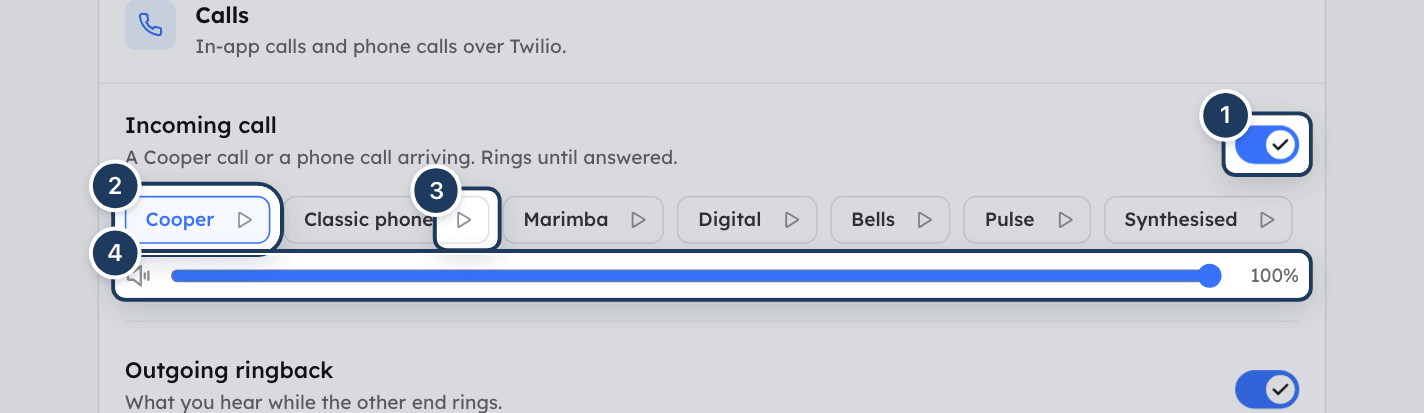
| Calls | Incoming call | A Cooper call arriving. Rings until you answer. | Cooper, Classic phone, Marimba, Digital, Bells, Pulse, Synthesised | Cooper | 80% |
| Calls | Outgoing ringback | What you hear while the other person's end rings. | Standard ringback, Recorded ringback | Standard ringback | 100% |
| Calls | Call waiting | Somebody calling while you are already on a call. | Standard beeps, Recorded beeps | Standard beeps | 100% |
Hover over a sound's name to read its description, for example Pulse: "Low and insistent. For loud sites."
The Door knock has a single sound on purpose, so everyone in the workspace recognizes a knock. It has a switch and a volume but no choice of sound.
Message and notification tones play at most once every 2 seconds each, so a burst of messages makes one sound, not ten.
Turn all sounds off or on
The All sounds card has one switch over everything.
- Open the Notifications tab.
- Turn the switch on the All sounds card off.
With all sounds off, Cooper says Everything still arrives on screen — the bell still counts, calls still ring on the display. Cooper just does not make a sound. The Overall volume slider and every sound's own controls are grayed out. Your choices for each sound are kept, and come back when you turn the switch on again.
Set the overall volume
Drag the Overall volume slider on the All sounds card. The level shows as a percentage, from 0% to 100% in steps of 5%. When you let go, Cooper saves the level and plays the chat message tone so you can hear it.
The overall volume multiplies every sound's own volume. To make one sound quieter than the others, use that sound's own slider instead.
Turn one sound on or off
Each sound has its own switch on the right of its name, for example Chat messages or Incoming call.
- Turn a switch off to silence just that sound. Its choices and volume are grayed out.
- Turn a switch on and Cooper plays the sound once, so you know what you'll hear (not during quiet hours, and not for the synthesized call sounds).
A sound's switch can't be changed while All sounds is off.
Choose a sound
Find the sound
Find the sound in its card, for example Incoming call in Calls.
Listen to the choices
Click the play button next to any choice to hear it without selecting it.
Pick one
Click the choice's name. It is selected (highlighted), saved, and played once.
If a choice shows not added, its sound file isn't available yet. You can still select it; until the file is available, Cooper plays that event's default sound instead.
The play buttons next to each choice always play, even when the sound is switched off or quiet hours are on, so you can audition sounds at any time. They play at the sound's own volume, before the Overall volume is applied.
Set a sound's volume
Each sound has its own volume slider under its choices, from 0% to 100% in steps of 5%. Drag it and let go. Cooper saves the level and plays the sound at the new volume.
The volume you hear is this level multiplied by Overall volume.
The test sound after you move a slider follows your other settings: it doesn't play while quiet hours silence that sound, and it doesn't play when the chosen sound is Standard ringback, Standard beeps or Synthesised. Use the play button next to the choice to hear those.
Set quiet hours
Quiet hours silence Cooper at the same time every day, for example overnight.
Turn on Quiet hours
Turn on the switch on the Quiet hours card. The default window is 22:00 to 07:00.
Set the times
Set From and Until. Times are in your local time, on the device you are using. A window like 22:00 to 07:00 runs overnight.
Decide about calls
Turn Let calls ring anyway on or off. It is on by default.
While the window is open, the page shows Quiet hours are on right now.
During quiet hours:
- Chat message tones, notification tones and door knocks make no sound.
- Incoming call, Outgoing ringback and Call waiting still sound if Let calls ring anyway is on. If it is off, calls arrive on screen without ringing.
- Everything still arrives on screen.
Quiet hours follow the clock of the device you are on. If you travel, "22:00" means 22:00 wherever you are.
If From and Until are the same time, quiet hours never start. Pick two different times.
Reset to defaults
Once you have changed anything, a Reset to defaults button appears at the top right of the page.
- Click Reset to defaults.
- Cooper says Sounds reset to defaults.
Every sound goes back to its default sound, volume and switch, All sounds is turned on, Overall volume goes to 100%, and quiet hours are turned off. There is no confirmation step. If the reset fails, Cooper says Could not reset your sounds.
Sounds during calls, meetings and office rooms
While you are in a call, a meeting or an office room, Cooper keeps quiet anything that would otherwise go out over your microphone to the other people. You don't need to set this up.
| Sound | While you are in a call, meeting or office room |
|---|---|
| Chat messages and Notifications | Held back. They don't play. |
| Door knock | One soft knock, with no repeats. The knock window still appears on screen. |
| Incoming call | The quiet Call waiting beeps play instead of the ringtone. |
| Browser notifications | Still appear, but without your computer's notification sound. |
Your own actions still make sound, such as knocking on someone's door, testing the doorbell, or the previews on this page.
Change the message sound from Chat
You can switch the chat message tone on or off without leaving Chat. This changes the same Chat messages setting as the Notifications tab.
- In Chat, click the speaker button at the top of the conversation list. Its tooltip says Message sound is on or Message sound is off; a crossed-out speaker means off.
- Turn Message sound on or off. The panel says it is For new messages in other threads.
- With the sound on, drag Volume and click Play test sound to hear it.
While you are in a call, meeting or office room, the panel says Held back while you're in a call, meeting or office room, so it doesn't go out over your microphone. Calls and knocks for you still sound, quietly.
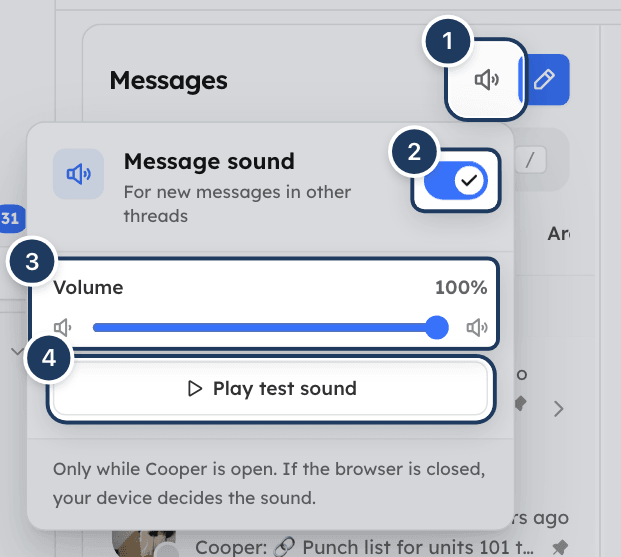
The panel only controls the chat message tone. To pick a different tone, or change any other sound, use the Notifications tab.
Change the doorbell from Office
You can change the door knock without leaving Office. This changes the same Door knock setting as the Notifications tab.
- In Office, click your picture in the Office header (its tooltip is Your office settings).
- Go to Your door, then The doorbell.
- Turn on Mute to silence knocks. Knocks still arrive on screen, quietly.
- Drag Volume to set how loud a knock is, and click Test to hear it.
Browser notifications
The Notifications tab controls the sounds Cooper plays while it is open in your browser. It doesn't control browser notifications, the pop-ups your computer shows when Cooper isn't in view.
- Cooper asks for browser notifications with a Stay in the loop message. Click Allow notifications and allow them in your browser's prompt, or Not now.
- If your browser blocks Cooper's notifications, the message says Notifications blocked. Click How to re-enable in (your browser) for the steps, then Reload after enabling.
- When a browser notification arrives, your computer plays its own notification sound, not a Cooper sound. Change that sound in your computer's settings.
- Cooper's sounds play only while Cooper is open. If the browser is closed, your device decides the sound.
For incoming phone calls, see Allow your microphone and notifications.
How Cooper decides whether to play a sound
Cooper checks these in order. The first one that applies wins.
- All sounds is off: no sound.
- The sound's own switch is off: no sound.
- Quiet hours are on now: no sound, unless it is a call sound and Let calls ring anyway is on.
- You are in a call, meeting or office room: message and notification tones are held back; a knock plays once, softly; an incoming call plays the call waiting beeps.
- Otherwise the sound plays: your chosen sound, at its volume times Overall volume.
Settings reference
| Control | Where | Range or choices | Default |
|---|---|---|---|
| All sounds switch | All sounds card | On or off | On |
| Overall volume | All sounds card | 0–100%, steps of 5% | 100% |
| Quiet hours switch | Quiet hours card | On or off | Off |
| From | Quiet hours card | A time of day (HH:MM) | 22:00 |
| Until | Quiet hours card | A time of day (HH:MM), different from From | 07:00 |
| Let calls ring anyway | Quiet hours card | On or off | On |
| A sound's switch | Each sound in Messaging, Office and Calls | On or off | On |
| A sound's choice | Each sound with more than one sound | See Every sound Cooper makes | See the table |
| A sound's volume | Each sound | 0–100%, steps of 5% | See the table |
Permissions
Every signed-in user can change their own sounds. There is no role permission for this tab, and no admin setting can choose or lock sounds for other people.
Tips and best practices
- Give the Notifications sound a different tone from Chat messages, so you can tell an approval from a message without looking. The defaults already differ.
- On a loud job site, try Pulse or Classic phone for Incoming call, and raise its volume rather than Overall volume.
- Use quiet hours instead of turning All sounds off at night, so you don't forget to turn sounds back on in the morning.
- Leave Let calls ring anyway on if people may need to reach you urgently.
- Use the play buttons to compare sounds before you pick one.
Troubleshooting
Check these in order:
- All sounds is on.
- The sound's own switch is on and its volume isn't 0%.
- Overall volume isn't 0%.
- Quiet hours aren't on right now (the page says Quiet hours are on right now.).
- You aren't in a call, meeting or office room, where message and notification tones are held back.
- Your browser tab isn't muted, and your computer's volume is up.
- You have clicked or typed somewhere in Cooper since the page loaded. Browsers block sound on a page until you interact with it.
The play buttons always play. Real sounds follow your switches, quiet hours and calls. Check that the sound's switch and All sounds are on and that quiet hours aren't running. A chat message also makes no sound when you are reading that thread.
The Chat speaker only controls Chat messages. Open the Notifications tab and check that All sounds is on and quiet hours aren't running.
That's on purpose. In a call, a meeting or an office room, message and notification tones are held back so they don't go out over your microphone. Knocks play once, softly, and incoming calls play the call waiting beeps.
Quiet hours use the clock of the device you are on, not your company's time zone. Check the device's time zone. Also check that From and Until aren't the same time; then quiet hours never start.
Sound settings are saved per workspace. If you switched workspace, set your sounds there too. Otherwise reload the page on the other computer to pick up your latest settings.
Cooper couldn't reach the server. The change works in this browser for now, but goes back to your saved setting the next time Cooper loads it. Check your connection and make the change again.
That sound's file isn't available yet. You can still select it; until it is available, Cooper plays that event's default sound.
The Door knock has one sound on purpose. You can change its volume or switch it off.
Calls to your Cooper phone line ring with the phone's own ring. Your Incoming call choice, All sounds and quiet hours don't change that ring at the moment. While you are in a call, meeting or office room, the phone line's ring is replaced with the quiet call waiting beeps. See Phone.
That's a browser notification permission, not a sound setting. See Browser notifications.
For AI agents
There is no CooperBuild MCP tool for sound settings. An agent can't read or change a user's sounds, volume, mute or quiet hours, and the generic db_* tools don't open these records to regular users.
Rules for agents:
- Never say or imply that you have muted, unmuted or changed a user's sounds or quiet hours. Send the user to Account settings → Notifications (
/auth/profile-settings/notifications). - For "I don't hear notifications", walk the user through I don't hear any sounds in order.
- For "mute chat sounds", the quickest route is the speaker button at the top of the conversation list in Chat.
- Sound settings are personal. An admin can't set them for other people, so don't offer to.
Related
- Chat — the message sound shortcut in the conversation list.
- Phone — calling, and allowing your microphone and notifications.
- Security — devices and two-step verification.
- My Details — your name, photo and contact details.
Last updated on
Security
See every device signed in to your Cooper account, sign out the ones you don't recognize, read your sign-in activity for the last 90 days, and turn your own two-step verification (an email code at every sign-in) on or off.
Email Signature
Set the display name and plain-text signature Cooper adds to email sent from your connected Gmail or Outlook mailbox, and see exactly which emails get the signature and which don't.