

Security
See every device signed in to your Cooper account, sign out the ones you don't recognize, read your sign-in activity for the last 90 days, and turn your own two-step verification (an email code at every sign-in) on or off.
The Security tab shows where your Cooper account is signed in and what has happened on it recently. You use it to sign out a device you don't recognize, to check a sign-in you weren't expecting, and to turn on two-step verification so that every sign-in also needs a code from your email.
Everything on this tab is about your own account. Nobody else in your workspace, including admins, can see your devices or your sign-in activity, or change your two-step verification.
Key concepts
| Term | What it means |
|---|---|
| Device | One browser or one Cooper mobile app that has signed in to your account. Chrome and Safari on the same computer are two devices. |
| This device | The browser or app you are using right now. You can't remove it from the list; use Sign out instead. |
| Sign-in activity | A log of sign-ins and security changes on your account, kept for 90 days. |
| Two-step verification | Your own setting. When it is on, Cooper emails you a 6-digit code every time you sign in, on any device, including when you sign in with Google. |
| Company two-step verification | A workspace-wide setting an admin turns on. It asks everyone in the workspace for an email code when they sign in with a password. See Company two-step verification and yours. |
| Unusual sign-in check | Cooper's automatic check on every sign-in. When a sign-in looks unusual, Cooper asks for an email code or sends you an alert, even if two-step verification is off. |
| New sign-in email | An email Cooper sends when a new device signs in to your account. It has a Secure my account button that signs that device out. |
Open the Security tab
- Click your name at the bottom of the sidebar.
- Click Account settings.
- Click the Security tab.
The page address is /auth/profile-settings/security.
Every signed-in user can open this tab. It needs no role permission.
If the tab can't load, it says Could not load your security settings (or the reason from the server) with a Try again button. While the settings are missing, the two-step verification card shows no status and no Turn on or Turn off button, so it never shows the wrong state.
What the Security tab shows
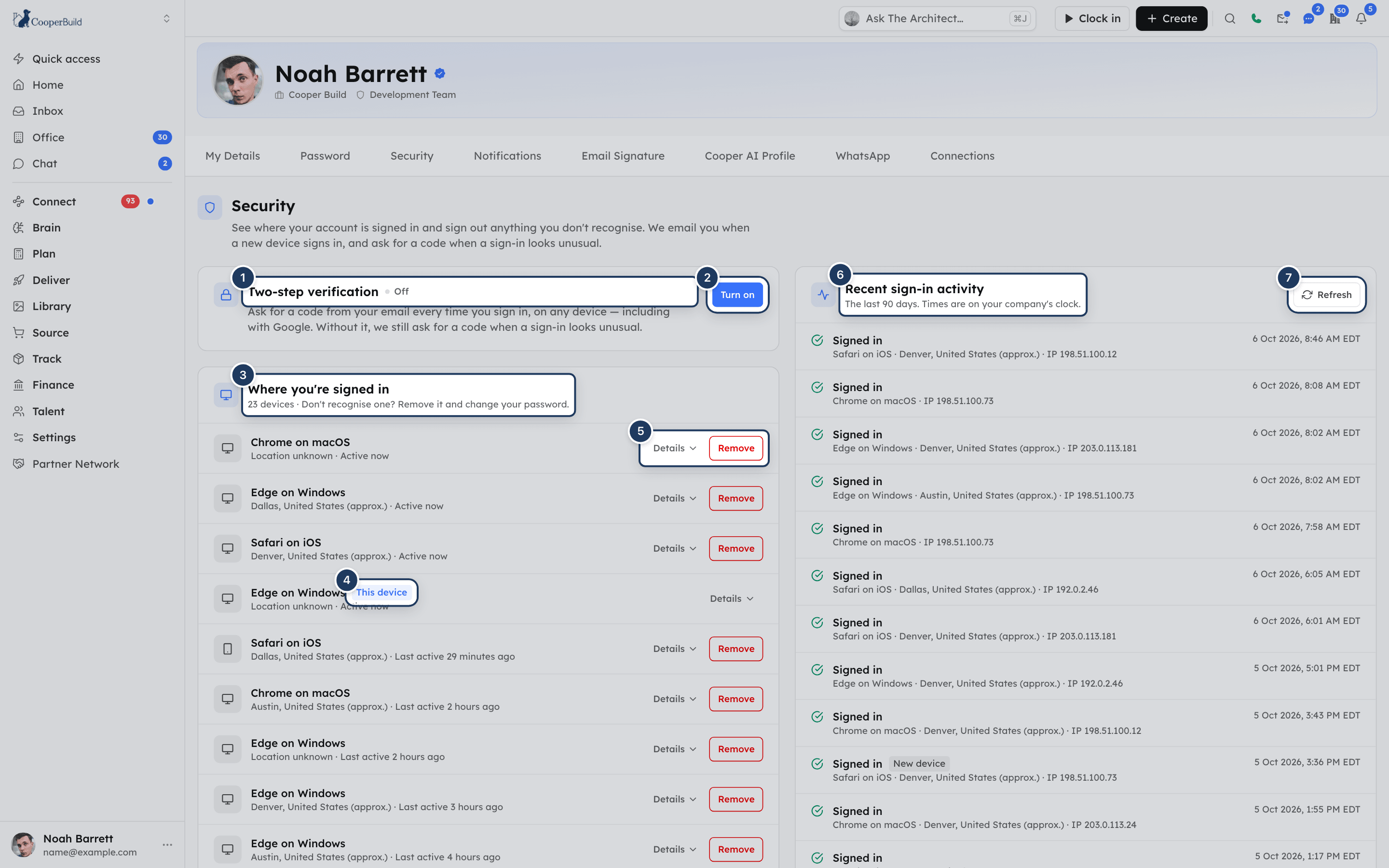
The tab has three cards. On a wide screen, the first two sit on the left and the activity list on the right.
| Card | What it shows |
|---|---|
| Two-step verification | Whether your own two-step verification is On or Off, and the button to change it. |
| Where you're signed in | Every device signed in to your account, with the number of devices at the top. |
| Recent sign-in activity | Sign-ins and security changes on your account from the last 90 days, newest first. |
Under the device list, Cooper notes that locations are approximate and come from the IP address, so a VPN or a mobile network can show a different city.
See where you're signed in
The Where you're signed in card lists every device on your account, the most recently active first. Each row shows:
- The device name, such as Chrome on macOS or Cooper mobile app on iOS. A phone icon marks the mobile app; a monitor icon marks a browser. A device Cooper can't identify shows as Unknown device.
- This device next to the browser you are using now.
- The approximate location, such as "Austin, United States (approx.)", or Location unknown.
- When it was last used: Active now (used in the last 10 minutes), Last active 3 hours ago and so on, or Not active yet. Cooper updates this at most every 5 minutes while a device is in use.
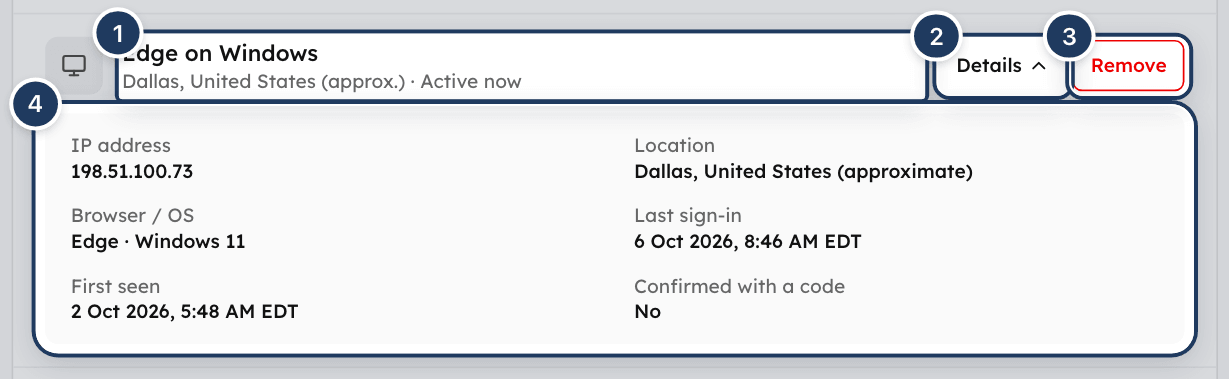
Click Details on a row to see more:
| Detail | What it means |
|---|---|
| IP address | The internet address of the device's last sign-in, or Unknown. |
| Location | City and country from that IP address, marked approximate, or Unknown. |
| Browser / OS | The browser and operating system, such as "Chrome · macOS 14". |
| Last sign-in | When the device last signed in. |
| First seen | When the device first signed in. |
| Confirmed with a code | When the device last finished a sign-in with an email code, or No. |
Times are shown on your company's clock (the workspace time zone), for example "14 Sep 2026, 3:42 PM CDT".
If the list is empty, it says No devices yet. Each device appears here the next time it signs in. A device that has stayed signed in without signing in again since this list was added appears after its next sign-in.
How Cooper recognizes a device
- A browser gets a random ID the first time it opens Cooper. The ID is stored in the browser and kept when you sign out, so signing in again from the same browser is the same device.
- Clearing the browser's site data, or using a private or incognito window, gives the browser a new ID. Cooper then treats it as a new device.
- The Cooper mobile app is recognized by the app, the operating system and the phone model. It counts as a known device only when it signs in from the same country it was last seen in.
- Signing out with Sign out does not remove a device from this list. The device keeps its row and appears as last active when you last used it. Remove it if you no longer use it.
Sign out a device you don't recognize
Find the device
In Where you're signed in, find the device. Click Details to check its IP address, location, browser and sign-in times.
Click Remove
Click Remove on the device's row. Remove is not shown on This device.
Confirm
The Sign out this device? window shows the device and its location. Click Sign out device, or Cancel to keep it.
Change your password
If you don't recognize the device, change your password next. See Password.
When you click Sign out device:
- The device is signed out straight away. Its next request to Cooper is refused and it has to sign in again.
- Its browser push notifications and mobile app push notifications stop.
- The device disappears from the list, and Cooper shows "(device name) signed out".
- Device signed out and removed is added to your sign-in activity.
- If the device signs in again, it counts as a new device and you get a new sign-in email about it.
Removing a device does not change your password. Anyone who knows your password can still sign in again, so change it when you remove a device you don't recognize.
Sign out every other device
There is no single button to sign out all other devices. Click Remove on each device you want to sign out, then change your password.
Changing your password does not sign other devices out on its own. Remove the devices as well.
Review your sign-in activity
The Recent sign-in activity card lists what happened on your account in the last 90 days, newest first. Activity older than 90 days is deleted automatically.
Each entry shows what happened, the device, its approximate location and IP address (or No device details), and the time on your company's clock. The list shows 20 entries at a time; click Show older activity at the bottom for more. Click Refresh at the top to reload it. The list also refreshes by itself after you remove a device or change two-step verification.
| Entry | What it means |
|---|---|
| Signed in | A sign-in that needed no code. |
| Signed in with an email code | A sign-in finished with a code from your email. |
| Sign-in code sent | Cooper emailed a sign-in code. The sign-in isn't finished until the code is entered. |
| Wrong sign-in code entered | Someone entered a wrong code. |
| Wrong password entered | Someone tried to sign in to your account with a wrong password. |
| Device signed out and removed | A device was removed from Where you're signed in. |
| Sign-in reported as not you | Someone used Secure my account in a new sign-in email. |
| Two-step verification turned on | Your two-step verification was switched on. |
| Two-step verification turned off | Your two-step verification was switched off. |
Gray tags on an entry say why a code was asked for, or what made a sign-in look unusual:
| Tag | Meaning |
|---|---|
| New device | The sign-in came from a device Cooper hadn't seen on your account. |
| Company two-step verification | Your workspace requires a code. |
| Your two-step verification | Your own two-step verification asked for the code. |
| Unusual sign-in check | Cooper asked for a code because the sign-in looked unusual. |
| New country | A new device signed in from a country your account had never signed in from. |
| After wrong passwords | A new device signed in after 5 or more wrong passwords in the last hour. |
| Unusual travel | A new device signed in too far from your last sign-in for the time between them. |
| After a reported sign-in | A new device signed in within 7 days of a sign-in being reported as not you. |
| Device in a different country | A known device signed in from a different country than it was last seen in. |
If the list is empty, it says No sign-in activity yet. It is recorded from your next sign-in. If it can't load, it says Could not load sign-in activity with a Try again button.
Turn on two-step verification
Two-step verification adds an email code to every sign-in. Cooper sends the code to your account email address. There is no authenticator app, text message or backup code option; the code always comes by email.
Click Turn on
On the Two-step verification card, click Turn on. Cooper emails you a 6-digit code and shows "Code sent to (your email)".
Find the email
The email's subject is "(code) is your code to turn on two-step verification". The code works for 10 minutes.
Enter the code
Type the 6 digits in the box under Enter the 6-digit code we sent to (your email) to turn two-step verification on. The box accepts digits only.
Click Confirm
Click Confirm. Cooper shows Two-step verification is on, the card status changes to On, and Two-step verification turned on is added to your activity.
Didn't get the email? Wait for Resend in 30s to count down, then click Resend code. A new code replaces the old one. Click Cancel to stop without changing anything.
From your next sign-in, Cooper asks for a code every time, on any device, with a password or with Google. Devices that are already signed in stay signed in.
Turn off two-step verification
Turning two-step verification off also needs a code from your email, not your password. This keeps someone who is signed in on your computer from switching it off, and works for people who sign in with Google and have no password.
- On the Two-step verification card, click Turn off.
- Open the email "(code) is your code to turn off two-step verification".
- Enter the 6-digit code and click Confirm.
Cooper shows Two-step verification is off, the card status changes to Off, and Two-step verification turned off is added to your activity.
With two-step verification off, Cooper still asks for a code when a sign-in looks unusual, and your workspace may still require a code. See Company two-step verification and yours.
If you get a turn-off code you didn't ask for, don't share it. Someone may be signed in to your account: check Where you're signed in and change your password.
Sign in with a code
When a sign-in needs a code, Cooper emails one after you enter your password (or choose Google) and shows a code screen instead of opening the app.
Read the screen
The screen is titled Verify your email when two-step verification asked for the code, or Confirm it's you when the sign-in looked unusual. It names the email address the code went to.
Find the email
The subject is "(code) is your CooperBuild sign-in code". The email shows the device, location and time of the sign-in attempt.
Enter the code
Type or paste the 6 digits into the six boxes. Cooper checks the code as soon as the sixth digit is in, or click Verify & continue.
On the code screen:
- Didn't get it? shows Resend in with a countdown, then Resend code. The first countdown is 240 seconds; after a resend it is 60 seconds.
- Change email takes you back to the sign-in form.
- A wrong code clears the boxes and shows Invalid code. Please try again.
Rules for sign-in codes:
- A code expires after 10 minutes.
- Each sign-in allows 5 tries. Wrong codes still count after you click Resend code. After the fifth try, sign in again with your password.
- Only the newest code works. A resend replaces the earlier code.
The same code check runs when you sign in to Cooper to connect an AI assistant, such as Claude or ChatGPT, through the CooperBuild MCP server.
Company two-step verification and yours
An admin can require two-step verification for the whole workspace. It is the Two-Factor Authentication switch in the Organization Settings card on Settings → Organization (/settings/organizationDetails). Turning it on or off needs edit access to that page.
The workspace setting and your own setting are separate:
- You can't turn company two-step verification off from the Security tab. Your card shows only your own setting.
- When the workspace setting is on, the workspace's rule is used. Your own setting adds the code to sign-ins the workspace rule doesn't cover.
- Company two-step verification doesn't ask for a code when you sign in with Google. Your own two-step verification does.
| How you sign in | Company two-step verification on | Only your two-step verification on | Neither on |
|---|---|---|---|
| Email and password, in a browser | Code every time | Code every time | Code only when the sign-in looks unusual |
| Email and password, in the mobile app | Code every time | Code every time | No code; an alert email when a new device signs in or the sign-in looks unusual |
| Code only if your own setting is on | Code every time | No code; an alert email when a new device signs in or the sign-in looks unusual |
Unusual sign-ins
Cooper compares every sign-in with the devices and countries your account has used before.
A sign-in looks unusual when:
- A device Cooper already knows signs in from a different country than it was last seen in, or
- A new device signs in and any of these are true:
- Your account has never signed in from that country.
- There were 5 or more wrong passwords on your account in the last hour.
- Your last sign-in was too far away for the time since (more than 500 km away, faster than 900 km/h, within the last 24 hours).
- A sign-in was reported as not you in the last 7 days.
What happens then:
- Email and password in a browser: Cooper asks for a code on the Confirm it's you screen. If the code email can't be sent, the sign-in goes ahead and the new sign-in email still tries to reach you.
- The mobile app or Google: the sign-in goes ahead and Cooper sends you a new sign-in email instead.
New sign-in emails and "This wasn't me"
Cooper emails you, with the subject "Security alert: New sign-in to your CooperBuild account", when:
- A new device signs in to your account (your first sign-in on record counts), or
- A sign-in looked unusual but went ahead without a code (the mobile app or Google).
You don't get this email when the sign-in was confirmed with a code, because you already had a code email about it.
The email shows the device, location and time. If it was you, you don't need to do anything. If it wasn't:
Click Secure my account
In the email, click Secure my account. A page titled Wasn't you? opens.
Sign the device out
Click Sign that device out. Nothing happens until you click it, so an email scanner opening the link can't sign a device out. If it was you after all, click It was me — go to sign in.
Change your password
The page says That device is signed out. Click Change my password to reset your password, or Go to sign in.
After you report a sign-in:
- That device is signed out straight away and removed from your device list.
- For the next 7 days, any new device that signs in to your account with a password in a browser has to enter an email code.
- Sign-in reported as not you is added to your activity.
The link works once and for 7 days. An old or used link shows We couldn't use this link with the reason, such as "This link has expired or was already used. Sign in and check Profile settings → Security." You can still remove the device on the Security tab.
Limits and rules
| What | Limit |
|---|---|
| Sign-in activity kept | 90 days |
| Activity shown per page | 20 entries |
| Code length | 6 digits |
| Code lifetime | 10 minutes |
| Tries per code | 5, counted across resends |
| Wait before asking for another code | 30 seconds |
| Active now | Used in the last 10 minutes |
| "Last active" updated | At most every 5 minutes |
| "This wasn't me" link | Works once, for 7 days |
| Extra checks after a report | 7 days |
| Devices per account | No limit |
Permissions
| Action | Who can do it |
|---|---|
| Open the Security tab | Every signed-in user, for their own account |
| Remove a device | You, for your own devices. You can't remove This device. |
| Turn your two-step verification on or off | You, with a code from your email |
| See someone else's devices or activity | Nobody. There is no admin view. |
| Require two-step verification for the whole workspace | An admin with edit access to Settings → Organization |
When an admin is viewing Cooper as another user, the Security tab refuses to show or change anything and says Exit the user view to manage security settings. Click Exit user in the menu under your name first.
Tips and best practices
- Turn on two-step verification if you use Cooper on shared or public computers.
- Check Where you're signed in now and then. Remove old laptops and phones you no longer use.
- Don't ignore a new sign-in email you don't recognize. Click Secure my account and change your password.
- Never share a code with anyone. Enter it only on the Cooper sign-in screen or the Security tab.
- Keep your email account secure. With two-step verification on, your email is the key to your Cooper account.
- Signing in from a private window or after clearing browser data makes the browser look new, so expect a new sign-in email.
Troubleshooting
Click Details on it. If the location is close to you, it may be your own phone or another browser, or a VPN or mobile network can show a different city. If you still don't recognize it, click Remove, then Sign out device, and change your password on the Password tab.
You don't need to do anything. Cooper sends this email the first time a device signs in, including after you clear your browser data, use a private window, switch browsers or reinstall the app.
That row is This device, the browser you are using now. Use Sign out from the menu under your name at the bottom of the sidebar instead. If you try to remove it another way, Cooper says This is the device you are using now. Use Sign out instead.
Signing out doesn't remove a device from the list. The device stays, with its last active time. Click Remove if you no longer use it.
Someone signed in on it again, which needs your password (and a code if two-step verification is on). If that wasn't you, remove it again and change your password straight away.
The device was already removed, for example from another tab or with a "This wasn't me" link. Refresh the page.
Wait a minute and check your spam or junk folder. The code goes to your account email address. Then click Resend code when the countdown ends. If Cooper says A code was just sent. Please wait a few seconds before asking again., wait 30 seconds. If it says Failed to send verification code. Please try again., the email couldn't be sent; try again.
The code is more than 10 minutes old. Sign in again to get a new code. On the Security tab the same problem says That code has expired. Please request a new one.; click Resend code.
You used all 5 tries. Wrong codes still count after a resend. Go back to the sign-in form and sign in again with your password to get a fresh code. On the Security tab, the same limit says No valid code. Please request a new one.
Check that you used the newest email. Each resend replaces the earlier code, so an older email's code no longer works.
The sign-in code only goes to your account email, and there are no backup codes. There is also no switch for an admin to turn your own two-step verification off. Get access to that mailbox back first, for example through your email provider or your IT team. If you are still signed in on a device, turn two-step verification off from there while you still can, using a code from your email.
Either your workspace requires two-step verification (an admin set Two-Factor Authentication in Settings → Organization), or the sign-in looked unusual and the screen says Confirm it's you. Both are normal. The tags in Recent sign-in activity show which one it was.
The Security tab only controls your own setting. Company two-step verification is changed by an admin in Settings → Organization.
The setting changed in another tab or device. Refresh the page to see the current status.
The "This wasn't me" link is older than 7 days or was already used. Sign in and remove the device on the Security tab, then change your password.
You are viewing Cooper as another user. Click your name at the bottom of the sidebar, then Exit user, and open the Security tab again. Nobody can manage another person's devices or two-step verification.
Locations come from the IP address and are approximate. VPNs, company networks and mobile networks often show a city far from where you are. Location unknown means the address couldn't be placed, for example a private network address.
For AI agents
There is no CooperBuild MCP tool for this tab. An agent can't list a user's devices, read their sign-in activity, sign a device out, or turn two-step verification on or off. The generic db_* tools can't reach these records either: user accounts are blocked for everyone, and device and sign-in records are not open to regular users.
Rules for agents:
- Never say or imply that you have changed a user's devices, sessions or two-step verification. Send the user to Account settings → Security (
/auth/profile-settings/security). - Never ask a user for a sign-in code, a two-step verification code or a password, and never repeat one a user pastes. Codes give access to the account.
- If a user reports a sign-in they don't recognize, tell them to remove the device on the Security tab (or click Secure my account in the new sign-in email) and change their password.
- Company two-step verification is a workspace setting. A workspace admin changes it in Settings → Organization. The
update_tenanttool can change it, but only for Cooper super admins; don't use it on a user's behalf.
Use this page to explain errors a user sees:
| Message | What to tell the user |
|---|---|
| "Verification code has expired. Please sign in again." | The code is over 10 minutes old. Sign in again. |
| "Too many incorrect codes. Please sign in again." | All 5 tries are used. Sign in again with the password. |
| "A code was just sent. Please wait a few seconds before asking again." | Wait 30 seconds before asking for another code. |
| "This is the device you are using now. Use Sign out instead." | The current device can't be removed. Use Sign out. |
| "This link has expired or was already used." | Remove the device on the Security tab instead. |
| "Exit the user view to manage security settings" | The user is in an admin's user view. Exit it first. |
Related
- Password — change your password after removing a device you don't recognize.
- My Details — your name, photo and contact details.
- Notifications — the sounds Cooper makes.
- Connections — accounts you have connected to Cooper.
Last updated on
Password
Change your Cooper password on the Password tab of your account settings, set a new one when Cooper asks you to, and reset a forgotten password by email link or text message code from the sign-in screen.
Notifications
Choose, preview, turn down and turn off every sound Cooper makes, including the chat message tone, the notification bell, the office door knock and call ringtones, and set quiet hours when nothing makes a sound.