

My details
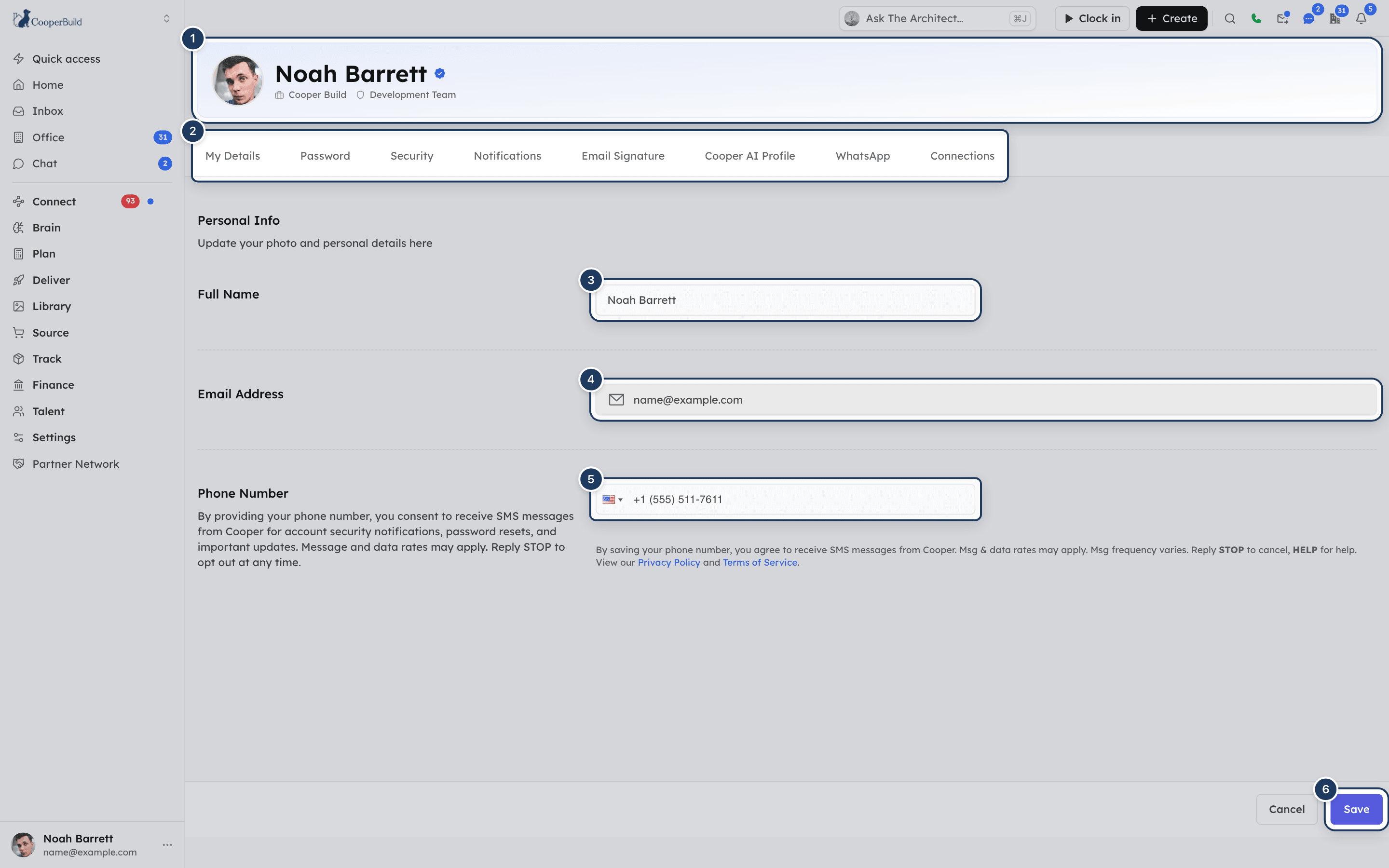
Open your Cooper account settings and update your own profile picture, full name and phone number on the My Details tab. Your email address is shown but can't be changed here.
My Details is the first tab of your account settings. It holds your own personal information: your profile picture, your full name, your phone number, and the email address you sign in with. Everyone in Cooper has their own account settings, separate from the settings of the workspace.
Every account settings tab has the same profile header at the top, so this page also covers that header and how to change your picture from it.
Key concepts
| Term | Meaning |
|---|---|
| Account settings | Your personal settings, split into tabs: My Details, Password, Security, Notifications, Email Signature, Cooper AI Profile, WhatsApp and Connections. They belong to you, not to your workspace. |
| Profile header | The banner at the top of every account settings tab. It shows your picture (or initials), your name, your organization and your role. |
| Full name | The name on your Cooper account. It appears in the account menu and on your contact record. |
| Username | A sign-in name Cooper creates from your full name. It changes when you change your full name. |
| Phone number | One phone number for your account. Cooper copies it to your contact record in every workspace you belong to. |
| Contact record | You also appear in Humans, like any other person. Changes on My Details are copied to that record. |
Open your account settings
Open the account menu
At the bottom of the sidebar, click your name. If the sidebar is collapsed, click your picture instead.
Click Account settings
In the menu, click Account settings. The My Details tab opens at /auth/profile-settings.
Every signed-in user can open account settings. You don't need any role permission. The tabs across the top take you to the other parts of your account:
| Tab | What it's for |
|---|---|
| My Details | Your picture, name and phone number (this page). |
| Password | Change your password. See Password. |
| Security | Your signed-in devices, sign-in activity and two-step verification. See Security. |
| Notifications | Sounds and notification settings. See Notifications. |
| Email Signature | The signature on email you send from Cooper. See Email signature. |
| Cooper AI Profile | How Cooper's agents write, call and answer for you. See Cooper AI profile. |
| Link your WhatsApp to Cooper. See WhatsApp. | |
| Connections | Connect your own accounts in outside systems. See Connections. |
On a narrow screen, not all tabs fit. Use the arrows at the left and right ends of the tab row to scroll.
What the profile header shows
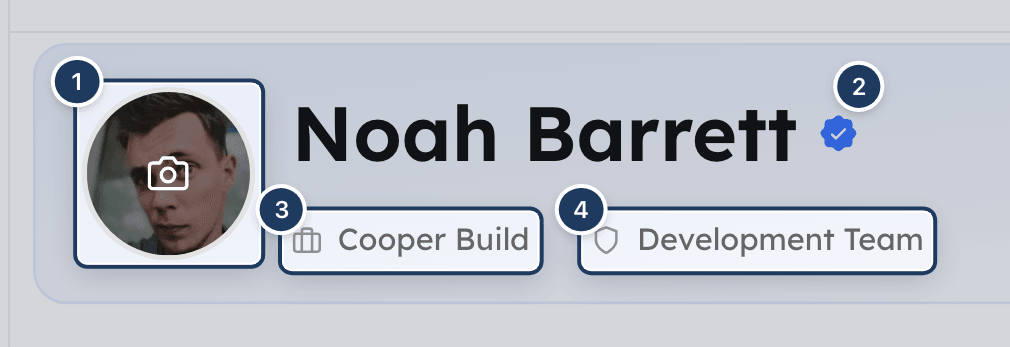
The profile header sits at the top of every account settings tab. It shows:
- Your picture. If you haven't added one, you see your initials instead.
- Your name with a check-mark badge. Cooper shows the name on your contact record in this workspace, or your account's full name if there isn't one.
- Your organization: the workspace you're signed in to right now.
- Your role in that workspace.
The organization and role change when you switch workspaces. You can't change your role yourself. An admin assigns roles in Settings → Users.
Change your profile picture
Point at your picture
In the profile header, move your mouse over your picture or initials. A camera icon appears.
Click and choose an image
Click the picture. Your computer's file picker opens and shows image files. Choose the photo you want.
Wait for the upload
A spinner shows on the picture while it uploads. When it finishes, you see Profile picture updated successfully and the new picture appears straight away.
What to know about profile pictures:
- The picture saves as soon as the upload finishes. You don't need to click Save.
- Only image files can be chosen. Photos in the iPhone HEIC format are converted to JPEG for you.
- The picture is shown in a circle and cropped to fill it. A square photo with your face in the middle looks best.
- Your new picture shows in the profile header, in the account menu at the bottom of the sidebar, and on your contact record in the workspace you're signed in to.
- There is no button to remove a profile picture. To change it, upload a different one.
Change your name
Edit Full Name
On the My Details tab, type your name in Full Name. Use your first name, then your last name.
Save
Click Save at the bottom of the page. You see Profile updated successfully!
When you change your full name, Cooper also:
- Updates your contact record in the workspace you're signed in to. The first word of the name becomes the first name and the rest becomes the last name.
- Gives you a new username based on the new name. If you sign in with your username rather than your email address, use the new username or your email address from now on.
Full Name can't be empty. If you clear it, the field shows Full name is required and Save doesn't go through.
Add or change your phone number
Choose the country
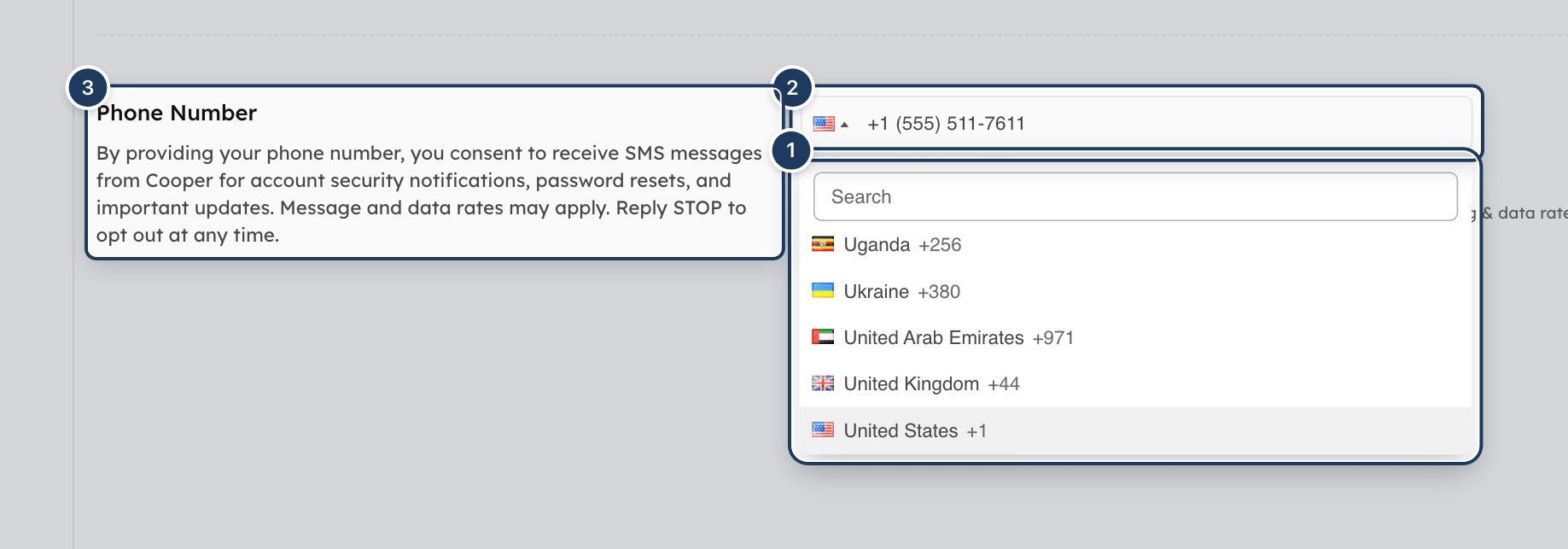
Phone Number starts with the United States selected. To use another country, click the flag and pick the country. You can type in the list to search.
Type the number
Type the phone number. The country code is added for you.
Save
Click Save. You see Profile updated successfully!
What happens to your phone number:
- It is copied to every workspace. Cooper copies the number to your contact record in every workspace you belong to, so it's the same everywhere.
- It works the other way too. If someone edits the phone number on your contact record in Humans, your account's phone number changes to match.
- It can be used to reset your password. If one of your workspaces uses Cooper Phone, you can get a password reset code by text message. See Reset a forgotten password.
By saving a phone number, you agree to receive SMS messages from Cooper, such as account security notifications, password resets and important updates. Message and data rates may apply. Reply STOP to opt out or HELP for help. The text under the field links to Cooper's Privacy Policy and Terms of Service.
A phone number must have between 7 and 16 digits, including the country code. If it doesn't, the field shows Please enter a valid phone number.
Remove your phone number
Delete the whole number in Phone Number, including the country code, and click Save. Cooper removes the number from your account and from your contact record in every workspace.
Why can't I change my email address?
Email Address is greyed out on the My Details tab. It shows the email address you sign in with, and you can't edit it here.
Save or discard your changes
Changes to Full Name and Phone Number are saved only when you click Save at the bottom of the page. The button shows a spinner while it saves.
- If the save works, you see Profile updated successfully!
- If it fails, you see the reason, or Failed to update profile.
Cancel doesn't undo your edits. To throw away changes you haven't saved, refresh the page.
Your profile picture works differently: it saves as soon as you upload it.
Fields reference
| Field | Required | Can you edit it? | What it means |
|---|---|---|---|
| Profile picture | No | Yes, from the profile header | Your photo. Image files only. Saves as soon as it uploads. |
| Full Name | Yes | Yes | Your name. Also sets your username and your contact record's first, last and display name in this workspace. |
| Email Address | — | No | The email address you sign in with. Shown for reference. |
| Phone Number | No | Yes | Your phone number with country code, 7 to 16 digits. Copied to your contact record in every workspace. |
Permissions
- Every signed-in user can open account settings and edit their own My Details. No role permission is needed.
- My Details always shows the details of the account that's signed in. You can't open another person's My Details from here.
- Your role and organization in the profile header are set by your workspace. An admin changes roles in Settings → Users.
Tips and best practices
- Use your real full name. Teammates, clients and vendors see it on messages, tasks and documents.
- Add a clear photo of your face. It helps people recognize you in chat, meetings and assignments.
- Add a mobile number you can receive texts on. It gives you a second way to reset your password.
- Sign in with your email address. It doesn't change when you change your name, but your username does.
Troubleshooting
Click your name at the bottom of the sidebar, then click Account settings. If the sidebar is collapsed, click your picture.
Full Name is empty. Type your name and click Save again.
The number is too short or too long. It must have 7 to 16 digits, including the country code. Check that you picked the right country and typed the whole number.
The picture uploaded but Cooper couldn't save it to your account. Choose the picture again. If you see Upload failed. Please try again., the file didn't upload. Check your connection and try again.
No. There is no remove option. You can replace the picture by uploading a different one.
Email Address is read-only on the My Details tab. It's the email address you sign in with.
Changing your full name gives you a new username. Sign in with your email address instead.
Cancel doesn't reset the form. Refresh the page to throw away unsaved changes.
The header shows the workspace you're signed in to and your role there. Switch workspace if you meant to be in a different one. If the role is wrong, ask an admin to change it in Settings → Users.
For AI agents
No MCP tool can change a person's name, phone number, profile picture or email address. The account record is blocked for the generic record tools (db_find, db_update and the rest), for every user including super admins. A call on the User model returns: Access to the "User" model is restricted for security. Use dedicated auth endpoints instead. When a user asks you to change their own details, tell them to open the account menu at the bottom of the sidebar, click Account settings, edit My Details and click Save. For a new picture, they hover over their picture in the profile header and click it.
Tools that can read the person's details:
| Tool | What it returns | Notes |
|---|---|---|
get_tenant_info | The signed-in user's fullName, email, username and isSuperAdmin, plus the current workspace (name, accountType, role) and every other workspace they belong to. | No parameters. Read-only. The role here matches the role in the profile header. |
search_humans | The person's contact record, including phone and profile image. | Use type: "member" with their name or email. The contact record mirrors My Details, but it is not the account itself. |
Rules and common errors:
- Editing the person's
Humanrecord withdb_updatechanges only that contact record. It does not change their account name or phone number. Send them to My Details instead. - The person's username changes when they change their full name. Don't store a username as a stable identifier. Use the email address or user
_id. profile_getandprofile_updateare not about My Details. They read and change the person's Cooper AI Profile (how agents write and talk for them). See Cooper AI profile.
Related
- Password: change your password or reset a forgotten one.
- Security: see where you're signed in and turn on two-step verification.
- Cooper AI profile: tell Cooper's agents how to work for you.
- Humans: your contact record lives here, alongside everyone else's.
Last updated on
Account settings
Your account settings are the personal side of Cooper. Every user has them, and nobody else can change them. They hold your name and photo, password and two-step verification, sounds, email signature, Cooper AI Profile, WhatsApp link and your own connections to outside systems.
Password
Change your Cooper password on the Password tab of your account settings, set a new one when Cooper asks you to, and reset a forgotten password by email link or text message code from the sign-in screen.