

Password
Change your Cooper password on the Password tab of your account settings, set a new one when Cooper asks you to, and reset a forgotten password by email link or text message code from the sign-in screen.
The Password tab of your account settings is where you change the password you use to sign in to Cooper. If you've forgotten your password, you reset it from the sign-in screen instead, with a link sent to your email or a code sent to your phone.
Every signed-in user can change their own password. Admins can also set a temporary password for you or send you a reset link.
Key concepts
| Term | Meaning |
|---|---|
| Current password | The password you sign in with today. Cooper asks for it before it lets you set a new one. |
| New password | The password you want to use from now on. It must follow the password rules. |
| Temporary password | A one-off password someone else set for you, for example an admin. Cooper makes you replace it the first time you sign in. |
| Reset link | A link Cooper emails you so you can set a new password without knowing the old one. |
| Verification code | A 6-digit code Cooper texts you as another way to reset your password. |
Open the Password tab
- At the bottom of the sidebar, click your name (or your picture if the sidebar is collapsed).
- Click Account settings.
- Click the Password tab. It opens at
/auth/profile-settings/password.
Every signed-in user can open the Password tab. No role permission is needed.
Change your password
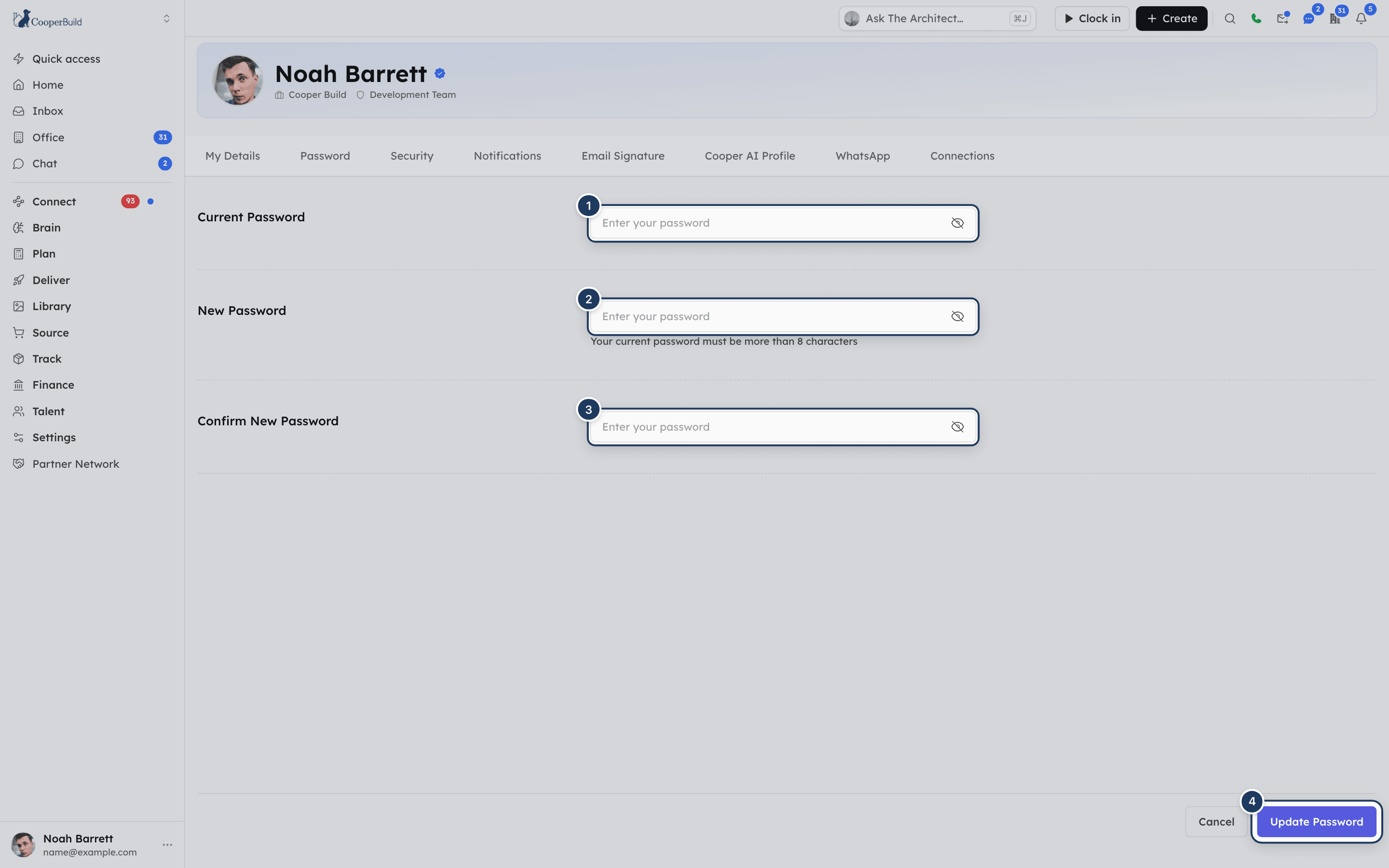
Enter your current password
Type the password you sign in with today in Current Password.
Enter a new password
Type the new password in New Password. It must follow the password rules. While it's shorter than 8 characters, a hint shows under the field.
Type it again
Type the same new password in Confirm New Password. If the two don't match, you see Passwords don't match.
Save
Click Update Password. When it works, you see Your password has been reset successfully! Please log in with your new password.
Click the eye icon in a password field to show or hide what you typed.
Cancel doesn't clear the fields. To start over, refresh the page.
Password rules
Your new password must:
| Rule | Message if it doesn't |
|---|---|
| Be 8 to 30 characters long | Password must be at least 8 characters |
| Contain at least one uppercase letter | The Password must contain at least one uppercase character |
| Contain at least one lowercase letter | The Password must contain at least one lowercase character |
| Contain at least one number | The password must contain at least one numerical character. |
| Be different from your current password | New password cannot be the same as the old password. |
| Not be Cooper's old shared default password | You cannot reuse the default password. Please choose a different password. |
Symbols are allowed but not required. The same length and character rules apply when you reset a forgotten password.
What happens after you change your password
- You stay signed in on this device. You don't need to sign in again, even though the message mentions logging in.
- Your other devices also stay signed in. Changing your password does not sign them out. To sign out a device, use the Security tab.
- Next time you sign in anywhere, use the new password.
Set a new password when Cooper asks you to
Sometimes Cooper makes you choose a new password before you can do anything else. This happens when:
- an admin set a temporary password for you, or
- your account was created with a one-off password that someone else gave you.
Sign in
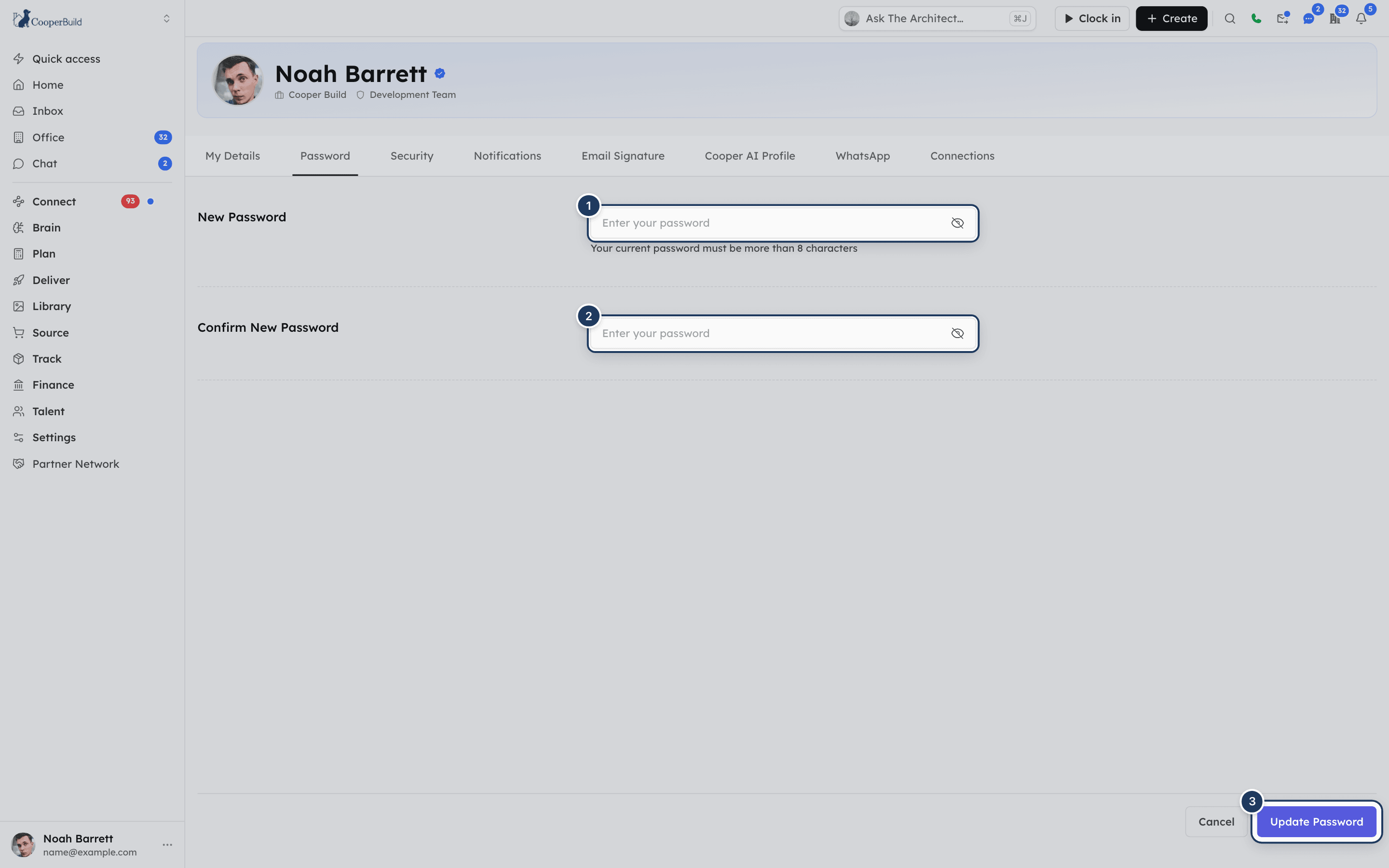
Sign in as usual. Cooper takes you straight to the Password tab. Any other page you try to open brings you back here until you've chosen a new password.
Choose your new password
There is no Current Password field this time. Enter your new password in New Password and again in Confirm New Password. It can't be the same as the temporary password.
Save
Click Update Password. Cooper takes you to the dashboard. If you own the workspace and haven't finished setting it up, you go to onboarding instead.
Reset a forgotten password
If you can't remember your password, reset it from the sign-in screen. You don't need to be signed in.
Open Forgot password
On the sign-in screen, click Forgot password? next to the Password label. The Reset your password page opens at /auth/forgot-password.
Enter your email
Type the email address on your account in Email and click Send reset link. Your username also works.
Choose how to get the reset
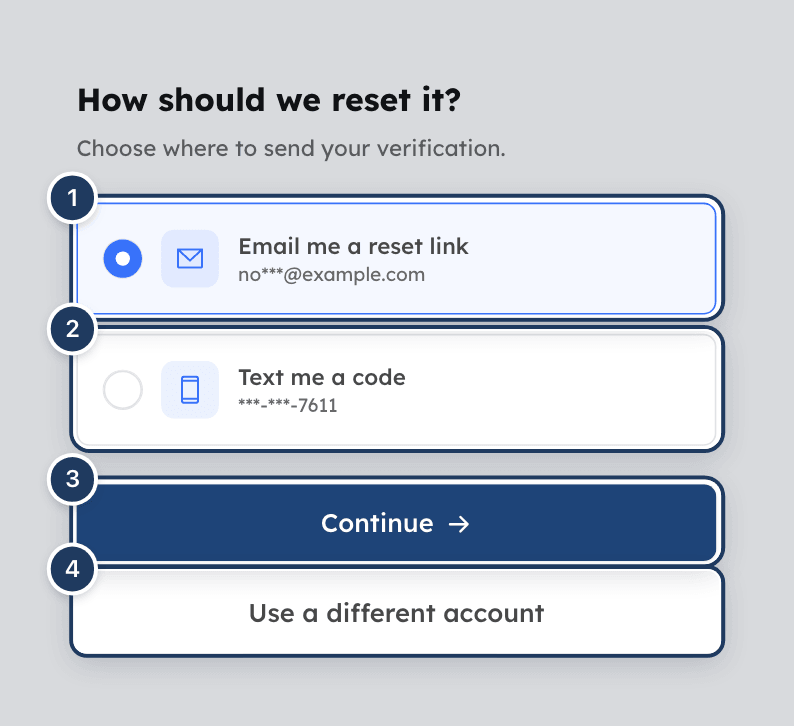
If your account has more than one way to reset, Cooper asks How should we reset it? Pick Email me a reset link or Text me a code and click Continue. Each option shows a masked hint, such as the first letters of your email address or the last 4 digits of your phone. If only email is available, Cooper skips this step and sends the email.
Follow the email or the text
See the tabs below.
- Cooper shows Check your email. Open the email titled "…Reset Your Cooper Account Password".
- Click Reset your password in the email. The Set a new password page opens.
- Enter the new password in Password and again in Confirm Password. It must follow the password rules.
- Click Reset password. Cooper takes you to the sign-in screen. Sign in with the new password.
The reset link works for 5 minutes. If it has expired, start again from Forgot password?. A reset link an admin sends you works for 30 minutes.
When is Text me a code available?
Text me a code appears only when both are true:
- your account has a phone number (add one on the My Details tab), and
- at least one of the workspaces you belong to uses Cooper Phone.
The text comes from that workspace's Cooper Phone. Otherwise, you can reset by email only.
Set a password if you signed up with Google
If you created your account with Google, you never chose a Cooper password, so you can't fill in Current Password. Use Forgot password? on the sign-in screen to set one. After that, you can sign in with either Google or your email and password.
Ask an admin to reset your password
An admin who can invite users can help if you're locked out. In Settings → Users, the menu on your row has two options:
- Change Password sets a temporary password for you. The next time you sign in with it, Cooper asks you to choose your own. See Set a new password when Cooper asks you to.
- Send Reset Link sends you a reset link by email, or a code by text message. A link from an admin works for 30 minutes. A code works for 10 minutes.
Fields reference
Password tab
| Field | Required | What it means |
|---|---|---|
| Current Password | Yes | The password you sign in with today. Hidden during a required password change. |
| New Password | Yes | Your new password. 8 to 30 characters with an uppercase letter, a lowercase letter and a number. |
| Confirm New Password | Yes | The new password again. Must match New Password. |
Forgot password and Set a new password pages
| Field | Required | What it means |
|---|---|---|
| Yes | The email address or username of your account. | |
| Verification code | Yes, for a text reset | The 6-digit code from the text message. Numbers only. |
| Password | Yes | Your new password. Same rules as on the Password tab. |
| Confirm Password | Yes | The new password again. Must match Password. |
Permissions
- Every signed-in user can change their own password on the Password tab.
- Anyone can use Forgot password? on the sign-in screen. No sign-in is needed.
- Only admins with permission to invite users can see Change Password and Send Reset Link in Settings → Users. They can only reset passwords for people in their own workspace.
- Nobody, including admins and Cooper's AI agents, can see your password.
Tips and best practices
- Use a password you don't use anywhere else.
- Add a phone number on My Details so you have a second way to reset your password.
- After you change your password because you think someone else knows it, open the Security tab and sign out any device you don't recognize. Changing the password alone doesn't sign anyone out.
- Open reset emails straight away. The link only works for 5 minutes.
- Never share your password in chat, email or with an AI agent. Admins can reset it without knowing it.
Troubleshooting
The Current Password is wrong. Type it again, checking Caps Lock. If you can't remember it, sign out and use Forgot password? on the sign-in screen.
The Current Password field checks your current password against the same rules as a new one. If your current password doesn't meet them, you can't change it from this tab. Sign out and use Forgot password? on the sign-in screen to set a new password.
Your new password is the same as your current or temporary password. Choose a different one.
That password is Cooper's old shared default password, which is no longer allowed. Choose a different one.
The new password is longer than 30 characters. Shorten it to 30 characters or fewer.
The new password is shorter than 8 characters. Make it at least 8.
The hint is about the new password you're typing. It disappears once the new password has 8 characters.
Cooper needs you to replace a temporary password before you can continue. Enter a new password in New Password and Confirm New Password, then click Update Password.
On the Reset your password page, Cooper couldn't find an account with that email address or username. Check the spelling. On the Set a new password page, the reset link has expired or was already used. Start again from Forgot password?.
Your account has no phone number, or none of your workspaces uses Cooper Phone. Reset by email, then add a phone number on My Details.
Cooper Phone can't send texts for your workspaces right now. Use Use a different method and reset by email.
The code is more than 10 minutes old. Click Resend code and use the new code.
The code doesn't match the latest text. Check you're using the newest code. After 5 wrong tries you need a new code.
Too many reset attempts came from your network in a short time. Wait a minute and try again.
Changing your password doesn't sign out other devices. Open the Security tab to sign them out.
For AI agents
No MCP tool can change, reset or read a password. The account record is blocked for the generic record tools (db_find, db_update and the rest), for every user including super admins. A call on the User model returns: Access to the "User" model is restricted for security. Use dedicated auth endpoints instead.
When a user asks for help with their password:
- They know their password and want a new one: tell them to open the account menu at the bottom of the sidebar, click Account settings, open the Password tab, fill in Current Password, New Password and Confirm New Password, and click Update Password.
- They forgot their password: tell them to click Forgot password? on the sign-in screen and follow the email link (valid 5 minutes) or text code (valid 10 minutes).
- They're locked out and an admin is available: an admin can use Change Password or Send Reset Link on the person's row in Settings → Users.
- Quote the password rules if they ask what's allowed: 8 to 30 characters, at least one uppercase letter, one lowercase letter and one number.
Never ask a user to type their password into chat, and never suggest that an agent can set one. Changing a password does not sign out other devices. If the user is worried about someone else using their account, point them to the Security tab.
Related
- My details: add the phone number that lets you reset your password by text.
- Security: sign out other devices and turn on two-step verification.
- Phone: Cooper Phone, which sends password reset texts.
Last updated on
My details
Open your Cooper account settings and update your own profile picture, full name and phone number on the My Details tab. Your email address is shown but can't be changed here.
Security
See every device signed in to your Cooper account, sign out the ones you don't recognize, read your sign-in activity for the last 90 days, and turn your own two-step verification (an email code at every sign-in) on or off.