

Link your personal WhatsApp number to your Cooper account so you can message the Cooper assistant on your workspace's WhatsApp number and have it answer and act with your own permissions.
The WhatsApp tab links your own WhatsApp number to your Cooper account. Your workspace has one WhatsApp number that runs the Cooper assistant. Once your number is linked, you can message that number from WhatsApp on your phone and ask about your projects, tasks, budgets and files, or ask it to do things, such as creating a task. The assistant knows it's you and acts with your Cooper permissions: it can see and do only what you can see and do in Cooper.
Linking is personal. Every user can link their own number, and no admin permission is needed. Your workspace admin must connect the workspace's WhatsApp number first.
Key concepts
| Term | What it means |
|---|---|
| Workspace WhatsApp number | The one WhatsApp number your workspace admin connected to Cooper. The Cooper assistant sends and receives messages on it. The tab calls it "the bot". |
| Your linked number | Your own WhatsApp number, linked to your Cooper account. The assistant uses it to recognize you. |
| Link code | A 6-digit code you generate on this tab and send from your WhatsApp to the workspace number. It works once and expires after 10 minutes. |
| /link | A message you send to the workspace number. The assistant replies with a one-time link that connects your number when you open it while signed in to Cooper. The link expires after 30 minutes. |
| Assistant | Cooper's AI, answering on WhatsApp. It uses the same tools as Cooper's other AI surfaces, limited to what your role allows. |
Open the WhatsApp tab
- At the bottom of the sidebar, click your name (or your picture if the sidebar is collapsed).
- Click Account settings.
- Click the WhatsApp tab.
The page address is /auth/profile-settings/whatsapp.
Every signed-in user can open this tab and link their own number.
What the WhatsApp tab shows
The tab shows one of three states.
| What you see | What it means |
|---|---|
| Your workspace hasn't connected a WhatsApp number yet. Ask an administrator to set it up under Settings → Integrations → WhatsApp. | There's no live workspace WhatsApp number. You can't link until an admin connects one, or reconnects it if it was disconnected. |
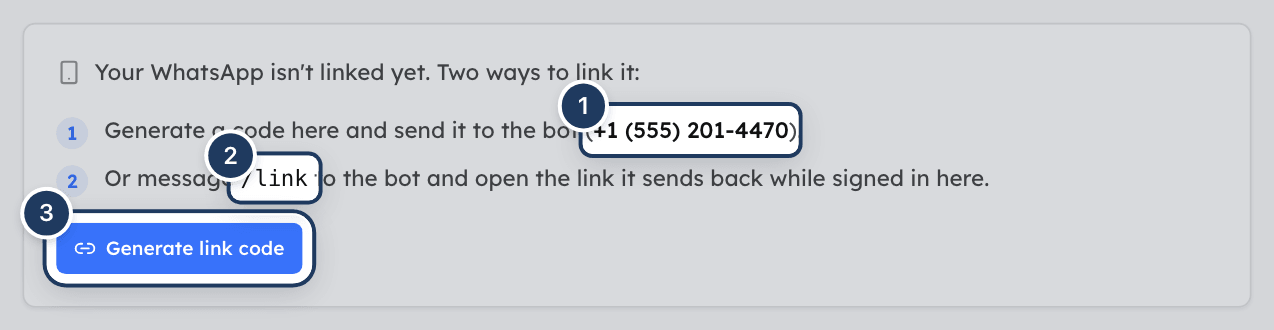
| Your WhatsApp isn't linked yet. Two ways to link it: | The workspace number is live and your number isn't linked. The workspace number is shown in brackets. |
| Linked: followed by your number, and since a date | Your number is linked. The line below shows the number to chat with: Chat with the assistant on … — ask about your projects, tasks, budgets, or files. |
Link your WhatsApp with a code
Use this when you're at your computer with your phone nearby.
Generate a code
On the WhatsApp tab, click Generate link code. A 6-digit code appears with the message Send this code from your WhatsApp to the workspace number within 10 minutes:.
Send the code from your phone
Do one of the following:
- Click Open WhatsApp. WhatsApp opens a chat with the workspace number with the code already typed. Press send.
- Or click Copy, open WhatsApp on your phone, start a chat with the workspace number, paste the code and send it.
Send the code on its own, as the only text in the message.
Wait for the reply
The assistant replies ✅ Linked! You're connected as your name . Ask me anything about your projects, tasks, or budgets.
Check the tab
Back in Cooper, click I sent it — refresh. The tab now shows Linked: and your number.
The code works once. If it expires or you lose it, click Generate link code again for a new one.
Keep the code to yourself
Whoever sends your code from their WhatsApp gets linked to your Cooper account, and the assistant then acts with your permissions for them. Don't share the code. Send it only from your own phone.
Link your WhatsApp with /link
Use this when you're on your phone, or when your number is already linked to another Cooper account.
Send /link
In WhatsApp, send /link to the workspace number.
Open the link
The assistant replies with a link and It expires in 30 minutes. Open the link in a browser where you're signed in to Cooper, in the workspace you want to link to.
Confirm
Cooper shows Linking WhatsApp… and then WhatsApp linked! with your number and Head back to WhatsApp and ask the assistant anything — it acts with your Cooper permissions. The assistant also sends ✅ Linked! in WhatsApp.
From the confirmation page, click My WhatsApp settings to open the WhatsApp tab, or Go to dashboard.
Each link works once. If it has expired or was already used, send /link again.
Move your number from another Cooper account
A WhatsApp number can be linked to only one Cooper account in a workspace. If your number is already linked to someone else's account (for example a shared phone, or an old account), sending a 6-digit code doesn't move it. The assistant treats the code as an ordinary message from the person it's already linked to.
To move the number:
- Send
/linkto the workspace number from that phone. The reply says who the number is linked to now: completing this link will move the number to the signed-in account. - Open the link while signed in to your Cooper account.
Cooper removes the number from the other account and links it to yours.
Chat with the assistant
Once your number is linked, message the workspace number like any WhatsApp contact. For example:
- "What tasks are due on the Oak Street project this week?"
- "How much of the budget is left on Riverside?"
- "Send me the latest site plan."
- "Create a task on Oak Street to order the rebar."
How the assistant works on WhatsApp:
- It acts as you. It uses your Cooper permissions. If you can't see a project in Cooper, the assistant can't see it either.
- It reads text. For a photo, video or document, it reads only the caption or the file name. It doesn't listen to voice notes or look at images.
- It replies in plain text, kept short for a phone.
- It can send files. When you ask for a document or image, it attaches up to 3 files to a reply.
- It remembers the conversation. The assistant keeps the context of your chat so you can ask follow-up questions. When a chat gets long, it tells you This chat has a lot of history — send /new anytime to start fresh.
- It may take a moment. You may see the typing indicator while it works. If a request takes too long, it replies Sorry — that took too long to process. Please try again, or break the request into smaller steps.
The assistant answers only when your workspace admin has Assistant enabled turned on for the WhatsApp number. Linking works either way.
Your WhatsApp conversations stay in WhatsApp. They don't appear in your Cooper Inbox or Chat.
Use WhatsApp commands
Send these to the workspace number as the whole message.
| Command | What it does |
|---|---|
/help (or /start) | Lists the commands. |
/link | Sends you a one-time link to connect this number to the Cooper account you're signed in to. |
/unlink | Disconnects this number from your Cooper account. |
/new (or /reset, /clear) | Clears the assistant's memory of this chat and starts a fresh conversation. Available when your workspace uses WhatsApp (any number). |
Any other message that starts with / gets Unknown command and the list of commands.
Use the assistant in WhatsApp groups
If the workspace number is a member of a WhatsApp group, linked users can ask the assistant questions in the group. Whether the assistant replies depends on the group's setting, which your admin chooses:
| Admin setting | When the assistant replies |
|---|---|
| On @mention or reply | When you @mention the workspace number, start a message with @cooper, or reply to one of its messages. |
| Every message | To every message from a linked user. |
| Never (listen only) | Never. |
The assistant acts with the permissions of the person who asked, and everyone in the group sees its reply. If someone who hasn't linked their number mentions it, the assistant replies at most once an hour: I can only act for linked Cooper users. Link your WhatsApp in Cooper → Settings → Integrations → WhatsApp, then mention me again. To link, use this WhatsApp tab.
/new and /help work in groups. /link and /unlink work only in a private chat with the workspace number.
Unlink your WhatsApp
You can unlink from Cooper or from WhatsApp.

From Cooper:
- Open the WhatsApp tab.
- Click Unlink.
- In Unlink your WhatsApp number?, read The Cooper assistant will stop recognizing messages from this number. You can relink anytime with a new code or the /link command.
- Click Unlink number.
Cooper confirms with WhatsApp number unlinked.
From WhatsApp: send /unlink to the workspace number. The assistant replies ✅ Unlinked. This number is no longer connected to your name.
After you unlink, the assistant no longer acts for you. If you message it, it replies (at most once an hour) that your number isn't linked.
Change your linked number
Your Cooper account has one linked WhatsApp number. To use a new phone number, link the new number with a code or /link. It replaces the old one. You don't need to unlink first.
Privacy and what Cooper stores
- Your number. Cooper stores your WhatsApp number and the date you linked it on your Cooper account in this workspace.
- Messages. Cooper keeps a log of the messages you exchange with the assistant (text up to about 4,000 characters, and the type of any attachment, not the file). By default the log is kept for 90 days.
- Who can see them. Workspace admins who manage the WhatsApp integration can read recent conversations with the assistant in Settings → Integrations, and can clear a chat's memory.
- Group chats. If an admin links a WhatsApp group to a project and turns on Group → project memory, Cooper turns the group's conversation into project memory. This applies to everyone's messages in that group, linked or not.
- AI usage. The assistant's work on your messages counts as your AI usage in Cooper.
- Only the workspace number. Linking doesn't give Cooper access to your other WhatsApp chats. Cooper only sees messages sent to the workspace number, and messages in groups the workspace number belongs to.
Fields reference
| Item | What it is |
|---|---|
| Generate link code | Creates a new 6-digit link code. |
| Link code | 6 digits. Works once. Expires after 10 minutes. |
| Copy | Copies the code. Cooper confirms with Code copied. |
| Open WhatsApp | Opens a WhatsApp chat with the workspace number, with the code typed in. Shown when the workspace number is known. |
| I sent it — refresh | Reloads your link status after you've sent the code. |
| Linked: | Your linked number, with the date you linked it. |
| Unlink | Removes your linked number, after you confirm. |
Permissions
- Every signed-in user can link and unlink their own number. No admin permission is needed.
- The assistant acts with your Cooper role's permissions, in WhatsApp chats and in groups.
- Connecting the workspace WhatsApp number, turning the assistant on or off, setting group replies and linking groups to projects are admin tasks in Settings → Integrations, on the WhatsApp (any number) card. They need access to the Integrations page.
Tips and best practices
- Save the workspace number as a contact on your phone, for example "Cooper". It's easier to find than a number.
- Use /new when you change topic. A fresh chat gives faster, more focused answers.
- Name the project in your question. "Tasks due this week on Oak Street" works better than "my tasks".
- Unlink before you hand over a phone. Anyone using a linked phone can ask the assistant to act as you.
- Type your question. The assistant doesn't hear voice notes or read images.
Troubleshooting
The workspace WhatsApp number isn't live. Either it was never set up, or it was disconnected or logged out. Ask an administrator to connect it in Settings → Integrations on the WhatsApp (any number) card. Your link is kept while the workspace number is offline, but the tab can't show it until the number is live again.
The workspace WhatsApp number went offline after you opened the tab. Ask an administrator to reconnect it, then refresh the page and click Generate link code again.
Codes work once and expire after 10 minutes. Click Generate link code for a new one and send it straight away, with nothing else in the message.
Click I sent it — refresh. The tab doesn't update by itself. If it still says not linked, check that the assistant replied ✅ Linked!. If it replied as if the code were a question, your number is already linked to another Cooper account; send /link instead (see Move your number from another Cooper account).
That page is for admins. You can link from your own Account settings → WhatsApp tab instead, with Generate link code, or by sending /link.
Each /link link works once and expires after 30 minutes. Send /link again and open the new link straight away.
The link was cut off when you copied it. Send /link again and open the whole link.
You're signed in to a different Cooper workspace from the one whose WhatsApp number sent the link. Switch to the right workspace, then send /link again and open the new link.
Check the WhatsApp tab shows Linked: with your number. If it does, your admin may have turned off Assistant enabled. In a group, the group may be set to Never (listen only), or you may need to @mention the number. The assistant can't hear voice notes or see images, so type your question.
The reply The AI assistant is not fully configured for this workspace yet (missing AI provider key). means your workspace has no AI provider set up. Ask an administrator to add one.
The assistant has your Cooper permissions, no more. If you can't open the project or do the action in Cooper, the assistant can't either. Ask an administrator about your role.
The assistant hit an error on that message. Wait a moment and try again. If it keeps happening, send /new to start a fresh conversation.
Your browser didn't allow Cooper to copy the code. Select the code and copy it by hand, or click Open WhatsApp.
For AI agents
No MCP tool links, unlinks or reads a person's WhatsApp number, and there is no MCP tool to send WhatsApp messages. The user links their own number on this tab (/auth/profile-settings/whatsapp) or by sending /link to the workspace number. If a user asks you to link their WhatsApp, send them to this tab.
When a user messages the workspace WhatsApp number, Cooper runs an agent turn with the MCP tools the user's role allows, so the same permissions apply as in Cooper's other AI surfaces. Things to know if you are that agent:
- Reply in plain text. WhatsApp shows
*bold*,_italic_and simple dash lists; no Markdown headers, tables or code fences. - To send a file, put
[[FILE|<url>|<filename>]]on its own line instead of pasting the URL. At most 3 files per reply. - Only text reaches you. Media arrives as a caption, a file name, or a placeholder such as
[audio]or[image]. - In a group, everyone sees your reply. Address the speaker by name and keep it brief.
Workspace-level setup (connecting the number, the assistant switch, group reply modes, group-to-project links) is done by an admin in Settings → Integrations. No MCP tool changes it.
Related
- Chat: Cooper's own team messaging, separate from WhatsApp.
- Agents: Cooper's AI agents and how they work.
- Cooper AI Profile: how agents write and act on your behalf.
- Security: your devices and sign-in activity.
- Connections: connect your own accounts in other systems.
Last updated on
Cooper AI Profile
Your Cooper AI Profile tells Cooper's agents how to write emails, place calls and answer you, who never to contact, and when not to call or text. It also shows everything agents have learned about how you work, so you can pin it, forget it, pause it or delete it.
Connections
Connect your own account in Google Drive, Google Calendar, Notion, Slack and the other systems your workspace has set up, so Cooper's AI agents can work in them on your behalf and see only what your account can see.