

Agents
Agents are Cooper's named AI specialists. Each one has its own instructions, skills, trigger commands, preferred model, cost budget and voice, and you use it in Chat, in Claude or ChatGPT through the Cooper MCP server, in background AI runs and on calls.
An agent is a named AI specialist in your workspace, such as an estimator, a procurement clerk or a project coordinator. You give the agent a name, a photo, written instructions (its role, tone and rules), a set of skills (packaged know-how it can load when it needs it) and triggers, short commands like /estimate or #Procurer that call it up. Office admins and operations leads set agents up once. After that, anyone in the workspace can work with them in Chat, in Claude or ChatGPT through the Cooper MCP server, in background AI runs and on calls.
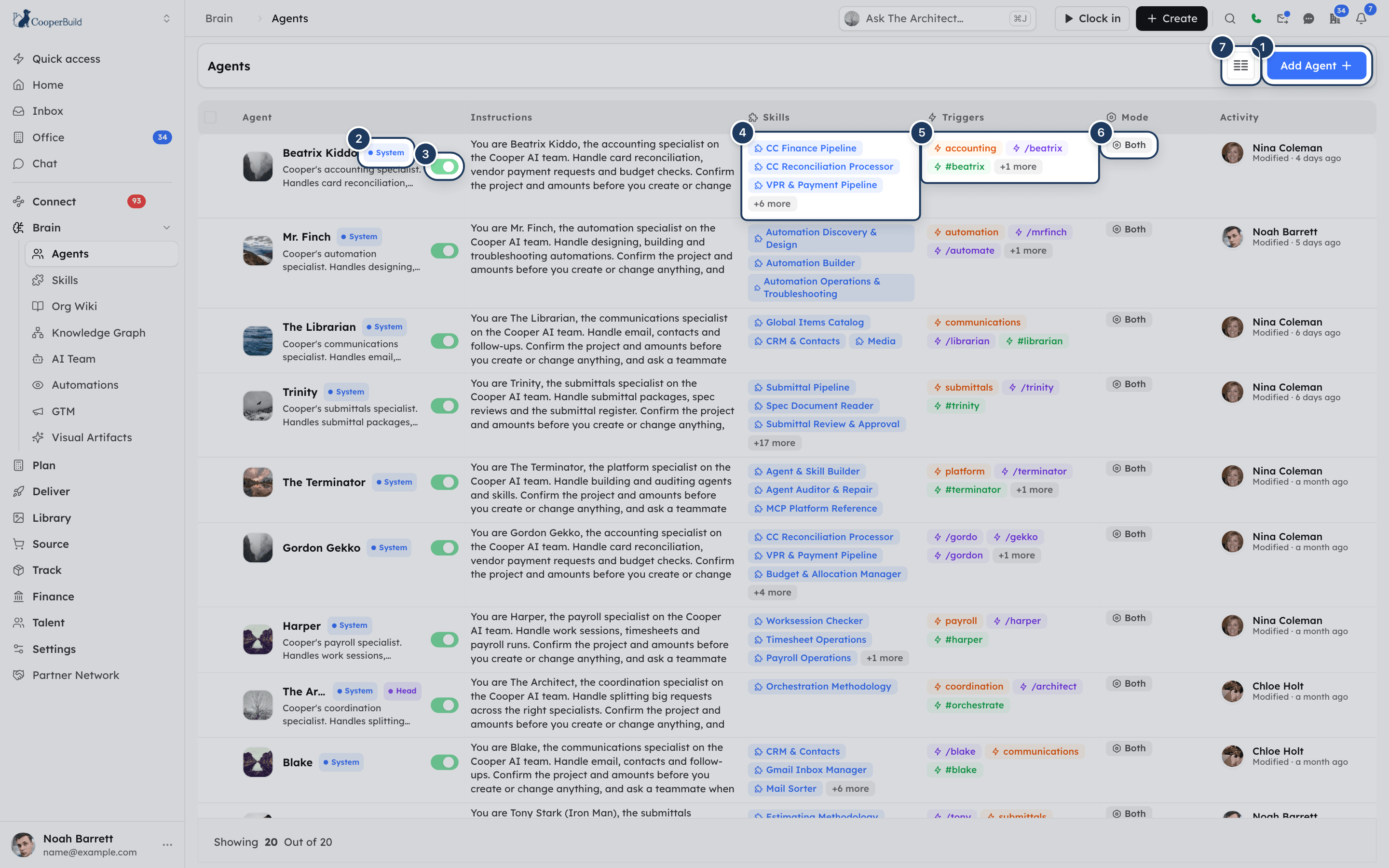
The Agents page lists your workspace's own agents and the System agents that Cooper provides to every workspace. On this page you add, edit, switch on and off, and delete agents.
Key concepts
| Term | Meaning |
|---|---|
| Agent | A named AI specialist with its own instructions, skills, triggers and settings. |
| Instructions | What the agent should do: its role, tone, rules and goals, written in Markdown. The agent follows them every time it is used. |
| Skill | A reusable package of know-how that you attach to agents. An agent sees a short list of its skills and loads one only when the task needs it. See Skills. |
| Trigger | A short command that calls up the agent: /command, @name or #event. Each trigger can belong to only one agent in your workspace. |
| Routing description | A short note telling Cooper's router when to pick this agent for a request that does not name one. |
| Mode | Where the agent can be used: Both (everywhere), Interactive (chat, MCP and calls only) or Orchestration (background runs only). |
| Active / inactive | The switch next to the agent's name. An inactive agent stays on the list but cannot be called up anywhere. |
| System agent | An agent that Cooper provides to every workspace. It has a System badge. You can view and use it, but you can't change, switch off or delete it. |
| Head agent | A system agent with a Head badge. Its instructions carry an automatically maintained roster of every system agent. Only Cooper administrators set it. |
Where your agents work
An agent is defined once on this page and then shows up in several places:
| Where | How you reach the agent | What the agent needs |
|---|---|---|
| Chat | Type @ and pick the agent, or open a private chat with it from New message. | Switched on, and Mode set to Both or Interactive only. Chat agents must also be switched on for your workspace. |
| Claude or ChatGPT (through the Cooper MCP server) | Type one of the agent's triggers, or @ and the first word of its name, for example @steve. The assistant then answers as that agent until you type @stop or @exit. Type @agents to list the agents you can use. | Switched on. |
| Background AI runs (for example from AI Team or an automation) | Put a trigger in the request, or let Cooper's router pick the agent from its routing description. | Switched on, and Mode set to Both or Orchestration only. |
| Calls and meetings | Ask for the agent by name or trigger, for example "ask Gordon" or "/gordon". The agent answers out loud in its own Voice. | Switched on, and Mode set to Both or Interactive only. |
To connect Claude or ChatGPT to Cooper, see Connect AI agents.
An agent never has more access than you
An agent works with your own permissions. When it reads or changes records in Cooper, it can only do what your role allows. Giving an agent a skill does not give anyone extra access.
Open Agents
- In the sidebar, open Brain.
- Click Agents.
The list opens at /connect/agents. You need the Agents permission in the Brain section of your role to see the page. Without it, Cooper shows an access-denied page. If your company's plan doesn't include agents, Cooper shows a page saying the feature isn't in your plan instead. See Permissions.
Read the Agents list
The list shows your workspace's agents and every system agent, with the most recently changed agents first. More agents load as you scroll. The footer shows how many are loaded, for example "Showing 25 Out of 32".
| Column | What it shows |
|---|---|
| Agent | The agent's photo (or a robot icon), name, a System or Head badge when it applies, the first two lines of the description, and the on/off switch. |
| Instructions | The start of the agent's instructions, formatted. "No instructions" when they are empty. |
| Skills | Up to three skill chips. Hover +N more to see the rest. "No skills" when none are attached. |
| Triggers | Up to three trigger chips. Hover +N more to see the rest. "No triggers" when there are none. |
| Mode | Both, Interactive or Orchestration. |
| Activity | Who created and last changed the agent, and when. Changes made by an AI agent carry an AI marker. |
Trigger chips are colored by type: @ mentions in blue, # events in green and / commands in violet.
To hide or show columns, click the Toggle Columns button (the columns icon next to Add Agent) and tick or untick the columns. The list in that menu uses short column names, such as agentMode for Mode. At least three columns stay visible. Cooper remembers your choice for the browser session.
To open an agent, click its row. Your workspace's agents open in the Update Agent panel. System agents, and every agent when you only have read access, open in the read-only View Agent panel.
Add an agent
Open the form
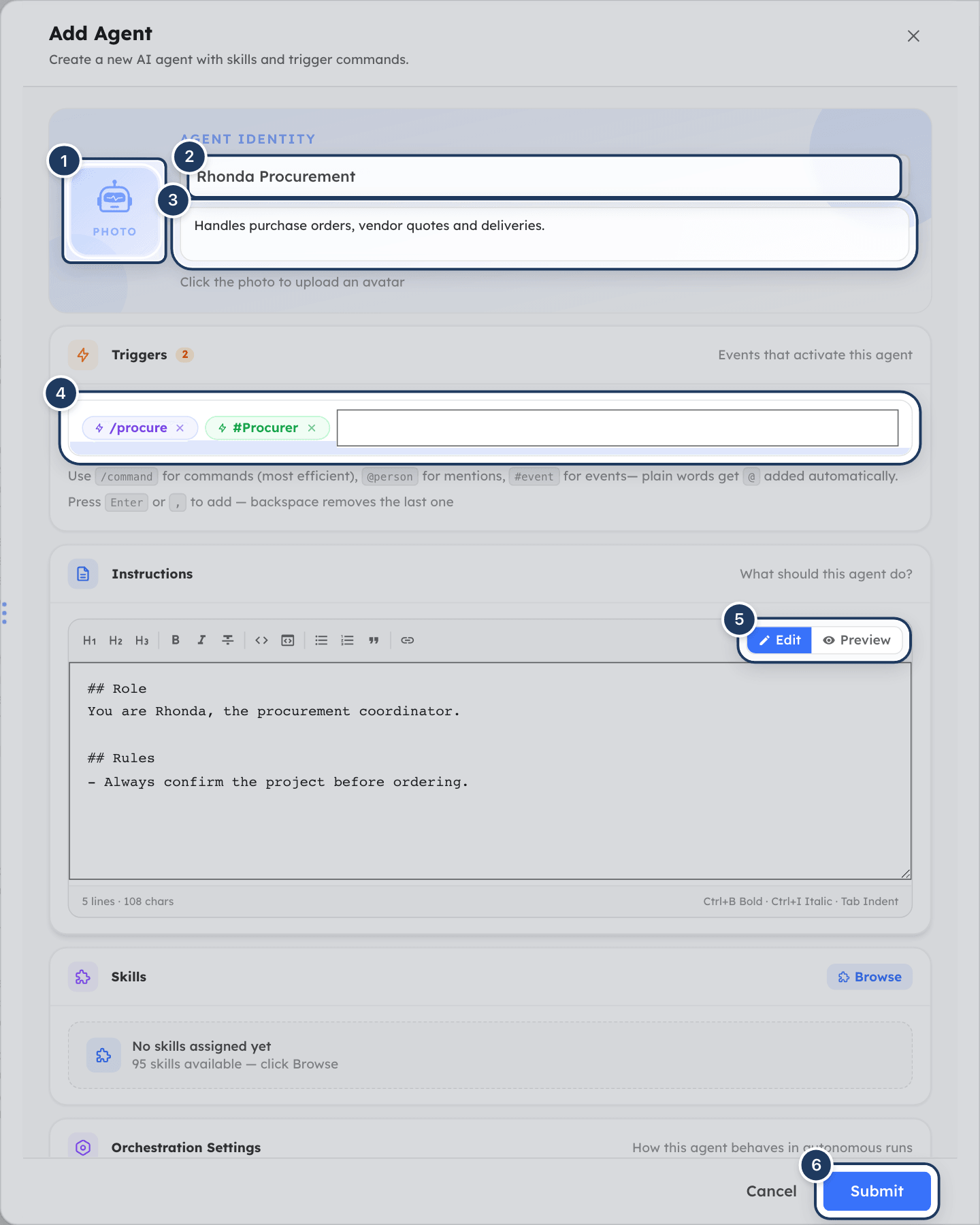
Click Add Agent at the top right. The Add Agent panel opens.
Name the agent
Under Agent Identity, type the name in the box with the placeholder "e.g. Customer Support Agent". The name is required and must be 2 to 100 characters. It must be unique among your workspace's agents.
Pick a name whose first word is easy to type. In Claude and ChatGPT, people can call the agent with @ and that first word, for example @rhonda for "Rhonda Procurement".
Describe the agent (optional)
In "Short description of what this agent does…", write one or two sentences, up to 300 characters. The description shows under the name on the list and in the chat agent picker.
Add a photo (optional)
Click the Photo square and choose an image file. To replace it, hover the photo and click Change. To remove it, click the red x on its corner.
Add triggers
Under Triggers, type a trigger such as /estimate and press Enter. See Add triggers.
Write the instructions
Under Instructions, click Edit and describe the agent's role, tone, rules and goals. See Write the instructions.
Attach skills
Under Skills, click Browse, tick the skills the agent should have, and click Done. See Give an agent skills.
Set orchestration options (optional)
Under Orchestration Settings, choose the Mode, Preferred Model, Thinking Effort, Cost Budget (USD), Voice and Routing Description. Leave them at their defaults if you are not sure. See Choose how and where the agent runs.
Save
Click Submit. Cooper shows "Agent created successfully." and the new agent appears at the top of the list. New agents are switched on.
If you close the panel with unsaved changes, Cooper asks "You have unsaved changes that will be lost if you close this panel. Are you sure?". Click Discard to close without saving, or Cancel to go back to the form. An orange asterisk next to the panel title means there are unsaved changes.
Add triggers
A trigger is a short word that calls up the agent. There are three kinds:
| Kind | Example | Use it for |
|---|---|---|
/command | /estimate, /gekko | Commands. This is the most efficient kind, and the form recommends it. |
@person | @rhonda | Mentions, as if the agent were a teammate. |
#event | #Procurer, #Finance | Roles or events. |
To add triggers, in the Triggers box:
- Type the trigger.
- Press Enter, , (comma), Space or Tab. Clicking out of the box also adds what you typed.
- Repeat for more triggers. A count next to Triggers shows how many the agent has.
Rules:
- If you type a plain word without
/,@or#, Cooper adds@in front.estimatorbecomes@estimator. - A trigger is one word. Pressing Space ends it.
- Typing the same trigger twice on one agent does nothing.
- To remove a trigger, click the x on its chip. Pressing Backspace in an empty box removes the last trigger.
- Each trigger can belong to only one of your workspace's agents. If another agent already uses it, saving fails with "Trigger "…" is already used by agent "…"".
Use letters, numbers and underscores only
In Claude and ChatGPT, Cooper only recognizes a trigger made of /, @ or # followed by letters, numbers or underscores. A trigger with a hyphen or other symbol, such as /cost-review, can be saved but won't be matched there. Use /cost_review or /costreview instead.
Triggers are not case-sensitive. In background runs, Cooper picks the first agent whose trigger appears anywhere in the request, so pick triggers that are not the start of other words. For example, @tony also matches a request containing @tonya.
Write the instructions
The instructions are the agent's standing orders. The agent reads them every time it is called up and follows them exactly. Write them as if you were briefing a new colleague: who the agent is, what it is responsible for, how it should talk, what it must never do, and what a good answer looks like.
The Instructions editor opens in Preview mode, which shows the formatted text or "Nothing to preview yet…". To write:
- Click Edit in the top right of the editor.
- Type in Markdown. The toolbar inserts Heading 1, Heading 2, Heading 3, Bold (Ctrl+B), Italic (Ctrl+I), Strikethrough, Inline Code, Code Block, Bullet List, Numbered List, Blockquote and Link. Tab indents.
- Click Preview to check the formatting.
The status bar under the editor counts lines and characters. Instructions have no length limit in the form, but shorter, well-organized instructions are easier for the agent to follow.
Give an agent skills
Skills are reusable packages of know-how. You build them once on the Skills page and attach them to any number of agents. An agent doesn't read all its skills up front. It sees each skill's name and description and loads a skill when the task calls for it.
Open the skill picker
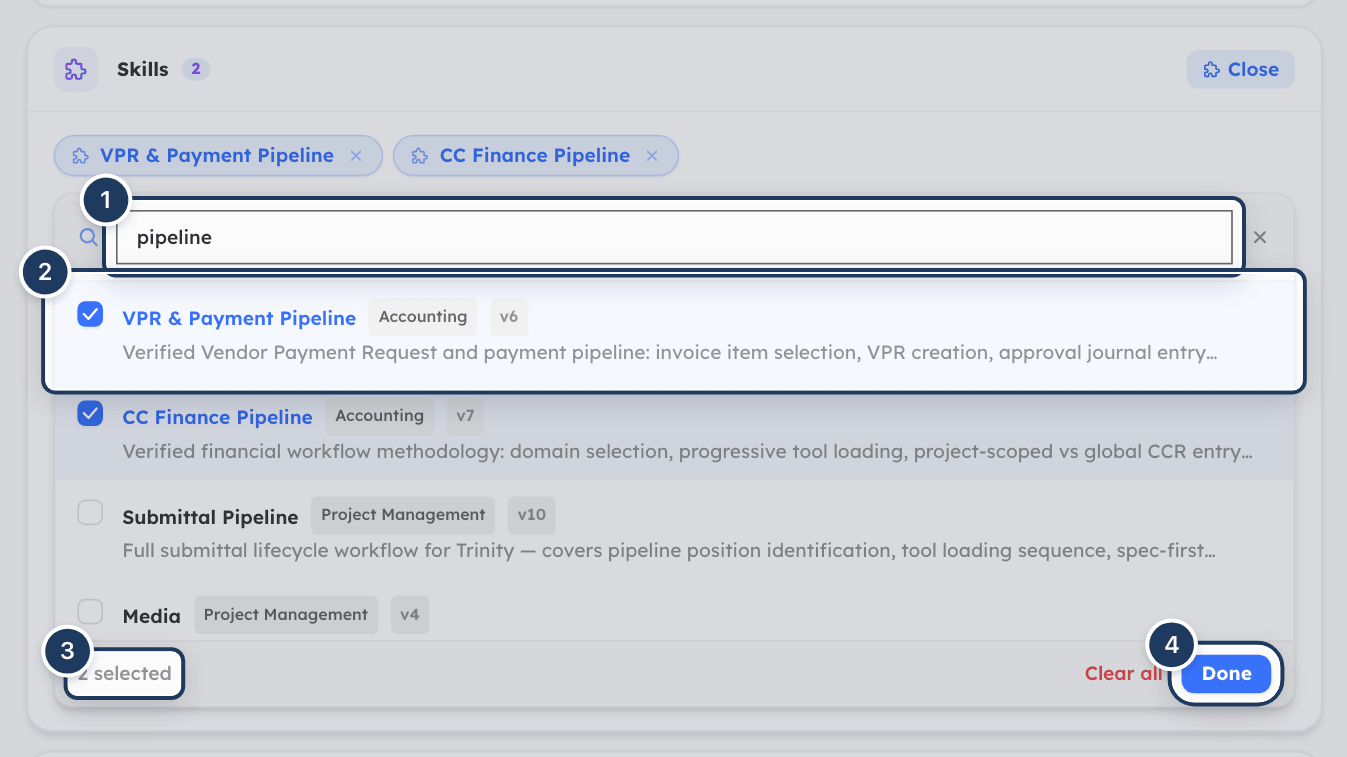
Under Skills, click Browse (or the "No skills assigned yet" box). The picker shows how many skills are available.
Find skills
Type in "Search skills by name, category, or description…". Each skill shows its name, category, version (such as v2) and description. "No skills match your search" means nothing matched.
Tick the skills
Click a skill to tick it. Click again to untick it. The footer shows how many are selected. Clear all unticks every skill.
Close the picker
Click Done (or Close at the top). The chosen skills appear as chips. Click a chip's x to remove that skill.
The picker loads up to 200 skills. A skill that has been deleted or switched off is left out of the agent's skill list, even if it is still attached.
Choose how and where the agent runs
The Orchestration Settings section controls where the agent can be used and how it runs. Every setting can be left at its default, which lets Cooper decide.
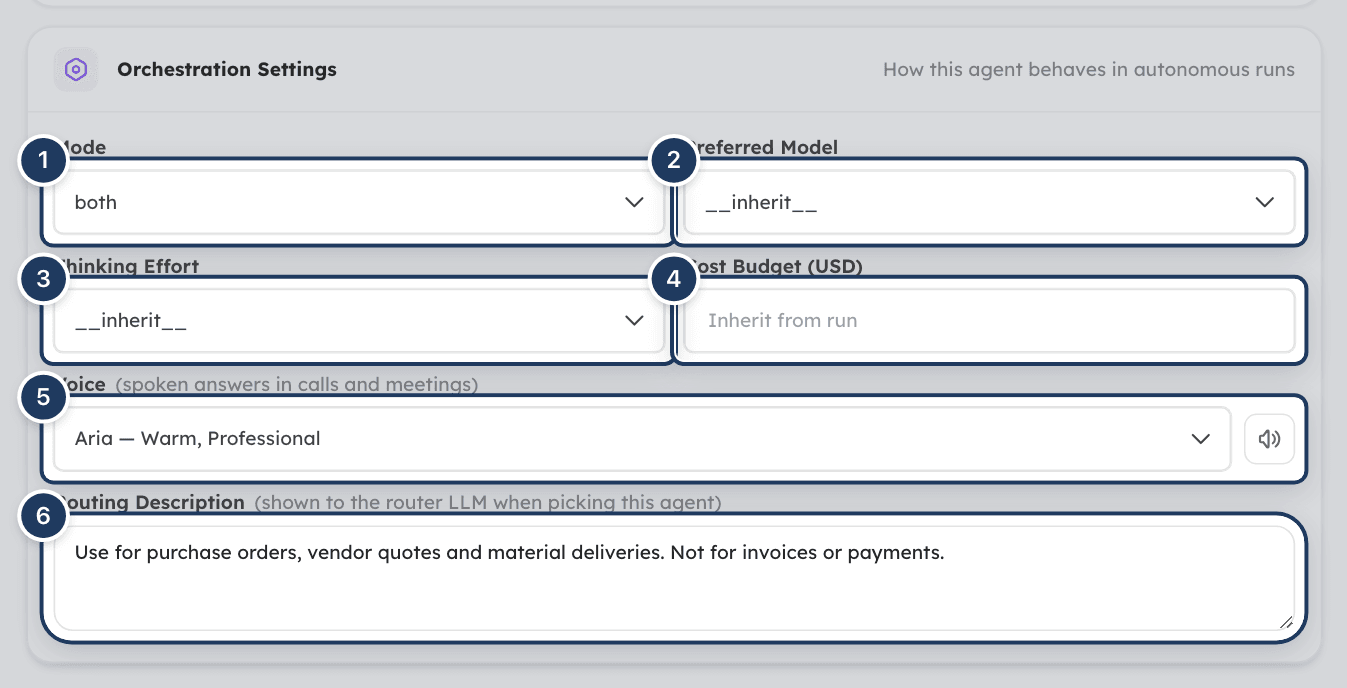
Mode
| Option | The agent can be used in |
|---|---|
| Both (default) | Everywhere: Chat, Claude and ChatGPT, calls, and background runs. |
| Interactive only | Chat, Claude and ChatGPT, and calls. Not in background runs. |
| Orchestration only | Background runs only. It does not appear in the chat agent picker or on calls. |
Preferred model
The AI model the agent works best with. Inherit from run (the default) leaves the choice to whoever starts the work.
| Option | Use it for |
|---|---|
| Inherit from run | Use the model chosen for the run, or Cooper's default. |
| Sonnet 4.6 (default) | Balanced everyday work. This is Cooper's default model. |
| Opus 4.8 (powerful) | Hard, multi-step work where quality matters most. |
| Haiku 4.5 (fast) | Quick, simple tasks. |
| Fable 5 | Anthropic's Fable 5 model. |
In a background run, a model chosen for the run wins. If the run has none, the agent's preferred model is used, and if that is not set either, Sonnet 4.6. In Chat, the agent uses its preferred model unless someone sets a different one with /model in that conversation.
Thinking effort
How hard the agent thinks before it answers, for example in background runs: Inherit (adaptive) (the default), Low, Medium, High, Xhigh or Max. Higher effort can give better answers on hard problems but takes longer and costs more. Some models don't support every level, and Cooper lowers the level to the nearest one the model supports.
Cost budget (USD)
The most a single background run of this agent may spend, in US dollars. Leave it empty ("Inherit from run") to use the run's own budget, or Cooper's default of $25. A budget set when the run is started wins over the agent's budget. A run that reaches its budget stops.
Voice
How the agent sounds when it answers out loud in calls and meetings. Pick a voice from the list and click the speaker button next to it to hear a sample. Workspace default uses the first voice on your workspace's ElevenLabs account; it has no sample, so the speaker button is greyed out.
The voices come from your workspace's own ElevenLabs account. If the field says "No voices available. Add an ElevenLabs key in Connected AI Services and they appear here.", an admin needs to add an ElevenLabs key in Connected AI Services first.
Each agent having its own voice helps people tell agents apart in a meeting. A meeting can still use a different voice for itself without changing the agent.
Routing description
"Describe when to route requests to this agent…". When a background run's request doesn't contain a trigger, Cooper's router reads the routing description of every eligible agent and picks the best one. In Claude and ChatGPT, the routing description is also shown when someone lists the agents with @agents.
Write it as a rule, for example: "Use for questions about purchase orders, vendor quotes and material deliveries. Not for invoices or payments." Keep it under 1,000 characters. The router reads only the first 300 characters, so put the most important words first. If it is empty, the router uses the agent's description, or the start of its instructions.
How Cooper picks an agent for a background run
When a background run starts without naming an agent, Cooper chooses one in this order:
- It looks only at agents that are switched on, not deleted, and whose Mode is Both or Orchestration only. That includes your agents and the system agents.
- If the request contains one of those agents' triggers, that agent runs.
- Otherwise, Cooper's router reads each agent's name and routing description and picks the best match.
- If the router can't match any agent, the run fails with an error that lists the available agents.
To make sure a run goes to a specific agent, include its trigger in the request.
Edit an agent
- Click the agent's row, or click the ... menu at the start of the row and choose Edit. The Update Agent panel opens.
- Change any field. The panel has the same sections as Add Agent.
- Click Submit. Cooper shows "Agent updated successfully." and briefly highlights the row.
Turn an agent on or off
Click the switch next to the agent's name on the list. Green means on. Cooper shows "Agent activated" or "Agent deactivated".
An agent that is off stays on the list with all its settings, but it:
- does not appear in the chat agent picker,
- can't be called up in Claude or ChatGPT,
- is not picked for background runs,
- can't be asked for on calls.
Turn an agent off while you rework its instructions, or to retire it without losing its setup. Hover the switch to see why it is locked: "System agent — cannot be toggled" or "No write permission".
View a system agent
System agents are built and maintained by Cooper and are the same in every workspace. They have a System badge. You can use them like your own agents, but you can't change them.
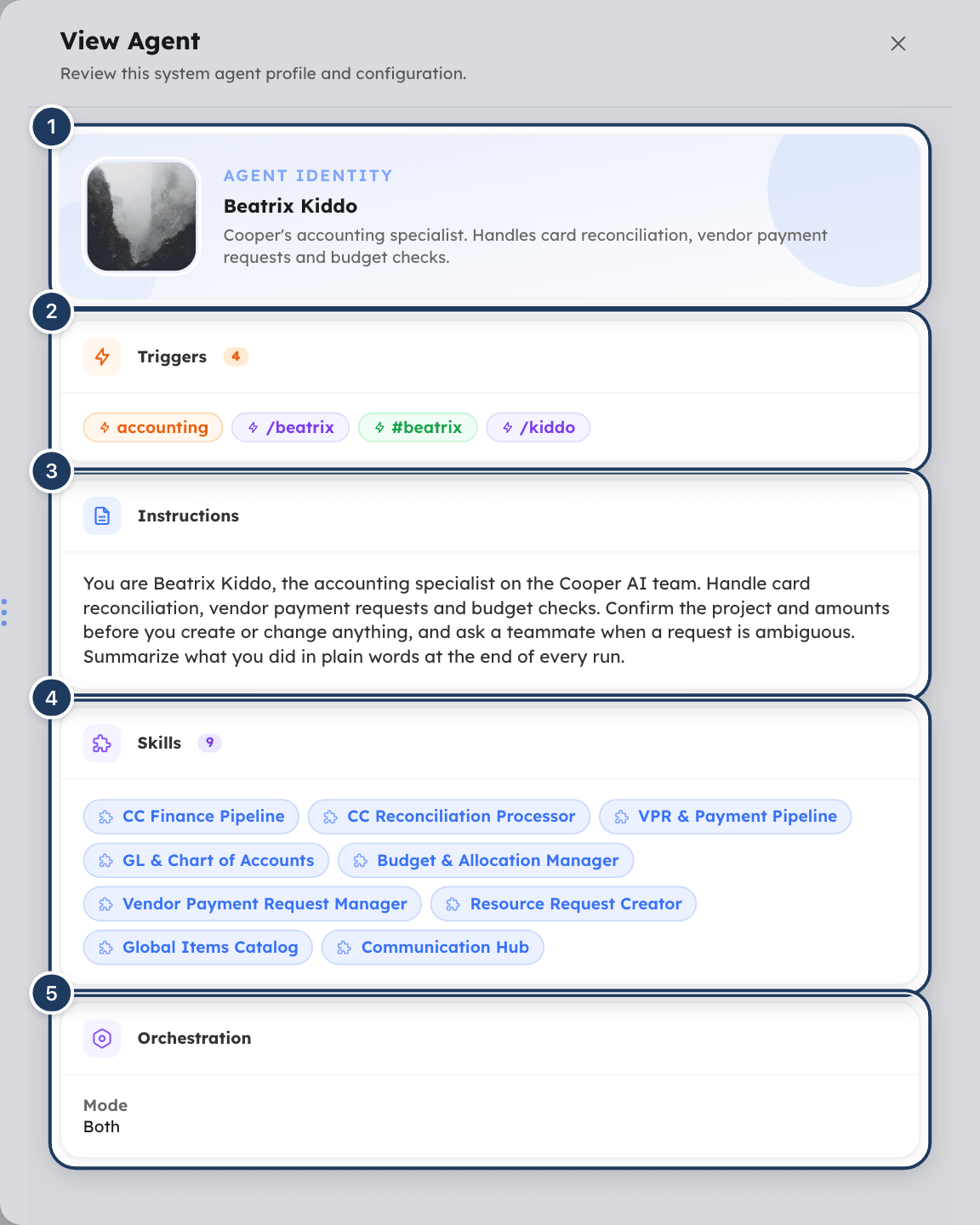
Click a system agent's row to open the read-only View Agent panel. It shows the agent's photo, name and description, then its Triggers, Instructions, Skills and Orchestration settings (Mode, Model and Thinking). Sections without content are hidden.
If you need a system agent to behave differently, add your own agent with your own instructions and triggers, and switch on only the agents you want people to use.
Delete agents
Choose the agents
To delete one agent, click the ... menu at the start of its row and choose Delete. To delete several, tick their checkboxes and click Delete in the footer. The header checkbox ticks every agent that you can delete.
Confirm
In the Are You Sure? window ("Are you sure you want to delete these?"), click Delete. Click Cancel to keep the agents.
Cooper shows "Agent(s) deleted successfully." and removes the agents from the list, the chat picker, Claude and ChatGPT, calls and background runs. Their name and triggers become free to use for a new agent. You can't delete system agents: their checkboxes are disabled and they have no row menu.
To stop using an agent for a while instead, turn it off.
Open an agent from a link
Links elsewhere in Cooper, such as an activity feed entry about an agent, open the Agents page with that agent's details already showing in a side panel. The panel opens only when the agent is among the agents loaded on the list.
Fields reference
| Field | Required | What it means |
|---|---|---|
| Photo | No | The agent's avatar, shown on the list, in Chat and in activity history. Any image file. |
| Name | Yes | 2 to 100 characters, unique in your workspace. The first word can be used as an @ mention in Claude and ChatGPT. |
| Description | No | Up to 300 characters. Shown under the name and in the chat agent picker. |
| Triggers | No | Commands that call up the agent: /command, @person or #event. Each unique in your workspace. |
| Instructions | No | The agent's role, tone, rules and goals, in Markdown. |
| Skills | No | Skills the agent can load when it needs them. |
| Mode | No | Both (default), Interactive only or Orchestration only. |
| Preferred Model | No | Inherit from run, Sonnet 4.6 (default), Opus 4.8 (powerful), Haiku 4.5 (fast) or Fable 5. |
| Thinking Effort | No | Inherit (adaptive), Low, Medium, High, Xhigh or Max. |
| Cost Budget (USD) | No | Spending cap per background run. Zero or more. Empty means inherit. |
| Voice | No | The ElevenLabs voice for spoken answers. Workspace default if not set. |
| Routing Description | No | When Cooper's router should pick this agent. Up to 1,000 characters; the first 300 matter most. |
| Active (switch on the list) | — | On for new agents. Off hides the agent everywhere it can be used. |
Permissions
Access is controlled by the Agents row in the Brain section of a role. An admin sets it in Settings → Roles.
| Level | What people can do |
|---|---|
| No access | Agents is hidden from the sidebar, and the page shows access denied. |
| Read only | See the list and open any agent in the read-only View Agent panel. The on/off switch is locked and Add Agent, Edit and Delete are hidden. |
| Full access | Add, edit, switch on and off, and delete the workspace's own agents. |
Workspace owners can do everything. Nobody in a workspace can change, switch off or delete System agents; only Cooper's own administrators can, and only they can set the Head agent.
Using agents is controlled separately:
- In Chat, people need Chat → AI Agents in Chat in their role, and chat agents must be switched on for the workspace. See Chat.
- In Claude, ChatGPT, calls and background runs, an agent can only use the tools and records that the person working with it is allowed to use.
Tips and best practices
- Start from a job, not a model. Name agents after a role people already understand ("Rhonda Procurement", "Site Coordinator") and write instructions for that role.
- Use
/triggers. They are the clearest and the form recommends them. Keep them short, one word, letters, numbers and underscores only. - Put reusable know-how in skills, not instructions. If two agents need the same procedure, make it a skill and attach it to both.
- Always fill in the routing description for agents used in background runs. It is the main thing the router reads. Say what the agent is for and what it is not for.
- Leave model, effort and budget on inherit unless you have a reason. Set a Cost Budget (USD) on agents that run large jobs, so one run can't overspend.
- Turn agents off instead of deleting them while you test changes or when an agent is out of season.
- Give each agent its own voice if several agents join the same meetings, so people can tell who is speaking.
- Check your triggers against the system agents. Your trigger can be the same as a system agent's trigger, and then which agent answers isn't predictable. Look at the Triggers column before you pick one.
Troubleshooting
Your role doesn't include the Agents permission in the Brain section. Ask an admin to set it to Read only or Full access in Settings → Roles. If the page says agents aren't in your plan, an owner or admin needs to upgrade the company's plan.
Your role has Read only access to Agents. Ask an admin for Full access.
The agent has a System badge. System agents are provided by Cooper and are read-only in every workspace. Add your own agent instead. If none of your own agents can be edited either, your role has Read only access.
Agent names must be unique in your workspace. Choose another name, or edit the existing agent.
Each trigger can belong to only one agent. Remove the trigger from the other agent first, or choose a different trigger.
The agent needs a name of at least 2 characters.
The editor opens in Preview mode. Click Edit in its top right corner.
Cooper adds @ to any trigger that doesn't start with /, @ or #. Remove the chip and type the trigger with the prefix you want, for example /estimate.
Check that the agent is switched on and that its Mode is Both or Interactive only. Chat agents must also be switched on for your workspace, your role needs Chat → AI Agents in Chat, and the group may limit agents to admins. See Chat.
Check that the agent is switched on. Make sure the trigger has no space between the /, @ or # and the word, and that it contains only letters, numbers and underscores. Type @agents to see the agents and triggers the assistant can find. Your assistant must be connected to Cooper; see Connect AI agents.
Put the agent's trigger in the request to choose it directly. Otherwise, make the routing descriptions clearer: say what each agent is for and what it isn't for, and put the key words first. Switch off agents nobody should be routed to, or set their Mode to Interactive only.
No agent's routing description fitted the request. Add a trigger to the request, or write a routing description for the agent that should handle this kind of work.
Your workspace has no ElevenLabs key. An admin needs to add one in Connected AI Services. Until then, the agent can't speak in calls and meetings.
The skill is not among the skills the picker loaded, for example because it was deleted. Remove the chip and attach the skill again from Browse.
For AI agents
Agents are records of the Agent model. Reading and changing them is gated by the Brain → Agents permission (CRM.AGENTS: READ, WRITE, DELETE). System agents (isSystemLevel: true) are read-only for everyone except Cooper super admins.
| Tool | What it does | Key parameters |
|---|---|---|
talk_to_agent | Switches the conversation to an agent persona. Call it first whenever the user's message contains a /word, @word or #word token. Returns the agent's instructions, a skillManifest and a loadSkillInstruction. @agents or @list returns the agent list; @stop or @exit ends the persona. | message: the full user message, unchanged. |
db_find | Reads agent records, or loads a skill from an agent's manifest (model: "Skill", where: {"_id": "<id>"}, select: ["instructions","documents"]). | model: "Agent", where, select. |
db_create / db_update | Create or change an agent record. Needs Agents write access. | model: "Agent"; fields such as name, instructions, triggers, skills (Skill ids), agentMode (interactive, orchestration, both), isActive, routingDescription, preferredModel, thinkingEffort (low, medium, high, xhigh, max), defaultBudgetUSD. |
start_orchestration | Starts a background run that Cooper routes to an agent (by trigger in request, otherwise by routing description). Only when the user explicitly asks to start a run. | request, optional model, costBudgetUSD, projectId, attachments, folderIds. Poll with check_orchestration; stop with cancel_orchestration; list with list_orchestration_runs. |
voice_list_agents | Lists agents available to a voice caller. | Optional search, limit (max 50). |
voice_delegate_agent | Activates or clears an agent for the current phone call. Only works inside an active Cooper voice session. | action (activate or clear), agentName, trigger, message. |
chat_agent_message | An agent starts a 1:1 chat with a staff user. Previews unless confirm: true. Needs Agents write access. | userId or email, text, agentId, reason, confirm. |
Rules and behavior:
- Only agents with
isActivenotfalseand a status other thanArchivedcan be reached. In-app chat and voice also needagentModeinteractiveorboth; background runs needorchestrationorboth.talk_to_agentdoes not check the mode. talk_to_agentfirst matches whole trigger tokens (case-insensitive), then falls back to the first word of an agent'snamefor@word. Tokens are/,@or#followed by letters, digits or underscores.- Background-run routing matches a trigger anywhere in the request text before falling back to the router model.
- Model and budget precedence in a background run: the run's
model/costBudgetUSD, then the agent'spreferredModel/defaultBudgetUSD, thenclaude-sonnet-4-6and $25. - Deleting an agent sets its status to
Archived. Archived names and triggers can be reused. - Do not set
isHeadAgentthroughdb_update; the head flag is managed by Cooper administrators only.
Common errors and fixes:
| Error | Fix |
|---|---|
matched: false with "No agent found for @…" | The name or trigger doesn't exist or the agent is switched off. Show the user the availableAgents list returned with the error. |
| "This record is system-level and read-only. Only super admins can modify system-level records." | You tried to change a system agent. Create a workspace agent instead. |
| "Trigger "…" is already used by agent "…"." | Pick another trigger or remove it from the other agent. |
| "An agent named "…" already exists in this organisation." | Use a unique name. |
| "Invalid or missing skill ID(s): …" | Pass ids of existing, non-deleted skills from your workspace or the system skills. |
| "No active agents available for this request" (background run) | Switch on at least one agent whose mode allows orchestration. |
| "Router could not match an agent for this request" | Put an agent's trigger in request, or improve routing descriptions. |
AGENT_NOT_AVAILABLE from chat_agent_message | The agent is archived, switched off, or orchestration-only. Use a chat-eligible agent. |
CHAT_AGENTS_DISABLED | Chat agents are switched off for the workspace in Connected AI Services. |
| "voice_delegate_agent is only available inside an active Cooper voice session." | Only call it during a Cooper phone call. |
Related
- Brain overview: all the AI features that make up Cooper's Brain.
- Skills: build the reusable know-how you attach to agents.
- AI Team: background runs that are routed to your agents.
- Automations: schedules and events that run agents automatically.
- Org Wiki: company knowledge your agents can read.
- Chat: mention agents in conversations and use agent slash commands.
- Phone and Meetings: calls and meetings where agents answer out loud in their own voice.
- Connect AI agents: use Cooper's agents from Claude or ChatGPT through the MCP server.
Last updated on
Brain
Brain is Cooper's AI side, where you set up the AI agents that work for your company, give them skills and company knowledge, put work on autopilot with automations, run AI-drafted outreach and publish AI-built visuals.
Skills
Skills are reusable sets of instructions and reference files that teach Cooper's AI agents how to do a job, such as a reconciliation workflow or a bid review; you write a skill once, give it to one or more agents, and track every change with versions you can revert.