

Knowledge Graph
The Knowledge Graph is Cooper's self-building map of how your records connect, such as projects, vendors, purchase orders, invoices, tasks and documents. Use it to see a project's state across every domain, trace any record's connections and history, and search inside uploaded documents, and use each project's and estimate's knowledge files as a shared notebook for people and AI agents.
The Knowledge Graph is a map of how your records connect. Cooper builds it on its own from the work you do. Each record becomes a point on the map, such as a project, vendor, purchase order, invoice, task, estimate or file. Each link between two records becomes a line, such as "this invoice belongs to this project" or "this quote was accepted by this vendor". Project managers, estimators and office staff use it to see a whole project at a glance, to find out what a record is tied to, and to search the text inside uploaded documents. Cooper's AI agents use the same graph so they don't start every conversation from nothing.
There are two related things called Knowledge Graph in Cooper:
- Brain → Knowledge Graph is the explorer for the whole workspace. It is read-only, and Cooper keeps it up to date. Most of this page covers the explorer.
- Knowledge Graph inside a project, an estimate or a plan is a folder of knowledge files: notes, meeting write-ups, call summaries and generated summaries for that one project or estimate. People and agents can add notes there. See Use project and estimate knowledge files.
Key concepts
| Term | Meaning |
|---|---|
| Record (node) | One thing in Cooper shown as a card on the graph, such as a project, vendor, purchase order, vendor invoice, task or file. The card shows the record's name, its type and its latest action. |
| Connection (link) | A line between two records, with a label such as "belongs to project" or "has attachment". |
| Connection type | What kind of link it is: Structure (ownership and hierarchy), Activity (actions and workflow), Mentions (one record referenced in another's content) or Docs (a document linked to a record). |
| Domain | A business area that groups record types, such as Procurement, Finance, Estimating, Delivery or People & Vendors. |
| Project overview | One project rolled up by domain: how many records each domain has, money totals per record type, status counts and the top records. |
| Full graph | Every record linked to one project, drawn at once and clustered by domain. |
| Focus record | The record a connection graph is centered on. It is marked Focus. |
| Hub | A record with many connections. Hubs are drawn larger and carry a badge with their link count. |
| Facts | Short statements about a record, such as its status, amount and dates, plus what it is linked to. |
| Timeline | The history of a record's connections, including links that have since ended. |
| Knowledge files | The notes folder of one project or one estimate. Files are either authored (written by a person, an agent or a Cooper feature) or computed (generated by Cooper when you open them). |
How Cooper builds the Knowledge Graph
You don't build or edit the explorer's graph. Cooper builds it in the background from the activity in your workspace:
- When someone creates or changes a record, Cooper adds or updates that record on the graph and links it to the records it belongs to, such as its project, vendor or estimate. Changes reach the graph shortly after they happen, not instantly.
- Actions such as approving or accepting add an Activity link to the other party. For example, an accepted quote links to its vendor.
- When a file is attached to a record, Cooper adds a Docs link. For PDF, Word (.docx and .doc), plain text, CSV, RTF and Markdown files, Cooper also reads the text so you can search inside it. Cooper doesn't read images, videos, spreadsheets or presentations.
- When a record is deleted, it leaves the graph and its links are closed. The closed links stay in the record's Timeline.
- Every night Cooper recounts links, updates how important each record is, and marks records hot, warm or cold by how recently they had activity. By default a record turns warm after 30 days without activity and cold after 180 days.
- Each card carries a one-line status summary when Cooper knows the record type, for example a status, a headline amount and a key date. Older records get this summary the next time they change.
The graph only ever contains your own workspace's records.
Open the Knowledge Graph
- In the sidebar, open Brain.
- Click Knowledge Graph.
The explorer opens at /knowledge-graph. You need the Knowledge Graph permission in the Brain section of your role. See Permissions.
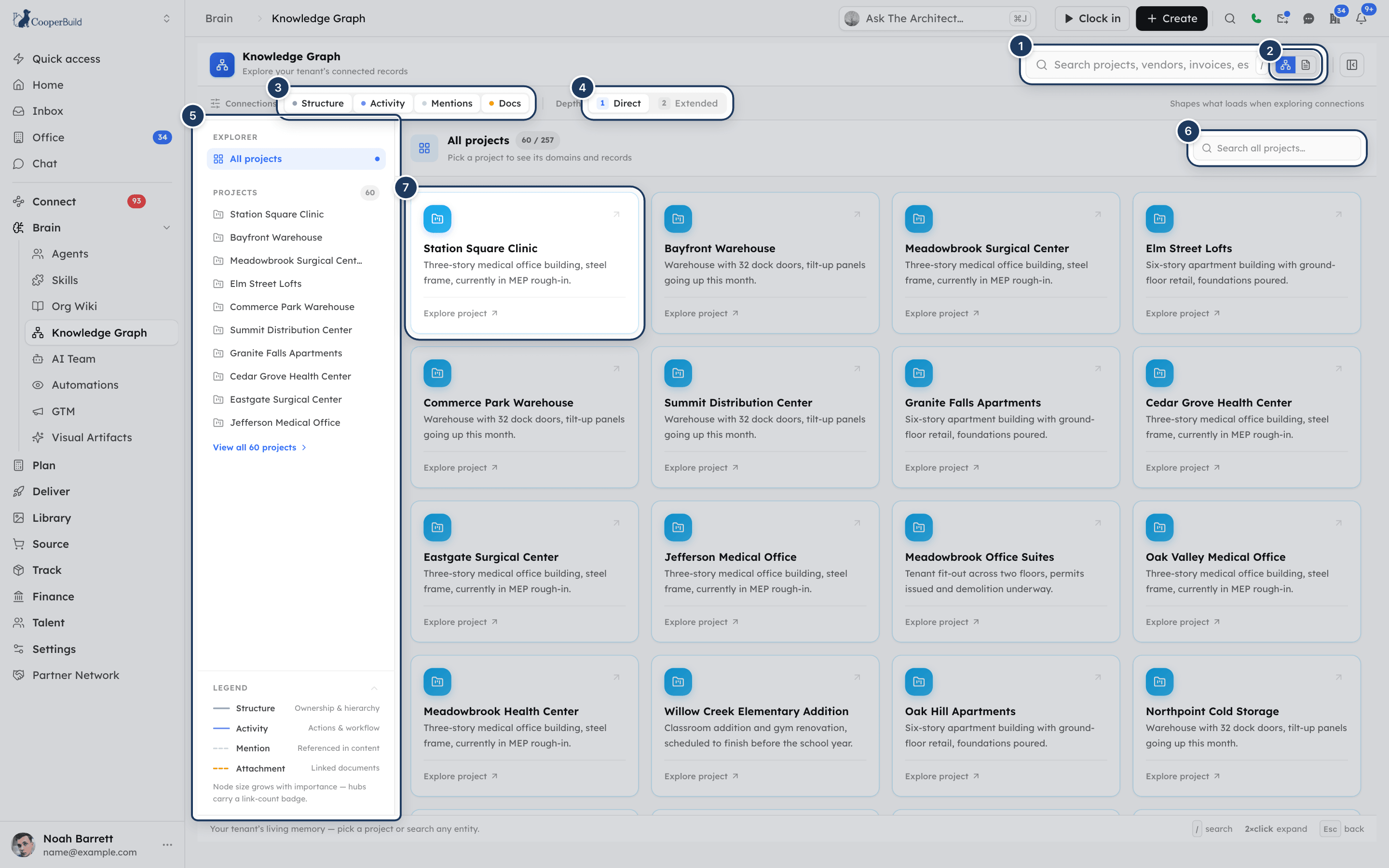
The page has a header with the search bar, a filter bar (Connections and Depth), a side panel (Explorer, Projects and Legend) that you open and close with Show side panel / Hide side panel, the canvas, and a status bar with the shortcuts / (search), 2×click (expand) and Esc (back). On a small screen the side panel opens as a drawer and the status bar is hidden.
The explorer works top-down: Projects → a project's overview → its full graph or one record's connections. Search jumps straight to any record from anywhere.
Find a project
The explorer opens on All projects: one card per project in the graph, most significant first.
- The badge next to All projects shows how many projects there are. When more are available than are loaded, it shows "loaded / total", such as
60 / 140. - Type in Search all projects… to search every project, not only the loaded ones. The search matches part of a project's name or its status summary. Click the clear button to reset.
- Scroll down to load more, or click Load more (N left).
Each card shows the project name, its status summary (or No status yet) and Explore project. Click a card to open the project overview.
If the graph has no projects yet, you see No projects in the graph yet. Projects appear once activity flows through them.
Read a project overview
The overview shows one project rolled up by domain.
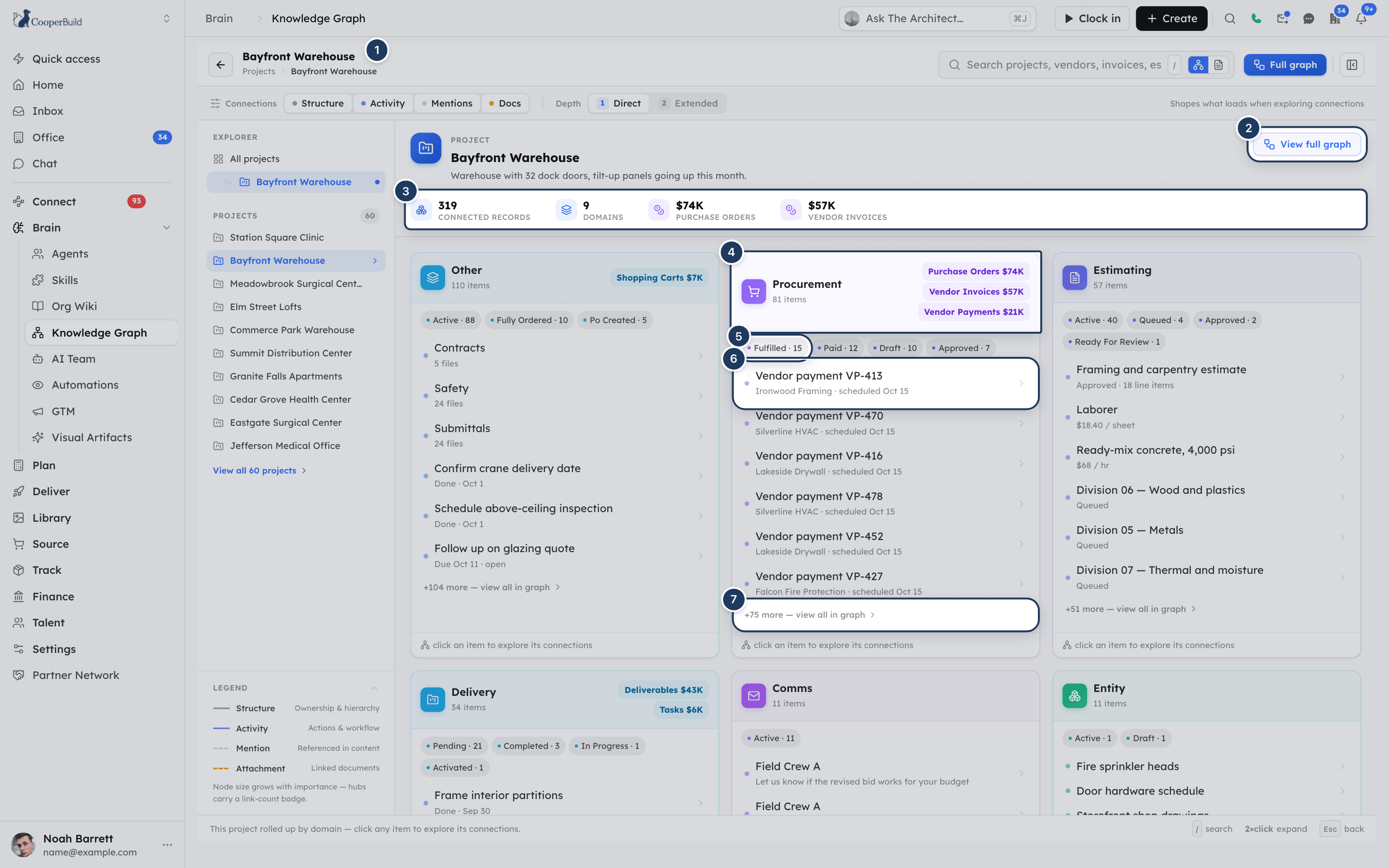
Header. The project name, its status summary, and the View full graph button. The header bar also has a Full graph button that does the same thing.
Headline stats. Connected records (every record linked to the project), Domains, and up to two money totals for the record types with the most money, such as Vendor Invoices or Purchase Orders. Amounts are shortened, so $840,000 shows as $840K. Hover a money stat to see how many records it adds up.
Domain lanes. One card per domain, such as Delivery, Procurement, Finance, Estimating, People & Vendors, Documents, People (HR), Logistics, Field & Tracking, Catalog, Resources or Comms. Each lane shows:
| Part | What it shows |
|---|---|
| Lane header | The domain name and its count, such as "14 items". |
| Money chips | Up to three record types with their total, such as Purchase Orders $1.2M. |
| Status chips | Up to four statuses with counts, such as Approved · 6. |
| Top records | Up to six of the domain's most important records, each with its status summary. Click one to explore its connections. |
| +N more — view all in graph | Opens the full graph with only this domain showing. |
Money totals are per record type
Cooper never adds money across record types. One purchase can appear as a resource request, a purchase order, a vendor invoice and a vendor payment, so adding them would count the same money several times. Read the stage that answers your question: invoices for billed cost, purchase orders for committed cost, vendor payments for paid.
If nothing is linked to the project yet, Cooper shows "Nothing is linked to this project in the graph yet."
Explore a record's connections
The connection graph puts one record at the center and draws what it is linked to.
Pick a record
Click a record in a domain lane, double-click a record in the full graph, or pick a record from the header search. The record opens at the center of the canvas, marked Focus, and its details panel opens on the right.
Read the graph
Each card shows the record's name, its type and its latest action. Lines are labeled with the kind of link, such as "belongs to project". Line style shows the connection type: see Read the legend.
Expand a record
Double-click any card to add its own connections around it. You can also click a card and then Expand connections on canvas in the details panel. A spinner shows while Cooper loads. If the record has nothing new to add, Cooper shows "No new connections". Each record expands once.
Arrange the view
Drag cards to tidy the layout. Use the zoom buttons at the bottom left, the mini map at the bottom right (hidden on small screens), or Fit to view at the top right. The details panel covers the mini map and Fit to view while it is open; close it to reach them. Re-focus seed reopens the focus record's details.
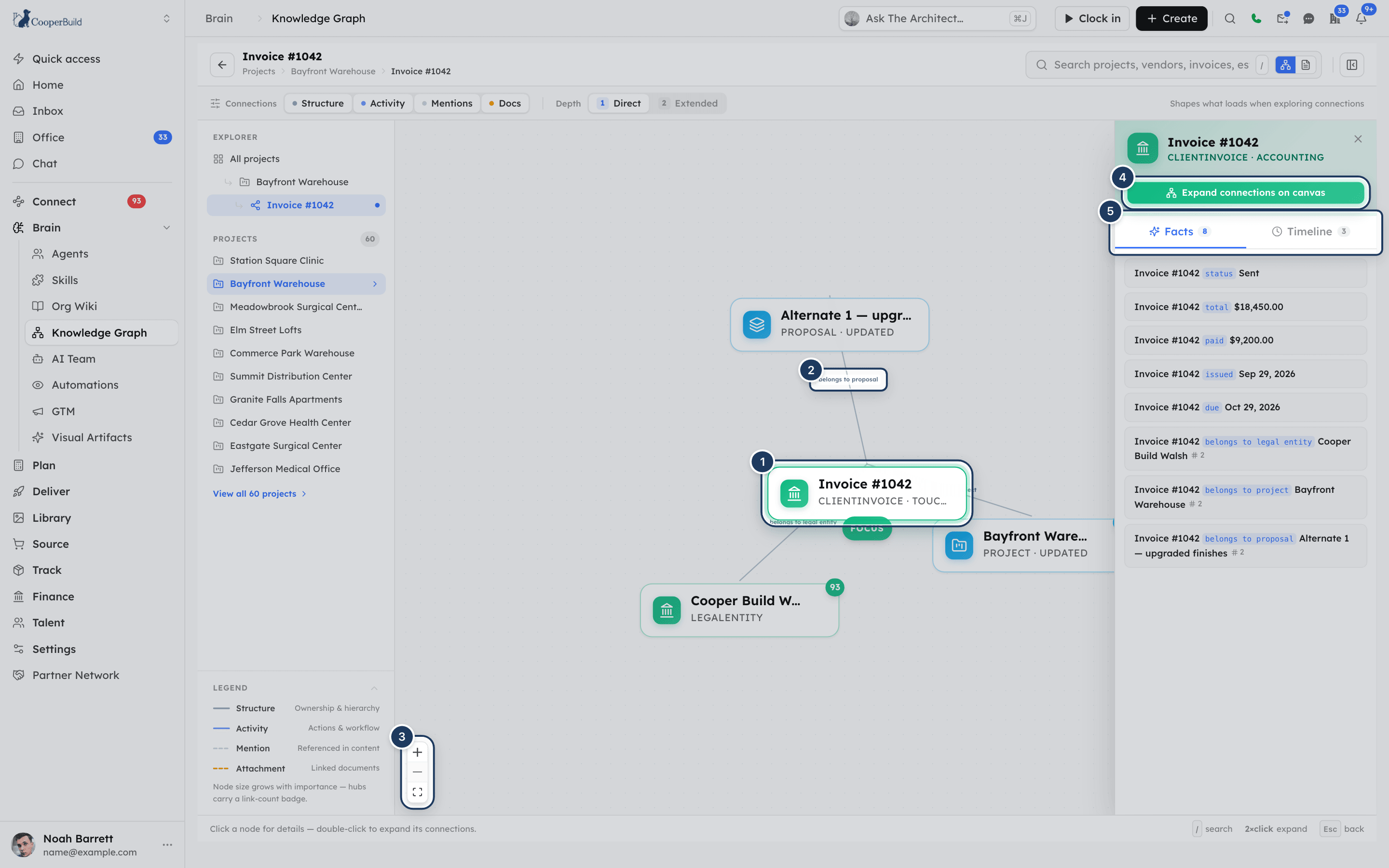
Things to know about the connection graph:
- The first load shows up to 80 connections around the focus record. Each expand adds up to 40 more.
- A hover arrow on a card means it has connections you haven't expanded yet. A record with 8 or more links shows its link count in a badge.
- For a record with a very large number of links, Cooper shows an amber notice and doesn't draw them all. Narrow with the Connections filter, or use the project overview.
- If nothing matches your filters, Cooper says "No connections match the current filters — enable more connection types or try depth 2." If loading fails, click Retry.
Filter connections and depth
The filter bar shapes what loads in a record's connection graph. It doesn't change the projects list, the overview or the full graph.
| Control | Options | What it does |
|---|---|---|
| Connections | Structure, Activity, Mentions, Docs | Click a type to turn it off or on. All four are on by default. Hover a type for a hint, such as "Ownership & hierarchy links". |
| Depth | Direct, Extended | Direct loads the focus record's own connections. Extended also loads connections of connections. Expanding a card always adds one step. |
Changing a filter redraws the graph from the focus record, so any cards you expanded close again. If you turn every connection type off, Cooper applies no filter and shows all types.
View a record's details
Click any card to open its details panel. Click the empty canvas, click Close details, or press Esc to close it.
The panel shows:
- The record's name, and its type and domain.
- Chips for its link count (such as "12 links"), its tier (hot, warm or cold), its latest action (such as "approved") and the date it was last active.
- Expand connections on canvas. In a connection graph this expands the record in place. In the full graph it opens the record's own connection graph.
- The Facts tab: up to 25 short statements, starting with the record's status, amounts and dates, then what it is linked to. A # number shows when a link was seen more than once; hover it to see "Observed N times". With no facts, you see "No facts recorded yet."
- The Timeline tab: up to 40 changes to the record's links, oldest first. Each entry shows the link, the date it started and either "→ now" (green dot, still true) or the date it ended. With no history, you see "No history yet."
See a project's full graph
The full graph draws every record linked to a project at once, clustered by domain around the project.
- Open a project overview.
- Click View full graph (or Full graph in the header bar).
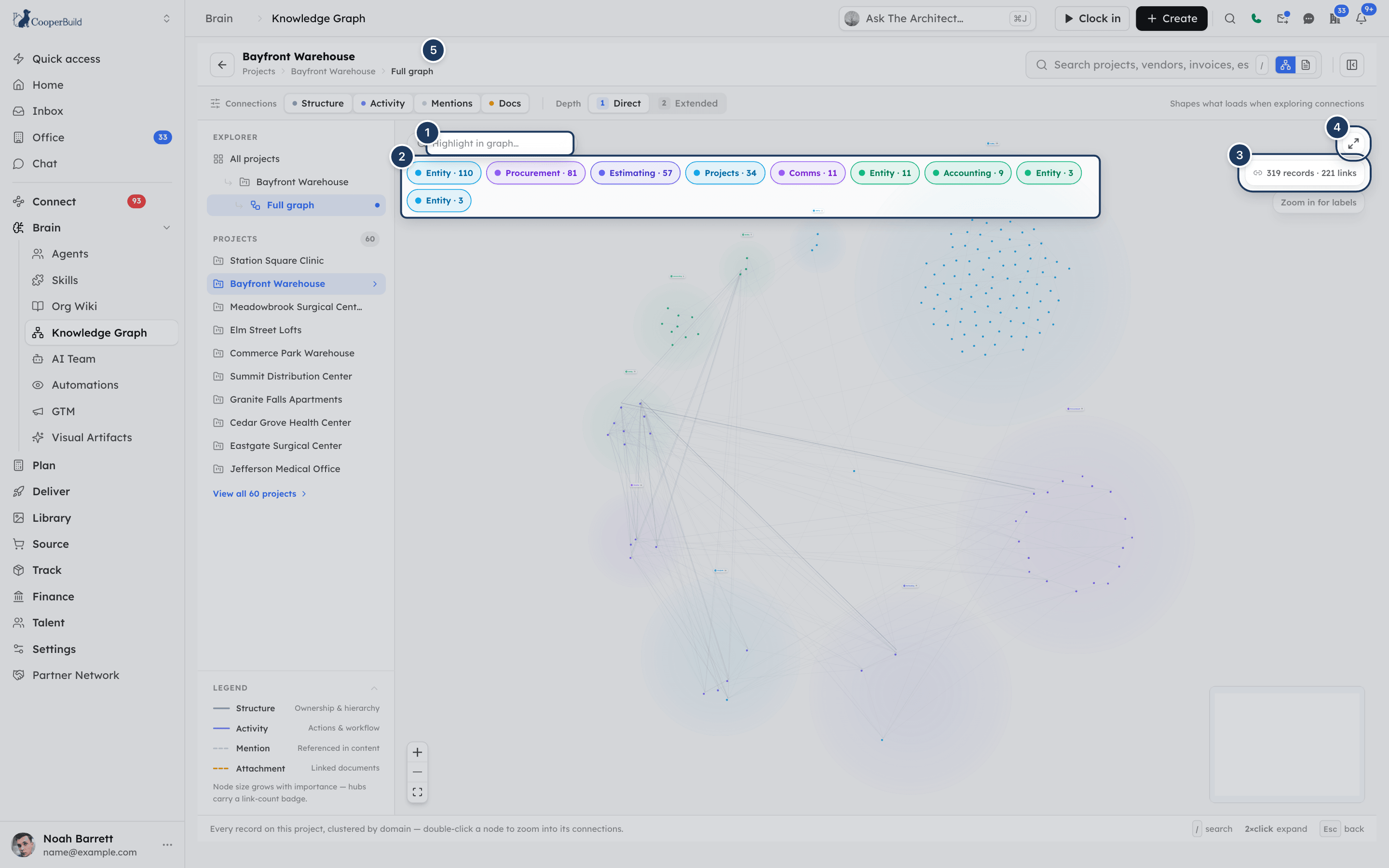
In the full graph you can:
- Highlight records: type in Highlight in graph…. Records whose name or type matches stay bright and the rest fade. Cooper shows the number of matches.
- Show or hide domains: click a domain chip, such as Procurement · 42, to hide or show that cluster. Click Show all to bring every domain back.
- Open a record: click a card for its details, or double-click it to open its connection graph.
- Move around: zoom, use the mini map, or click Fit to view. Cards can't be dragged here.
The top right shows the totals, such as "512 records · 1,204 links". In a graph of more than 200 records, cards turn into dots when you zoom far out and Cooper shows Zoom in for labels.
The full graph loads up to 2,500 records, strongest links first. When a project has more, Cooper says "Showing the N strongest of M+ records — use the domain filters to narrow." The domain chips in the full graph use short names that can differ from the overview lanes, for example Accounting instead of Finance.
Search for any record or document
The search bar in the header works from every view. Press / anywhere on the page to jump to it.
The record search is on by default (Search entities). The box says Search projects, vendors, invoices, estimates….
- Type a name, code or keyword. Cooper matches whole words, so type a full word such as "switchgear" rather than "switch".
- Results appear grouped by domain, up to 12 at a time. Each shows the record name and type.
- Click a result, or use the arrow keys and press Enter, to open that record's connection graph. Pressing Enter without choosing opens the top result.
If nothing matches, you see "No matching entities."
Press Esc in the search box to close the results. Click the clear button to empty the box.
Move around the explorer
- Breadcrumb (under the title) and Explorer (side panel): your path, such as Projects › Riverside Medical › Full graph › PO-1042. Click an earlier step to go back to it.
- Back (top left) or Esc: go back one level. Esc first closes the details panel, and does nothing while you are typing in a box.
- Projects (side panel): your top 10 projects for quick switching. View all N projects opens the full list.
Read the legend
The Legend at the bottom of the side panel explains the lines. Click Legend to collapse or expand it.
| Line | Type | Meaning |
|---|---|---|
| Solid gray | Structure | Ownership and hierarchy, such as a task belonging to a project. |
| Solid purple | Activity | Actions and workflow, such as a quote accepted by a vendor. |
| Dashed light gray | Mention | One record referenced in another's content. |
| Dashed amber | Attachment | A document linked to a record. |
"Node size grows with importance — hubs carry a link-count badge." Card colors and icons show the domain.
Use project and estimate knowledge files
Each project, estimate and plan has its own Knowledge Graph page. It isn't a drawing. It is a folder of knowledge files for that one project or estimate, laid out like a file explorer: a tree on the left and the open file on the right.
Open a project's or estimate's knowledge files
- Open the project.
- In the project sidebar, under Intelligence, click Knowledge Graph.
You need the Knowledge Graph permission in the Project Management section of your role (under Intelligence).
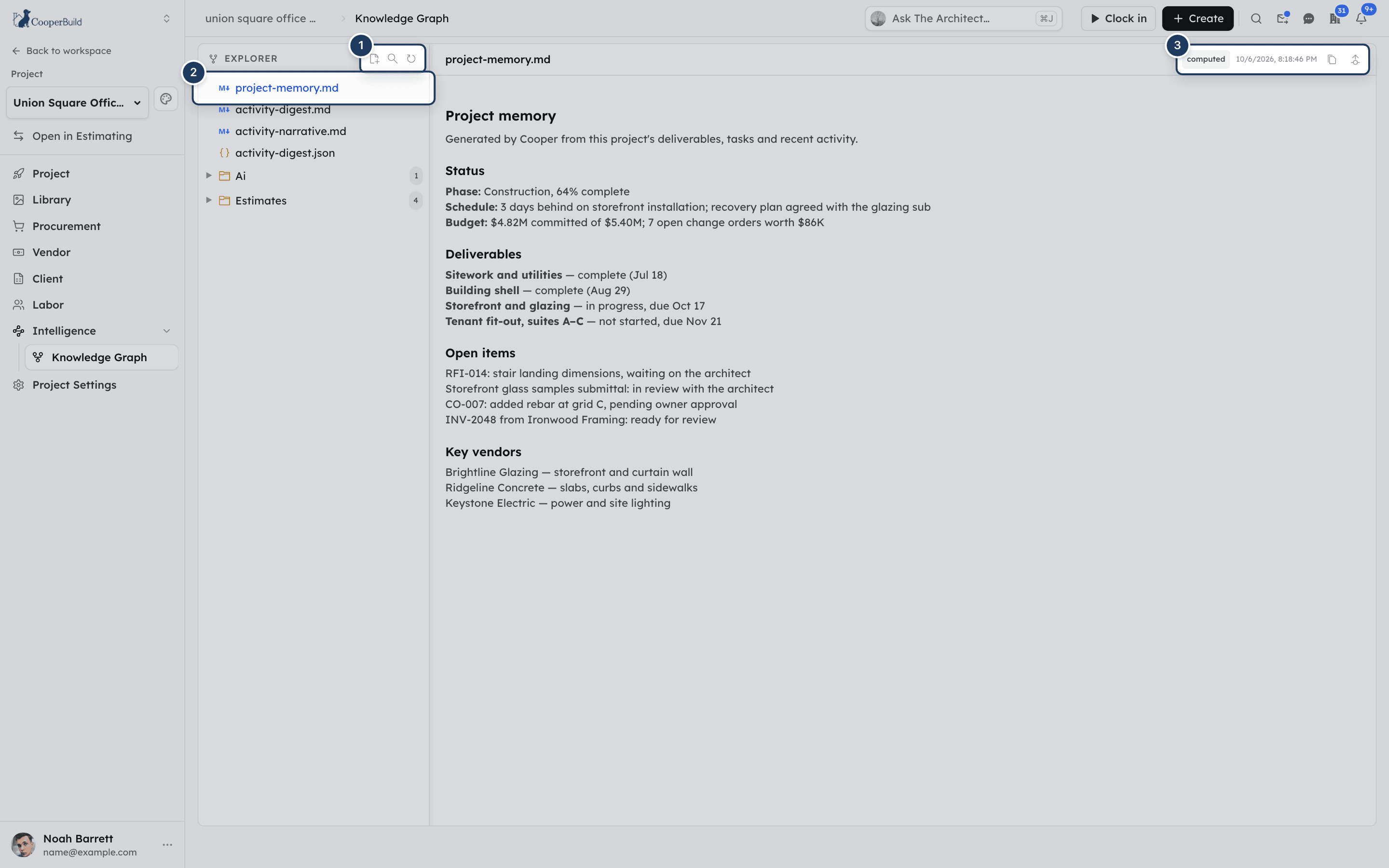
What's in the knowledge files
| File or folder | Where | What it is |
|---|---|---|
project-memory.md | Project | A generated summary of the project: tasks, deliverables, resources, trade scopes, the recent session log, open items and recent notes. |
activity-digest.md | Project | A generated summary of recent activity, grouped by record type, action and person. |
activity-narrative.md | Project | A plain-language story of recent activity, written by AI with your organization's AI settings each time you open it. If AI isn't available, you see the plain digest with a note that the AI narrative is unavailable. |
| Meetings folder | Project | Notes from meetings linked to the project, one file per meeting day. See Meetings. |
| Chat folder | Project | Daily digests of chat groups linked to the project. See Chat. |
| Calls folder | Project | Summaries of recorded group calls whose group is linked to the project. |
| Communications folder | Project | Day pages of Cooper Phone calls filed to the project. See Phone. |
| Estimates folder | Project | Notes from the project's estimates, in a subfolder per estimate. Read them here; change them from the estimate. |
estimate-memory.md | Estimate | A generated summary of the estimate: deliverables, resources, trade scopes, the session log, open items and notes. |
agent-instructions.md | Estimate | The rules for estimate notes, including every allowed file path. |
| Your own files | Both | Notes people and agents add, in Markdown or JSON. |
Folders show a count of the files inside. Click a folder to open or close it.
Read and search files
- Click a file in the tree to open it. Markdown is formatted; JSON is laid out neatly.
- Above the file you see its path, a source badge (authored in green or computed in gray) and when it was last updated.
- Click Copy content to copy the whole file to your clipboard.
- Click Search at the top of the tree and type at least 2 characters in Search knowledge graph.... Results show each file's path, source and a snippet. Project results can also include the project's tasks and deliverables. Click a result to open it.
- Click Refresh to reload the tree. Drag the divider to resize the tree.
Add a note to a project
Start a new file
Click New file at the top of the tree. To create the file inside a folder, right-click the folder and choose New file in followed by the folder name.
Name the file
In File path, type a name such as procurement-notes. Spaces become hyphens, and Cooper adds the extension. You can type a folder too, such as site/logistics. The full path shows under the box.
Choose the type
Under Type, choose Markdown or JSON.
Write the content
Type in Content.
Create the file
Click Create File. It stays disabled until the file has a name and content. The new file opens in the tree.
A few paths can't be used in a project's files: the generated files, anything under the Estimates folder, and paths reserved for estimate notes, such as scope/inclusions.md. Put estimate notes in the estimate's own knowledge files.
Add a note to an estimate
An estimate's knowledge files are a structured bid notebook. A note must use one of the fixed paths that agent-instructions.md lists. You can't make up new folders or names.
Check the allowed paths
Open agent-instructions.md and find the path for your note, such as scope/clarifications.md or pricing/rationale.md.
Start a new file
Click New file.
Enter the exact path
In File path, type the path without the extension, such as scope/clarifications, and keep Type on Markdown. Use lowercase letters only.
Write and create
Type the note in Content and click Create File.
The allowed folders are bid, takeoff, specs, scope, pricing, procurement, commercial, schedule, execution, risks, handoff and references, plus README.md and session-log.json at the top. For a point-in-time summary, use snapshots/ followed by a date and a short name, such as snapshots/2026-10-01-bid-review.
Check that the file appeared
If a path isn't allowed, Cooper doesn't save the file and doesn't show an error. The form stays open. Check the path against agent-instructions.md and try again.
Edit, rename or delete a file
You can only change authored files. Computed files are generated and have no edit, rename or delete buttons.
- Edit: click Edit file, change the text, then click Save. Click Discard changes to cancel.
- Rename: click Rename file, type the new path in Rename to:, then click Rename or press Enter. Press Esc or click Cancel to stop. You can't rename a file to a path that already exists.
- Delete: click Delete file and confirm. Cooper removes the file from the tree.
In a project, files under the Estimates folder are read-only. Change them from the estimate.
Promote a note to the Org Wiki
You can turn any Markdown knowledge file into an Org Wiki article, so a lesson from one project becomes guidance for the whole company.
Open the promote window
Open a Markdown file and click Promote to org wiki. The Promote to Org Wiki window opens.
Fill in the article
Check the Article Title and Slug that Cooper fills from the file name. Pick a Category, a Promotion Mode and a Status, and adjust Tags and Notes for AI. See Fields reference.
Save
Click Save Draft, or Publish to Org Wiki when the status is Published. Cooper confirms that the article was saved to the org wiki drafts or published.
Fields reference
New File form (project and estimate knowledge files)
| Field | Required | What it means |
|---|---|---|
| File path | Yes | The file name, optionally with folders, such as site/logistics. Spaces become hyphens. Cooper adds .md or .json. When you start from a folder, the folder is shown in front of the box. |
| Type | Yes | Markdown (default) or JSON. |
| Content | Yes | The text of the file. |
Promote to Org Wiki window
| Field | Required | What it means |
|---|---|---|
| Article Title | Yes | The wiki article's title. Filled from the file name. |
| Slug | Yes | The article's short web name. Filled from the title. |
| Category | Yes | An Org Wiki category. General when no categories are set up. |
| Promotion Mode | No | Generalize for org use (default): "Compile is best for turning project-specific learnings into reusable org guidance." Copy markdown as-is: "Copy preserves the markdown largely as-is in the org wiki." Merge into existing slug: "Merge appends this markdown into the existing org wiki article with the same slug." |
| Status | No | Draft (default) or Published. |
| Tags | No | Comma-separated tags, filled from the file's folders. |
| Notes for AI | No | Guidance for how the text should be generalized or merged. |
Permissions
An admin sets these in Settings → Roles. Workspace owners can do everything.
| What you want to do | Permission needed |
|---|---|
| Open Brain → Knowledge Graph | Brain → Knowledge Graph → Read. This row only has Read: nobody edits the explorer's graph. |
| Open a project's knowledge files | Project Management → Knowledge Graph (under Intelligence) Read. |
| Open an estimate's or plan's knowledge files | Plan → Estimate Worksheets → Knowledge Graph Read. |
| Let AI agents save notes to project or estimate knowledge files | Write on the matching Knowledge Graph row. |
| Promote a file to the Org Wiki | Settings → Organization Details → Write, or workspace owner. |
When Knowledge Graph got its own row in the Brain section, every role that had any Org Wiki access was given Knowledge Graph Read.
The explorer shows the whole workspace
Brain → Knowledge Graph shows every project and record in your workspace's graph. It doesn't limit results to the projects a person is assigned to. Grant Knowledge Graph Read with that in mind.
The company's plan comes first. If your plan doesn't include Knowledge Graph, the page says it isn't in your plan, even for owners.
Tips and best practices
- Start from the project overview, not the full graph. The lanes answer "how is this project doing?" in one screen; open the full graph only when you need every record.
- To see one area of a big project, click +N more — view all in graph in that lane. The full graph opens with only that domain.
- In a busy connection graph, turn off Mentions and Docs first. That leaves the ownership and workflow links.
- Use the Timeline tab to see what a record was linked to before a change, such as an earlier vendor.
- Use document search for words inside PDFs, such as a spec section number or a lead time, and jump straight to the estimate or invoice the file is attached to.
- Keep project knowledge files short and focused.
project-memory.mdincludes the start of your three most recently updated top-level Markdown notes, so put the key project context in a short top-level file.
Troubleshooting
Your role doesn't have Brain → Knowledge Graph → Read. Ask an admin to grant it in Settings → Roles. If the page says Knowledge Graph isn't in your plan, your company's plan doesn't include it; an admin needs to change the plan.
A project appears once it has activity in the graph. Search for it with Search all projects…, which searches every project, not only the loaded cards. If it still doesn't appear, make a change on the project and check again shortly; the graph updates in the background.
Record search matches whole words. Type a complete word from the record's name or code. To search inside files, switch to Search documents.
The file isn't attached to any record, so there is no graph to open. Attach the file to a record, or find it in your Library.
Cooper reads text from PDF, Word, plain text, CSV, RTF and Markdown files. It doesn't read images, scanned pages without a text layer, spreadsheets or presentations.
Turn more types back on under Connections, or set Depth to Extended.
Changing Connections or Depth redraws the graph from the focus record. Expand the cards again after you set the filters.
The file is computed, so Cooper generates it and it can't be changed. In a project, files under the Estimates folder are read-only too; open the estimate's knowledge files to change them.
Estimate notes must use one of the fixed paths listed in agent-instructions.md, in lowercase. Type the exact path, such as risks/open-items, and try again.
Promoting needs Settings → Organization Details → Write. Ask an admin, or ask a workspace owner to promote the file.
Your organization's AI isn't set up or is turned off for this use. You still get the plain activity digest. Ask an admin to check your AI settings.
For AI agents
Agents reach the Knowledge Graph through the CooperBuild MCP server (https://api.cooperbuild.ai/mcp). See Connect AI agents. There are three tool families. Each needs the matching permission on the connected user's role.
The workspace graph (read-only, needs Brain → Knowledge Graph → Read):
| Tool | What it does | Key parameters |
|---|---|---|
graph_ontology | Lists the record types, domains and relationship types the graph uses. Call it first to learn valid model, domain and relTypes values. | domain |
graph_query | Searches records across the whole workspace, ranked by text match and importance. With no query, lists the most significant records in a scope. | query, model, domain, limit (max 50) |
graph_project_overview | One project rolled up by domain: counts, per-type money totals, status counts and top records. | id (project id) or nodeKey, topPerDomain (max 20) |
graph_neighbors | A record's connected records and the links between them. Filter server-side instead of pulling everything. | nodeKey or model + id, relTypes, direction, depth (max 4), limit (max 200), offset or cursor, nodeModel, nodeStatus |
graph_facts | Short facts about a record: status, amounts, dates, then relationships. For a high-fanout record, topPerModel returns a grouped summary. | nodeKey or model + id, relTypes, limit, topPerModel |
graph_path | How two records connect, as a chain of links. | fromKey or fromModel + fromId, toKey or toModel + toId, maxDepth (max 6) |
graph_as_of | A record's connections as they were at a past moment. | record ref, asOf (ISO date-time, required), depth, limit |
graph_timeline | The full history of a record's links, including ended ones. | record ref, relType, from, to, limit |
document_search | Searches the text inside uploaded PDF, Word and text files, and returns the records each file is attached to. Also allowed with Library Media Read. | query (2+ characters), projectId, limit (max 25) |
Project knowledge files (need Project Management → Knowledge Graph; Read to read, Write to write):
| Tool | What it does | Key parameters |
|---|---|---|
kg_tree | The project's file tree. | project (name or id) |
kg_read | Reads one file, such as project-memory.md, activity-digest.md or project.json. Reading activity-narrative.md makes one AI call; read it only when someone asks for a narrative. | project, path |
kg_search | Searches the project's files, tasks and deliverables. | project, query |
kg_write | Creates or replaces a project note. | project, path, content, fileType (md or json, otherwise taken from the extension) |
Estimate knowledge files (need Plan → Estimate Worksheets → Knowledge Graph, plus access to estimates):
| Tool | What it does | Key parameters |
|---|---|---|
ekg_tree | The estimate's file tree. | estimate (name or id) |
ekg_read | Reads one file, such as estimate-memory.md or agent-instructions.md. | estimate, path |
ekg_search | Searches the estimate's files, deliverables and tasks. | estimate, query |
ekg_write | Writes an estimate note to a canonical path. | estimate, path, content, fileType |
Working rules:
- Locate a record with
graph_query, then pass itsnodeKeyto the othergraph_*tools. - In
graph_project_overview,totalValueis per record type. Never add totals across types in one domain: they are stages of one money flow (resource request → cart → quote → purchase order → vendor invoice → vendor payment). Pick the stage that answers the question. - Bid, takeoff, spec, scope, pricing, commercial and proposal notes belong in the estimate files (
ekg_write), not the project files. - Before writing estimate notes, read
agent-instructions.mdwithekg_readfor the allowed paths. Before ending a bid session, readsession-log.jsonand update it instead of overwriting it.
Common errors and fixes:
| Error | Fix |
|---|---|
Node not found in the graph / Project not found in the graph | Get the exact nodeKey from graph_query. A brand-new record can take a moment to reach the graph. |
graph_neighbors returns hub: true with a note | The record has too many links to expand. Add relTypes, nodeModel or nodeStatus filters, or use graph_project_overview or graph_facts with topPerModel. |
Project "X" not found / Estimate "X" not found | Pass the exact name or the id. External users only reach projects assigned to them. |
Cannot write to computed path: ... | Generated files such as project.json, project-memory.md or any _index.json can't be written. Choose another path. |
Estimate KG mounts and estimate-origin snapshots are read-only from project KG writes... | Don't write under estimates/ from kg_write. Use ekg_write. |
Path "..." is a canonical estimate KG path. Use ekg_write... | The path is reserved for estimate notes. Use ekg_write on the estimate. |
Invalid estimate KG path: Unsupported EKG path ... | Use a path listed in agent-instructions.md, or snapshots/YYYY-MM-DD-slug.md. Paths are lowercase, end in .md or .json, and the extension must match fileType. |
Authenticated Human user id is required to write to the knowledge graph... or Authenticated user ID is required to write to the estimate knowledge graph | Writes need a signed-in user session. Reconnect the MCP server as a user. |
You don't have permission to use graph_query. Required: ... | Ask an admin to grant the permission named in the message. |
Related
- Brain overview: everything in the Brain section.
- Org Wiki: company-wide articles; promote knowledge files here.
- Agents: the AI agents that read the graph and write knowledge files.
- AI Team: work with Cooper's agents.
- Meetings: meeting notes are filed into the linked project's knowledge files.
- Chat: chat groups linked to a project get daily digests in its knowledge files.
- Phone: calls filed to a project get day pages in its knowledge files.
- Connect AI agents: use the graph tools from Claude or ChatGPT.
Last updated on
Org Wiki
The Org Wiki is your company's shared knowledge base of standards, procedures, benchmarks and lessons learned, written in Markdown, organized by category, and read by Cooper's AI agents when they work for you.
Automations
Set up rules that run on their own in Cooper, on a schedule, when something happens, while a condition stays true, when mail arrives or when you run them, and follow every run, approval and item that needs your attention.