

AI Team
Give Cooper's AI team a job in plain words, and watch Cooper pick the right agent, plan the work, call tools, hand parts to other specialists and report back, with a cost limit on every run.
AI Team is where you hand work to Cooper's AI agents. You describe an outcome, such as "Build an estimate for a kitchen renovation" or "Summarize open RFIs and project risks". Cooper picks the agent best suited to the job, writes a plan, uses Cooper's tools to read and change your data, brings in other specialist agents when it needs them, and writes up the result. You watch every step as it happens.
Project managers, estimators and office admins use AI Team for multi-step jobs that would take many clicks by hand. Each message you send starts a run. Runs that belong together form a session, so you can follow up in the same conversation.
Key concepts
| Term | Meaning |
|---|---|
| Session | One conversation with the AI team. A session holds one or more runs. Its title is the first message you sent in it. |
| Run | One message you send and all the work the AI team does to answer it. Every run has a status, a cost and its own cost limit. |
| Agent | One of your workspace's AI agents, such as an estimator or a document reader. You set agents up on the Agents page. |
| Primary specialist | The agent Cooper chose to handle a run. Its name appears on the run. |
| Specialist | Another agent the primary specialist hands part of the job to. Its work appears in its own card inside the run. |
| Plan | A checklist of tasks Cooper writes at the start of a run. Tasks tick off as the agent finishes them. |
| Tool | One action an agent takes in Cooper, such as searching projects or creating a record. Each tool call is listed in the run. |
| Cost limit | The most a single run may spend, in US dollars. The run stops when it reaches the limit. |
| Run Inspector | The right-hand panel. It shows the selected run's progress, tools, specialists, queue state, tokens and cost. |
When to use AI Team instead of Chat
You can also talk to agents in Chat by typing @ and an agent's name. Use each for what it does best:
- AI Team: longer jobs with several steps. Cooper chooses the agent for you, writes a plan, can hand work to other specialists, shows every tool call, and stops at a cost limit you set.
- Chat: quick questions to a named agent inside a conversation with your colleagues.
Open AI Team
- In the sidebar, open Brain.
- Click AI Team.
AI Team opens at /connect/ai. When you open a session, the address changes to /connect/ai?session=<sessionId>. You can bookmark or share that link to go straight back to the session.
You need the AI Team permission in the Brain module to see the page. Your company's plan must also include AI Team. See Permissions.
How the page is laid out
| Area | What it shows |
|---|---|
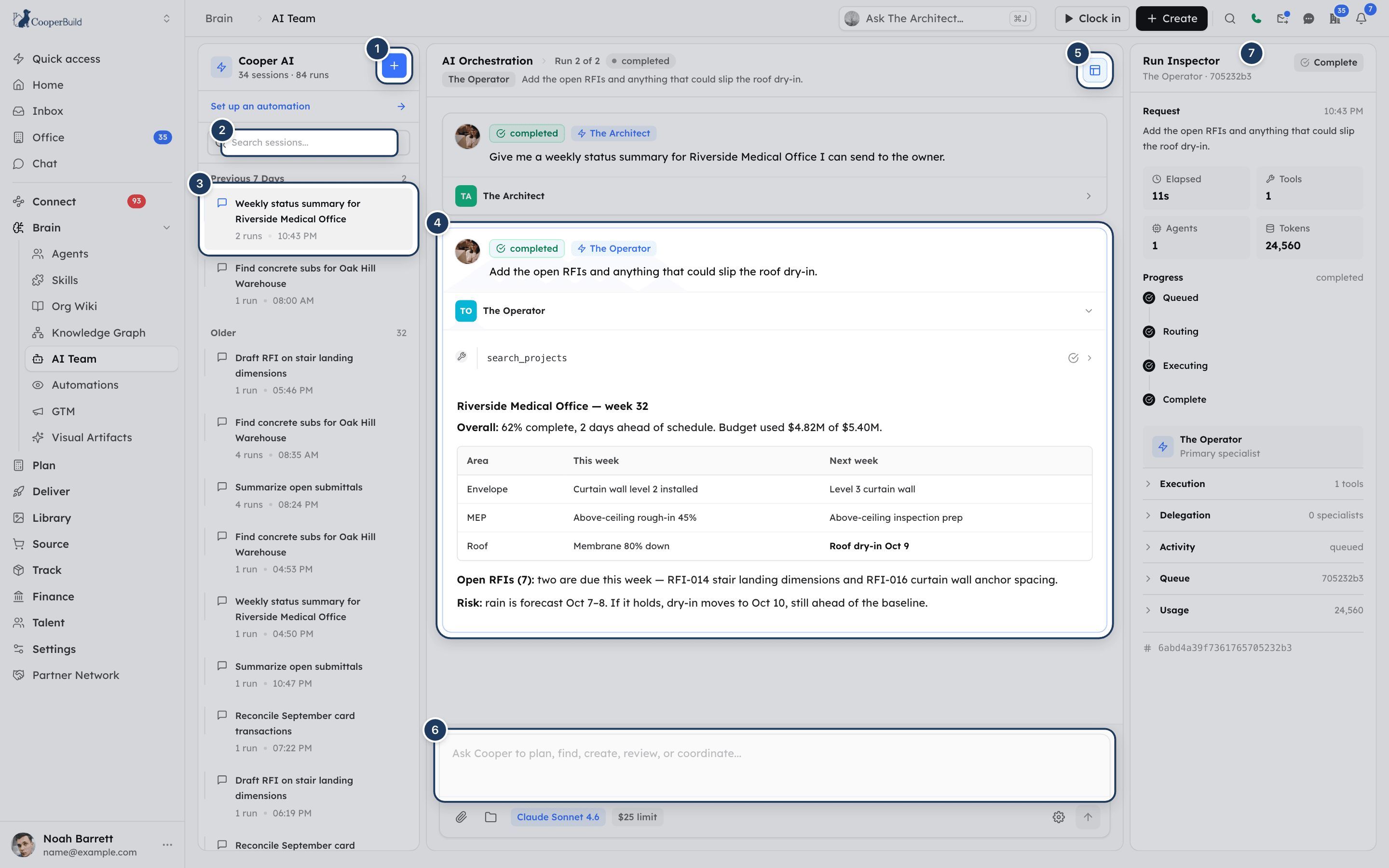
| Left panel (Cooper AI) | The number of sessions and runs, the Start new run button, a Set up an automation link, Search sessions... and the session list. |
| Middle panel (AI Orchestration) | The open session's runs, one card per run, and the message box at the bottom. |
| Right panel (Run Inspector) | Details of the selected run. Click the layout button at the top right of the middle panel (Close inspector / Open inspector) to hide or show it. |
The header of the middle panel shows AI Orchestration, which run you are looking at (for example Run 2 of 3), the run's status, the agent that handled it and the start of your request. With no run open, it says "Route work across Cooper specialists".
Start a new session
Start fresh
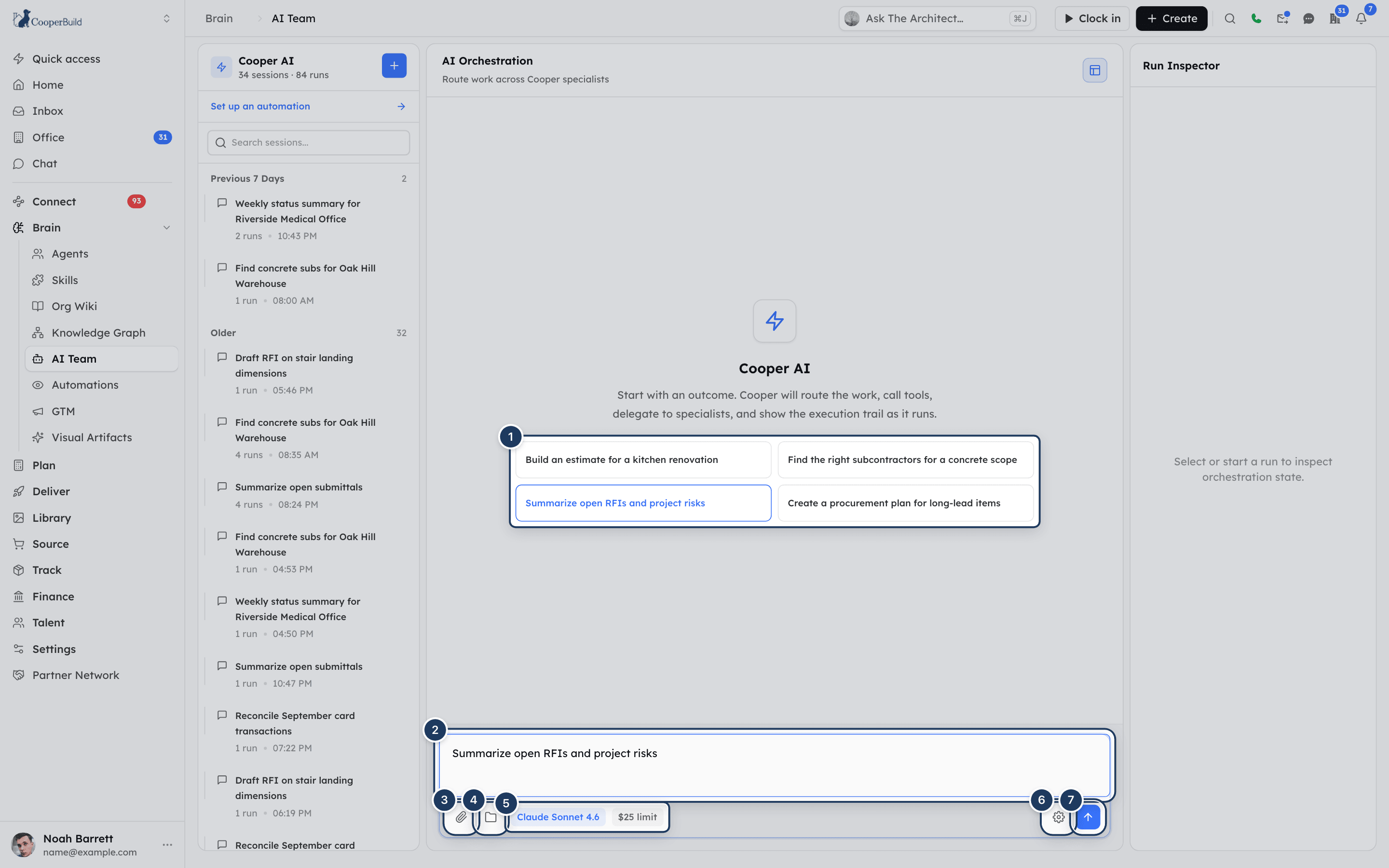
Click the + button (Start new run) at the top of the left panel. The middle panel shows Cooper AI and the line "Start with an outcome. Cooper will route the work, call tools, delegate to specialists, and show the execution trail as it runs."
Describe the outcome you want
Type in the message box (Ask Cooper to plan, find, create, review, or coordinate...). Name the project, the records and the result you expect. Or click one of the suggestions to put it in the message box:
- Build an estimate for a kitchen renovation
- Find the right subcontractors for a concrete scope
- Summarize open RFIs and project risks
- Create a procurement plan for long-lead items
A suggestion only fills the box. Edit it, then send it.
Add files or folders (optional)
Attach files or folders the agent should use. See Attach files and Attach folders.
Check the model and cost limit (optional)
The chips next to the attach buttons show the model's name and the cost limit, for example $25 limit. To change them, click the gear button (Run settings). See Choose the AI model and cost limit.
Send
Press Enter or click the arrow button (Send). Press Shift + Enter for a new line. Cooper creates the session, adds it to the left panel and starts the run.
Send a follow-up in a session
- Click the session in the left panel.
- Type your next message in the message box and press
Enter.
Each follow-up is a new run in the same session. Cooper gives the agent the requests and final answers of the session's earlier completed runs, so you can say "now do the same for Tower B" or "make the second option cheaper".
Cooper does not pass on:
- Runs that failed or were cancelled.
- Files and folders attached to earlier messages. Attach them again if the new run needs them.
To start with a clean slate, click Start new run and begin a new session.
You can send one message at a time. While a run is working, the message box is greyed out and the Send button becomes the stop button (Cancel run).
How Cooper picks an agent
Every run goes to one agent, the primary specialist. Cooper chooses it in this order:
- Triggers. If your message contains one of an agent's triggers (for example
/estimateor@tony), that agent takes the run. Triggers are set on the agent in Agents. Matching ignores upper and lower case. - Routing. Otherwise Cooper makes a quick AI call that reads each agent's routing description and picks the best match.
Cooper only considers agents that are active and whose Mode is Both (default) or Orchestration only. Agents set to Interactive only are never picked in AI Team.
While Cooper chooses, the run shows Routing and "Selecting the best specialist…". Once it has chosen, the agent's name appears on the run card and in the header.
The primary specialist can then hand focused parts of the job to other agents. A specialist can hand work on once more, so delegation goes at most two levels deep.
Watch a run as it works
A run moves through these stages. The run card and the header show the status in lower case. The Run Inspector shows it with a capital letter, and its Progress rail calls the running stage Executing.
| Status | What is happening |
|---|---|
| queued | The run is waiting for a worker. The run shows "Waiting for an orchestration worker…". |
| routing | Cooper is choosing the agent. "Selecting the best specialist…" |
| running | The agent is working. "Executing tools and specialist work…" until the first words of the answer arrive. |
| completed | The run finished. The status badge turns green. |
| failed | The run stopped with an error. The error is shown at the bottom of the run and in the inspector. |
| cancelled | Someone stopped the run. |
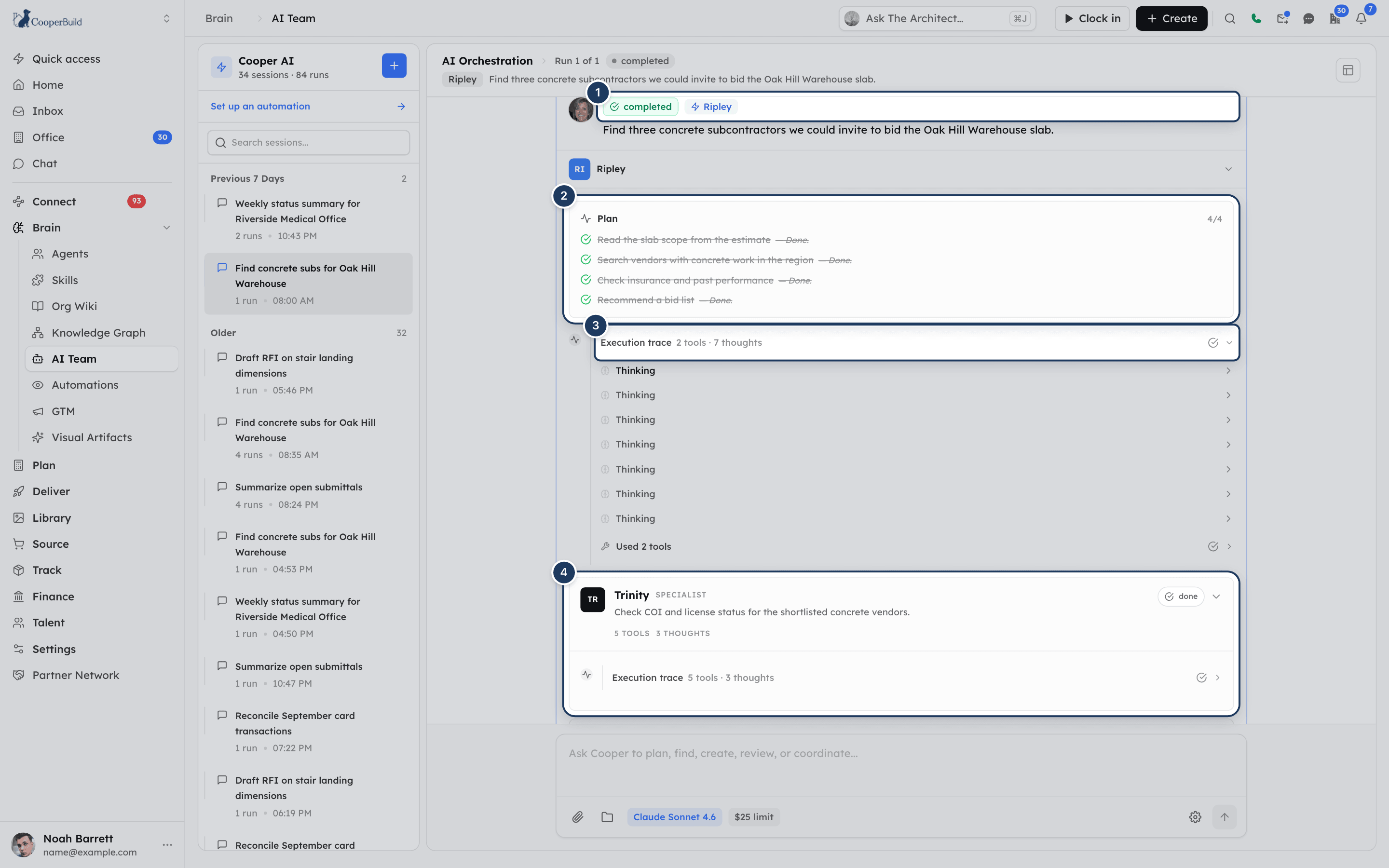
While a run works, its card stays open, the agent row shows active, and the page scrolls to follow new output. Each part of the run appears in the order it happens:
- Plan: a checklist pinned at the top of the run, with a count such as 2/5. A clock means the task hasn't started, a spinner means it is in progress, and a green tick means it is done. Done tasks are struck through, sometimes with a short note on how the agent checked the result. Simple requests may not get a plan.
- Thinking: the agent's reasoning, collapsed. Click Thinking to read it.
- Tools: each tool call shows the tool's name with a spinner while it runs and a tick when it is done. Several calls in a row are grouped. While the group works it names the tool in progress, for example
project_search (3/5). When it is done it says Used 5 tools. Click a tool to see its Input and Result. - Execution trace: a run of thinking and tool calls folded into one line, such as Execution trace 6 tools · 2 thoughts. Click it to expand.
- Specialist cards: when the agent hands work to another agent, a card shows that agent's name, the word specialist, the task it was given, counts of its tools, thoughts and responses, and running or done. The card holds the specialist's own steps and answer. Click a finished card to collapse it.
- Answer: the agent's reply, formatted with headings, lists, tables and code. Links open in a new tab.
Leave a run running
A run keeps working on Cooper's servers when you open another session, start a new one or close the page. A run can work for up to 35 minutes. When you come back to the session, Cooper picks up the live progress where it is.
Stop a run
- While the run works, click the square button (Cancel run) where Send usually is.
- The run ends with the status cancelled and the message "Run cancelled by user".
Cancelling stops the agent. Anything it already created or changed in Cooper stays as it is. Check the run's tool calls to see what it did.
Read and review past runs
Each run in a session is a card. The newest run is open. Older runs are collapsed to your request and the agent's name.
- Click the agent row (the agent's avatar and name) to open or collapse a finished run.
- Click the top of a card, where your request is, to select that run. The selected card is outlined and the Run Inspector shows its details.
- Scroll through the session. Cooper selects the run in the middle of the screen as you scroll, so the inspector always matches what you are reading.
- Click an attached image or file on a run to open it in a new tab.
Each card shows the avatar of the person who sent the message.
Find a session
The left panel lists your workspace's 100 most recent sessions, newest first, grouped under Today, Yesterday, Previous 7 Days and Older. Each group shows how many sessions it holds. Each session shows its title (the first message sent in it), how many runs it has (for example 3 runs) and the time of its latest run.
To search, type in Search sessions.... Cooper matches the session title or the session ID and shows how many results it found. If nothing matches, you see No matches found. Click the x in the box to clear the search.
When your workspace has no sessions yet, the panel shows No sessions yet and "Start a run and Cooper will keep the orchestration history here."
Sessions are shared with your workspace
Everyone who can open AI Team in your workspace sees the same session list, including sessions other people started. They can read those runs, send follow-ups in them and stop runs that are still working. Keep personal or sensitive requests out of AI Team, or tell your admin who should have access.
Runs started from Claude or ChatGPT through the CooperBuild MCP server also appear here. All the runs started in one of those chats are grouped as one session. See Connect AI agents.
Attach files to a message
Pick the files
Click the paperclip button (Attach files) below the message box and choose one or more files. You can attach images, PDFs, Word documents (.doc, .docx), Excel files (.xls, .xlsx), .csv and .txt files.
Wait for the upload
Cooper uploads each file as soon as you pick it. Images show a thumbnail. Other files show their name with Uploading, then Ready. Send stays disabled while any file is uploading.
Remove a file (optional)
Hover over a file and click the x in its corner.
Send
Send the message. You can send files without any text. The run's request then reads "(see attached files)".
If a file shows Upload failed, it is not sent. Remove it and attach it again.
How the agent reads your files:
| File type | What the agent gets |
|---|---|
| Images | The image itself. The agent can look at it. |
| PDFs | With a Claude model, the PDF itself. With an OpenAI model, a link that the agent reads with Cooper's document tools. |
| Word, Excel, CSV and text files | The file's name and link. The agent reads it with its tools when it needs to. |
Attach folders to a message
Attach a Cooper folder when the agent should know what documents you have, for example a project's drawings or specs folder.
Open the folder picker
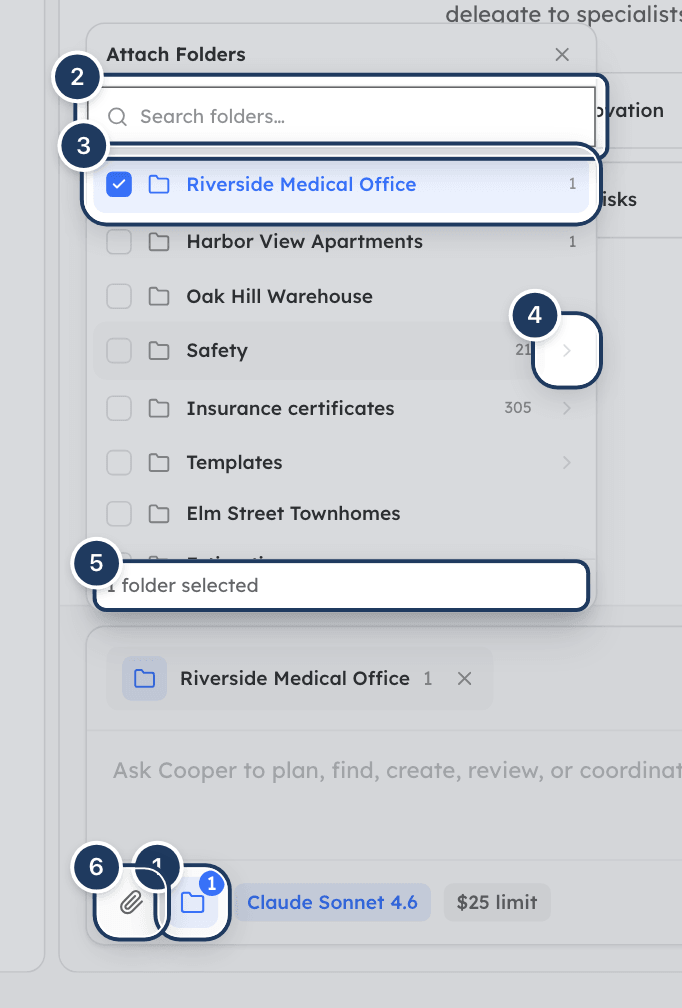
Click the folder button (Attach folders) below the message box. The Attach Folders list opens and shows your top-level folders with their file counts.
Find the folder
Type in Search folders… to search every folder by name. Or click the arrow next to a folder (Browse subfolders) to open it. The path at the top (starting with All Folders) takes you back up.
Select folders
Click a folder to tick it. You can tick several. The footer shows how many you selected (for example 2 folders selected), and the folder button shows the same number.
Close the picker and send
Click the x at the top of the picker. Each selected folder appears as a chip above the message box. Click a chip's x to remove it. Then send your message.
The agent receives a list of each folder's files: names, types, sizes and links, up to 60 of the newest files per folder. It does not receive the files' contents up front. It opens the files it needs with its tools.
Choose the AI model and cost limit
Open Run Settings
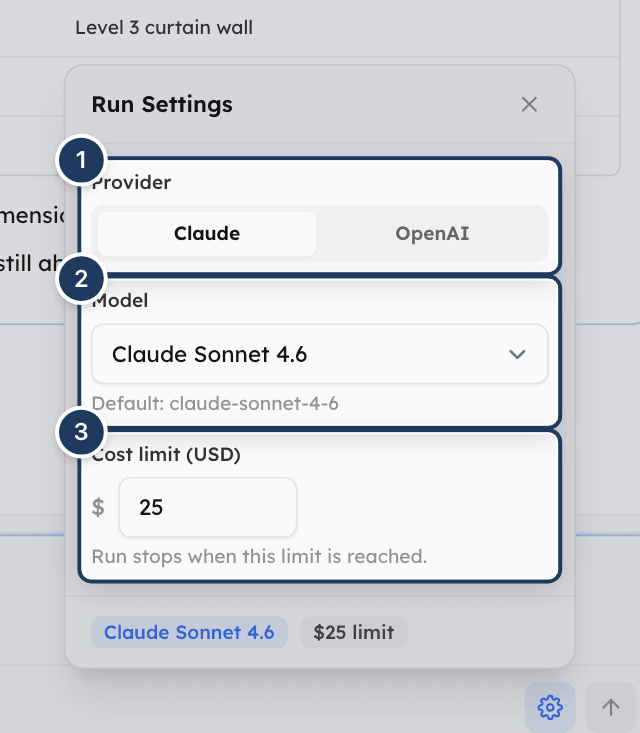
Click the gear button (Run settings) next to Send. The Run Settings panel opens.
Choose the provider
Under Provider, choose Claude or OpenAI. Cooper switches to the last model you used with that provider, or to its default.
Choose the model
Pick a model under Model. The list comes from your organization's own API key for that provider, so it shows the models your key can use. Retired models are hidden. For OpenAI, only GPT-5 and newer models are listed. The hint below the list shows the default: claude-sonnet-4-6 for Claude, gpt-5.4 for OpenAI.
Set the cost limit
Enter an amount in Cost limit (USD). The default is $25. The amount must be more than zero, otherwise Cooper puts the previous value back. "Run stops when this limit is reached."
Close the panel
Press Enter in the cost limit box, click the x, or click anywhere outside the panel. The new settings apply to your next message.
Cooper remembers your model and cost limit in this browser, so they stay set the next time you open AI Team. They apply to every run you start from AI Team, and they take priority over an agent's own preferred model and default budget.
Keep track of what a run costs
Every run starts with its own full cost limit. The limit is per run, not per session. Runs are paid for with your organization's own Anthropic or OpenAI API key.
You can see spending in three places:
- Next to the message box: a chip such as $25.00 / $23.40 left shows the running run's limit and what is left, or the last run's. It turns amber when a fifth or less of the limit is left. Hover over it to read, for example, "The last run used $1.60 of its $25.00 limit. Every run starts with its full limit." The plain $25 limit chip appears when no run has a cost yet, or when the setting for your next run differs from the last run's limit.
- In Run Settings: This run (or Last run) shows "$1.60 of $25.00 used", a progress bar and what is left.
- In the Run Inspector: open Usage. See Inspect a run.
When a run reaches its limit, it stops with the status failed and an error such as "Cost budget exceeded ($25.0312 >= $25 limit)". To carry on, raise the Cost limit (USD) and send the request again.
Inspect a run
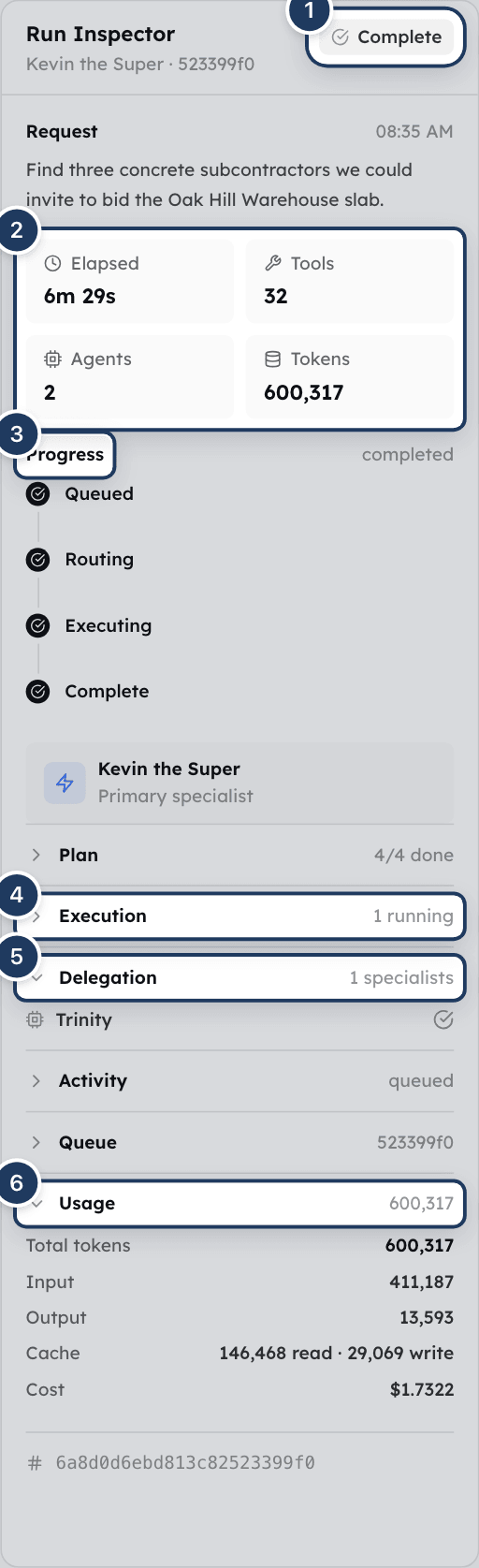
The Run Inspector on the right describes the selected run. If it is hidden, click the layout button at the top right of the middle panel (Open inspector). With no run selected, it says "Select or start a run to inspect orchestration state."
| Section | What it shows |
|---|---|
| Header | Run Inspector, the agent's name (or Routing), the end of the run's ID and the status: Queued, Routing, Running, Complete, Failed or Cancelled. |
| Request | Your message and the time you sent it. |
| Metrics | Elapsed time, number of Tools called, number of Agents involved (the primary specialist plus specialists) and Tokens used. |
| Progress | A rail from Queued to Routing to Executing to Complete (or Failed / Cancelled). |
| Primary specialist | The agent that handled the run, or Routing in progress. |
| Plan | The plan's tasks, with x/y done. Shown only when the run has a plan. |
| Execution | The last 10 tool calls, with N running or N tools. "No tools called yet." when there are none. |
| Delegation | The specialists the run used, with N specialists. "No delegated specialists in this run." when there are none. |
| Activity | The last 12 behind-the-scenes steps (queued, routing, loading history, starting the agent), with times. "No queue activity recorded yet." when empty. |
| Queue | The background Job and the time of the last Heartbeat, the signal that the worker is still alive. |
| Usage | Total tokens, Input, Output, Cache (read and write), Cost, the run's Limit, the amount that Counts toward limit, and what is Left. |
| Error | Why the run failed, when it did. |
| Output Preview | The start of the answer and its length in characters. |
| Footer | The run's full ID. Give it to Cooper support if you report a problem. |
Click a section's name to open or close it. Plan and Execution open by themselves while the run is working.
Set up an automation
AI Team runs when you send a message. To have an agent act on its own when something happens in Cooper, click Set up an automation in the left panel. It opens Automations. Runs started by automations are not listed in AI Team. You review them on the Automations page.
What agents can do in AI Team
- An agent works as you. It can only use the Cooper tools your role allows, and it can read and change records, such as creating tasks or updating an estimate.
- AI Team does not stop to ask you before each change. Say clearly what the agent may and may not change, for example "draft only, don't send anything".
- Cooper records the start and end of each run, with the agent's name, in your workspace's activity feed.
- A run stops after 35 minutes, when it reaches its cost limit, or when someone cancels it.
Permissions
Access is controlled by the AI Team permission in the Brain module of a role. An admin sets it in Settings → Roles.
| Action | What's needed |
|---|---|
| Open AI Team, read sessions, send messages, stop runs | AI Team Read or Write |
| See AI Team at all | Your company's plan must include AI Team |
| Runs that work | Your organization has an Anthropic or OpenAI API key in Settings → Integrations → AI Providers (the key for the provider you pick) |
| What an agent can change during a run | The rest of your role. Agents use only the tools your role allows. |
Workspace owners can always open AI Team when the plan includes it. There is no separate setting for who can send messages or stop runs: anyone who can open the page can do both, in any session.
If you open /connect/ai without the permission, you see an Access Denied page. If your company's plan doesn't include AI Team, you see a screen saying AI Team isn't in your plan, with See plans for people who can change the plan.
Tips and best practices
- Start with the outcome and the scope: name the project, the records and what "done" looks like. "Create a procurement plan for long-lead items on Riverside Clinic, as a table with order-by dates" works better than "procurement help".
- Use an agent's trigger, such as
/estimate, when you already know which agent should do the job. Triggers skip routing. - Attach folders rather than many files when the agent should know what documents exist. It reads only what it needs, which keeps runs cheaper.
- Keep one topic per session. Follow-ups carry the session's earlier answers, which helps on the same topic and costs more on a long session.
- Set a lower cost limit while you try out a new kind of request. Raise it once the request works.
- Before you ask for changes to live data, ask for a preview first, for example "list what you would change, don't change anything yet".
- Share a session by copying its link (
/connect/ai?session=<sessionId>) with a colleague who has AI Team access.
Troubleshooting
Your role doesn't have the AI Team permission in the Brain module. Ask an admin to grant Read in Settings → Roles. If the page says AI Team isn't in your plan, your company's plan needs upgrading.
The banner reads "No Anthropic API key configured - runs will fail until you add one." (or OpenAI when you picked an OpenAI model). Your organization has no key for that provider. Click Set up AI Providers to add one, or ask an admin. You can also switch Provider in Run settings to one your organization has a key for. While the key is missing, the Run settings button shows a warning sign.
The error starts with "Your organization's Anthropic API key was rejected" or "Your organization's Anthropic account is out of credits" (or OpenAI). An organization admin must replace the key, or add credits with the provider, and then test the key again. Send your request again once it is fixed.
The run reached its cost limit. Open Run settings, raise Cost limit (USD) and send the request again. The stopped run isn't remembered by the session, so repeat the full request. To keep costs down, narrow the request or attach a folder instead of many files.
No agent can take AI Team runs. On Agents, make sure at least one agent is active and its Mode is Both (default) or Orchestration only.
Cooper couldn't decide which agent fits. Rephrase the request to say what kind of work it is, or include an agent's trigger, such as /estimate, to pick the agent yourself.
Your message may contain another agent's trigger word, which always wins. Remove it, or include the trigger of the agent you want. If routing keeps choosing the wrong agent, ask an admin to improve the agents' routing descriptions on Agents.
The error reads like 'Agent "…" timed out after 2100s'. A run can work for up to 35 minutes. Split the job into smaller requests, one per message in the same session.
All workers are busy, so the run waits in line. Open Queue and Activity in the Run Inspector to see the latest step and heartbeat. If nothing changes for a long time, click Cancel run and send the request again.
The live connection dropped. Cooper keeps checking the run every two seconds, so it usually keeps updating. If it stops updating, reload the page and open the session again. The run itself carries on regardless.
A run in this session is still working. Wait for it to finish, or click Cancel run.
The message box is empty and nothing is attached, or a file is still uploading. Wait until every file shows Ready.
The upload didn't finish. Files that failed are not sent with the message. Remove the file with its x and attach it again.
The models are still loading, or your organization has no key for that provider. Add the key under Set up AI Providers, then reopen Run settings.
AI Team always sends the model and cost limit from Run settings, and those take priority over the agent's own preferred model and default budget. Pick the model you want in Run settings.
Follow-ups carry only the requests and answers of earlier runs in the same session that completed. Failed and cancelled runs, and files attached earlier, are not passed on. Repeat what's needed, or attach the files again. A new session starts with no history.
AI Team lists chat sessions only. Runs started by automations don't appear here. Review them on the Automations page.
The list shows the 100 most recent sessions. Search by the first words of the session, or open it with its link (/connect/ai?session=<sessionId>).
For AI agents
AI Team runs are called Orchestration V2 runs in the CooperBuild MCP server. An agent connected through MCP (https://api.cooperbuild.ai/mcp) can start, check, list and cancel them with these tools. They need the user's role to include Chat → AI Agents in Chat: Read for the read-only tools, Write for start_orchestration and cancel_orchestration.
| Tool | What it does | Key parameters |
|---|---|---|
get_available_providers | Lists the Claude models the workspace's Anthropic key can use, each tagged architect (flagship) or standard, plus the default model. | None |
start_orchestration | Queues a new run and returns at once with a runId. Cooper routes it to an agent and runs it in the background, exactly like a message sent in AI Team. | request (required); model; costBudgetUSD; projectId; attachments (Media IDs, 24-character hex); folderIds (Folder IDs) |
check_orchestration | Returns a run's status, agentName, model, result, tokenUsage and error. Safe to call while it runs. | runId |
cancel_orchestration | Stops a queued or running run. | runId; optional reason |
list_orchestration_runs | Lists recent runs, newest first. By default only the runs started in the current MCP session. | allSessions (true for the whole workspace); status; limit (1–50, default 20) |
How to use them:
- Call
start_orchestrationonly when the user explicitly asks to start, run or kick off a background job. Each run spends the workspace's AI budget. - If the user hasn't chosen a model, call
get_available_providers, show the options and let the user choose. Omittingmodellets the routed agent's preferred model apply, thenclaude-sonnet-4-6. OmittingcostBudgetUSDlets the agent's default budget apply, then $25. - Poll with
check_orchestrationuntilstatusiscompleted,failedorcancelled. The lifecycle isqueued→routing→running→completed|failed|cancelled.resultis filled in on completion. - Don't pass a session ID. Cooper groups every run started in one MCP chat into one session, which then appears in the AI Team sidebar under the first request. Point the user to
/connect/ai?session=<sessionId>using thesessionIdthe tool returns. - To talk to an agent in the conversation ("@steve", "talk to the estimator"), use
talk_to_agent, notstart_orchestration.talk_to_agentanswers as the agent straight away, with no run and no budget. - Runs fired by automations are managed with the automation tools (
list_orchestration_triggers,get_orchestration_triggerand related), not here. See Automations.
Common errors:
| Error | Fix |
|---|---|
API_KEY_REQUIRED | The workspace has no Anthropic key. An admin must add one in Settings → Integrations → AI Providers. |
USER_CONTEXT_MISSING | The MCP session has no user identity. Reconnect with a user sign-in (OAuth or a user token) and retry. |
NOT_FOUND | The runId is wrong or belongs to another workspace. Use list_orchestration_runs with allSessions: true to find it. |
ALREADY_TERMINAL | The run already completed, failed or was cancelled. Nothing to cancel. |
Run error.code BUDGET_EXCEEDED | The run hit its cost limit. Start a new run with a higher costBudgetUSD, after the user agrees. |
Run error.code AGENT_TIMEOUT | The run passed 35 minutes. Split the job into smaller runs. |
Run error.code AI_KEY_REJECTED / AI_KEY_OUT_OF_CREDITS | The workspace's provider key is invalid or out of credit. Tell the user an organization admin must fix the key. Don't retry. |
Run error.code QUEUE_ERROR | The run couldn't be queued. Try again shortly. |
Related
- Agents: set up the agents AI Team routes work to, including their mode, triggers and routing descriptions.
- Skills: the know-how agents load while they work.
- Automations: let agents act on their own when something happens in Cooper.
- Org Wiki and Knowledge Graph: what your agents know about your company and projects.
- Chat: talk to a named agent inside a conversation with colleagues.
- Connect AI agents: start AI Team runs from Claude or ChatGPT through the CooperBuild MCP server.
- Brain: overview of Cooper's AI section.
Last updated on
Skills
Skills are reusable sets of instructions and reference files that teach Cooper's AI agents how to do a job, such as a reconciliation workflow or a bid review; you write a skill once, give it to one or more agents, and track every change with versions you can revert.
Org Wiki
The Org Wiki is your company's shared knowledge base of standards, procedures, benchmarks and lessons learned, written in Markdown, organized by category, and read by Cooper's AI agents when they work for you.