

Automations
Set up rules that run on their own in Cooper, on a schedule, when something happens, while a condition stays true, when mail arrives or when you run them, and follow every run, approval and item that needs your attention.
Automations let you set something up once and have Cooper do it for you. An automation has one trigger (what starts it) and an ordered list of steps (what it does). It can send a morning brief every weekday, tell a foreman when a task lands on them, chase an RFI until someone answers, or ask Cooper AI to read new mail from a client. Office admins and project managers use Automations to stop chasing routine work, and everyone uses the Needs attention view to see what is waiting on them.
Every automation you create is saved paused. You preview it, test it with Run now, and switch it on yourself. Once it is on, every run is recorded step by step, so you can always see what it did, what it sent and why it did or did not run.
Key concepts
| Term | Meaning |
|---|---|
| Automation | A saved rule: one trigger, then one or more steps in order. |
| Trigger | What starts a run: On a schedule, When something happens, While something is true, When mail arrives or Only when I run it. |
| Step | One thing the automation does, such as Send a chat message, Create a project task or Ask someone first. Steps run top to bottom. |
| Run | One time the automation started. A run has a status and a record of every step: what it sent and what came back. |
| Owner | The person who created the automation (or was handed it). An automation always runs with its owner's permissions, and only the owner can change, run, pause or archive it. |
| Paused / Enabled | A paused automation never starts by itself. An enabled one waits for its trigger. |
| Guards | The brakes on an automation: Most runs per day, Most it may spend in a month and working hours. |
| Template | A ready-made automation. You answer two to four questions and get your own paused copy. |
| Situation | Something an older condition watch noticed and assigned to a person, such as "5 card charges with no receipt on this project". Situations appear in Needs attention. |
| Older engine | Condition watches and activity-event automations created before this page existed. They keep running and are listed here, marked Older engine. New automations are always created on the new engine. |
Open Automations
- In the sidebar, open Brain.
- Click Automations.
The page opens at /connect/automations. In Cooper AI (AI Team), the Set up an automation link in the sessions sidebar also brings you here.
You see Automations only if your role includes Brain → Automations → Read. See Permissions.
Old links that still work
The old Watches page at /connect/watches no longer exists as its own screen. Opening it shows "Opening Automations…" and sends you to /connect/automations. Old tab links land on the matching view:
| Old link | Opens |
|---|---|
/connect/watches | The automations table |
/connect/watches?tab=mine or ?tab=attention | Needs attention |
/connect/watches?tab=situations or ?tab=activity | Activity |
?tab=library | Templates |
?tab=runs | Runs |
Links that Cooper sends you, for example in a notification, can also open a specific record: ?automation=<id> opens an automation's details, ?run=<id> opens a run, and ?view=paused (or enabled, attention, mine, legacy) opens a filtered view. Cooper reads these once and then removes them from the address bar, so a copied address opens the plain page.
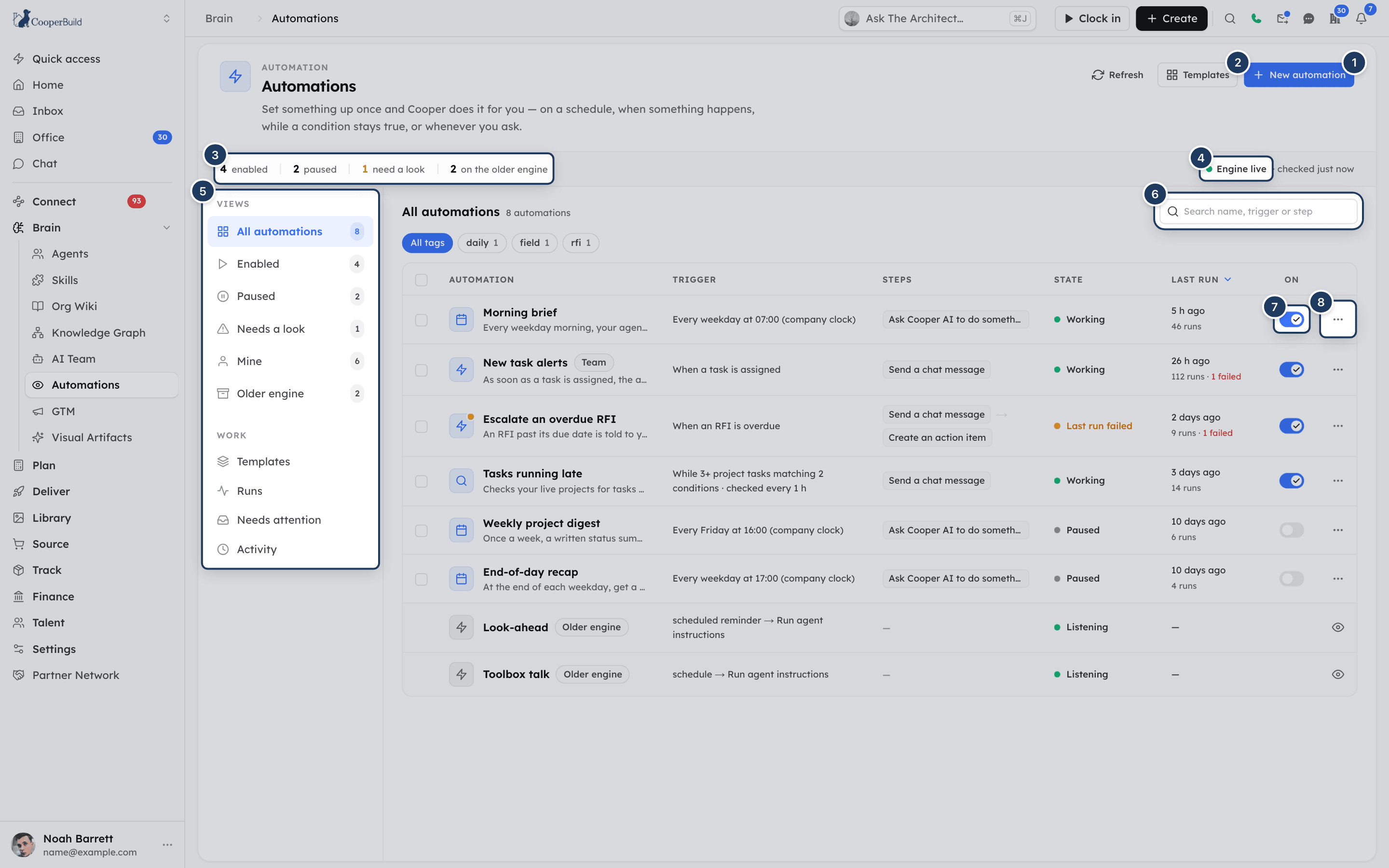
Find your way around the Automations page
The top of the page has three buttons:
- Refresh reloads every list.
- Templates opens the template gallery.
- New automation opens the builder.
Under them, a strip of counts shows how many automations are enabled, paused, need a look and are on the older engine. Each count is a button that opens that view. At the right of the strip, Engine live · checked 2 min ago confirms that Cooper is running automations. If it says Engine switched off here or Engine not started here, a red banner explains that automations can be created and previewed but nothing on this server will run them.
The left rail has two groups. On narrow screens the same items appear as a row of chips above the list.
| Group | Item | What it shows |
|---|---|---|
| Views | All automations | Everything, on both engines. |
| Views | Enabled | Automations that are on and waiting for their trigger. |
| Views | Paused | Saved automations that will not start a run. |
| Views | Needs a look | Automations that are failing, cannot be checked or have hit a limit. |
| Views | Mine | Automations you own. |
| Views | Older engine | Condition watches and activity-event automations from the older engines. |
| Work | Templates | Ready-made automations, plus templates your team saved. |
| Work | Runs | Every run of every automation you can see, step by step. |
| Work | Needs attention | Items assigned to you and automations that need a look. |
| Work | Activity | Checks and dispatches from the older engines, and recent situations. |
The Enabled, Paused, Needs a look and Mine views only include new-engine automations.
Read the automations list
| Column | What it shows |
|---|---|
| Automation | The trigger icon, the name and description. A Team pill means everyone can see it. An Older engine pill marks an older rule. A colored dot on the icon means it needs a look. |
| Trigger | When it runs, in words, such as "Every weekday at 08:00 (company clock)" or "When a task is completed". |
| Steps | The first steps, such as "Chat message → Task". |
| State | The automation's health. Hover it for the full explanation. |
| Last run | When it last ran, with the number of runs and failures. |
| On | The switch that enables or pauses it. |
| (menu) | Open details, Preview, Run now and Archive. Older-engine rows have an eye button that opens their details instead. |
Narrow screens hide Trigger, Steps and Last run. The trigger then shows under the name.
What each state means
| State | Meaning |
|---|---|
| Ready | Armed and waiting for its trigger. It has not run yet, or for a condition, nothing has matched yet. |
| Working | Its last run completed. Open the run to check what it actually did. |
| Last run failed | Its most recent run failed. Open its runs to see which step. |
| Paused | You or someone else switched it off. |
| Paused after failures | Five runs in a row failed, so Cooper paused it. |
| Cannot be checked | Cooper could not evaluate its trigger five times in a row (for example a disconnected mailbox), so it paused it. |
| Trouble checking | The last check of its condition or mailbox failed, but it has not been paused yet. |
| Owner has no access | The owner can no longer run automations in your organization. See Hand an automation to someone else. |
| Daily limit reached | It used its runs for today. It resumes by itself the next day. |
| Monthly budget spent | It reached its monthly spending limit. It starts again when the month rolls over. |
| Not being checked | Condition checks are switched off on this server, so it will never be evaluated here. |
| Nothing is running it | The automation engine is off or not started on this server. |
| Engine error | The engine reported an error. |
| Finished | A one-time automation that has already run. |
When Cooper pauses an automation by itself (repeated failures, the daily limit, a trigger it cannot check, or the monthly budget), the owner gets an in-app notification that links to it, at most once per reason per day.
Search, filter and sort automations
- Search: type in Search name, trigger or step above the table. It matches names, descriptions, trigger sentences and step names.
- Tags: once anyone has tagged an automation, a row of tag chips appears above the table. Click a tag to show only automations with it, or All tags to clear it.
- Sort: click the Automation, Trigger, State or Last run column header. Click it again to reverse the order. Sorting by State puts the worst state first.
If nothing matches, click Show all automations.
Create an automation from a template
Templates are the fastest way to a working automation. Each one asks a few questions and saves a paused copy that belongs to you.
Open the gallery
Click Templates at the top of the page, or Templates in the rail.
Find a template
Search with Search — overdue, RFI, receipt, email…, or click an area under Browse by area. Good places to start suggests a few. Each card shows what starts it and what it does, for example "When something happens → Chat message", and how many questions it asks.
Answer its questions
Click the card. A panel opens with the template's name and description. Change Name it if you like, then answer the questions, such as who to tell, which project or what time.
Check what will be saved (optional)
Click Preview first to see This is what will be saved: the When sentence and the steps that follow.
Add it
Click Add it (paused). Cooper shows "Saved and paused. Preview it, then enable it when you are happy." and opens your new automation.
Your copy is independent. A later version of the template does not change it, and you can change every part of it in the builder.
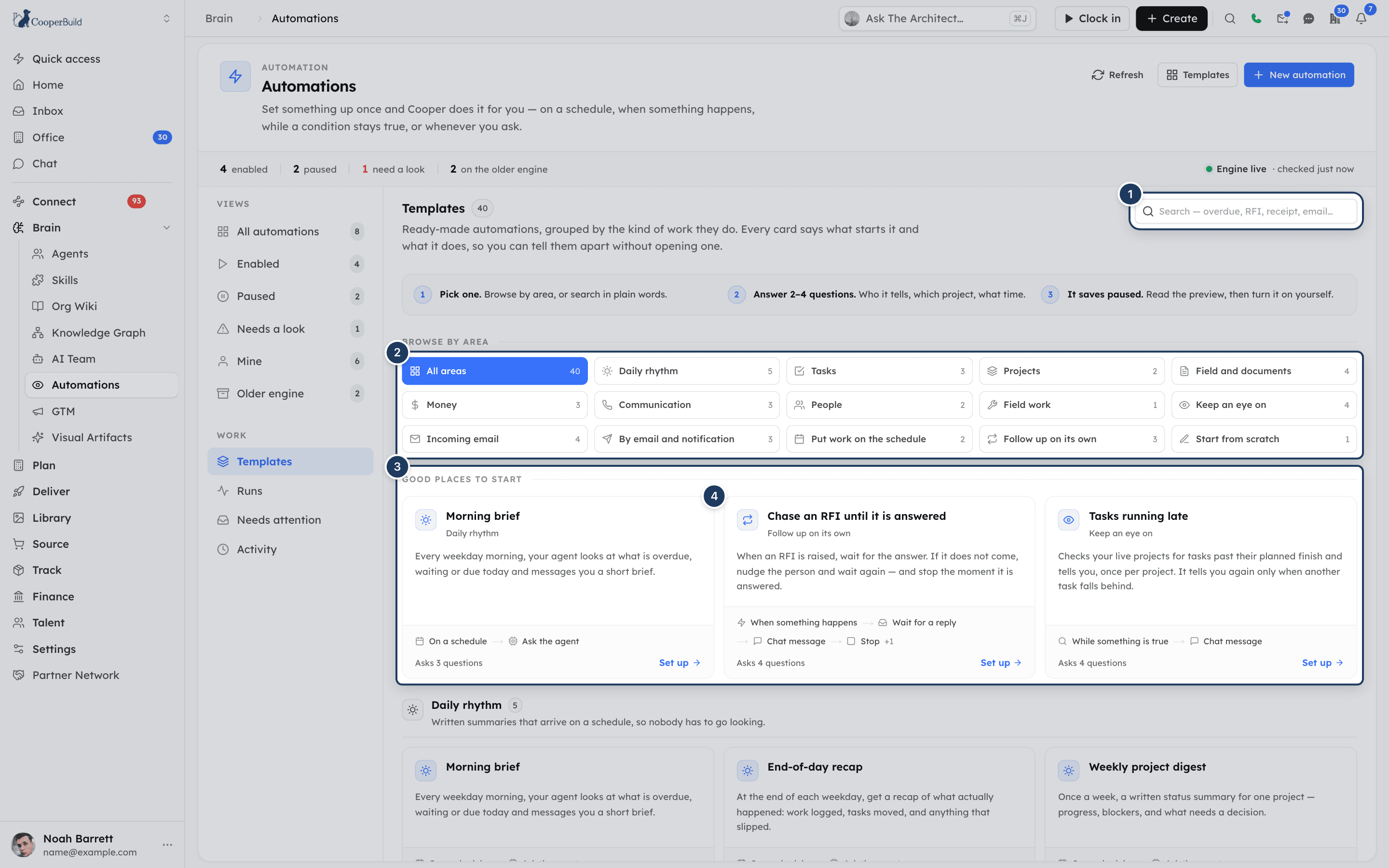
Template areas
| Area | Examples |
|---|---|
| Daily rhythm | Morning brief, End-of-day recap, Weekly project digest, Friday wrap-up, Monday: my open commitments |
| Tasks | Tell someone when a task lands on them, Know when a task is finished, Watch for a task moving to a status you care about |
| Projects | Tell the team when a project status changes, Kick-off checklist for a new project |
| Field and documents | Track a new RFI, Escalate an overdue RFI, Know the moment an RFI is answered, Track a new submittal item |
| Money | Know when a client approves a pay application, Chase an overdue client invoice, Review new vendor payment requests |
| Communication | Never lose a missed call, Summarise a new voicemail, Triage an incoming text message |
| People | Brief me on a new contact, Know when a new organization is added |
| Field work | Review each shift as it ends |
| Keep an eye on | Tasks running late, Things people owe going quiet, Card charges with no receipt, Pay application sitting unapproved |
| Incoming email | Mail from one company, Mail about one topic becomes an action item, Have an agent read incoming mail from someone, Mail with an attachment |
| By email and notification | A weekly email to the crew, Weekly brief written by an agent, A task reaches a status — put it in the notification centre |
| Put work on the schedule | A task every week, An RFI is answered — schedule the work |
| Follow up on its own | Chase an RFI until it is answered, Tell me whether they replied, A task stalls — give it a day, then escalate |
| Start from scratch | Tell me when a specific thing happens |
Templates your team saved from older rules appear below the gallery under Saved by you and your team. See Save an older rule as a template.
Build an automation from scratch
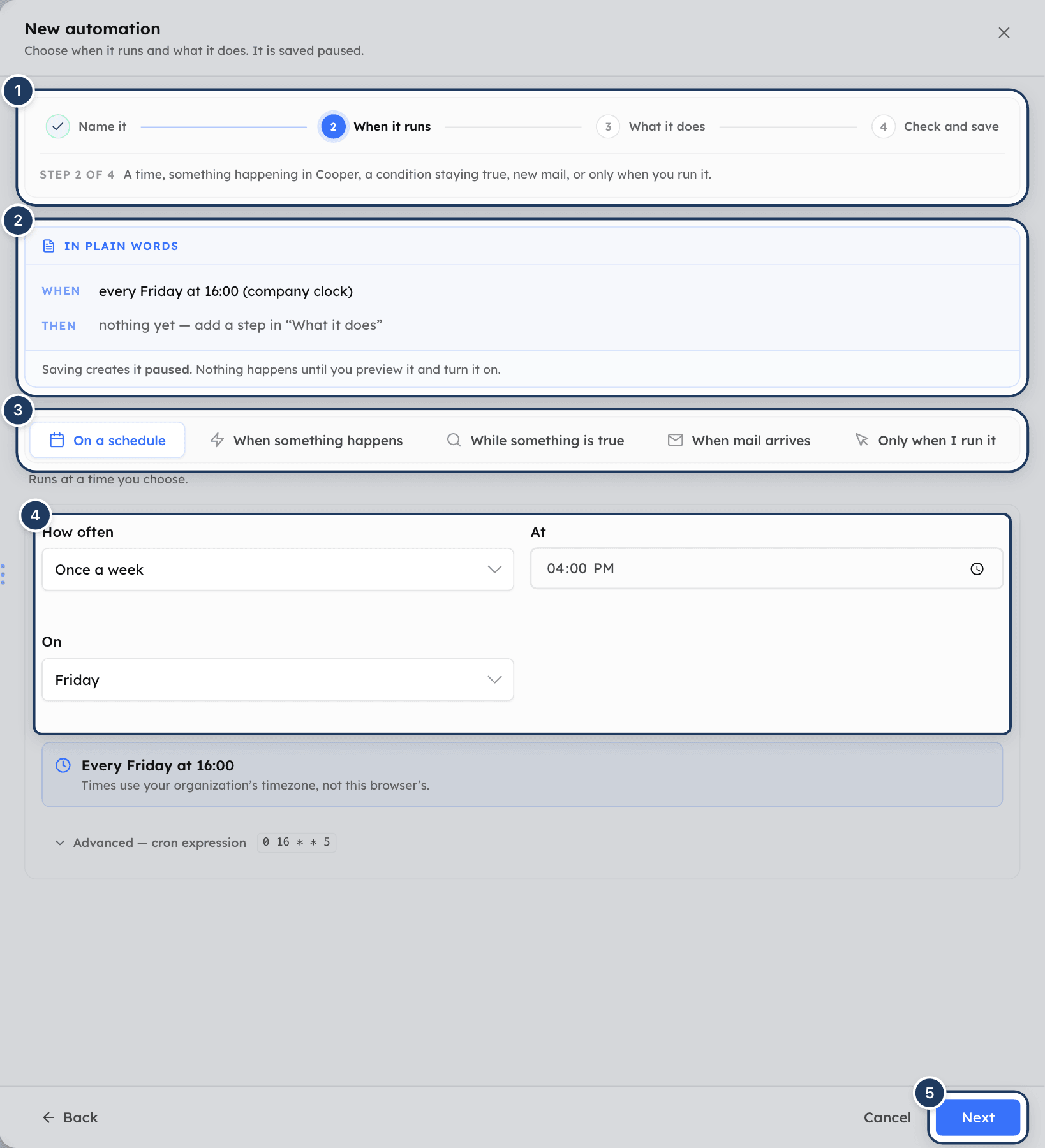
The builder is a four-stage wizard: Name it, When it runs, What it does and Check and save.
Open the builder
Click New automation. If you have no automations yet, you can also click Build one from scratch.
Name it
Enter a Name, for example "Friday recap for the Homestead team". Optionally fill in What is this for?. Click Next.
Choose when it runs
Pick a trigger and fill in its settings. See Choose a trigger. Click Next.
Add what it does
Click Add the first step, choose what kind of step it is and fill in its fields. Add more with Add another step. See Add steps. Click Next.
Check and save
Set Runs, Who can see it, Most runs per day, the monthly budget, working hours and tags. See Set limits, visibility, working hours and tags. Click Save (paused).
Cooper shows "Saved and paused. Preview it, then enable it when you are happy." and opens the automation's details.
While you work:
- The In plain words band above every stage reads your draft back as a When / Then sentence, including the gaps, such as "something happens — pick which event below".
- The stepper at the top shows Step 1 of 4 and a hint. Click any stage you have already visited to jump back to it. A stage with something missing shows a warning mark.
- Next refuses to move on while the stage has a problem and lists it under Finish these first, for example "Give the automation a name." or "Add at least one step."
- Back and Cancel are in the panel footer.
Choose a trigger
In When it runs, pick one of five triggers.
On a schedule
Runs at a time you choose. A new automation starts as every weekday at 09:00.
| Field | What it does |
|---|---|
| How often | Every day, Every weekday (Mon–Fri), Once a week or Once a month. |
| At | The time of day. |
| On | For Once a week, the day. |
| Day of the month | For Once a month. Use 1–28 so it runs in every month, February included. |
| Advanced — cron expression | The underlying five-field schedule, such as 0 8 * * 1-5. Editing it overrides the choices above. |
A blue line confirms the schedule in words, such as "Every weekday at 08:00". Times use your organization's timezone, not your browser's.
When something happens
Runs when a matching activity is recorded in Cooper, such as a task being completed or an RFI being created.
Pick the event
Search with Search modules and events…, click a module in the Module column, then click an event. Events your organization has recorded show how often they happened. Events your organization has never recorded show new.
Narrow it (optional)
- Only when the action is: leave it as Any action for most events. For incoming email, choose the
ACTIVITY_LOGGEDevent and enteremail_receivedhere. - Only for this project: pick a project, or leave Any project.
Choose how often it runs
Under How often it runs, choose Every time — one run per matching event, or Once a day — collect them and run one summary. For a summary, set Send the summary at (17:00 by default). Steps then read the whole day's list as {{trigger.items}} and the number as {{trigger.count}}.
Click Change event to pick a different one.
While something is true
Checks your records on a cadence and runs when a condition becomes true.
| Field | What it does |
|---|---|
| What to watch | The source, for example Project tasks, Action items, Card charges, Pay applications, Task workflows or Workflow agent runs. The list comes from the server. |
| Narrow it down | Click Add a condition to add up to 10. Each has a field, a comparison (for example is, contains, is at least, is older than (days)) and a value. With no conditions, anything in the source counts. |
| Run once per | One run for everything that matches, or one run per group, such as Each project. |
| Only when there are at least | A minimum number of matches. |
| Check | Every 5 minutes, Every 15 minutes, Every hour, Every 4 hours or Once a day. |
The automation runs again only when the answer changes. A condition that stays true stays quiet.
When mail arrives
Checks the mailboxes you have connected and runs once for every new message that matches. Under Which messages, add at least one condition, such as a sender, a domain or a word in the subject. Without one, it would match every message you receive. Only mail that arrives after you switch the automation on counts, so turning it on does not work through a backlog. You need a connected mailbox. See Mail.
Only when I run it
Nothing starts the automation on its own. You use Run now whenever you want it to happen. This is useful for a checklist you run by hand, or for testing steps before giving them a trigger.
Add steps
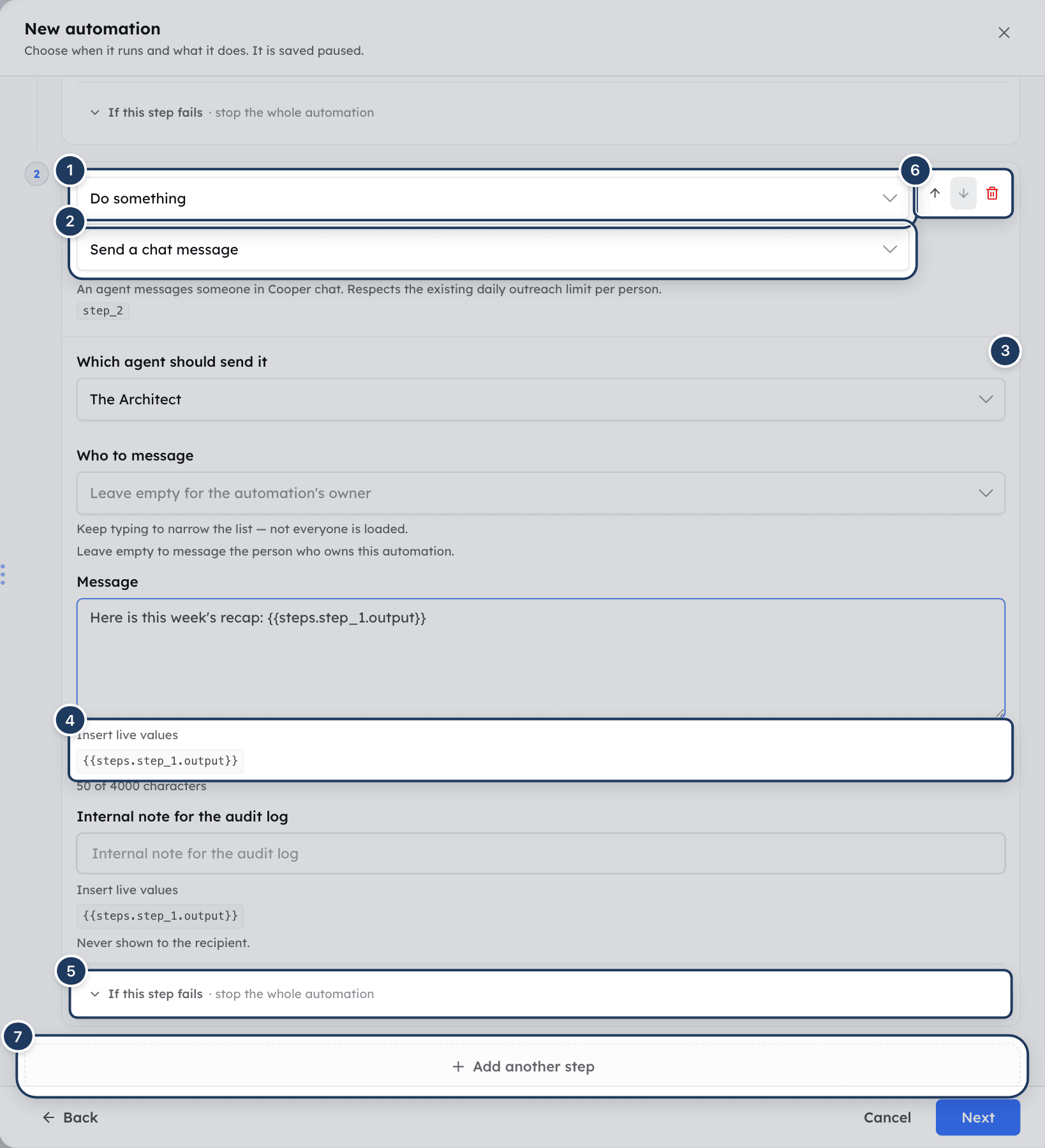
In What it does, each step runs after the one above it. A step can read what an earlier step produced.
Add a step
Click Add the first step (or Add another step).
Choose the kind of step
The first dropdown sets the kind. Do something runs an action. The other kinds wait, branch or ask for approval. See Configure waits, branches and approvals.
Choose the action
For Do something, pick the action in Choose what happens. Its description and fields appear below.
Fill in the fields
Text and message fields show Insert live values, such as {{trigger.target.name}} or {{steps.step_1.output}}. Type these into the text to use values from the trigger or an earlier step. Scheduled automations have no trigger record, so only earlier steps are offered.
Decide what happens on failure
Open If this step fails and choose Stop the whole automation (the default) or Carry on to the next step. Either way the run is recorded as failed.
Use the up and down arrows to reorder steps and the bin to remove one. Each step has a short name such as step_1. Branches and fallbacks point at steps by that name.
Actions
| Action | What it does | Fields |
|---|---|---|
| Send a chat message | An agent messages someone in Cooper chat. Respects the daily outreach limit per person. | Which agent should send it (required), Who to message, Message (required), Internal note for the audit log |
| Send an in-app notification | Adds a notice to a teammate's notification centre. No email, no chat message. | Who to notify, Notice (required), More detail, Priority (low, normal, high) |
| Send an email | Emails people in your organization from your workspace sender. Only teammates can be chosen. | Who to email, Subject (required), Message (required), Button text (the button opens Automations) |
| Create an action item | Records something that needs doing, owned by a person. Repeats merge into the open item. | What needs doing (required), Who owns it, Project, Due, Type (commitment, waiting on) |
| Create a project task | Adds a task to a project deliverable, with a task code, on the schedule, notifying the assignees. | Project, Deliverable, Task type, Task name (all required), Description, Priority, Who does it, Planned start, Planned finish |
| Update a project task | Changes an existing task's status, priority, dates, assignees or description. It cannot delete a task. | Which task (required), Only tasks on this project, Set the status to, Set the priority to, Rename it to, Replace the description with, Hand it to, Move the planned start to, Move the planned finish to |
| Ask Cooper AI to do something | Starts an agent run with your instruction, using your permissions and tools. | What should the agent do (required), Project context, Specific agent (optional), Cost cap for this run, How the agent works, Send the answer in chat when it is ready, Who to send it to |
In Who to message, Who to notify, Who to email, Who owns it and Who to send it to, leaving the field empty means the automation's owner. People fields only list teammates with a Cooper login, so an automation cannot message an outside address.
For Ask Cooper AI to do something:
- Cost cap for this run defaults to $2 and is never more than what is left of the monthly budget.
- How the agent works: focused (the default) does the job itself in up to 25 turns. thorough may plan and hand parts to other agents, up to 60 turns, and costs more.
- Send the answer in chat when it is ready is on for a new step. Turn it off for a step that acts rather than reports.
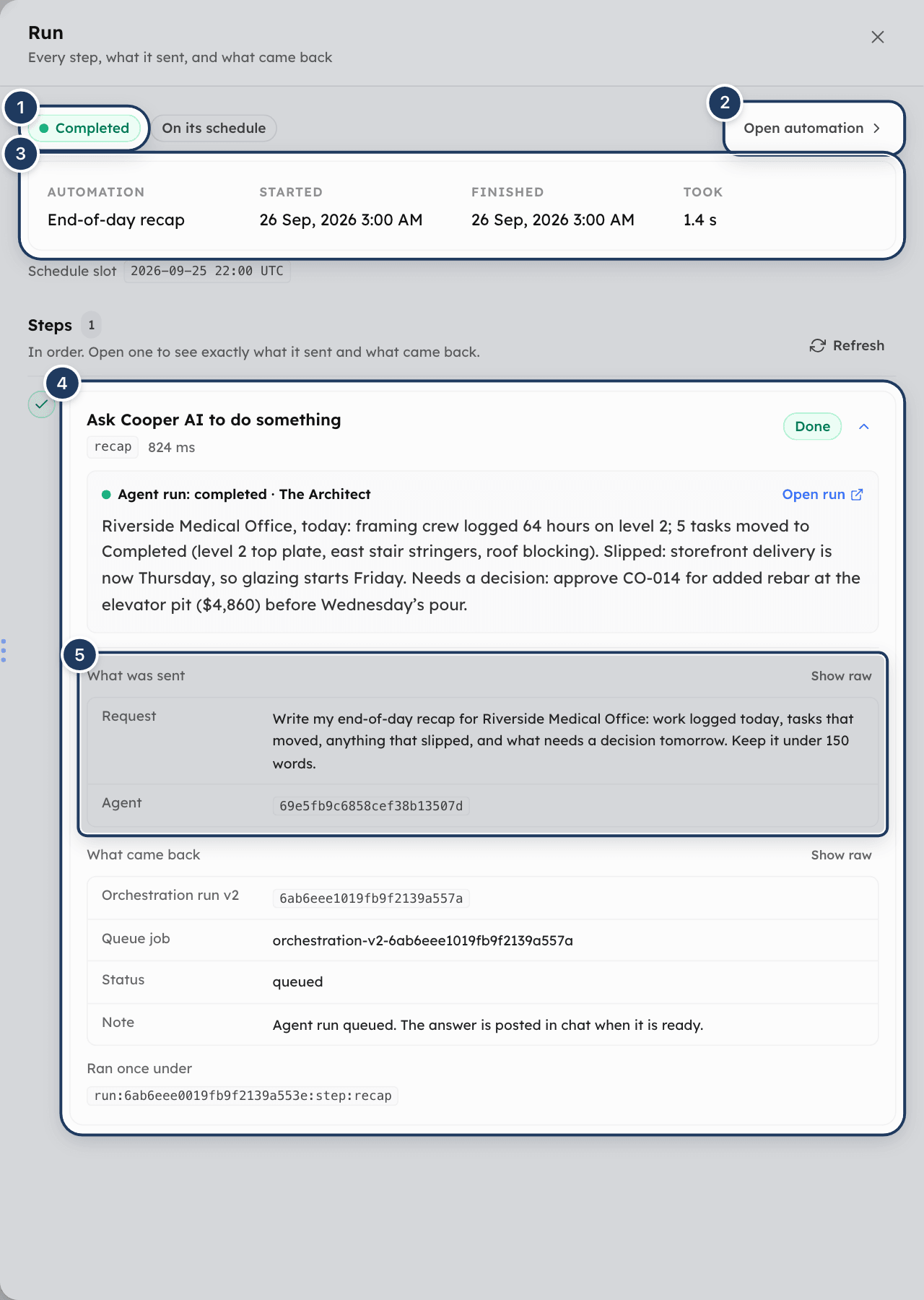
- A finished step only means the agent run was queued. The run details show the agent run's own status and answer.
To take a task off the board, use Update a project task and set the status to Cancelled or Archived.
Configure waits, branches and approvals
| Step kind | Use it to |
|---|---|
| Wait a while | Pause for a set time, then carry on. |
| Wait for something to happen | Pause until a matching activity is recorded, such as a reply or a status change. |
| Choose a path | Go one way or another depending on a value the run already has. |
| Ask someone first | Pause until a person you name approves or refuses. |
| Do it for each one | Run one action once for every item in a list. |
| Stop here | End the run, skipping everything after it. |
Wait a while
Set Pause for as a number of minutes, hours or days (up to 90 days). The run picks up by itself. Nothing is lost if Cooper restarts while it waits.
Wait for something to happen
- Under Wait until this is recorded, click Choose what to wait for and pick an event. For an emailed reply, choose Activity logged.
- Under Only when it is about the same thing, click Match a field to add up to five matches, such as
metadata.emailThreadIdequal to a value from an earlier step. Without a match, the run continues on the next activity of that kind anywhere in the organization. - Set Give up after (3 days by default).
- In If nothing arrives, choose Carry on with the next step or jump to another step.
Choose a path
Click Add a condition (up to 10). For each, enter the value to look at (for example steps.reply.output.satisfied), a comparison (is, is not, is at least, is at most, is more than, is less than, contains, has a value, is empty), a value, and then go to a step. Conditions are checked top to bottom and the first that fits wins. Otherwise go to sets where everything else goes. Values you can look at lists the values available.
Ask someone first
| Field | What it means |
|---|---|
| What are they being asked? | The whole question the approver sees, such as "Send this quote to the client?" (required, up to 300 characters). |
| Who can answer | One or more teammates (required, up to 10). Anyone on the list can decide, and the first answer settles it. |
| Anything else they should know | Optional detail, such as the amount or the client. |
| If they say no | End the run — nothing after this happens, or go to another step. |
| If nobody answers | The same choices. |
| Wait for an answer for | 3 days by default. Silence never counts as approval. |
The people you name get an in-app notification linking to the run. See Approve or refuse a waiting run.
Do it for each one
| Field | What it means |
|---|---|
| Work through | The list, such as The records the trigger matched, or what an earlier step produced. |
| And for each one | The action to run per item. Its fields can use {{item.…}} and {{item_index}}. |
| At most | 1 to 100 items (25 by default). |
| If the list is longer | Stop — do none of it and say so, or do the first items and record the rest as skipped. |
| If one of them fails | Stop there — do not try the rest, or Carry on, and report which ones failed. |
Items run one after another, never all at once.
Stop here
Choose Record the run as: Completed — it did what it was meant to, or Cancelled — it stopped on purpose without acting.
Set limits, visibility, working hours and tags
The Check and save stage holds the settings that apply to the whole automation.
| Field | What it means |
|---|---|
| Runs | Every time it matches or Once, then finish. You cannot change this after the automation has run. |
| Who can see it | Only me, or My team (everyone in your organization who can open Automations can see it). Either way, it runs as you and only you can change it. |
| Most runs per day | A brake, not a schedule: 50 by default, up to 500. When it is reached the automation says so and resumes by itself the next day. |
| Most it may spend in a month | A dollar ceiling for AI steps. Leave it blank for no ceiling of your own. When it is reached, the automation stops starting runs and tells you. |
| Only act during certain hours | Tick to set From, Until, On these days and Outside those hours: Wait, and run when the window opens or Do not run at all. The window cannot cross midnight. |
| Tags | Type a tag and click Add or press Enter. Up to 8 tags per automation, 24 characters each. Tags are saved in lower case. |
Working hours use the automation's own clock: its schedule timezone if it has one, otherwise the company clock.
AI steps always have a monthly budget
An automation with an Ask Cooper AI to do something step gets a $25 monthly budget if you don't set one. A schedule that would start more than 24 AI runs a day can't be saved without a budget you choose: set one, lower Most runs per day to 24 or fewer, or run it at most once an hour.
Preview an automation
Preview shows what every step would do with today's data, without sending, creating or starting anything.
- Open the row menu and click Preview, or click Preview in the automation's details.
- The Preview: panel lists each step with Ready, Needs a real trigger (it uses values that only exist when the trigger fires, listed under Filled in at run time) or Cannot run (with the reason).
- Where a step sends text, the exact message is shown. For a condition or mail trigger, Right now in shows how many groups match at the moment.
- Click Refresh preview after you change something.
Test an automation with Run now
Run now performs every step for real, once, immediately. It works on a paused automation, so you can test it before you switch it on. It ignores the daily limit and working hours, but not the monthly budget.
- Open the row menu and click Run now, or click Run now in the automation's details.
- For a When something happens automation, the Run it against a real event window lists recent events the rule would have run on. Pick one and click Run with this event, so the steps get the same values a real run would. Run without one runs with every event value missing.
- Cooper shows "Started. Open Runs to watch it." and opens the run.
For a condition or mail automation, Run now uses a sample of what currently matches.
Turn an automation on or pause it
- In the list: click the switch in the On column.
- In the details: click Enable or Pause.
- Several at once: tick the checkboxes of new-engine rows (or the header checkbox for all of them). The bar shows "N selected" with Enable, Pause, Archive and Clear. Cooper reports how many it changed and names any it could not change, such as ones you don't own. You can change up to 100 at a time.
Pausing does not cancel runs already in flight. They finish. Re-enabling an automation that Cooper paused clears the pause and its failure count.
Open an automation's details
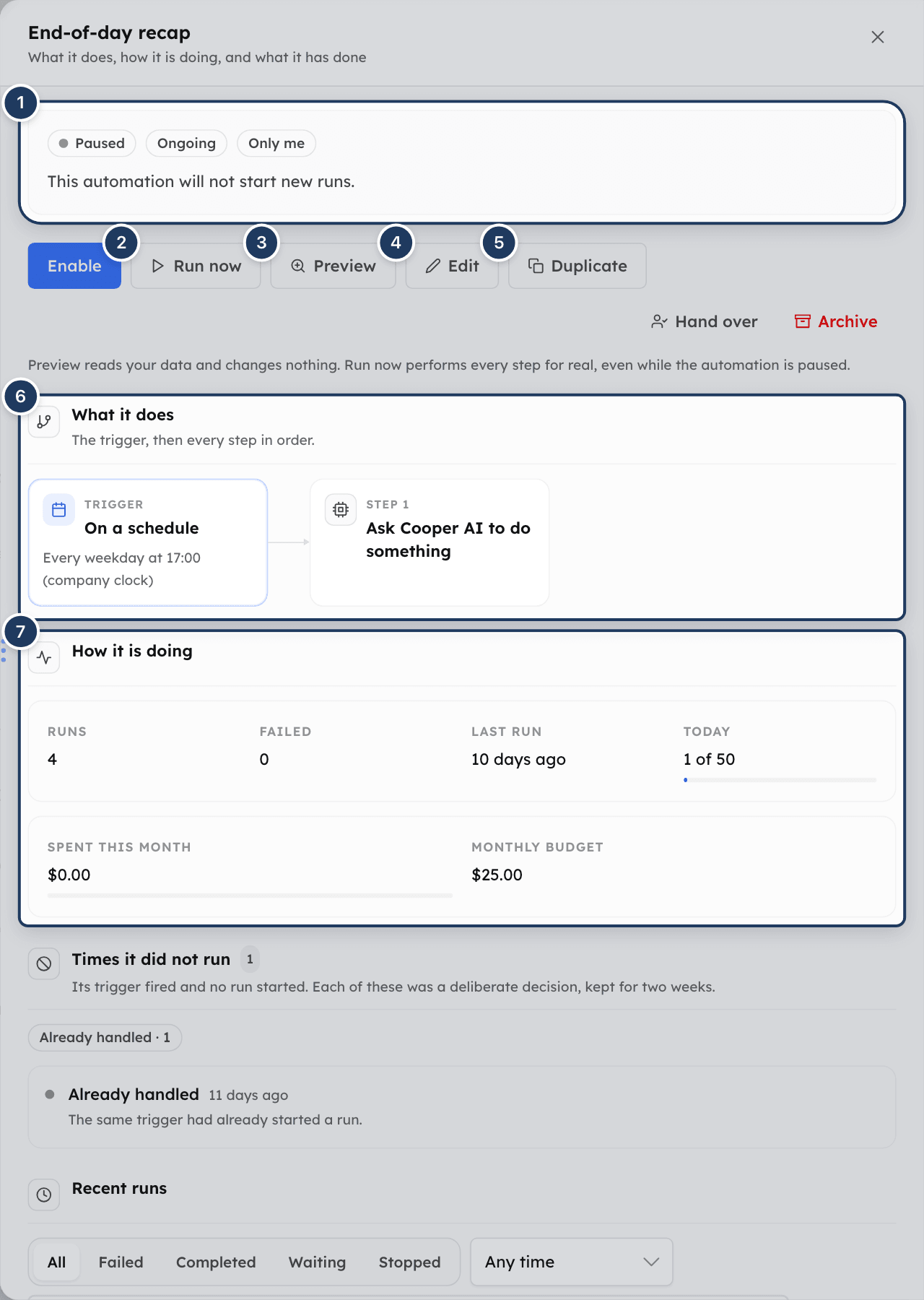
Click a row (or press Enter on it). The details panel shows:
- The state: the health pill, Runs once or Ongoing, Visible to the team or Only me, working hours and tags, and a sentence explaining the state.
- Collecting for its next summary: for a once-a-day summary, how many events it has collected and when it runs.
- The controls: Enable/Pause, Run now, Preview, Edit, Duplicate, and, at the far end, Hand over and Archive.
- What it does: the trigger and every step in order, with the paths out of a branch or wait.
- How it is doing: Runs, Failed, Last run and Today (runs used of the daily limit). Spent this month and Monthly budget appear when there is spending or a budget.
- Times it did not run: see the next section.
- Recent runs: this automation's runs, with the same filters as the Runs view.
- History: earlier versions. See See and restore earlier versions.
If you don't own the automation, a note says "You can read this one, not change it". You can still preview it, duplicate it and read its runs.
Find out why an automation did not run
When an automation's trigger fired but no run started, Cooper records why. The Times it did not run section in the details lists these for two weeks, with a count per reason. It appears only when there is something in it. Click Show all N to see more than five.
| Reason | Meaning |
|---|---|
| Its filters said no | The event was the right kind but did not match what the rule narrows to. |
| An automation made this change | Changes made by automations are not treated as news, or a rule would trigger itself forever. |
| It is paused | The automation was off at the time. |
| Already handled | The same trigger had already started a run. |
| Still busy | A run for the same record had not finished yet. |
| Out of runs for the day | It used its daily limit. Narrow the trigger or raise the limit. |
| Out of budget for the month | It spent its monthly allowance. |
| Outside its hours | It is set to skip anything outside its working hours. |
| One-time, already used | It was set to run once, and it has. |
| Too long a chain | Automations had started each other too many times in a row. |
Watch runs and read run details
Click Runs in the rail to see every run of the automations you can see, newest first.
- Filter by status: All, Failed, Completed, Waiting or Stopped.
- Choose a time: Any time, Last 24 hours, Last 7 days or Last 30 days.
- Search with Name, or what the failure said.
- Click Clear to reset the filters, or Refresh to reload.
The list shows the 50 most recent runs. While something is running it refreshes itself every few seconds.
Click a run to open it. The Run panel shows the status, why it started (On its schedule, An activity matched, A condition matched, An email matched or Started by hand), any cost, Started, Finished and Took. Open automation takes you to the automation. Under Steps, each step shows its result; click the arrow to see What was sent and What came back (click Show raw for the raw data).
| Run status | Meaning |
|---|---|
| Queued | About to start. |
| Running | In progress. |
| Waiting | Paused by a delay, held for working hours, or waiting to retry after a temporary failure. |
| Waiting for a reply | Parked on a Wait for something to happen step. |
| Waiting for approval | Parked on an Ask someone first step. |
| Completed | Every step it reached finished. A completed run is not proof of a business outcome; check what each step did. |
| Failed | A step failed. |
| Cancelled | Stopped on purpose, for example by a refusal, a timeout, a Stop here step or archiving. |
Step results are Done, Failed, Skipped, Waiting or Running.
Pick up a failed run
When a run failed, its panel shows This run failed and, where possible, Pick up where it stopped.
- Fix the cause, for example a missing value or a permission.
- Click Pick up where it stopped. Cooper shows "Picked up again at "step_2"."
The failed step runs again and the run carries on. The steps that already worked are not repeated, so nobody is messaged twice. Only failed runs can be picked up, not stopped ones, and not if the failed step was since removed from the automation.
Approve or refuse a waiting run
When an automation asks you a question, you get an in-app notification that opens the run.
Read the question
The question is shown at the top of the run, with any detail, when it was asked and when an answer is needed.
Add a note (optional)
Type in Add a note — the steps after this can quote it (optional).
Decide
Click Approve to run the rest of the steps, or Refuse to stop the run (unless the automation names another step to go to). Whoever answers first settles it.
Only the people the step names can answer. Everyone else sees the question with "This is waiting on somebody else." If nobody answers, the run ends by itself at the deadline.
Edit an automation
- Open the automation's details and click Edit. The builder opens on Check and save, and you can jump to any stage.
- Make your changes and click Save changes. Cooper shows "Automation saved."
Changes apply to the next run. A run already in flight finishes as it started. Editing does not switch the automation on or off. A one-time automation that has already run cannot be edited ("This definition is fixed").
If someone else saved the automation while you were editing, Cooper says "This automation changed while you were editing. Refresh and try again."
Duplicate an automation
Click Duplicate in the automation's details. Cooper creates a copy named after the original with "(copy)" at the end, owned by you and paused, shows "Copied, and saved paused." and opens the copy. The copy has its own history and counters. You can duplicate any automation you can see, including a teammate's.
See and restore earlier versions
The History section lists every change to what the automation does, newest first: Created, Edited, Restored an earlier version or Installed from a template, by whom and when, with a summary such as "Added a step: tell someone in chat". Renaming is not recorded as a change. Cooper keeps the last 30 versions.
To go back, click Put this version back on an older version. Cooper shows "Version N is back, saved as a new version." Restoring does not rewind anything and does not turn the automation on. Runs already in flight keep the definition they started with.
Hand an automation to someone else
An automation runs with its owner's permissions. Handing it over changes whose permissions it uses from the next run onward.
- In the details, click Hand over. If the owner has left or lost access, the callout Nobody can run this any more has a Hand it over button that anyone with Automations Write can use.
- In Who should own it, pick one teammate.
- Click Hand it over. Cooper shows "Handed over."
The new owner needs Automations Write. Otherwise Cooper says "That person cannot run automations in this organization." After the handover only the new owner can change or pause it. Nothing in its history changes.
Archive automations
- Open the row menu or the details and click Archive.
- In Archive this automation?, click Archive (or Keep it).
The automation stops running, anything in flight is cancelled, and its run history is kept. To archive several, tick them and click Archive in the selection bar. The selection bar archives straight away, without a confirmation window.
Work through Needs attention
Click Needs attention in the rail. It answers "what is waiting on me?" in two sections:
- Assigned to you: situations raised by older condition watches and assigned to you (up to 100).
- Check these automations: enabled automations, on either engine, whose state is a warning or a failure. Click one to open it.
If there is nothing, you see Nothing needs you. Click Show resolved and snoozed to include closed items, and Refresh to reload.
Each situation shows its status (open, raised, pending judgment, unowned, snoozed, muted or resolved), what it is about, the agent and owner, the value and what it was before. Its buttons:
| Button | What it does |
|---|---|
| Open conversation | Opens the chat where the agent raised it. |
| Review proposal / View proposal | Expands the proposed work, the same card as in chat. For a card-charge proposal you can Approve N links, Decline or Snooze N days. |
| Retry work / Refresh proposal | Tries blocked or failed work again, or refreshes a proposal waiting for approval. |
| Not now | Snoozes it for 7 days. |
| Handled | Marks it resolved. This does not perform its proposed action. |
| Stop | Mutes it, so you are not asked about this one again. |
Work with automations on the older engine
Condition watches and activity-event automations created before this page keep running on their own engines. They appear in All automations and Older engine with an Older engine pill. You can't create new ones here, select them in bulk or switch them from the table, but their details panel has its own controls. Click the eye button to open it.
The panel shows the state, whether it is a Condition watch or Activity event, and When, Response, Scope and Agent.
For a condition watch:
- Enable/Pause.
- Run now evaluates the enabled rule for real; it can send messages and start its response.
- Preview matches checks current data and sends nothing. It shows how many matching groups would be raised and why the others stay quiet.
- Edit opens Edit condition automation, where you can change Run (Once or Whenever it matches), the watch sentence (what it watches, grouping, threshold, who is asked and what is offered), When this needs attention (Notify only, Request approval for matches, Start assigned-agent guidance or Run bounded reconciliation), and under Adjust details the name, How it speaks, At most every (days) and the Message. Click What would fire today? to test, then Save watch.
- Archive stops it evaluating and closes its open situations.
- Recent situations lists what it has raised.
For an activity event:
- Enable/Pause.
- Preview instruction shows the instruction the agent would get, without running it.
- Open agent runs and settings opens it in AI Team.
- Event matching says whether matching events were found and shows the daily cap.
- Recent runs lists each time it fired and the agent run's result.
The Activity view shows the older engines' latest checks and dispatches under Checks and dispatches, and Recent situations from every watch.
Save an older rule as a template
You can share an older rule you own as a template.
- Open the rule's details and click Save as template.
- Check the Template name, When should someone use this? and the Notification template or Agent instructions. Check names, links and company details before sharing.
- Each person will choose lists the setup choices each installer answers.
- In Who can use this template?, choose Only me or My team.
- Tick I reviewed the content and who can see it. Editing anything clears the tick again.
- Click Save to my library or Share with my team.
A template is a snapshot. The running rule, its history and its approvals are never included.
To use a saved template, open Templates and find it under Saved by you and your team (filter with All, Mine or Shared with the team). Click Use this, set Name for your copy and Run, answer its choices, click Preview my setup, then Create my paused copy. To stop others installing a template you saved, click Remove, then Remove from library. Existing copies keep working.
Fields reference
| Field | Stage | Required | What it means |
|---|---|---|---|
| Name | Name it | Yes | Up to 200 characters. |
| What is this for? | Name it | No | A description for whoever finds it later. |
| Trigger | When it runs | Yes | One of the five triggers, with its settings. A schedule needs a time; an event trigger needs an event. |
| Steps | What it does | Yes, at least one | Up to 25 steps. |
| Runs | Check and save | Yes | Every time it matches or Once, then finish. |
| Who can see it | Check and save | Yes | Only me or My team. |
| Most runs per day | Check and save | Yes | 1 to 500, default 50. |
| Most it may spend in a month | Check and save | No | Dollars. Blank means no ceiling of your own. |
| Only act during certain hours | Check and save | No | Hours, days, and what happens outside them. |
| Tags | Check and save | No | Up to 8, 24 characters each. |
Limits
| Limit | Value |
|---|---|
| Steps per automation | 25 |
| Runs per day | 50 by default, up to 500 |
| Conditions on a trigger | 10 |
| Conditions in a Choose a path step | 10 |
| Field matches in a wait | 5 |
| Longest wait or delay | 90 days |
| Approvers per approval | 10 |
| Items in Do it for each one | 1 to 100 (25 by default) |
| Tags | 8 per automation, 24 characters each, 60 per organization |
| Versions kept in History | 30 |
| Times it did not run kept for | 14 days |
| Automations changed in one bulk action | 100 |
| Automatic pause | After 5 failed runs in a row, or 5 failed checks in a row |
| AI monthly budget when none is set | $25 |
| AI cost cap per run when none is set | $2 |
Permissions
Automations is controlled by the Automations row in the Brain section of a role. An admin sets it in Settings → Roles.
| Action | What you need |
|---|---|
| See Automations in the sidebar, list automations, open details, preview, read runs | Automations Read |
| Create, install a template, duplicate, edit, enable, pause, run, archive, restore a version, hand over | Automations Write |
| Change, run, pause, archive or restore a specific automation | Write, and you must be its owner |
| Hand over an automation whose owner has lost access | Automations Write (any user) |
| Answer an approval | Being one of the people the step names |
Visibility: an automation set to Only me is visible only to its owner. One set to My team is visible to everyone who can open Automations.
Automations run with the owner's permissions, which Cooper checks again at run time:
- Create a project task and Update a project task need Deliver → Project Tasks Write.
- A While something is true trigger needs read access to its source, for example Connect → Action items for action items, or Deliver → Project Tasks for project tasks and task workflows.
- A When mail arrives trigger needs Connect → Mail Read and a connected mailbox.
If the owner loses access to Automations, the automation stops with Owner has no access until someone hands it over.
Tips and best practices
- Start from a template when one is close. It is the quickest way to a working automation, and you can edit everything afterwards.
- Always Preview and then Run now before you switch an automation on. A manual run is recorded like any other, so you can read exactly what it sent.
- For an event automation, test with Run with this event so the values from the event are filled in.
- Prefer When something happens or While something is true over a frequent schedule for AI steps. They run only when there is something to do, and cost less.
- Use Once a day — collect them and run one summary for noisy events, so people get one digest instead of a message per change.
- Add working hours to automations that message people, and choose Wait, and run when the window opens for reminders that are still true later.
- Keep Most runs per day low. It is a safety brake against a rule that matches far more than you expected.
- Use tags such as a project name or "safety" once your list grows.
- If an automation goes quiet, check Times it did not run before you change anything.
Troubleshooting
Your role does not have Brain → Automations → Read. Ask an admin to grant it in Settings → Roles.
You don't own this automation, so you can only read, preview and duplicate it. A one-time automation that has already run also shows Finished and cannot be edited or run again. Duplicate it to make your own copy.
New automations are always saved paused. Switch it on in the On column or click Enable in its details. Then check Times it did not run and the engine status in the count strip.
Five runs in a row failed. Open Recent runs, read which step failed and why, fix it, then click Enable. You can use Pick up where it stopped on the failed run.
Cooper could not evaluate the trigger, usually because a mailbox was disconnected, a permission was removed or the source no longer exists. Fix that, then enable the automation again.
The owner left or lost the Automations permission. Click Hand it over and choose someone with Automations Write.
A schedule with an AI step that runs more than 24 times a day needs a budget. Set Most it may spend in a month, lower Most runs per day to 24 or fewer, or run it at most once an hour.
Run now ignores the daily limit and working hours, but not the monthly budget. Raise Most it may spend in a month in the builder, or wait until the month rolls over.
The event you picked would never have started this rule. Pick another event from the list, or click Run without one.
Check that the event has actually happened in your organization (events marked new in the picker have never been recorded in your organization). Check Only for this project and Only when the action is. Times it did not run shows Its filters said no when the event was the right kind but was filtered out.
Finish these first lists everything missing. Fill in the required field, or update the branch, wait or approval that pointed at a removed step.
Someone else saved it first. Close the builder, click Refresh and make your change again.
One of the lists (new automations, condition automations or event automations) failed to load. The others are still shown. Click Refresh.
Only the people the step names can answer. If you are not one of them, ask them, or wait for the deadline, after which the run ends by itself.
For AI agents
AI agents connected through the CooperBuild MCP server (see AI agents) manage automations with these tools. All are gated by the Automations permission (Read for browsing, Write for everything else).
New engine (plain ids):
automation_browse(read-only).actionis one ofcatalog,list,get,preview,runs,run,misses,revisions,approvals,tags,ownerless,templates,template_preview,trigger_samples,event_catalog,people.- Call
catalogbefore authoring: it returns the actions, step kinds and their config, trigger kinds, condition sources and guard ceilings on this server. event_cataloglists valid event types;peoplereturns teammates as user ids. Every person field (recipients, approvers, assignees, new owner) takes these user ids, notsearch_humanscontact ids.missesanswers "why didn't it run".runreturns step-by-step detail; a succeededagent.runstep only means the agent run was queued.ownerlessneeds Write.
- Call
automation_build(writes definitions; everything it creates is paused).action:validate,create,update,duplicate,restore_revision,template_install. Key params:name,scope(personal/team),lifetime(once/ongoing),trigger,steps,guards,tags,automationId,version,templateKey,answers,installationKey,newName.- Use
validateto compile without saving. - Passing
enabledreturnsUSE_AUTOMATION_CONTROL.
- Use
automation_control(makes things happen).action:enable,pause,archive,run_now,resume_run,bulk,decide,transfer_owner. Key params:automationId,runId,activityLogId(forrun_nowon an event automation, fromtrigger_samples),automationIds+bulkAction,decision(approved/rejected) +note,ownerUserId.- Only enable when the user asked for it. Preview first.
- Never answer an approval on someone else's behalf.
Older engines (condition:<id> / event:<id> ids):
automationmanages the older condition watches and activity-event automations, plus team templates (grammar,create,list,get,update,pause,enable,preview,template_prepare,template_save,template_list,template_get,template_preview,template_install,template_withdraw).agent_watchis advanced authoring and diagnostics for condition watches (grammar,library,compile,apply_library,dry_run,create,update,list,get,enable,disable,archive,evaluate_now). Rundry_runbeforecreate.agent_situationhandles what watches raised (list,get,snooze,mute,resolve,acknowledge,retry_work). Map "not now" tosnooze, "stop" tomuteand "done" toresolve.
Common errors and fixes:
BAD_INPUT"Pass automationId as a plain id…": you passed acondition:<id>orevent:<id>to a new-engine tool. Useautomationfor those, or get a plain id fromautomation_browse list.FORBIDDEN"Only the person who owns this automation can change it.": only the owner can change, run, pause or archive it. Useduplicateto make the user's own copy, ortransfer_ownerif the owner is gone.BAD_INPUT"This schedule would start up to N AI runs a day…": addguards.costBudgetUSD, lowerguards.dailyRunCapto 24 or fewer, or schedule hourly or less often.BAD_INPUT"Step "x" uses "…", but step "y" does not always run before it": a binding reads a step that may not have run on every path. Reorder the steps or read from the trigger.run_nowrefusals such as "This automation has spent its budget for this month." or "This automation is already running. Wait for it to finish." are final for that call; report them to the user.BAD_INPUT"That person cannot run automations in this organization." ontransfer_owner: the new owner needs Automations Write.- An event type that is not registered and never recorded saves cleanly but never fires. Copy types exactly from
event_catalogand read thewarningsthatvalidatereturns.
Related
- Brain overview: the agents and everything they know and run.
- AI Team: Cooper AI sessions and agent runs, including runs started by automations.
- Agents: the agents that send chat messages and do the work in AI steps.
- Action items: where Create an action item steps land.
- Mail: connect a mailbox for When mail arrives automations.
- Chat: where chat messages, agent answers and situations appear.
Last updated on
Knowledge Graph
The Knowledge Graph is Cooper's self-building map of how your records connect, such as projects, vendors, purchase orders, invoices, tasks and documents. Use it to see a project's state across every domain, trace any record's connections and history, and search inside uploaded documents, and use each project's and estimate's knowledge files as a shared notebook for people and AI agents.
GTM
GTM (go-to-market) is Cooper's outreach workspace, where you plan campaigns and run AI-drafted email outreach, one-time or as a timed cadence, to contacts, companies and saved audience lists, with review, approval, test sends, scheduling and a do-not-contact list.