

Visual Artifacts
Visual artifacts are interactive pages that Cooper's AI builds from your data, such as project dashboards, proposal summaries, contact cards and online forms. You can edit them with AI, keep every version, publish them at a stable public link, protect them with a PIN or password, and collect form responses.
A visual artifact is an interactive web page that Cooper's AI builds for you from a short description. Ask for "a cost breakdown for the Roofing estimate" or "a timeline for the concrete pour project", and Cooper finds the record, pulls its real data and designs a page around it. Project managers use visual artifacts for client-ready project snapshots and dashboards. Estimators use them to present proposals. Office staff use them for contact cards, team stats and online forms, such as a subcontractor onboarding form.
Every artifact starts as a private draft inside your workspace. When it's ready, you publish it to get a link anyone can open, with an optional PIN or password. Each edit is saved as a new version, so you can always go back.
Key concepts
| Term | Meaning |
|---|---|
| Visual artifact | An interactive page built by AI. It can be a dashboard, a summary, a card, a timeline, a social post or a form. |
| Source document | The Cooper record an artifact is about, such as a proposal, estimate, project or person. An artifact with no source record is standalone. |
| Document type | The kind of source record, for example a proposal or a project form. Shown at the top of each card. |
| Draft | An artifact that has no public link. Only people in your workspace with access to Visual Artifacts can see it. |
| Published | An artifact with a public link that people outside Cooper can open. |
| Needs republish | A published artifact that was edited after it was published. The public link still shows the older, published version until you republish. |
| Version | A saved snapshot of the artifact's design and data. Every AI edit, form change and data refresh adds a new version. Versions are never overwritten. |
| Current version | The version you see in the app. It can be newer than the published version. |
| Public link | The stable address of a published artifact. It stays the same every time you republish. |
| Protection | A 6-digit PIN or a Password that people must enter before the public link shows the artifact. |
| Form artifact | An artifact that collects answers. It has questions, a verification email field, response settings and a Submissions tab. |
| Response (submission) | One person's answers to a published form. |
| Job | A request you sent to the AI. Jobs run in the background as Queued or Processing, so you can leave the page while the AI works. |
Open Visual Artifacts
- In the sidebar, open Brain.
- Click Visual Artifacts.
The list opens at /connect/visualArtifacts. Each artifact has its own page at /connect/visualArtifacts/<artifactId>.
You need the Visual Artifacts permission in the Brain section of your role, with Read to see artifacts and Write to create and change them. See Permissions. If your company's plan doesn't include Visual Artifacts, Cooper shows a locked screen instead of the page.
Read the Visual Artifacts list
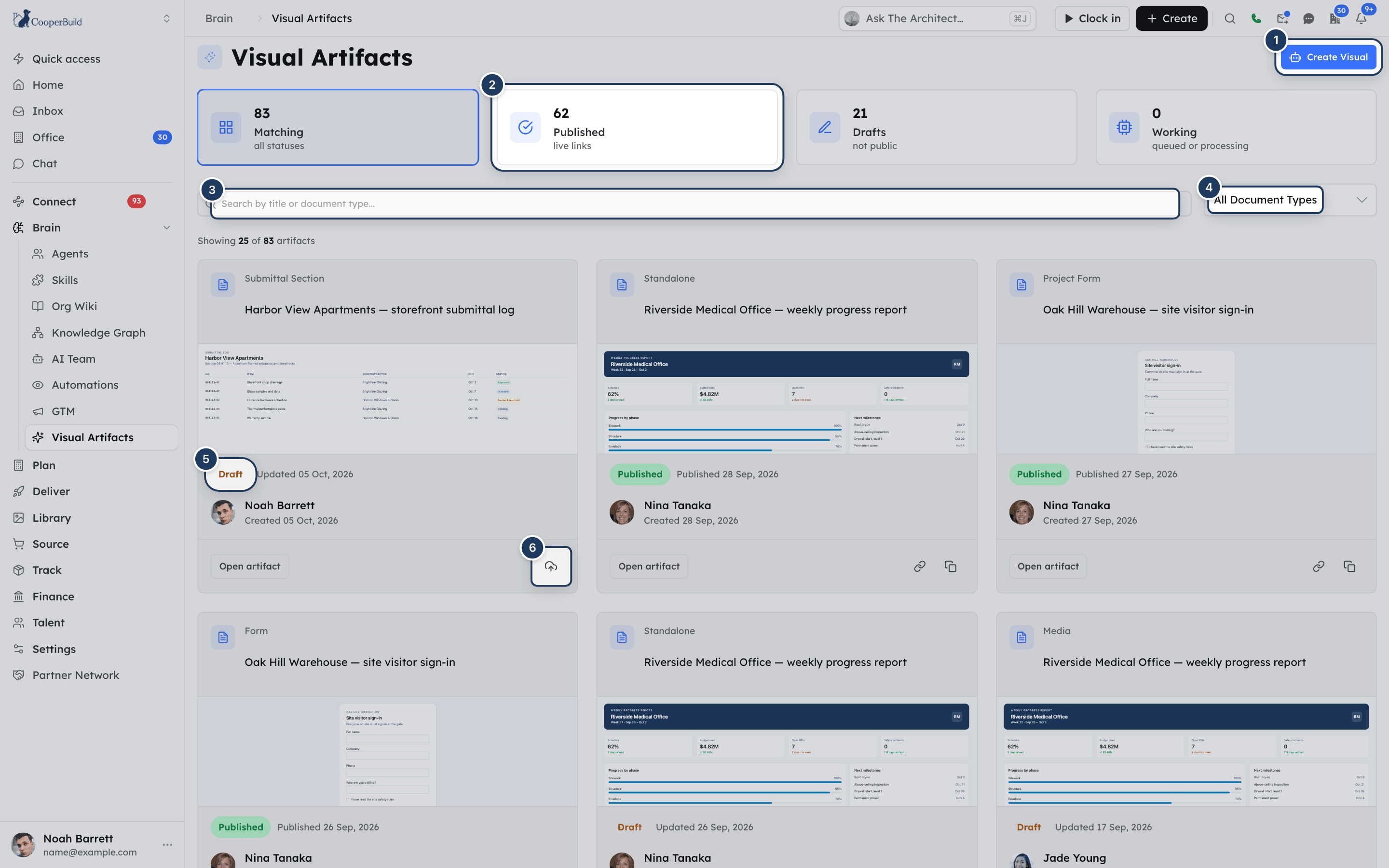
The top of the page shows four summary cards:
| Card | What it counts |
|---|---|
| Matching (all statuses) | Every artifact that matches your search and type filter. |
| Published (live links) | Artifacts that have a public link. |
| Drafts (not public) | Artifacts with no public link. |
| Working (queued or processing) | Your AI jobs that are still running. |
Below them, artifacts appear as cards, newest change first. Each card shows:
- The document type, such as "Proposal", "Project form" or "standalone".
- The title. Click it to open the artifact.
- A small live preview of the artifact. "No preview available" means the artifact has no design yet.
- A status badge: Draft, Published, Needs republish, or Queued / Processing while the AI is editing it.
- A date: Published date, or Updated / Created date for drafts and edited artifacts.
- The person who created it and when. "Creator unavailable" means that user no longer exists.
- Open artifact, and icons for Publish (or Republish), Open public link, Copy public link and Delete.
The line above the grid says how many artifacts are shown, for example "Showing 25 of 40 artifacts". The page loads 25 artifacts at a time. Click Load More at the bottom to see more.
Search and filter artifacts
- Search: type in Search by title or document type.... Cooper matches the title and the document type, ignoring case.
- Status: click the Published or Drafts summary card. Click the same card again, or click Matching, to show all statuses. The Working card is not a filter.
- Document type: choose a type in All Document Types. The list holds every document type used in your workspace.
Active filters appear as chips such as Status: Published, Type: Proposal and Search active. Click Clear filters to remove them all.
If nothing matches, Cooper shows "No artifacts match the current filters." with a Clear filters button.
See every artifact for one record
Open an artifact that belongs to a record, then click Related visuals at the top. The list opens filtered to that one record and is titled Linked Visual Artifacts. For example, open a proposal visual to see every visual made for the same proposal, or open a project form to see every form in that project. Click View all to go back to the full list.
Related visuals doesn't appear on standalone artifacts.
Create a visual artifact with AI
Open the builder
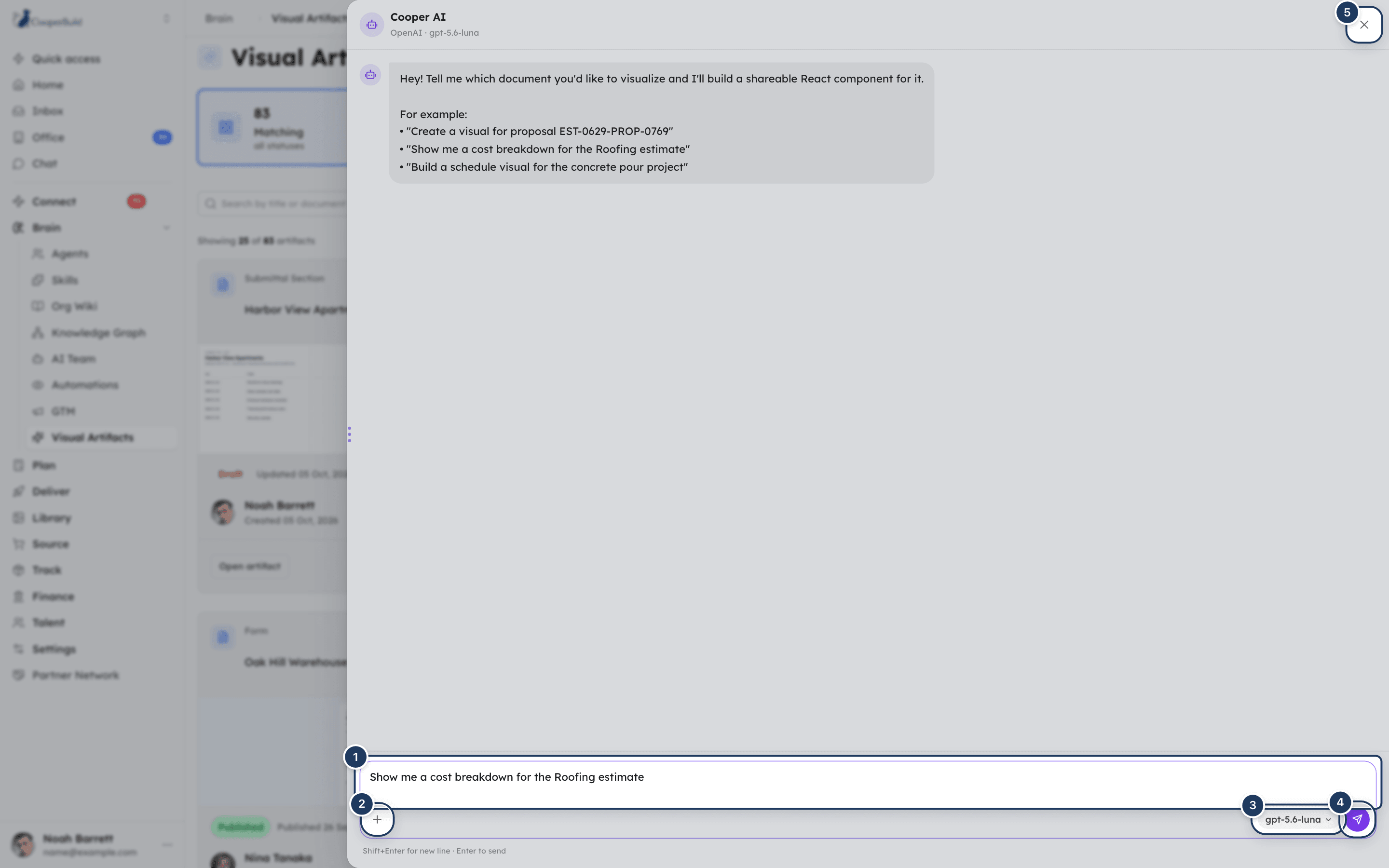
Click Create Visual at the top right of the list. The builder opens in a large panel. If the list is empty, you can also click Create Visual in the middle of the page.
Choose a model (first time only)
If your workspace has a default model for visual artifacts, the chat opens straight away and you can skip this step. Otherwise the Visual Artifact Builder screen asks you to Select a provider and model to start. Click a Provider (Anthropic, OpenAI, xAI (Grok) or Google Gemini), click a Model, then click Start Chat. Only providers your workspace has an API key for are listed.
Pick a template (optional)
Before you send your first message, click the + button in the message box, point to Template and choose one. The template appears as a chip above the message box. Click its x to remove it. Templates are the published visual templates in your workspace's Template Hub. After you send the first message, the template is locked for that conversation.
Describe what you want
Type in Describe what you want to build… and press Enter (or click the send button). Name the record if the visual is about one, for example "Create a visual for proposal EST-0629-PROP-0769" or "Show me a cost breakdown for the Roofing estimate". Press Shift+Enter for a new line.
Watch the AI work
The AI looks up the record, loads its data and writes the page. Status chips show each step, such as Finding document…, Loading document data… and Saving draft…. When it's done, the AI replies and the artifact opens in a preview on the right.
Review and refine
Use the preview and code tabs to check the result. Keep chatting to change it, for example "make it darker" or "add the payment schedule". While a preview is open, every message edits that artifact. The banner at the top says Editing and the artifact's name.
The artifact is saved as a Draft as soon as the AI creates it. You don't need to click save.
Work in the builder
- Change the model: click the model chip next to the send button. Pick another model from the list, or search for one in the box at the top of the menu (for example Search Anthropic models…). To use another provider, point to Other providers and choose one under Switch provider. You can't change the model while the AI is working.
- Start a different artifact: click New visual in the Editing banner. Cooper clears the chat and starts a new conversation.
- Reopen an earlier result: click the artifact card in an AI reply (Click to preview). Messages you send next edit that artifact.
- Publish from the builder: click Publish under the preview. The line next to it changes to "Live — accessible to anyone with the link." and the public link appears with copy and open buttons. Click Unpublish to take the link down again.
- Close the builder: click the x at the top right of the chat.
Leaving while the AI is working
You can close the builder at any time. The job keeps running in the background and appears as a card at the front of the list with Queued or Processing and "Click to watch live execution". Click that card to reopen the conversation and watch it finish. When the job ends, Cooper shows "Visual artifact ready: …" or "Artifact job failed: …".
Open and view an artifact
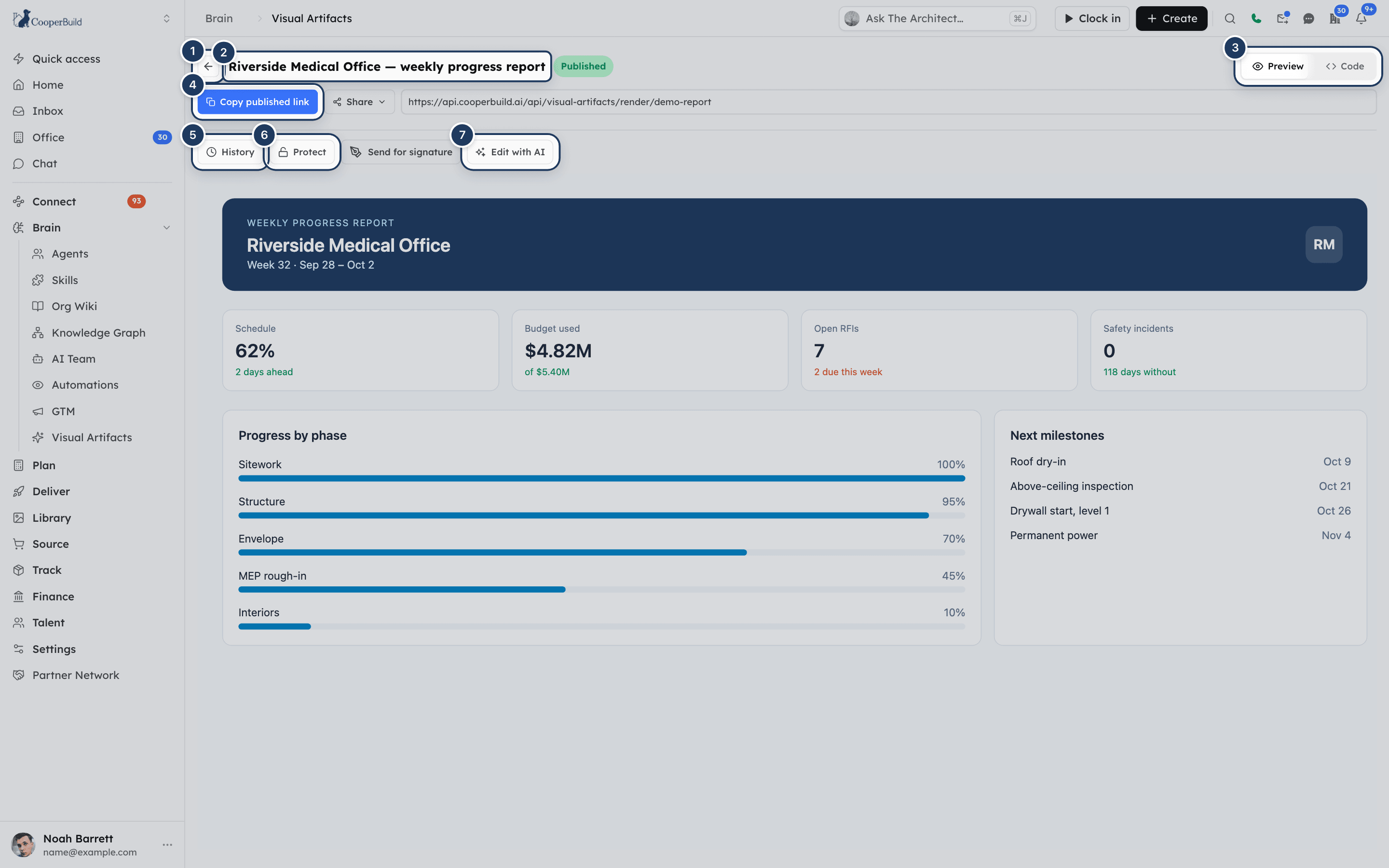
Click an artifact's title or Open artifact. The artifact page shows:
- A back arrow (Back to visual artifacts), the title and a draft or published badge.
- Related visuals, when the artifact belongs to a record.
- The tabs Preview and Code, plus Submissions for form artifacts.
- The share bar, when the artifact is published.
- The action buttons: Refresh data, History, Publish and share, Build form, Protect, Send for signature and Edit with AI. Some buttons appear only in certain cases, explained in the sections below.
The Preview tab always shows the current version, even if it isn't published yet, and never asks you for the PIN or password. Links inside the artifact, such as a link to a project PDF, open in a new tab.
The Code tab shows the artifact's source code, read-only. It's useful if someone on your team wants to check exactly what the page does.
If the page says "Artifact not found", the artifact was deleted or the link belongs to another workspace. Click Back to list.
Edit an artifact with AI
Open the assistant
On the artifact page, click Edit with AI (Edit design with AI on a form). The AI Assistant panel opens on the right. If you created the artifact, your earlier conversation appears.
Describe the change
Type in Describe changes… and press Enter. To get started, click a suggestion: Change colors, Add animations, Fix layout or Update data.
Wait for the update
The title bar shows Queued or Processing, and the chat shows In queue… or Thinking…. When the AI finishes, the preview updates.
To use a different model for the edit, click the model line under the panel header (it shows the provider and model). In Model Configuration, choose the Provider and Model, then click Apply.
Each edit saves a new version. If the artifact is already published, the public link doesn't change until you republish. See Update a published artifact.
While an AI edit is running, the artifact's card on the list shows Queued or Processing, and you can't publish or delete it.
The chat in Edit with AI shows only your own conversation. If a colleague created the artifact, the panel starts empty, but your edits still apply to the same artifact.
Publish and share an artifact
Open the publish window
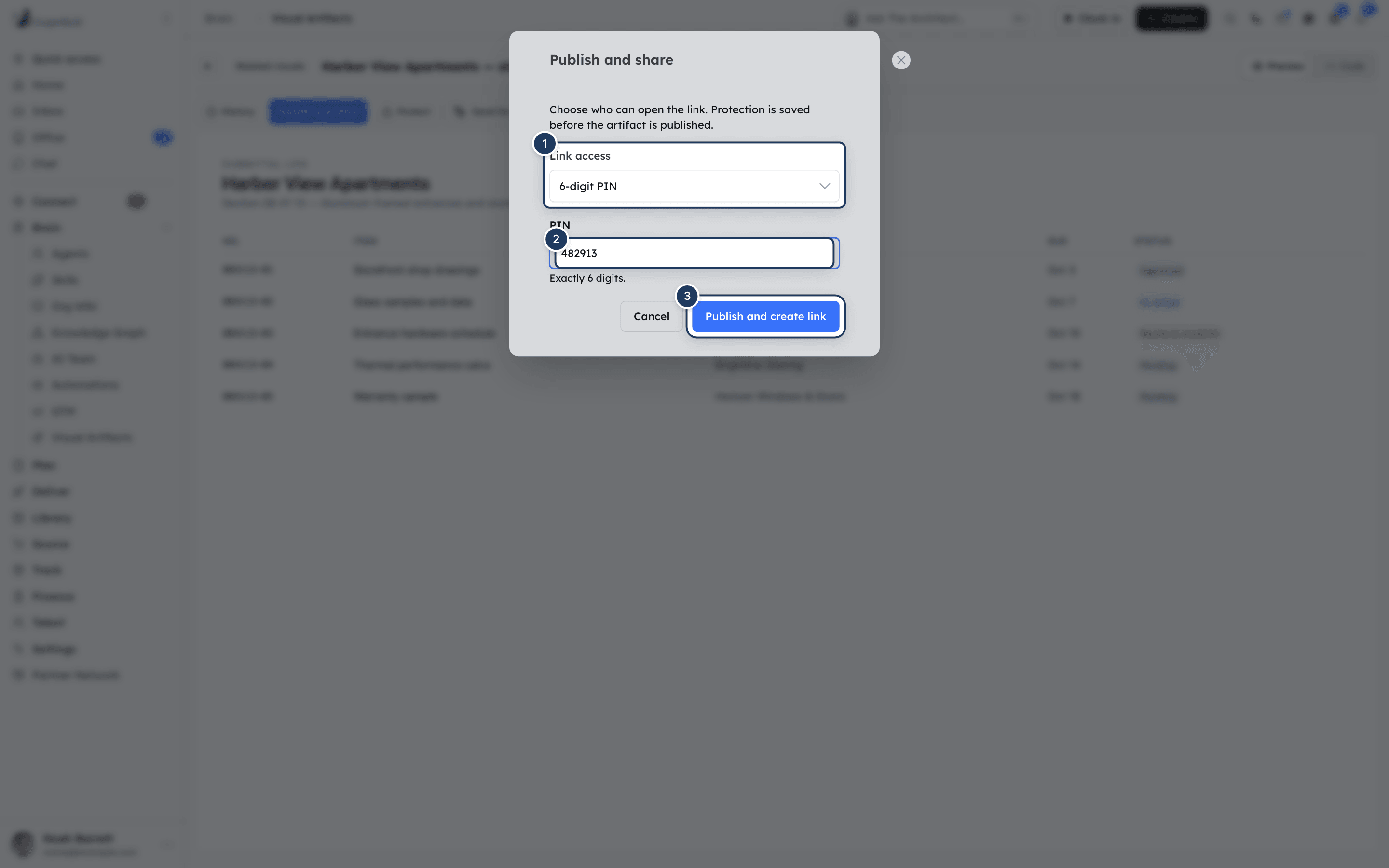
On a draft artifact, click Publish and share. The Publish and share window opens.
Choose who can open the link
In Link access, choose Anyone with the link, 6-digit PIN or Password. For a PIN, enter exactly 6 digits. For a password, enter 8 to 128 characters. If the artifact already has protection, you can leave the field empty to keep the current PIN or password.
Publish
Click Publish and create link. Cooper saves the protection first, then publishes.
Copy the link
The window shows the Shareable link and who can open it. Click Copy link to copy it, Open link to try it, or Done to close.
You can also publish straight from the list: click the Publish icon on a draft card. That publishes with the artifact's current protection setting. Cooper shows "Artifact published. Public link is ready."
Public links look like https://visuals.cooperbuild.ai/a/<artifactId>. The link stays the same when you republish, so you can share it once.
Sensitive data needs protection
If an artifact pulls sensitive data, such as cost, margin, payroll or personal information, Cooper won't publish it without a PIN or password. Set protection first, then publish.
Share a published artifact
When an artifact is published, its page shows a share bar:
- Copy published link copies the link. The button changes to Link copied.
- The link itself sits in a read-only box. Click the box to select it.
- Share opens a menu:
| Option | What it does | Who sees it |
|---|---|---|
| Text or share via device | Opens your device's share sheet. Where that isn't available, it opens a text message with the title and link. | Everyone |
| Cooper text (SMS) | Opens Share by Cooper text to send the link as a text from Cooper. | People who can send texts in Cooper |
| Cooper chat | Opens Share in Cooper chat to post the link in a conversation. | People with access to Chat |
| Cooper email | Opens Share by Cooper email with the title as the subject and the link in the body. | People with access to Mail |
| Open published link | Opens the public page in a new tab. | Everyone |
Under the bar, Cooper notes "Link shows the last published version." when there are unpublished edits, and "PIN required to view" or "Password required to view" when the link is protected.
On the list, published cards also have Open public link and Copy public link icons.
Protect a public link with a PIN or password
You can add, change or remove protection at any time, before or after you publish.
Open Public link access
On the artifact page, click Protect. When the artifact is already protected, the button says PIN or Password instead.
Choose the type
Click 6-digit PIN or Password.
Enter the secret
Type exactly 6 digits for a PIN, or at least 8 characters for a password.
Save
Click Lock artifact (or Update when changing it). Cooper shows "Artifact locked with a PIN." or "PIN updated."
To see the current PIN or password, open the same panel and click the eye icon next to Current PIN (or Current password). It hides again after 30 seconds. Click the copy icon to copy it.
To remove protection, click Remove. On a published artifact, Cooper shows "Protection removed — the public link is open again."
Changing the PIN or password works immediately. Anyone you already gave the old one to needs the new one.
What people see on a protected link
People who open a protected link see "Enter the 6-digit PIN to view this artifact." (or the password version) and an Unlock button. After 5 wrong tries from the same place, Cooper blocks further tries for 15 minutes and shows "Too many attempts." with a countdown. A correct PIN or password unlocks the page for 30 minutes.
Update a published artifact
When you edit a published artifact, Cooper saves the changes as a new version but keeps the public link on the old one. A yellow banner says "Your edits are saved but not visible at your public link yet. Republish to update the public version."
To push your changes live, do one of these:
- Click Republish now in the banner. Cooper shows "Artifact republished at the same public link."
- On the list, click the Republish icon on the card marked Needs republish.
The link address stays the same.
Take an artifact offline
To stop people opening a public link:
- Unpublish it: click Unpublish under the preview in the Create Visual builder. The artifact goes back to Draft, and its public link stops working. Visitors see "This artifact has been removed or unpublished."
- Protect it: add a PIN or password so only people you tell can open it.
- Delete it. See Delete an artifact.
The artifact page itself has no Unpublish button. An AI agent can also unpublish an artifact for you (see For AI agents).
Refresh an artifact's data
Some artifacts are built with live data sources, such as a project's schedule. These artifacts show Refresh data on their page.
- Click Refresh data.
- Cooper pulls the latest data and saves it as a new draft version: "Fresh data saved as a new draft version. Republish when ready."
- If nothing changed, Cooper says "This artifact already has the latest source data." and adds no version.
- If the artifact is published, republish it to show the new numbers at the public link.
If some sources fail, Cooper says "Data refreshed with source errors. Review the preview before publishing."
Artifacts without data sources have their values built in when they were created. They don't show Refresh data. To update their numbers, use Edit with AI (for example, "Update data").
View version history and restore a version
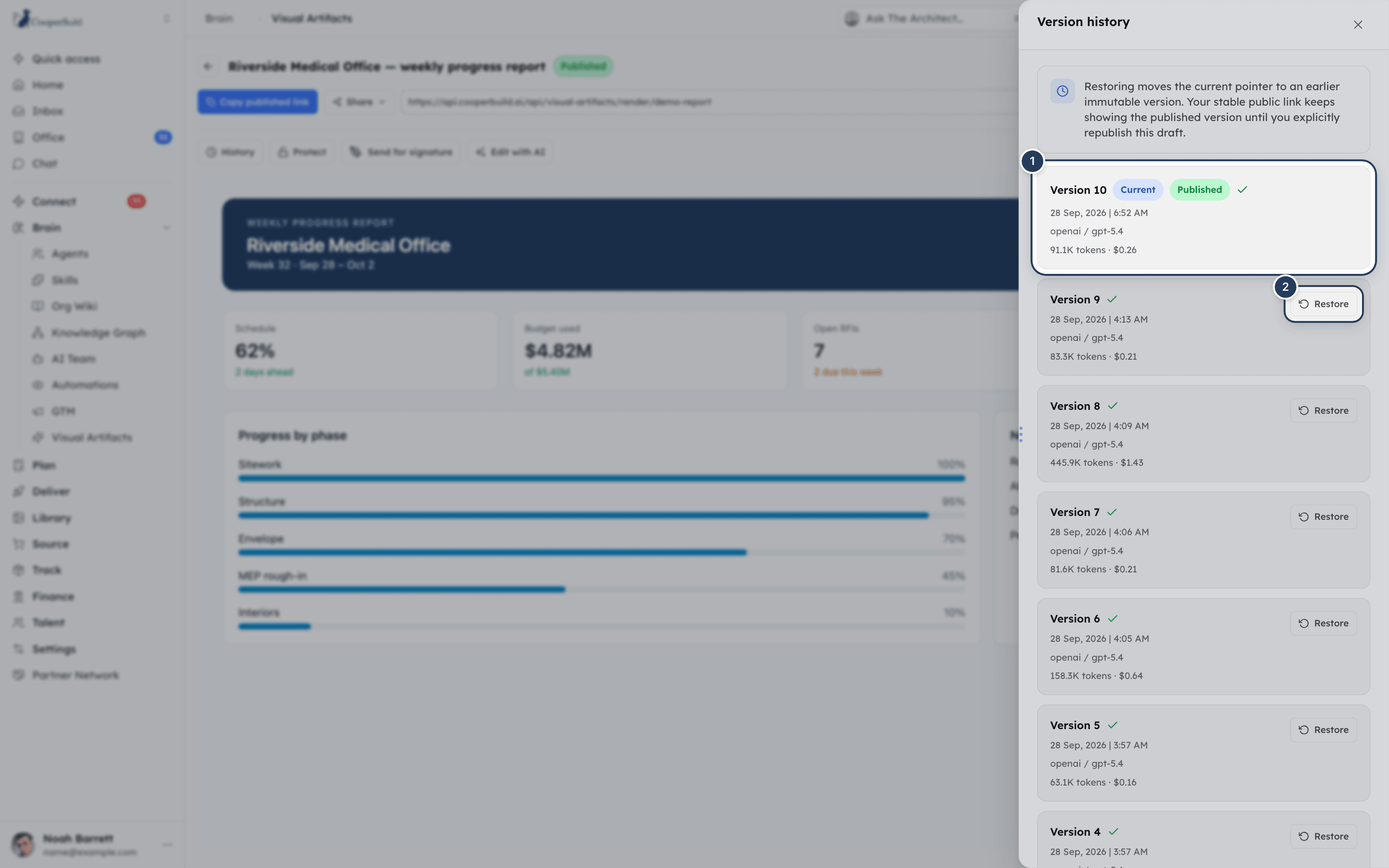
- On the artifact page, click History. The Version history panel opens.
- Each version shows its number, the date and time, the AI provider and model that made it, and the tokens and cost of the AI run when known. The badge Current marks the version you see in the app, and Published marks the one on the public link. A green check means the version passed Cooper's checks.
- To go back, click Restore on an older version.
Cooper shows "Version N restored as the current draft. Republish to update the shared link." Restoring doesn't delete newer versions. You can restore a newer one again later. The public link keeps showing the published version until you republish.
Build an online form
A form artifact collects answers from people outside Cooper, such as subcontractors or new crew members. Forms are usually created by AI (for example "an onboarding form for new jobsite team members: photo, driver's license, email, phone, company") or from a form template in a project's forms area. Forms created in a project appear on this page with the document type Project form.
On a form artifact, click Build form to open the Form builder panel. It has three sections: Build form, Try form and Responses.
Edit questions
Set the form title and introduction
Enter a Form title (for example, "Subcontractor onboarding") and an optional Introduction (optional).
Add or select a question
Click Add question to add one at the end, or click a question under Questions to edit it. Use the up and down arrows to reorder questions. Click the trash icon to remove one, then confirm with Remove field.
Fill in the question settings
Enter the Question label, choose the Answer type, and tick Required if needed. Add Help text and a Placeholder if useful. Type-specific settings appear below. See Form field types.
Choose the verification email
In Verification email, pick the Email question that identifies each person. Cooper sends a code to this address and allows one response per address. This question is always required and can't be removed.
Set the button and confirmation text
Enter the Submit button label and the Confirmation message people see after they submit.
Try and save
Click Try form to fill in your draft with sample answers. Then click Save draft. Cooper shows "Form saved as a new draft version. Publish to make it live."
Saving the form doesn't change the public form. Publish or republish to put the new questions live.
When a form already has responses, Cooper shows how many and locks the verification email and each question's answer key, so existing responses stay connected to their questions. You can still change labels, add questions and reorder them.
Form field types
| Answer type | Extra settings |
|---|---|
| Short text | None |
| Long text | None |
| None. Needed for the verification email. | |
| Phone | None |
| Website | None |
| Number | Minimum and Maximum (optional) |
| Date | None |
| Dropdown | Options, one per line, at least one |
| Single choice | Options, one per line, at least one |
| Multiple choice | Options, one per line, at least one |
| Acknowledgment checkbox | None |
| Yes / No | None |
| Rating | Scale, the top of the scale from 2 to 10 (default 5) |
| File upload | Max files (1 to 10), Max size (MB) (up to 25), Accepted types such as pdf, png, jpg (leave empty to accept anything) |
Under Advanced: answer key you can see the key Cooper stores each answer under. It must use lowercase letters, digits and underscores, start with a letter and be unique in the form. Cooper creates it from the first label you type.
Set response options
In the Form builder, open Responses:
| Setting | What it does |
|---|---|
| Accepting responses | Untick to close the form. People then see "This form is no longer accepting responses." |
| Close automatically on | A date after which the form stops accepting responses. Leave empty for no deadline. |
| Let people edit their response | When on, a person who returns can change their answers. When off, a second attempt just says they have already submitted. |
| Email these people | Comma-separated addresses to notify about new responses. Leave empty to notify whoever created the artifact. |
| Also notify in Cooper | Also sends an in-app notification. |
| Notify when someone edits an existing response | Also notifies you when a person changes their answers. |
Click Save settings. Settings apply immediately, with no publish needed.
How people fill in a published form
People don't need a Cooper account. When they submit, Cooper emails a 6-digit code to their verification email and asks them to Confirm your email. The code expires after 10 minutes. After they enter it and click Verify email, Cooper stores the response and shows the confirmation message. If editing is allowed and they come back later, Cooper loads their saved response so they can change it.
Review form responses
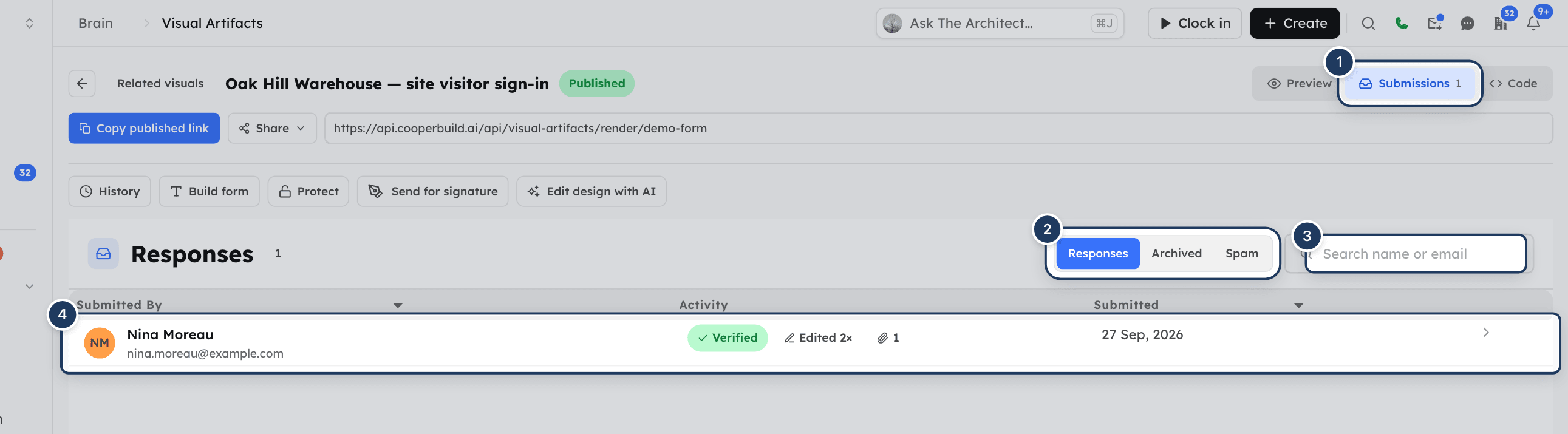
On a form artifact, open the Submissions tab. The number next to the tab is the response count.
- Switch between Responses, Archived and Spam.
- Search with Search name or email.
- Each row shows Submitted by, Activity (Verified, Edited N×, the number of attachments) and when it was Submitted. Hover the time to see the exact date.
- Click Load N more to see more rows.
Click a row to open the Response panel. It shows:
- The person's name and email. Click the email to copy it.
- Badges such as Email verified, Archived, Spam or Edited N×.
- When it was submitted and last edited, and the form version they filled in (Form vN).
- Answers, with "N of M answered". Answers are shown against the form as it was when the person filled it in. A question you later removed shows the badge removed field.
- Attachments. Click one to preview or download it. Download links are short-lived and refresh each time you open the panel.
- Show previous answers when the person edited their response.
At the bottom of the panel:
- Mark spam moves the response to Spam.
- Archive moves it to Archived and lets that person submit the form again.
- Restore puts an archived or spam response back in Responses.
Send an artifact for signature
Click Send for signature on the artifact page to send it through CooperSign. CooperSign prints the published version to a PDF and sends it to the signers you choose.
- The artifact must be published. Otherwise CooperSign says "Publish this artifact first — CooperSign sends the published version."
- The artifact can't have a PIN or password. Otherwise CooperSign says "This artifact is PIN-protected. Remove the protection to send it for signature."
After you send it, the button is replaced by the signature status, with Remind (while it's out for signature), View and, for older envelopes, History. If a request is voided, declined or expires, click Send new version.
Delete an artifact
- On the list, click the Delete icon (trash) on the artifact's card.
- In Are You Sure?, click Delete.
Cooper shows "Artifact deleted." Deleting is permanent. It removes the artifact and all its versions, and the public link stops working.
You can't delete an artifact while an AI job is editing it. The Delete icon is shown only to workspace owners (see Permissions).
Can I download or export an artifact?
There's no download button. To use an artifact outside Cooper:
- Publish it and share the public link. This is the main way to send an artifact to clients, crews or social media.
- Send it for signature with CooperSign, which turns the published version into a PDF.
- Open the Code tab to see and copy the source code.
Fields reference
Publish and share window
| Field | Required | What it means |
|---|---|---|
| Link access | Yes | Anyone with the link, 6-digit PIN or Password. |
| PIN | For PIN access | Exactly 6 digits. Leave empty to keep an existing PIN. |
| Password | For password access | 8 to 128 characters. Leave empty to keep an existing password. |
Form builder
| Field | Required | What it means |
|---|---|---|
| Form title | No | The heading of the form. |
| Introduction (optional) | No | Text shown before the questions. |
| Question label | Yes | The question people answer. |
| Answer type | Yes | One of the types in Form field types. |
| Required | No | People must answer before submitting. Always on for the verification email. |
| Help text | No | Shown under the question. |
| Placeholder | No | Example text inside the empty answer box. |
| Options | For Dropdown, Single choice, Multiple choice | The choices, one per line. |
| Answer key | Yes (automatic) | Where the answer is stored. Locked once responses exist. |
| Verification email | Yes | The Email question used for the code and for one response per person. |
| Submit button label | No | Text on the submit button. Default "Submit". |
| Confirmation message | No | Shown after a successful submission. |
Permissions
Access is controlled by the Visual Artifacts permission in the Brain section of a role. An admin sets it in Roles & Permissions. Workspace owners can do everything.
| Action | Permission needed |
|---|---|
| See Visual Artifacts in the sidebar, open artifacts, view versions and form responses | Visual Artifacts Read |
| Create artifacts, edit with AI, publish, republish, refresh data, restore versions, set protection, edit forms and form settings, archive or flag responses | Visual Artifacts Write |
| Delete an artifact from the list | Workspace owner |
| Share by Cooper text, Cooper chat or Cooper email | Access to those tools as well |
Without Write, the list hides Create Visual and the Publish icons. The artifact page still shows its action buttons, but Cooper refuses the change with an error such as "Forbidden: CRM.VISUAL_ARTIFACTS.WRITE is required."
The Visual Artifacts permission has only Read and Write. Deleting needs Write on the server, but the list shows the Delete icon only to workspace owners. Other people with Write can ask an AI agent to delete an artifact.
The same permission also controls Template Hub in the Library, where visual templates are managed.
Creating artifacts with AI also needs an AI provider key for your workspace. An admin adds keys in Settings → Integrations → AI Providers, and can set the default model for visual artifacts under AI Service Routing (Visual Artifact Builder).
Tips and best practices
- Name the record in your first message ("for proposal EST-0629-PROP-0769", "for project PR-2026-014"). The AI then links the artifact to that record, and Related visuals works.
- Ask for small changes one at a time. Each change is its own version, so it's easy to restore if you don't like it.
- Check the Preview before you publish. The preview shows exactly what the public link will show after publishing.
- Protect anything with prices, margins, pay rates or personal details, even if Cooper doesn't force you to.
- Republish after every edit you want people to see. The Needs republish badge on the list tells you which artifacts are behind.
- For forms, keep one Email question as the verification email, and don't rename answer keys once people have responded.
- Use Archive rather than Spam when you want a person to submit a form again.
Troubleshooting
Your role doesn't have the Visual Artifacts permission in the Brain section, or your company's plan doesn't include it. Ask an admin to grant Read (or Write) in Roles & Permissions.
You have Read but not Write on Visual Artifacts. Ask an admin for Write.
Your workspace has no AI provider key. An admin adds one in Settings → Integrations → AI Providers (the message in the builder calls this "Settings → AI Keys").
The model stopped before saving, often because it ran out of space for a long answer. Try again with a shorter request, or pick a different model with the model chip.
These come from your AI provider. Top up the provider account, wait a moment and try again, or ask an admin to check the key in AI Providers. You can also switch to another provider in the model picker.
Edits are saved as drafts. Click Republish now in the yellow banner, or the Republish icon on the list card.
The artifact uses cost, margin, payroll or personal data. Set a PIN or password with Protect (or choose one in Link access), then publish.
The current version has a code error. Ask Edit with AI to fix it, or use History to restore a version with a green check, then publish.
The button appears only on drafts that have a saved version. If the artifact is already published, use Republish now or the share bar instead.
The artifact was built with its values written in, not with live data sources. Use Edit with AI and ask it to update the data, or ask for a new artifact built from live data.
Check the PIN or password with the eye icon in Protect. After 5 wrong tries, the person has to wait 15 minutes. If you changed the PIN or password, the old one no longer works.
Only workspace owners see Delete on the cards. The icon is also disabled while an AI job is editing the artifact.
The form already has responses, and those fields are locked to keep them connected. Archive the existing responses first if you really need to move the verification email.
CooperSign sends the published version as a PDF, so the artifact must be published and must not have a PIN or password.
The panel shows only your own conversation. If a colleague created the artifact, you start with an empty chat. Your edits still apply.
For AI agents
Agents work with visual artifacts through the CooperBuild MCP server (see AI agents). The main tool is visual_artifact. Read actions need CRM.VISUAL_ARTIFACTS.READ; write actions need CRM.VISUAL_ARTIFACTS.WRITE.
visual_artifact actions
| Action | Use | Key parameters |
|---|---|---|
list_templates, get_template | Find a visual template before the first artifact in a conversation. | templateSearch, templateId |
resolve | Find the source record by name, code or ID. Returns documentType and documentId. | name, documentTypeHint |
list_providers | See server-side data sources an artifact can use (for refreshable data). | documentType |
save | Create a new artifact (always a new one). The server fetches the record's data. | sourceCode, title, documentType + documentId (omit both for standalone), sources, formSchema |
update | Replace the source code of an existing artifact. | artifactId, sourceCode |
patch | Small edits by find and replace, or by description when patches is omitted. | artifactId, patches[{find, replace}] |
refresh | Re-run data sources. Adds a draft version only when data changed. | artifactId |
get_by_id, get, list | Read one artifact, the artifact for a record, or a page of artifacts. | artifactId; documentType + documentId; page, limit |
list_versions, rollback | Show versions and restore one as the current draft. | artifactId, versionId |
publish, unpublish | Publish a version at the stable public link, or revoke the link. | artifactId, versionId (optional) |
delete | Permanently delete the artifact and all versions. | artifactId |
create_form, update_form, update_form_settings | Create a schema-driven form, edit its questions (pass the currentVersionId you just read as versionId), or change response settings. | title, formSchema, projectId, formRequestId, formSettings |
list_form_submissions, get_form_submission | Review responses. | artifactId, submissionStatus (submitted, archived, spam), submissionSearch, submissionId |
Every returned artifact has links.workspace (the page in Cooper) and, when published, links.public. Share the workspace link after every save or edit, and the public link only after publishing. Publish only after the user confirms. Publishing doesn't send the link to anyone.
Agents can't set PINs or passwords. Protection is set in the app with Protect or in Publish and share.
Other tools that work with visual artifacts:
coopersign_sendwithsourceType: "visual_artifact"andsourceIdsends a published, unprotected artifact for signature. Call it withconfirm: falsefirst to get a preview, thenconfirm: trueafter the user agrees. Find records withcoopersign_browse(viewrecords).doc_hub_browselists older DocHub signature documents linked to an artifact. Don't usedoc_hub_wizardfor artifacts; it now sends proposals only.
Common errors
| Error | Fix |
|---|---|
Permission denied: CRM.VISUAL_ARTIFACTS.WRITE is required. | The user's role has only Read. Ask an admin for Write. |
This connection is read-only. | The MCP connection is read-only. Reconnect with write access. |
Use update or patch with artifactId to edit. Save creates a new independent artifact. | Don't pass artifactId to save. Use update or patch. |
This run is scoped to artifact … refusing target … | In an edit run you can only change the artifact being edited. Omit artifactId or use that one. |
This component collects input from the viewer but no formSchema was supplied. | Call again with formSchema, including one required Email field named by identityFieldKey. Use notAForm: true only for inputs that collect nothing, such as a calculator. |
This artifact pulls sensitive data (cost, margin, payroll or PII) and cannot be published without a PIN or password. | Ask the user to set protection in the app, or rebuild with non-sensitive data sources. |
Cannot publish a version that failed validation: … | Fix the code with patch or update, or rollback to a valid version. |
No version to publish — save a draft first. | save the artifact before publishing. |
This artifact has no data sources to refresh. | The values are built in. Rebuild with sources (see list_providers) to make it refreshable. |
No patches matched the sourceCode. | Read the current code with get_by_id and use exact find strings. |
Read get_by_id first, then pass its currentVersionId as versionId. | For update_form, read the form first and pass its current version. |
Related
- Brain overview: all of Cooper's AI features in one place.
- Agents: the AI agents that can build and edit artifacts for you.
- Org Wiki and Knowledge Graph: the company knowledge agents use when they build visuals.
- Chat: share a published artifact's link in a conversation.
- Mail: email a published artifact's link from Cooper.
- AI agents: connect Claude or ChatGPT to Cooper and build artifacts from there.
Last updated on