

Org Wiki
The Org Wiki is your company's shared knowledge base of standards, procedures, benchmarks and lessons learned, written in Markdown, organized by category, and read by Cooper's AI agents when they work for you.
The Org Wiki is the place where your company writes down what it knows: firm standards, estimating rules, safety procedures, vendor notes, HR policies, price benchmarks and lessons from past projects. Each entry is an article with a short summary and a Markdown body, filed under a category such as Standards, Safety or Estimating.
Office admins and project managers use the wiki so everyone works from the same playbook. Cooper's AI agents use it too: they search and read wiki articles before they act, so what you write here shapes how agents estimate, buy and answer questions for your company. You can write articles yourself, import a web page and let AI turn it into an article, or have Cooper build benchmark articles from your own price, quote and project data.
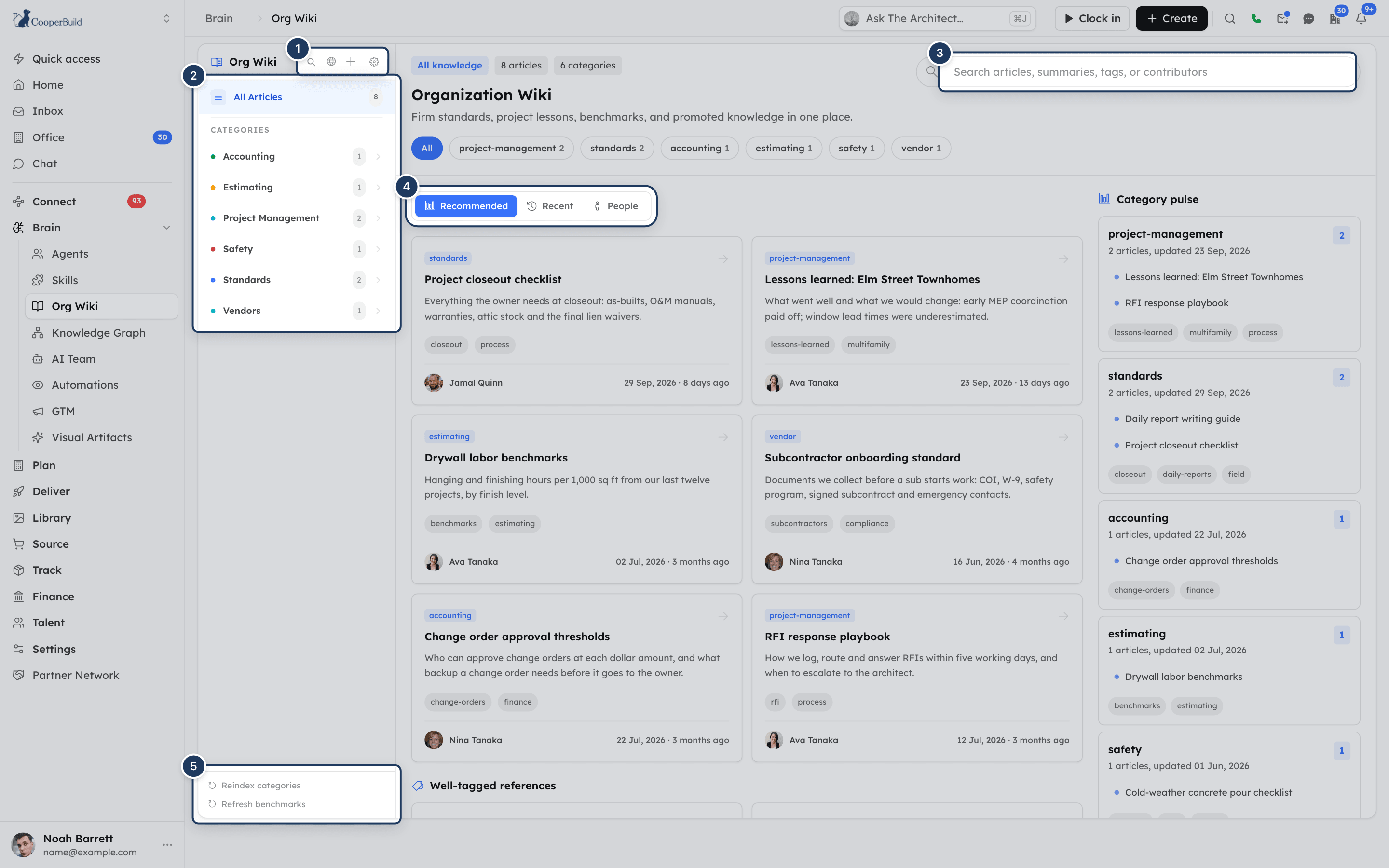
Key concepts
| Term | Meaning |
|---|---|
| Article | One wiki entry. It has a title, a summary, Markdown content, a category, tags and a status. |
| Slug | The article's unique short name, made from its title, for example procurement-approval-process. Links, AI agents and the address bar use the slug. Two articles can't share a slug. |
| Category | The main topic an article is filed under. Your admin sets the list in Wiki settings. |
| Summary | One paragraph, up to 500 characters, that says what the article covers. It is required. AI agents often read only the summary to decide whether to open the article. |
| Status | published (everyone with access sees it), draft (only editors see it) or archived (hidden unless an editor turns on archived articles). |
| Tags | Search keywords on an article. |
| Linked resources | Library folders attached to an article, so readers can open the related documents from the article. |
| Backlinks | Links between articles. Writing [[other-article-slug]] in an article's content links the two articles. |
| Concepts and Entity references | Extra labels, usually added by AI agents, that tie an article to ideas or to records such as projects or vendors. |
| Default article | An article marked default. Its summary is given to Cooper's AI agents at the start of every session as part of your organization's standards. |
| Computed article | An article that Cooper builds from live data when someone clicks Refresh benchmarks: cost benchmarks, vendor performance and the project portfolio. |
| Category index | A short AI-written overview of the published articles in each category. AI agents read it to find the right article quickly. |
Open the Org Wiki
- In the sidebar, open Brain.
- Click Org Wiki.
The wiki opens at /connect/org-wiki. When you open an article, the address changes to /connect/org-wiki?article=<slug>, so you can bookmark or share it.
You need the Org Wiki permission in the Brain section of your role to see the page. If your company's plan doesn't include the wiki, Cooper shows a plan-locked screen instead. See Permissions.
The page has two parts:
- The left panel: the Org Wiki title, four icon buttons (Search, Ingest URL, New article and Wiki settings), the article list by category, and two maintenance links at the bottom (Reindex categories and Refresh benchmarks).
- The main area: the wiki home, the open article, or Wiki settings.
Click the Org Wiki title at the top of the left panel at any time to go back to the wiki home.
Find your way around the wiki home
The wiki home opens when no article is selected. It is titled Organization Wiki, with the line "Firm standards, project lessons, benchmarks, and promoted knowledge in one place."
At the top you see three chips: what you are looking at (All knowledge, Search results, or a category), the number of articles in view, and the number of categories.
Filter the home view
- Type in Search articles, summaries, tags, or contributors to filter the cards as you type. It matches article titles, summaries, categories, tags and the name of the last person who changed the article. Click the clear button to empty it.
- Click a category chip under the search box to show only that category. Each chip shows its article count. Click All to show every category again.
- Click Reset view to clear both the search text and the category.
Choose a view
| View | What it shows |
|---|---|
| Recommended | Six articles Cooper suggests. Recently updated articles, articles with a full summary, well-tagged articles, and articles whose titles mention a standard, process, policy, benchmark, summary, vendor or cost rank higher. |
| Recent | The six most recently updated articles. |
| People | Up to 12 contributors, with how many articles each person created and the date of their latest one. If no article has an author yet, you see "Contributor data will appear after articles have author history." |
Each card shows the category, title, summary, up to three tags, and who last changed the article and when. Click a card to open it. Below the cards, Well-tagged references lists up to four more articles with the most tags and fullest summaries.
Use the side column
- Category pulse: up to seven categories with the most articles. Each card shows the article count, the last update date, the first three articles and the top three tags. Click the card header to filter the home view to that category, and click it again to clear the filter. Click an article name to open it.
- Topics: the 12 most-used tags. Click a tag to search for it.
- Contributors: the five people who created the most articles.
The home view shows published and draft articles you are allowed to see. Archived articles never appear on the home view. If there are no articles yet, you see "Published articles will appear here once the wiki has content."
Browse articles by category
The left panel lists every article you can see, grouped by category.
- Click All Articles to see the total count and collapse the categories.
- Under Categories, click a category to expand it. Each category shows its label, a colored dot and an article count. Only one category is open at a time.
- Click an article title to open it.
Draft articles show a yellow draft badge. Categories are listed in alphabetical order of their slug. If an article's category is no longer in Wiki settings, the category still appears in the list, shown by its slug.
If the wiki is empty, the panel shows "No articles yet".
Search the wiki
Open search
Click the Search (magnifying glass) button at the top of the left panel. The category list is replaced by the search panel. Click Search again to go back to the category list.
Choose what to search
Click Wiki only to search wiki articles, or All knowledge to also search the notes in your projects' and estimates' knowledge graphs.
Type your search
Type at least two characters in Search wiki.... Results appear shortly after you stop typing. While Cooper searches you see "Searching...".
Open a result
Click a result to open the article.
Each result shows the title, a match score as a percentage, a source badge (wiki, project or estimate), a snippet of the matching text, the category and up to three tags. Above the results, a line such as "8 results · Keyword search" shows how many results came back and how Cooper searched. If nothing matches, you see "No results found".
Cooper picks the search method from your words:
| Your search | Method | Best for |
|---|---|---|
| One or two words, or a phrase in quotes | Keyword | Exact terms, such as OSHA or "change order". |
| A question that starts with words like what, how, why, when, where, which, who, can, should, does, is or are | Hybrid | Questions, such as "how do we approve purchase orders". Combines keyword matching with meaning-based matching. |
| Five or more words | Hybrid | Longer descriptions. |
| Three or four other words | Keyword | Short specific searches. |
Search returns up to 20 results and only finds published articles. Drafts and archived articles never appear in search.
Results with a project or estimate badge come from a project's or estimate's knowledge graph, not from the wiki. Clicking one doesn't open that note in the wiki. Use the snippet to find the note, then open it from that project or estimate.
Read an article
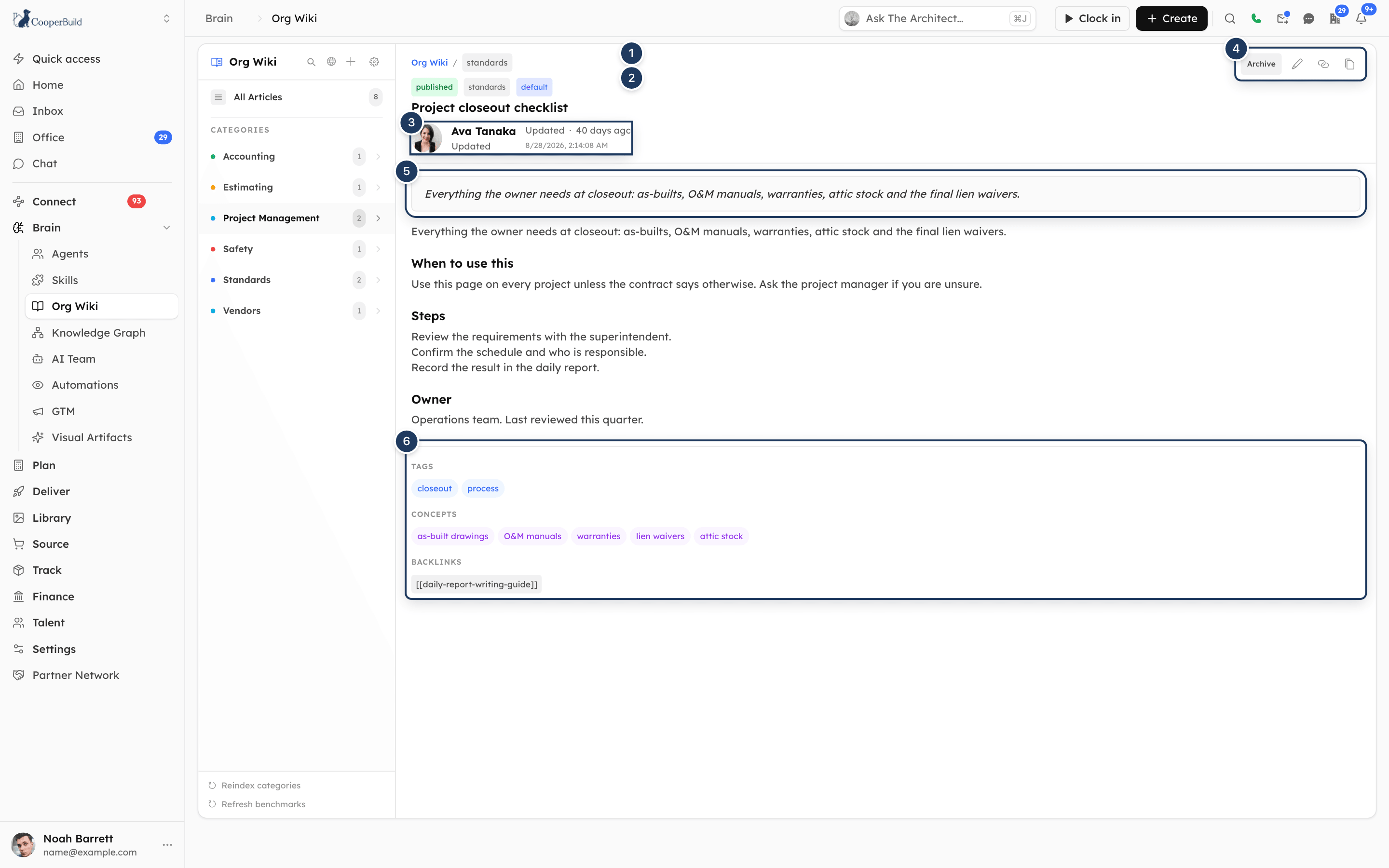
An open article shows:
- Breadcrumb: Org Wiki / category. Click Org Wiki to go back to the wiki home.
- Badges: the status (published, draft or archived), the category, default if the article is a default article, and confidence N% if an AI agent recorded how confident it is in the content.
- Title.
- Who changed it: the person who last updated the article, with "Updated · 3 hours ago" and the exact date and time. If an AI agent made the change for that person, you see both names, for example "Dana Lee and Estimator Agent", with both avatars. If a different person created the article, a second line shows who created it.
- Summary: in a shaded box above the content.
- Content: the article body. If the content is empty, you see "No content yet."
- Linked Resources: the Library folders attached to the article. See Open linked documents.
- Tags, Concepts, Backlinks and Entity References at the bottom, when the article has them.
In Backlinks, each linked article shows as [[slug]]. A red link with ✗ means the linked article doesn't exist yet.
If Cooper finds that a new article looks very similar to an existing published article, a yellow banner says "Possible near-duplicate detected: ..." and names the other article. The article is still saved. Review both articles and merge them if they cover the same thing. Click the close button to hide the banner.
Open linked documents
When an article has linked folders, a Linked Resources panel appears to the right of the article on wide screens, or below the content on smaller screens.
Each folder card shows the folder name, its description, the number of files and subfolders, a Confidential badge for confidential folders, up to three teams that can see the folder, and up to four Featured Documents from inside the folder.
- Click the folder name to open the folder viewer.
- Click a featured document to open the folder viewer on that document.
Confidential folders appear only to members of the teams allowed to see them, and to the workspace owner. Other readers don't see those folders on the article at all. See Teams.
Share an article
- Click Copy article link (the link icon) to copy the article's address. The tooltip changes to "Link copied!". Anyone with access to the Org Wiki can open the link.
- Click Copy content (the copy icon) to copy the article's Markdown content. The tooltip changes to "Copied!".
Create an article
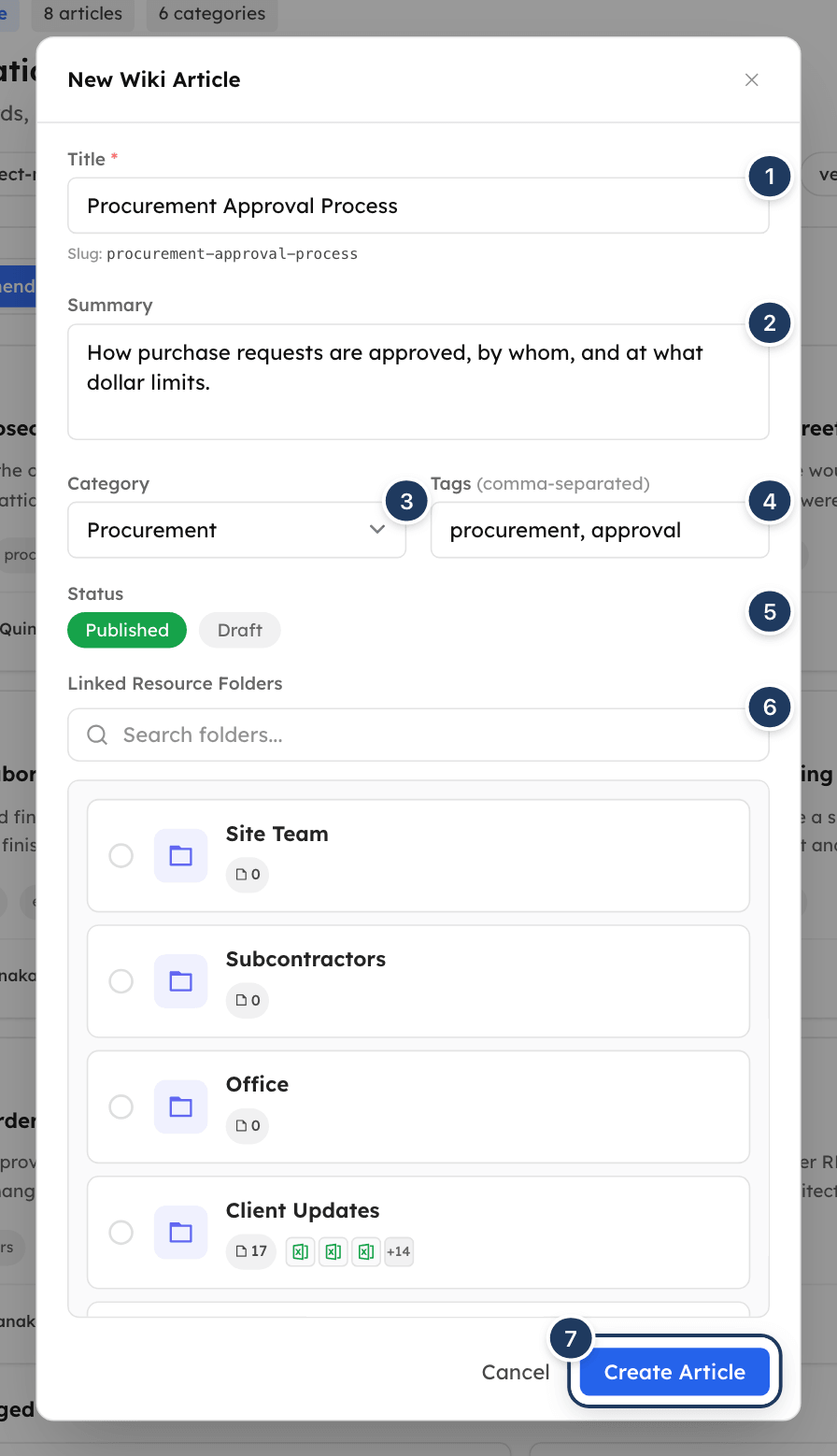
Open the form
Click New article (the plus button) at the top of the left panel. The New Wiki Article window opens. The button is only there if you can edit the wiki.
Enter a title
Type the Title, for example "Procurement Approval Process". Below it, Cooper shows the Slug it will use, such as procurement-approval-process. The slug is the title in lowercase, with spaces turned into hyphens and other symbols removed.
Write a summary
In Summary, write one paragraph (up to 500 characters) that says what the article covers. The field isn't marked as required, but Cooper won't save an article without a summary.
Choose a category and tags
Pick a Category. The first category in your Wiki settings is selected by default. In Tags, type keywords separated by commas, such as procurement, approval.
Choose a status
Click Published to make the article visible to everyone with access, or Draft to keep it to editors while you work on it.
Link folders (optional)
Under Linked Resource Folders, pick the Library folders that hold the related documents. See Link Library folders to an article.
Create the article
Click Create Article. The button shows "Creating..." while Cooper saves. The new article opens. It has no content yet.
Add the content
Click Edit article and write the body in Markdown. See Edit an article.
Check the slug before you create
If the slug matches an article that already exists, Create Article replaces that article: its title, summary, category, tags, status and folders change to what you entered, and its content becomes empty. Before you click Create Article, search the wiki for the title. If an article with the same slug exists, edit it instead, or change your title.
If the title has no letters or numbers, you see "Title must produce a valid slug." If the title is empty, you see "Title is required."
Write article content
Article content is Markdown. The article view supports headings, paragraphs, lists, bold and italic text, links, quotes and code.
- Use
##headings to split the article into sections. Cooper stores each##section separately, and AI agents can read a single section, for example "Approval limits", without reading the whole article. - Link to other articles with double square brackets, for example
[[procurement-approval-process]]. Use the other article's slug. The link appears under Backlinks on both articles. If the slug doesn't exist yet, the link shows in red with ✗. - Don't repeat the title as the first heading. If the content starts with a
#heading that matches the title, the article view hides it so the title isn't shown twice. - Avoid Markdown tables. The article view shows Markdown tables as plain text with pipe characters. Use lists or
##sections instead.
Edit an article
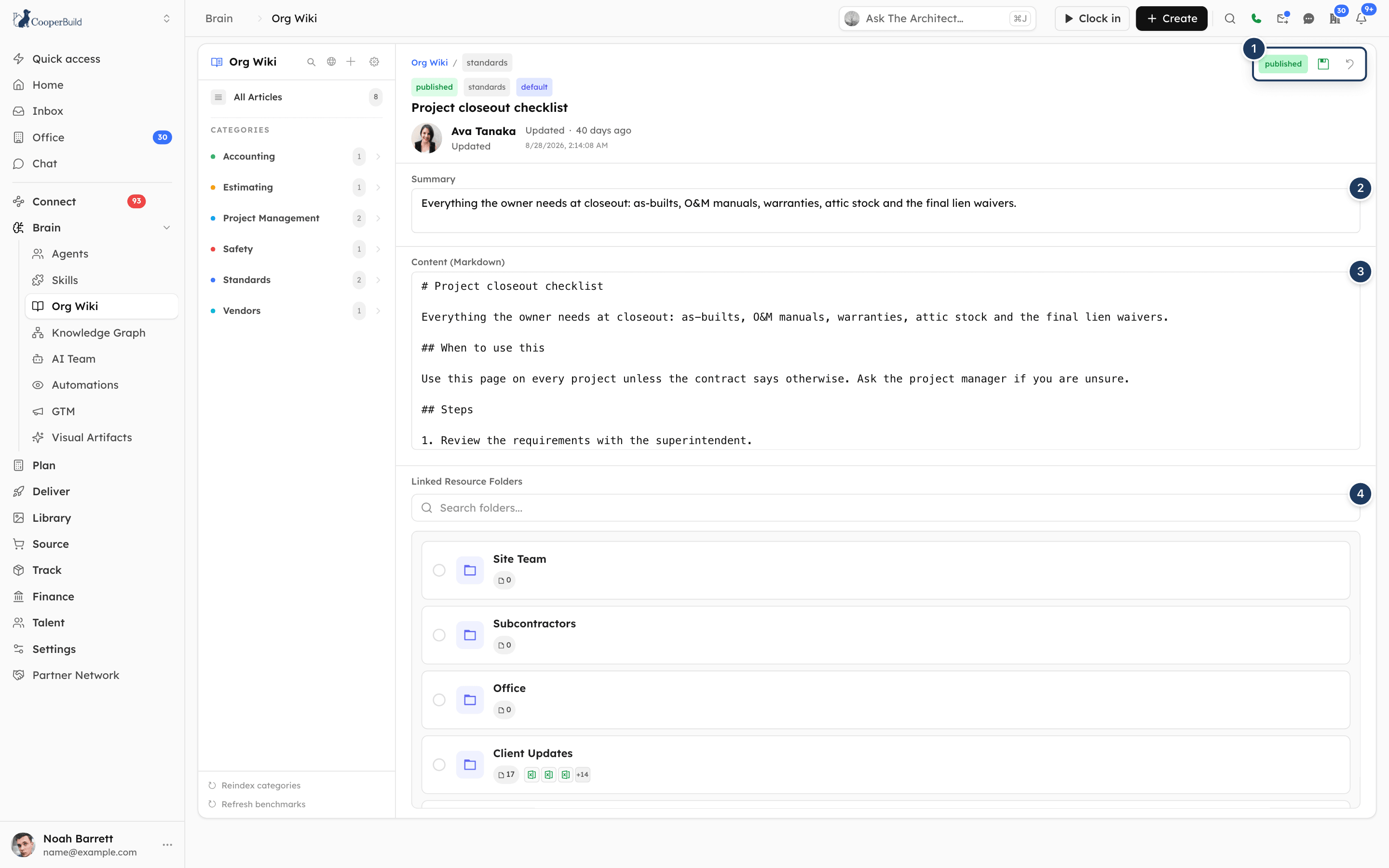
Start editing
Open the article and click Edit article (the pencil icon). The article changes to edit mode.
Change the summary and content
Edit Summary (up to 500 characters) and Content (Markdown).
Change linked folders (optional)
Add or remove folders under Linked Resource Folders.
Set the status (optional)
Click the status button next to Save to switch between published and draft.
Save or discard
Click Save (the disk icon) to save, or Discard to leave without saving.
In edit mode you can change the summary, content, linked folders and status. You can't change an article's title, category or tags on this page.
Cooper keeps the earlier content of an article each time it is saved, but the Org Wiki page has no way to view or restore earlier versions. Copy important content with Copy content before you make large changes.
Publish an article or move it back to draft
- Open the article and click Edit article.
- Click the status button. It shows published in green or draft in yellow, and switches each time you click it.
- Click Save.
| Status | Who sees it | In search | Used by AI agents |
|---|---|---|---|
| published | Everyone with access to the Org Wiki | Yes | Yes |
| draft | Only people who can edit the wiki. Drafts show a draft badge in the left panel. | No | Not in search, lists or category indexes |
| archived | Only editors who turn on archived articles in Wiki settings | No | Not in search, lists or category indexes |
Articles imported from a web page always start as drafts, so someone can review them before they go live.
Archive or restore an article
Archiving hides an article without deleting it.
- Open the article.
- Click Archive. Cooper archives the article straight away, with no confirmation, and it disappears from the left panel.
To restore an article:
- Click Wiki settings, and under Archived article visibility click the button so it says Showing. Archived articles now appear in the left panel.
- Open the archived article and click Restore. The article is published again.
There is no way to delete an article from the Org Wiki page.
Link Library folders to an article
You can attach Library folders to an article so readers can open the related drawings, specs and forms from the article.
- In New Wiki Article, or in edit mode, go to Linked Resource Folders.
- Type in Search folders... to find a folder, or click through the folder list. Use the breadcrumb (starting at Root) to move back up.
- Select each folder you want. Selected folders appear as chips under the picker. You can select folders at different levels.
- Create or save the article.
Readers see the folders in the article's Linked Resources panel. Confidential folders are shown only to members of the teams allowed to see them.
Import a web page (Ingest URL)
Ingest URL turns a web page into a wiki article. Cooper fetches the page, strips ads and navigation, and saves the result as a draft for you to review.
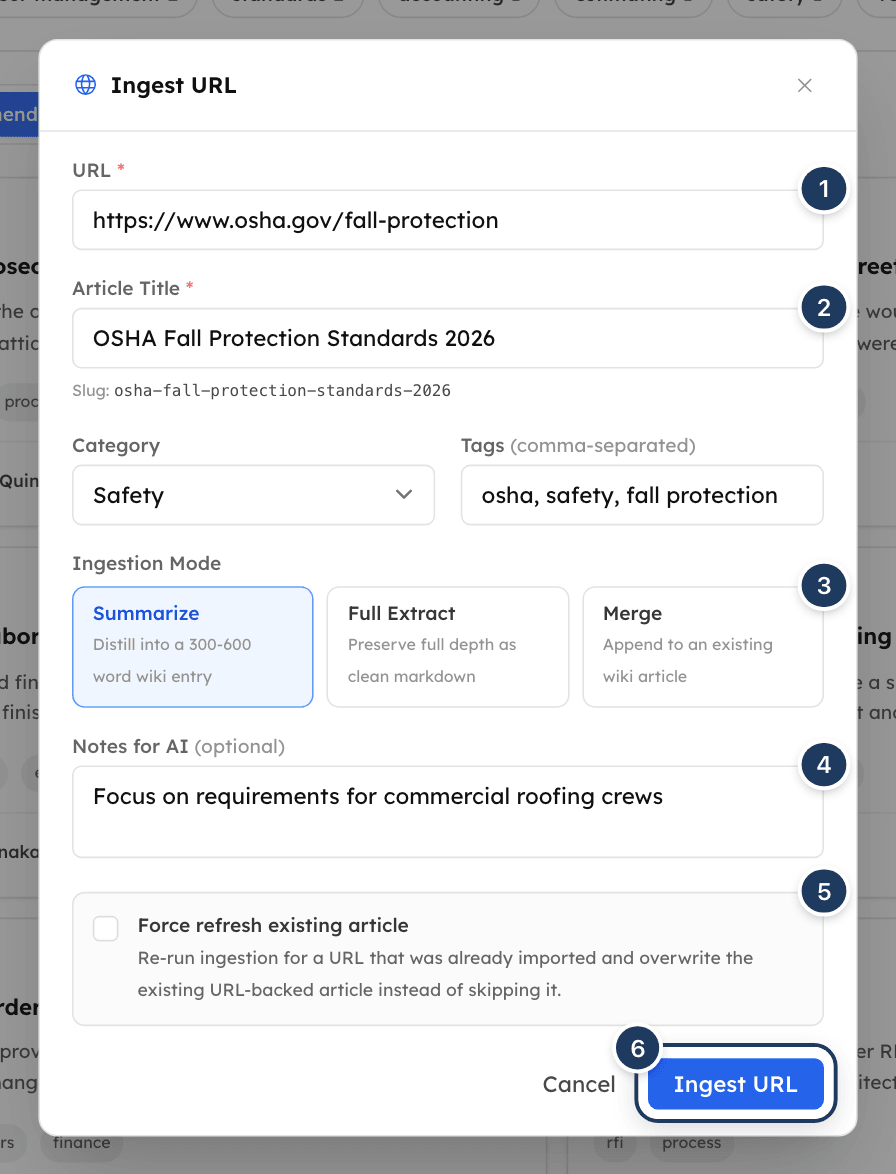
Open Ingest URL
Click Ingest URL (the globe button) at the top of the left panel.
Enter the address and title
Paste the page address in URL, for example https://example.com/article. Enter an Article Title. Cooper shows the Slug it will use.
Choose a category and tags
Pick a Category and type Tags separated by commas. Cooper also adds the tags ingested and external-source.
Choose an ingestion mode
Under Ingestion Mode, click one of:
- Summarize: "Distill into a 300-600 word wiki entry". AI rewrites the page as a short article with
##sections and keeps numbers, codes and specifications exactly. Best for news, blog posts and articles. - Full Extract: "Preserve full depth as clean markdown". Cooper keeps the page's text and adds a "Source URL" line at the top. No AI is used. Best for specifications, standards and long references.
- Merge: "Append to an existing wiki article". AI writes a 200–400 word addendum and adds it to the end of an existing article. See Add a web page to an existing article.
Add notes for the AI (optional)
In Notes for AI, tell the AI what to focus on, for example "Focus on pricing data" or "This applies to commercial projects only".
Import the page
Click Ingest URL. You see "Fetching and synthesizing content... this may take a few seconds." while Cooper works.
Review the result
The window changes to URL Ingested Successfully, with the mode, how much content Cooper extracted (for example "Extracted: 12.4KB of content"), the status and the source address. Click View Article to open the new draft, or Ingest Another to import another page.
Publish when ready
Read the draft, correct it, and publish it. See Publish an article or move it back to draft.
Which pages can I import?
- Ordinary web pages. If a page needs JavaScript to show its text, Cooper loads it in a browser and tries again.
- Posts on X (Twitter). Cooper also follows links inside the post.
- YouTube videos that have captions. Cooper imports the transcript.
Cooper refuses internal and private network addresses. Paywalled pages, and pages that block automated readers, may fail.
When a page was already imported
If the same address was imported before, the window says URL Already Ingested and "This URL has already been ingested as ...". You can:
- Click Open Existing Article to go to it.
- Click Refresh Existing Article to import the page again and overwrite that article.
- Click Ingest Another to start over.
If a different address has the same content as an article already in the wiki, Cooper also skips the import and says "This content already exists in the wiki as ..., originally from ...".
To re-import a page you know is already in the wiki, tick Force refresh existing article before you click Ingest URL. Cooper then overwrites the article that came from that address instead of skipping it. This option isn't shown in Merge mode.
Add a web page to an existing article
Merge adds new information to an article you already have.
- In Article Title, enter a title whose Slug matches the existing article's slug exactly. The slug decides which article Cooper merges into.
- Choose Merge and click Ingest URL.
Cooper adds the new section to the end of the article, after a horizontal line, and keeps the article's summary. When Cooper merges, the article also takes the title, category and tags you entered, and its status changes to draft. Publish it again after you review it.
If no article has that slug, Merge creates a new draft article instead.
Summarize and Merge use the AI provider chosen in Wiki settings, with your organization's own API key. If no key is set up, use Full Extract, which doesn't need AI, or ask an admin to add a key.
Promote a note from a project's knowledge graph
You can also turn a Markdown note from a project's or estimate's knowledge graph into a wiki article, for example a lesson learned on one job that should become a company standard.
- Open the note in the project's or estimate's knowledge graph.
- Click Promote to org wiki. This button appears on Markdown notes only.
- In Promote to Org Wiki, fill in Article Title, Slug and Category. All three are required.
- Choose a Promotion Mode:
- Generalize for org use: AI removes project-specific names and details and keeps the reusable guidance. Best for lessons learned.
- Copy markdown as-is: copies the note largely unchanged.
- Merge into existing slug: adds the note to the end of the wiki article with that slug. The article must already exist.
- Choose a Status (Draft or Published), and optionally add Tags and Notes for AI.
- Click Save Draft or Publish to Org Wiki.
Cooper adds the tag promoted-from-kg to promoted articles.
Refresh computed benchmark articles
Click Refresh benchmarks at the bottom of the left panel to build or update three articles from your live Cooper data. The link shows "Computing..." while Cooper works.
| Article | Category | What it contains |
|---|---|---|
| Cost Price Benchmarks | Cost Data | For each item class: how many items have a current price, and the minimum, average and maximum price, with up to five sample items. |
| Vendor Performance Summary | Vendors (also Procurement) | For each vendor: number of quotes, accepted, rejected, accept rate and average quote. |
| Project Portfolio Summary | General | Your projects grouped by status (in progress, planning, on hold, completed), with budget, start date and end date, up to 20 projects per status. |
Each article is published right away and tagged auto-computed. If there is no data for one of them, Cooper skips it. The page doesn't show a message when the refresh finishes; open the articles to see the new figures.
Refreshing replaces the whole content of these three articles. Notes you add to them by hand are lost at the next refresh. Keep your commentary in a separate article and link to it with [[slug]].
Rebuild the category indexes
Click Reindex categories at the bottom of the left panel. The link shows "Reindexing..." while Cooper works.
For each category in Wiki settings, Cooper asks AI to write a short overview of the category's published articles, with each article's slug and one sentence about it. AI agents read these overviews to decide which article to open. The overviews aren't shown on the Org Wiki page.
Cooper also rebuilds a category's overview on its own when an agent asks for it and the saved overview is more than a minute old, so you rarely need this. Use it after large changes, such as importing many articles. If AI isn't available, Cooper builds a plain list of article summaries instead.
Configure wiki settings
Click Wiki settings (the gear button) at the top of the left panel. The settings open in the main area, titled "Configure how the org wiki thinks and organizes itself".
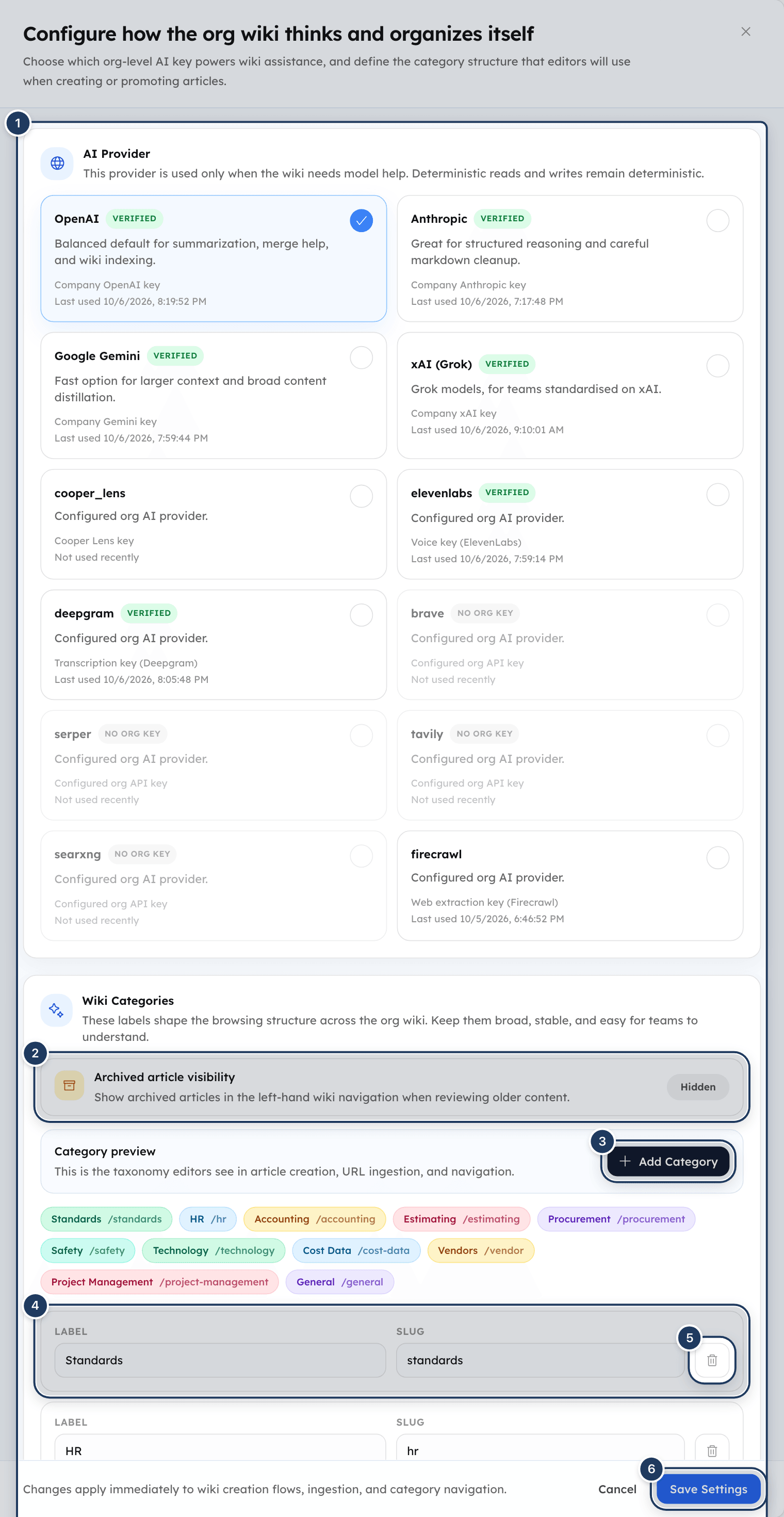
Choose the AI provider
Under AI Provider, click the provider the wiki should use when it needs AI: summarizing and merging imported pages, generalizing promoted notes, and writing category indexes. Reading, writing and searching articles don't use AI.
Each provider card shows its name (such as OpenAI, Anthropic, Google Gemini or xAI (Grok)), a Verified badge if the key was verified, the key's label or hint, and when it was last used ("Last used ..." or "Not used recently").
You can choose only a provider your organization has an API key for. Providers without one show No org key and can't be selected. If your organization has no keys at all, you see "No org API keys are configured yet. Add them in Organization Settings › Secrets / API Keys, then return here to choose which one the wiki should use." The wiki uses OpenAI until you choose another provider.
Set up categories
Under Wiki Categories:
- Category preview shows every category as a chip with its label and slug, for example "Safety /safety".
- Click Add Category to add a row named "New Category".
- In each row, edit the Label (what people see) and the Slug (the short name stored on articles). When you change the label of a category whose slug still matches its label, the slug updates to match.
- Click Remove category (the trash icon) to remove a row. You can't remove the last category.
New workspaces start with these categories: Standards, HR, Accounting, Estimating, Procurement, Safety, Technology, Cost Data, Vendors, Project Management and General.
Removing or renaming a category's slug doesn't move its articles. They keep their old category and still appear in the left panel under the old slug.
The settings page advises keeping the list short and stable: use categories for knowledge areas such as standards, estimating, procurement or safety, not one category per team. Categories don't control who can see or edit articles.
Show archived articles
Under Archived article visibility, click the button to switch between Hidden and Showing. When it says Showing, archived articles appear in the left panel so you can review or restore them. This applies only to you, takes effect straight away without saving, and resets when you reload the page.
Save the settings
Click Save Settings. The footer explains: "Changes apply immediately to wiki creation flows, ingestion, and category navigation." Click Cancel or the close button to leave without saving.
How the wiki feeds Cooper's AI
Cooper's AI agents, and AI apps you connect to Cooper such as Claude or ChatGPT, use the Org Wiki as your company's reference library:
- Agents search and read articles before they act. For example, an agent pricing a job can search for cost benchmarks, and an agent answering an HR question can read your PTO policy. Agents see published articles only.
- Default articles are given to every agent session. The summaries of up to 20 published default articles are added to the first tool result of each agent session under the heading "Organization Standards". Only an AI agent can mark an article as default. The default badge shows which articles are. Editing a default article on this page keeps it default.
- Category indexes help agents choose which article to open. See Rebuild the category indexes.
- Agents can write to the wiki for you: create or update articles, import web pages, promote project notes and refresh benchmarks, within your permissions. When they do, the article's author line shows your name and the agent's name.
- GTM campaigns can use a wiki article as context. Pick Org Wiki Article as a source in GTM.
Keep summaries clear and specific. Agents often read only the summary to decide whether an article is relevant.
Fields reference
New Wiki Article
| Field | Required | What it means |
|---|---|---|
| Title | Yes | The article's name. The slug is made from it. |
| Summary | Yes | One paragraph, up to 500 characters. Not marked with an asterisk, but Cooper won't save without it. |
| Category | Yes | The category the article is filed under. Defaults to the first category in Wiki settings. |
| Tags | No | Keywords, separated by commas. |
| Status | Yes | Published (default) or Draft. With Draft selected, the form says "Draft articles are hidden from search and the sidebar." Drafts are hidden from search and from readers, but editors still see them in the left panel. |
| Linked Resource Folders | No | Library folders to show on the article. |
Ingest URL
| Field | Required | What it means |
|---|---|---|
| URL | Yes | The full web address, starting with http:// or https://. |
| Article Title | Yes | The article's name. The slug is made from it. For Merge, the slug must match the existing article. |
| Category | Yes | Defaults to the first category in Wiki settings. |
| Tags | No | Comma-separated. ingested and external-source are added automatically. |
| Ingestion Mode | Yes | Summarize (default), Full Extract or Merge. |
| Notes for AI | No | Extra instructions for the AI. |
| Force refresh existing article | No | Re-import an address that was already imported and overwrite that article. Not shown for Merge. |
Permissions
Access is set by an admin in Settings → Roles. The wiki's row is Org Wiki in the Brain section, with Read, Write and Delete.
| What you want to do | What you need |
|---|---|
| Open the Org Wiki and read published articles | Org Wiki Read (or Write) |
| See draft articles, and see the New article, Edit article and Archive buttons; use Ingest URL, Wiki settings, Reindex categories and Refresh benchmarks | Org Wiki Write |
| Actually save changes from the page (create, edit, archive, import, settings, reindex, refresh) | Org Wiki Write and also Organization Details Write in the Settings section, or being the workspace owner |
| Delete an article | Not available on the page. The Delete permission has no button here. |
People with Org Wiki Write but without Organization Details Write see the editing buttons, but Cooper rejects their changes with "Insufficient permissions to modify org wiki content". Give editors both permissions.
Without Write, the New article button is hidden, and Ingest URL, Wiki settings, Reindex categories and Refresh benchmarks are greyed out. Readers see only published articles. The workspace owner can do everything.
For AI agents and connected AI apps, the agent acts with the permissions of the person it works for. Reading and searching need Org Wiki Read. Writing, importing, promoting, reindexing and refreshing need Org Wiki Write.
Confidential Library folders linked to an article are shown only to members of the teams allowed to see them, and to the workspace owner.
Tips and best practices
- Write the summary for a busy reader. One or two sentences that say what the article covers and who it is for. Agents rely on it too.
- Break long articles into
##sections with clear headings, such as "Approval limits" or "Who to call". Agents can read one section at a time. - Link related articles with
[[slug]]so readers and agents can follow the trail. - Start new material as a draft, have someone review it, then publish.
- Keep the category list short. A small, stable set of categories is easier to browse and search.
- Use Full Extract for standards and specifications, where every number matters, and Summarize for news and blog posts.
- Check imported drafts before publishing. AI summaries can miss details; compare them with the source address shown in the success window.
- Refresh benchmarks after big data changes, such as a new price list or a round of vendor quotes, and keep your own notes in separate articles.
- Archive instead of deleting. Archived articles can be restored at any time.
Troubleshooting
Your role doesn't have the Org Wiki permission in the Brain section. Ask an admin to grant Read (to read) or Write (to edit) in Settings → Roles. If you see a plan-locked screen instead, your company's plan doesn't include the wiki; an admin needs to upgrade the plan.
You have read-only access. Ask an admin for Org Wiki Write, and also Organization Details Write in the Settings section so your changes can be saved.
The article wasn't saved. The most common reason is an empty Summary: the field isn't marked as required, but Cooper needs it. Write a summary and try again. If you have a summary, you may be missing Organization Details Write permission. Ask an admin.
The editor closes as soon as you click Save. If Cooper then rejects the change, the article shows the old content again. Check that the summary isn't empty and is 500 characters or fewer, and that you have Organization Details Write permission ("Insufficient permissions to modify org wiki content"). Copy your content with Copy content before retrying long edits.
Search only finds published articles. Open the article, click Edit article, switch the status to published and save. Imported articles always start as drafts.
Archived articles are hidden. Click Wiki settings and set Archived article visibility to Showing. The article appears in the left panel, where you can open it and click Restore.
The title produced the same slug as an existing article, so Cooper overwrote it. Earlier versions can't be restored from the page. Rewrite the content, and next time check the Slug preview against existing articles before you click Create Article.
That address was imported before. Click Open Existing Article to use it, Refresh Existing Article to overwrite it with the current page, or tick Force refresh existing article before importing. To add the page to a different article, use Merge.
Cooper couldn't read the page. It may be paywalled, behind a login, blocking automated readers, or on a private network. Open the page in your browser to check it loads, then try again, or copy the text into a new article instead. For YouTube, "No caption tracks found" means the video has no captions to import.
Summarize and Merge need an AI provider key, and the wiki uses the provider chosen in Wiki settings (OpenAI unless changed). Ask an admin to add a key for your organization and select that provider in Wiki settings, or use Full Extract, which doesn't need AI.
Merge uses the slug made from Article Title to find the article. If the slug doesn't match an existing article exactly, Cooper creates a new draft. Enter a title whose Slug preview matches the existing article's slug.
Merging always saves the article as a draft for review, and uses the title, category and tags from the Ingest URL form. Review the article, then publish it again.
Providers marked No org key have no API key for your organization. An admin needs to add the key first.
Two categories have the same slug, or every category has an empty label or slug. Fix the rows under Wiki Categories and click Save Settings again.
Articles keep their category when you remove it from settings, and the page can't change an article's category. Add the category back, or ask an AI agent to move the articles to one of the standard categories.
Results marked project or estimate are notes in a project's or estimate's knowledge graph, not wiki articles. Open them from that project or estimate.
For AI agents
Agents work with the Org Wiki through these CooperBuild MCP tools. Read tools need the user's Org Wiki permission at Read; write tools need Write. Point users to an article with /connect/org-wiki?article=<slug>.
| Tool | Use it for | Key parameters |
|---|---|---|
wiki_list | List published articles with slug, title, summary, category, tags and update time. | category, limit (1–200, default 50) |
wiki_search | Find articles by keyword or meaning. Returns slug, title, summary, snippet, score and category. Published articles only. | query, category, limit (1–50, default 10), scope (wiki or all to include project and estimate knowledge graphs), mode (auto, text, semantic, hybrid) |
wiki_read | Read a full article with sections, backlinks, tags and metadata. Pass <category>:_index, for example standards:_index, to get the category overview. | slug |
wiki_read_section | Read one ## section of an article. Cheaper than wiki_read. | slug, heading (case-insensitive) |
wiki_write | Create or replace an article. | slug, title, summary (required, max 500 characters), content (Markdown), category, crossCategories, tags, concepts, sourceRef, articleStatus (draft, published, archived; default draft), isDefault (default false) |
wiki_ingest | Import a web page as a draft article. | url, slug, title, category, action (summarize default, full, merge), tags, concepts, notes |
wiki_promote | Copy a project or estimate knowledge-graph file into the wiki as a draft. | sourceType (project-kg or estimate-kg), sourceId, sourcePath, wikiSlug, wikiTitle, wikiCategory, action (copy, merge, compile), tags, notes |
wiki_lint | Audit published articles for problems. Read-only. | scope (full or category), category, checks (staleness = not updated in 180 days, duplicates, orphans, broken-refs, gaps = categories with fewer than 2 articles) |
wiki_compute | Rebuild the computed articles, the same as Refresh benchmarks. Returns updated, skipped (no data) or an error per target. | targets (cost, vendors, projects; default all three) |
wiki_reindex | Rebuild the AI category overviews, the same as Reindex categories. | category (omit for all) |
Rules to follow:
- Search before you write. Call
wiki_searchorwiki_listfirst so you don't create a duplicate or overwrite an article by reusing its slug. wiki_writereplaces the whole article. Fields you leave out are reset:contentbecomes empty,tagsare cleared,articleStatusbecomesdraftandisDefaultbecomesfalse. To update an article,wiki_readit first and send every field back, includingarticleStatus: "published"andisDefaultif they were set.- Use
draftfor new or unreviewed content and tell the user where to review it. Publish only when the user confirms. - Set
isDefault: trueonly for critical company-wide standards. Default article summaries (up to 20 published ones) are added to every agent session as "Organization Standards". - Use
##headings incontentso others can usewiki_read_section, and[[slug]]to link related articles. wiki_write,wiki_ingestandwiki_promoteaccept only the 11 standard categories:standards,hr,accounting,estimating,procurement,safety,technology,cost-data,vendor,project-management,general. Custom categories added in Wiki settings can't be set through these tools.- Treat
wiki_ingestskips as information, not errors. When it returnsskipped: true, tell the user the existing article (existingArticle) and offer thesuggestions. - Don't add notes to computed articles (
cost-benchmarks/price-benchmarks,vendors/performance-summary,projects/portfolio-summary).wiki_computeoverwrites them.
Common errors:
| Error | Fix |
|---|---|
summary is required and must be 500 characters or fewer | Send a non-empty summary of 500 characters or fewer. |
Wiki article not found: <slug> | Check the slug with wiki_search or wiki_list. Slugs are lowercase with hyphens. |
Section "<heading>" not found in article "<slug>". Available: ... | Use one of the headings listed in the error. |
skipped: true, reason: url_already_ingested | The address was already imported. Read existingArticle.slug, or use action: "merge" to append to an article. |
skipped: true, reason: duplicate_content | The same content exists from another address. Read the existing article instead. |
Failed to fetch URL: ... | The page couldn't be read (paywall, login, blocked, unreachable). Ask the user for another source or the text itself. |
No caption tracks found — video may not have captions enabled | The YouTube video has no captions. Use another source. |
No openai API key is configured for this organization... (or another provider) | summarize and merge need the organization's AI key for the provider chosen in Wiki settings. Use action: "full", which needs no AI, or ask an admin to add a key. |
Cannot compile this content: the Org Wiki Assistant has no AI provider available... | Use wiki_promote with action: "copy" or "merge". |
Project KG file not found: <path> / Estimate KG file not found: <path> | Check sourceId and sourcePath. |
Validation error on category | Use one of the 11 standard categories listed above. |
| Permission denied | The user lacks Org Wiki Read or Write. Tell them to ask an admin. |
Related
- Brain overview — all of Cooper's AI features in one place.
- Agents — the AI agents that read and write the wiki.
- Skills — teach agents how to do a task; use the wiki for what your company knows.
- Knowledge Graph — the company-wide graph Cooper builds from your data.
- AI Team — your team of agents and what they can do.
- GTM — use a wiki article as context for outreach campaigns.
- Teams — the teams that control who sees confidential folders linked to articles.
- Use the docs with AI — connect Claude or ChatGPT to Cooper so they can use the wiki.
Last updated on
AI Team
Give Cooper's AI team a job in plain words, and watch Cooper pick the right agent, plan the work, call tools, hand parts to other specialists and report back, with a cost limit on every run.
Knowledge Graph
The Knowledge Graph is Cooper's self-building map of how your records connect, such as projects, vendors, purchase orders, invoices, tasks and documents. Use it to see a project's state across every domain, trace any record's connections and history, and search inside uploaded documents, and use each project's and estimate's knowledge files as a shared notebook for people and AI agents.