

Skills
Skills are reusable sets of instructions and reference files that teach Cooper's AI agents how to do a job, such as a reconciliation workflow or a bid review; you write a skill once, give it to one or more agents, and track every change with versions you can revert.
A skill is a reusable piece of know-how for Cooper's AI agents. It holds written instructions (the steps, rules and domain knowledge for a job) plus optional files the agent can read. You write a skill once on the Skills page and then give it to as many agents as need it. When you improve the skill, every agent that has it gets the new version.
Admins and team leads use skills to capture how the company works: how to reconcile a credit card statement, how to review a subcontractor quote, how to write a daily report. Cooper keeps a version history of every skill, so you can see who changed what and go back to an earlier version.
Key concepts
| Term | Meaning |
|---|---|
| Skill | A named, reusable set of instructions and files that you give to agents. |
| Instructions | The main body of the skill: the workflow steps, rules and knowledge, written in a rich-text editor. |
| Description | A one-line summary of what the skill does. Agents use it to decide when the skill applies, so write it as "use this when…". |
| Category | A label that groups skills, such as Research & Analysis. Categories come from Skill Categories in Connect settings. Skills without one show Uncategorized. |
| Agent Files | Text files (Markdown, JSON, CSV, YAML and similar) stored with the skill that an agent can read directly. |
| Media Documents | PDFs, images, spreadsheets and other files kept with the skill as reference material. |
| Required Connectors | Outside systems the skill depends on. Agents only see the skill where every one of them is connected. |
| API Keys | The AI providers whose keys the skill expects: OpenAI, Anthropic, Gemini or xAI (Grok). |
| System skill | A skill that comes with Cooper and is shared by every workspace. It has a System badge and is read-only unless you are a Cooper super admin. |
| Version | Every saved change, revert or deletion creates a new version number, shown as v1, v2 and so on. |
| Used By | The agents in your workspace that currently have the skill. |
How skills and agents work together
An agent is a persona with its own instructions, such as a procurement assistant. A skill is a capability you plug into agents. One agent can have many skills, and one skill can be shared by many agents.
- You attach skills on the agent. Open the agent on the Agents page and pick skills in its Skills section. The Skills page shows the result in the Used By column, but you can't attach a skill from the Skills page itself.
- Agents get the skill's instructions. When an agent runs in Chat or on the AI Team, Cooper adds the instructions of each of its skills to the agent's own instructions.
- Agents can load a skill on demand. When an AI assistant such as Claude or ChatGPT switches to one of your agents through the CooperBuild connection, Cooper gives it a list of the agent's skills with each skill's name and description. The assistant loads a skill's Instructions and Agent Files when the description says it applies. This is why a clear Description matters.
- Media Documents are for people. Cooper does not hand Media Documents to agents automatically. Put anything an agent must read into Instructions or Agent Files.
- Connector skills appear only where they work. If a skill lists Required Connectors, agents only see it in runs that can reach every one of those systems. Everywhere else, the skill is left out completely, so the agent is never taught a procedure it has no tool for.
- Changes apply everywhere. Editing a skill updates it for every agent that has it. There is no per-agent copy.
Open Skills
- In the sidebar, open Brain.
- Click Skills.
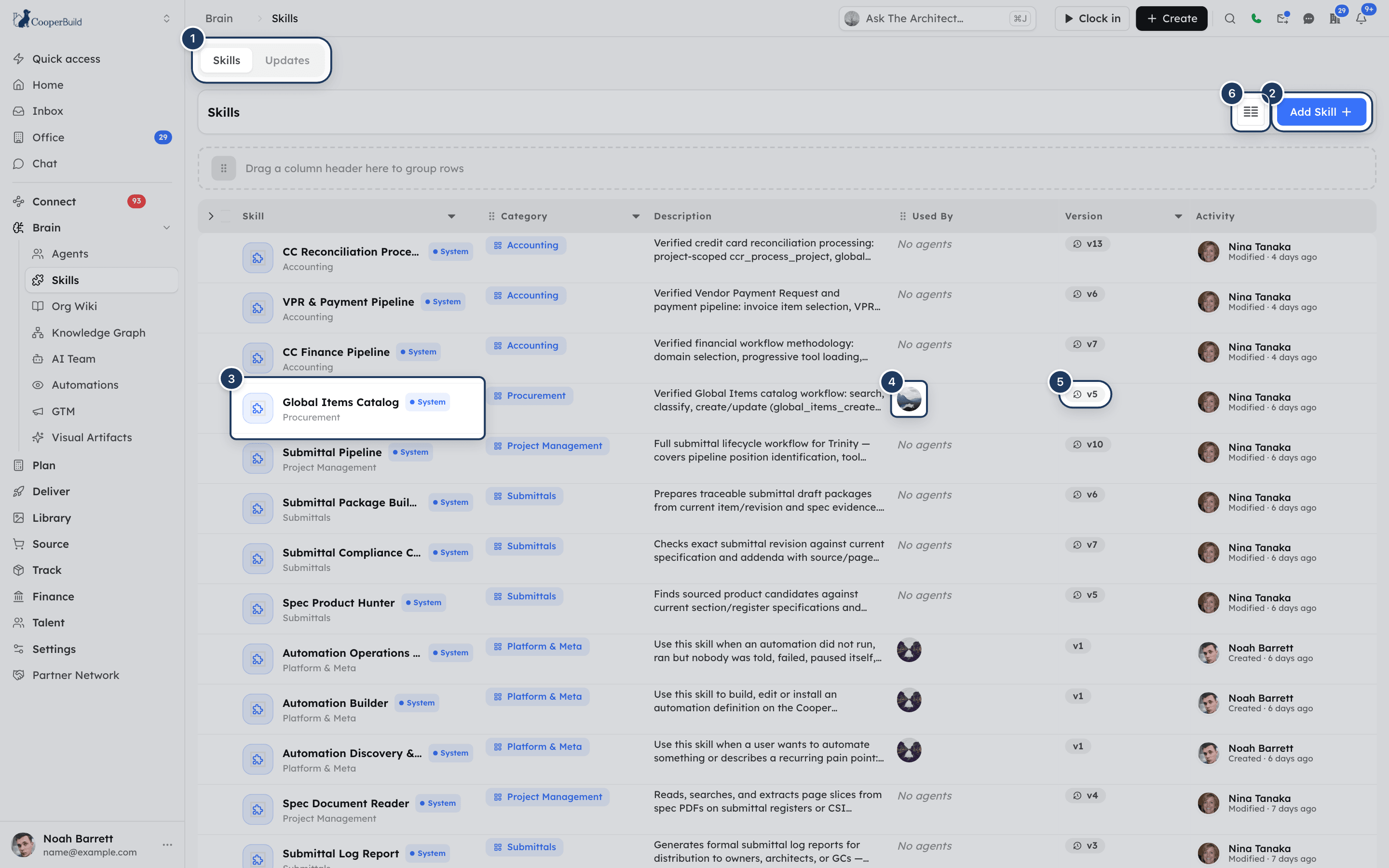
The page opens at /connect/skills with two tabs: Skills (the list) and Updates (a feed of recent changes).
You need the Skills permission in the Brain section of your role to see the page. Without it, the sidebar item is hidden and opening the address shows an access denied page. If your company's plan does not include Skills, Cooper shows a locked screen that says it isn't in your plan. See Permissions.
Read the Skills list
The Skills tab lists your workspace's skills and Cooper's system skills, most recently updated first. More skills load as you scroll. The footer shows how many are loaded, for example "Showing 25 Out of 40".
| Column | What it shows |
|---|---|
| Skill | The skill's name, a System badge for system skills, and the category name underneath. |
| Category | The category as a pill, or Uncategorized. |
| Description | The first two lines of the description, or No description. |
| Used By | Avatars of up to four agents that have the skill. More shows as +N; hover it to see their names. No agents means no agent has it yet. |
| Version | The current version, such as v3. A clock icon means there is history you can open. See See a skill's version history. |
| Activity | Who created or last changed the skill and how long ago. Hover for the full created and modified details. If an AI agent made the change, its avatar appears next to the person's. |
What you can do with the list:
- Open a skill. Click a row. Cooper opens Update Skill, or the read-only View Skill for a system skill or if you can't edit skills.
- Sort. Click Skill, Category, Version or Activity in the header and choose Sort Ascending or Sort Descending. Choose Remove Sort to go back to the default order.
- Group. Drag the Category or Used By column header onto the bar that says Drag a column header here to group rows. When you group by Used By, a skill that several agents share appears once under each agent, and skills no agent uses are grouped under —.
- Show or hide columns. Click Toggle Columns (the columns icon next to Add Skill) and tick the columns you want.
- Open an agent. Click an avatar in Used By. Cooper opens that agent in an Update Agent panel, so you can change it without leaving the page.
There is no search box on the Skills tab. To find a skill quickly, sort by Skill or group by Category.
Add a skill
Open the form
On the Skills tab, click Add Skill. The Add Skill panel opens.
Name the skill
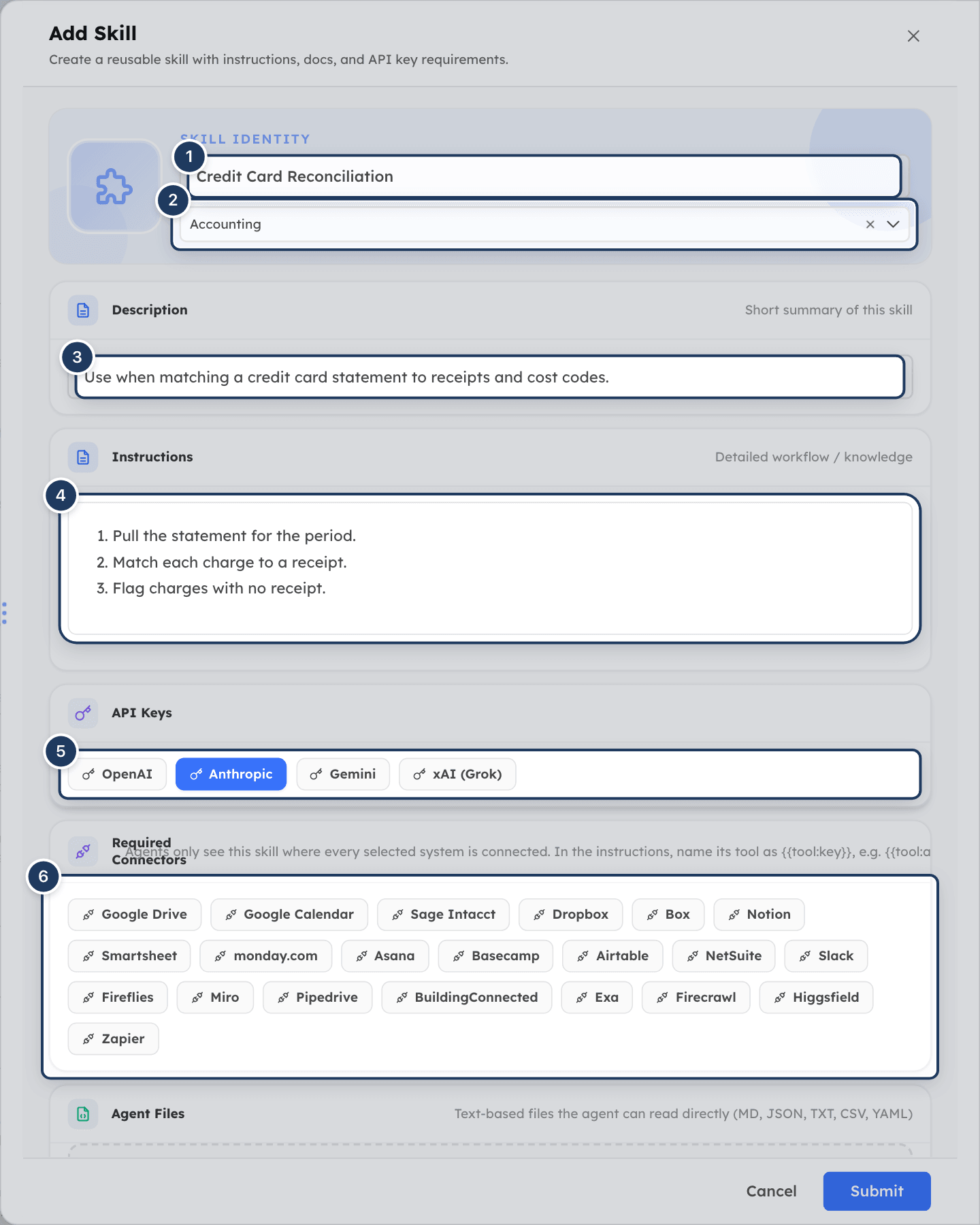
Under Skill Identity, enter the name, for example "Reconciliation Workflow". The name is required, must be 2 to 100 characters, and must be unique among your workspace's skills.
Choose a category (optional)
Open Select Category and pick one. Click the clear button to remove it. To add categories, see Connect settings.
Describe when to use it
Under Description, write one sentence about what the skill does and when it applies. Agents read this to decide whether to load the skill.
Write the instructions
Under Instructions, write the workflow steps, rules and domain knowledge. The editor supports formatting such as bold, lists and links.
Add requirements and files (optional)
Toggle any API Keys the skill needs, select Required Connectors, and add Agent Files or Media Documents. See the sections below.
Save
Click Submit. Cooper shows "Skill created successfully." and the skill appears at the top of the list as v1.
A new skill does nothing until you give it to an agent. See Give a skill to an agent.
If you close the panel with unsaved changes, Cooper asks "You have unsaved changes that will be lost if you close this panel. Are you sure?". Click Discard to close or Cancel to keep editing. An orange asterisk next to the panel title means you have unsaved changes.
Attach files to a skill
A skill can carry two kinds of files. Pick the kind by who needs to read the file.
| Section | Use it for | File types | Size limit |
|---|---|---|---|
| Agent Files | Text the agent reads: checklists, templates, lookup tables, examples. | .md, .json, .txt, .csv, .yaml, .yml, .xml, .toml, .env, .log | 8 MB per file |
| Media Documents | Reference files for people: PDFs, Word documents, images, spreadsheets. | Any file | 2 GB per file |
Add Agent Files
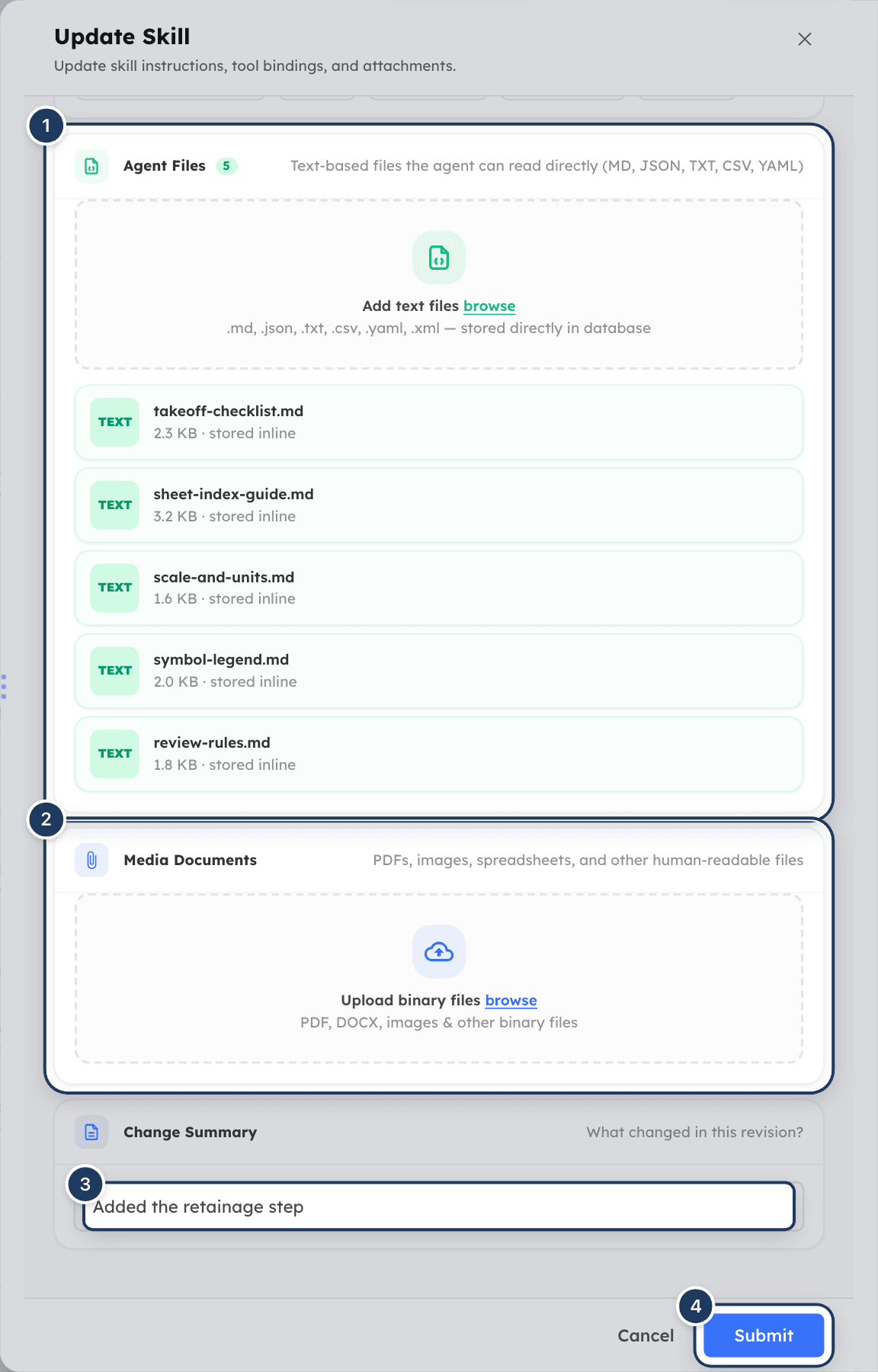
- In the Agent Files section, click the Add text files area (or its browse link).
- Choose one or more text files.
- Each file appears as a card with its type, name and size, marked "stored inline".
Cooper reads the file's text into the skill when you save. It skips files it can't use and tells you why:
- "Only text-based files (.md, .json, .txt, .csv, .yaml, .xml, etc.) can be stored as documents." when you pick a file of another type.
- "The following files exceed the 8 MB limit and were skipped: …" for files over 8 MB.
- "Empty files were skipped: …" for empty files.
Add Media Documents
- In the Media Documents section, click the Upload binary files area (or its browse link).
- Choose one or more files. Cooper shows Uploading… while it uploads them.
- Each file appears as a card with its name and type.
Remove a file
Hover over the file card and click the × button. Then save the skill.
The number next to Agent Files or Media Documents shows how many files the section holds.
Require a connector
Use Required Connectors when the skill only works with an outside system that your workspace connects through Settings → Connectors, such as a sales database.
- In the Required Connectors section, click each system the skill needs. Selected systems are highlighted. Click again to deselect.
- In Instructions, refer to the system's tool as
{{tool:key}}, for example{{tool:apollo}}. When an agent uses the skill, Cooper replaces the placeholder with the real tool name for your workspace. - Save the skill.
How it behaves:
- Agents only see the skill in a run that can reach every selected system. That means the connector exists in your workspace, is active, and the person the agent works for has connected their account to it.
- Where a required system isn't available, the skill is hidden from the agent. Voice calls have no connector tools, so connector skills never appear there.
- The list of systems to choose from comes from the connector gallery. Seeing it needs the Connectors permission in Settings. Without it, Cooper shows "No connectors to choose from.", although systems already on the skill stay visible.
Declare the API keys a skill needs
In the API Keys section, toggle each AI provider the skill expects a key for: OpenAI, Anthropic, Gemini or xAI (Grok). Selected providers are highlighted.
This is a declaration only. It tells agents and admins which provider keys the skill relies on. It does not store or add a key. Your workspace admin sets up the actual keys.
Edit a skill
Open the skill
Click the skill's row, or click the row's ... menu and choose Edit. The Update Skill panel opens. The current version, such as v3, shows next to the category.
Make your changes
Change any field, add or remove files, or change connectors and API keys.
Describe the change (optional)
Under Change Summary, write what changed, for example "Added the retainage step". This text appears in the version history and on the Updates tab.
Save
Click Submit. Cooper shows "Skill updated successfully.", saves a new version (for example v4) and briefly highlights the row.
If nothing actually changed, Cooper shows "No skill changes to save." and does not create a new version.
Every agent that has the skill uses the new version from its next run.
View a system skill
System skills come with Cooper and are shared by every workspace. They show a System badge.
Click a system skill's row to open the read-only View Skill panel. It shows the name, category, version, Description, Instructions, API Keys, Required Connectors, Agent Files and Media Documents. Sections without content are left out. When the skill has required connectors, the panel notes "Agents only see this skill in workspaces where these are connected."
You can give system skills to your agents like any other skill. You can't edit, revert or delete them, and their checkboxes in the list are disabled. Only Cooper super admins can change system skills.
If your role can't edit skills, clicking any skill also opens View Skill.
See a skill's version history
Cooper saves a version every time a skill is created, edited, reverted or deleted.
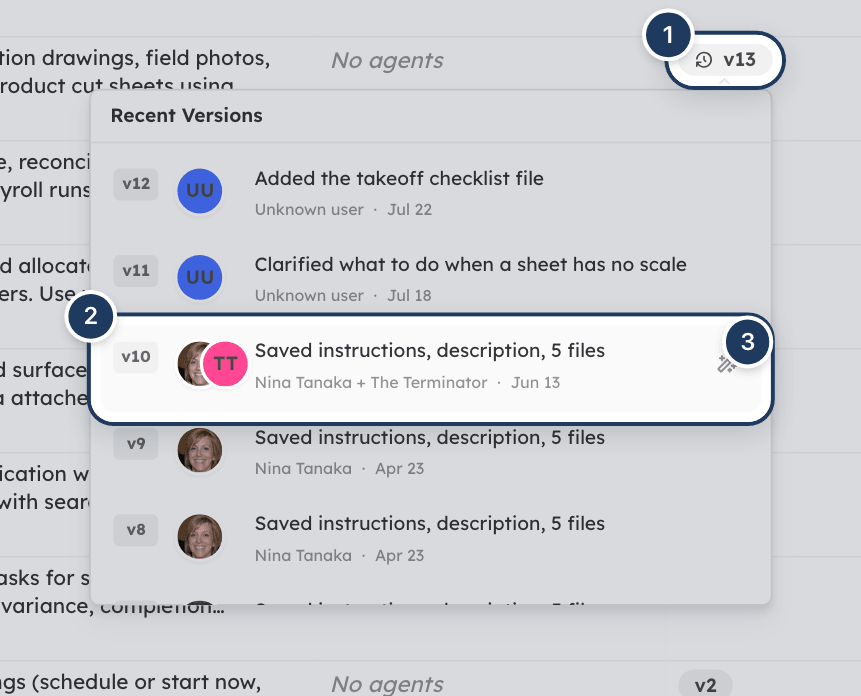
- In the Version column, click the version badge (it has a clock icon when there is history). A skill still on v1 has no history to open.
- The Recent Versions list shows up to eight earlier versions, newest first.
Each entry is an earlier version you can go back to. It shows:
- The version number, such as v2.
- The change summary of the save that replaced that version. If none was written, Cooper lists what the version contained, for example "Saved instructions, description, 2 files", or just "Saved version".
- Who made that save. If an AI agent did it on someone's behalf, it shows as the person plus the agent, for example "Dana Lee + Procurement Agent".
- How long ago, such as "3h ago" or "just now".
Revert a skill to an earlier version
- Click the skill's version badge to open Recent Versions.
- Hover over the version you want and click the wand button (Revert to vN).
- Cooper shows "Skill reverted to version N." and the badge moves up by one.
Reverting does not delete history. It copies the old version's content into a new version, so you can always revert the revert. If the skill already matches that version, Cooper shows "Skill already matches version N." and saves nothing.
The revert button doesn't appear on system skills unless you are a Cooper super admin. Reverting needs the Write action on Skills.
Track changes on the Updates tab
The Updates tab is a feed of the latest 60 skill changes in your workspace: creations, edits, reverts and deletions.
Each card shows:
- What happened, for example "Updated Reconciliation Workflow to v4", "Reverted Reconciliation Workflow to v2 (now v5)" or "Archived Reconciliation Workflow at v6".
- Up to three of the fields that changed, such as Instructions • Agent Files.
- Who made the change, with an Agent-assisted pill when an AI agent was involved.
- The action and the skill name as small pills.
- How long ago, and the exact date and time.
To find an update, type in Search by skill.... The search matches the skill name, the person or agent, the change summary and the changed fields. Click the × to clear it. If nothing matches, Cooper shows "No matching skill updates".
Click a card to open Skill Update. It lists the changed fields and a Diff Summary with a Before and After preview for each field. Long text is shortened in the preview.
If no skill has been changed yet, the tab shows "No skill updates yet".
Give a skill to an agent
You attach skills on the agent, not on the skill.
Open the agent
Go to Brain → Agents and open the agent. Or, on the Skills page, click an agent's avatar in Used By to open it in an Update Agent panel.
Browse skills
In the agent's Skills section, click Browse.
Pick the skills
Search with Search skills by name, category, or description… and click each skill to tick it. Selected skills appear as chips above the list. Click a chip's × to remove it.
Save the agent
Save the agent. On the Skills page, the agent now appears in the skill's Used By column.
The agent's skill picker lists your workspace's skills and Cooper's system skills. See Agents for the rest of the agent form.
Delete skills
- Click the row's ... menu and choose Delete. To delete several skills, tick their checkboxes and click Delete in the footer.
- In the Are You Sure? window, click Delete.
Cooper shows "Skill(s) deleted successfully." and the skill disappears from the list. Cooper archives the skill rather than erasing it, and records the deletion as a final version on the Updates tab ("Archived … at vN").
Deleting a skill does not remove it from the agents that have it. Before you delete a skill, check its Used By column and take the skill off those agents on the Agents page.
You can't delete system skills unless you are a Cooper super admin. Select all only ticks skills you are allowed to delete.
Fields reference
| Field | Required | What it means |
|---|---|---|
| Name (under Skill Identity) | Yes | The skill's name. 2 to 100 characters. Unique among your workspace's skills. |
| Category (Select Category) | No | Groups the skill. Choices come from Skill Categories in Connect settings. |
| Description | No | One-line summary. Agents use it to decide when to load the skill. |
| Instructions | No | The workflow, rules and knowledge, in rich text. This is what agents follow. |
| API Keys | No | The AI providers whose keys the skill expects: OpenAI, Anthropic, Gemini, xAI (Grok). |
| Required Connectors | No | Outside systems that must be connected for agents to see the skill. Name their tool in the instructions as {{tool:key}}. |
| Agent Files | No | Text files stored with the skill for agents to read. Up to 8 MB each, text formats only. |
| Media Documents | No | Any reference files, up to 2 GB each. |
| Change Summary | No | Edit only. A note about what changed, shown in the version history and on the Updates tab. |
Permissions
Skills are controlled by the Skills permission in the Brain section of a role. An admin sets it in Settings → Roles. Each action includes the ones below it: Delete includes Write, and Write includes Read.
| Action | Permission needed |
|---|---|
| See the Skills page, the list, version history and the Updates tab | Skills Read |
| Add, edit and revert skills | Skills Write |
| Delete skills | Skills Delete |
| Choose from the connector gallery in Required Connectors | Connectors Read in Settings |
| Give skills to an agent | Agents Write (the agent's skill picker works with Agents access alone) |
| Manage skill categories | Skill Categories in Settings |
| Edit, revert or delete a system skill | Cooper super admins only |
Workspace owners can do everything except change system skills.
Tips and best practices
- Write the description as a trigger. "Use when reconciling a credit card statement against receipts" helps an agent pick the right skill far better than "Reconciliation".
- Keep one job per skill. Small, focused skills are easier to share between agents and to improve without side effects.
- Put what agents must read in Instructions or Agent Files. Agents don't read Media Documents automatically.
- Use Agent Files for structured reference data, such as a cost code list in CSV or a JSON template, instead of pasting it into the instructions.
- Always fill in Change Summary. It makes the version history and the Updates tab readable, and it tells your team why a skill changed.
- Use Required Connectors for skills built on an outside system. Agents without that connection won't waste time on a procedure they can't follow.
- Check Used By before a big change. Every agent with the skill picks up the change on its next run.
- Revert instead of re-typing. If an edit makes an agent worse, revert to the earlier version from the version badge.
Troubleshooting
Your role does not have the Skills permission in the Brain section. Ask an admin to grant Read (or higher) in Settings → Roles. If the page shows that Skills isn't in your plan, your company's plan needs an upgrade.
Add Skill appears only when your role can make changes. Ask an admin for Skills Write.
The form may open for you, but saving needs Skills Write, and deleting needs Skills Delete. Ask an admin to grant the right action on Skills in the Brain section.
Skill names must be unique in your workspace. Choose another name, or edit the existing skill instead.
The skill name is empty or too short. Enter a name of 2 to 100 characters.
Either the skill is a System skill, which only Cooper super admins can change, or your role can't edit skills. You can still give a system skill to your agents.
Agent Files accepts text formats only (.md, .json, .txt, .csv, .yaml, .yml, .xml, .toml, .env, .log), up to 8 MB, and not empty. Put PDFs, Word files and images in Media Documents instead.
The connector gallery needs the Connectors permission in Settings. Ask an admin to add the requirement, or to grant you that permission.
Check that the skill is attached to the agent (the agent appears in Used By). If the skill has Required Connectors, the agent only sees it where every listed system is connected and the person has connected their account. Connector skills never appear on voice calls. Also make sure the Description clearly says when the skill applies.
A skill on v1 has no earlier versions yet. The badge opens Recent Versions after the first saved change.
The form matches the saved skill, so Cooper did not create a new version. Make a change and save again.
For AI agents
There is no dedicated MCP tool for managing skills. Agents work with skills through the generic record tools on the Skill model, and through the agent-switching tools that hand out skill lists. Reading Skill records needs Skills Read (CRM.SKILLS.READ); writing needs Skills Write (CRM.SKILLS.WRITE).
| Tool | Use it for | Key parameters |
|---|---|---|
db_find | Read skills: list them, or load one skill's body. | model: "Skill"; where as an object, such as {"_id": "<id>"} or {"name": {"$regex": "reconcil", "$options": "i"}}; select as an array, such as ["name", "description", "instructions", "documents"] |
db_schema | Check the Skill fields before writing. | model: "Skill" |
db_create | Create a skill. | model: "Skill"; name (required); optional description, instructions, category, requiredApiKeys, requiresConnectors, documents |
db_update | Change a skill, or archive it by setting status to Archived. | model: "Skill"; the record; the fields to set |
talk_to_agent | Switch to an agent from a /name, @name or #trigger message. The response includes the agent's skill manifest. | message (the user's message, unchanged) |
voice_list_agents | List agents with each one's skills (id, name, description). Connector skills are not listed on voice. | optional search, limit (up to 50) |
gtm_overview | Among other things, lists skills in a skill category named GTM, for planning outreach. | skillSearch, skillLimit (1 to 100) |
How skill loading works:
talk_to_agentreturns a manifest for the agent's skills:id,name,loadWhen(the skill's description),requiredApiKeys, andtoolsfor connector skills. Only skills this session can use are listed.- To load a skill, call
db_findwithmodel: "Skill",where: {"_id": "<id from manifest>"}andselect: ["instructions", "documents"]. Passwhereandselectas real objects and arrays, not strings. - Where loaded instructions contain
{{tool:<key>}}, call the tool the manifest'stoolsmap gives for that key.db_findreturns the instructions raw, with the placeholder still in them.
Key Skill fields:
name(required, unique per workspace among non-archived skills),description,instructions(HTML from the rich-text editor).category: the id of aSkillCategory.requiredApiKeys: any ofopenai,anthropic,gemini,xai.requiresConnectors: a list of{ key, hosts }.keyis lowercase letters, digits or underscores, starting with a letter, such asapollo.documents: Agent Files, each{ fileName, fileType, content, size }.contentis the text, up to 8 MB.attachments: ids of Media Documents.isSystemLevel:truefor Cooper's system skills. Only super admins can create or change them.status:Active,DraftorArchived. The Skills page showsActiveandDraftskills.versionandrevisionHistory: maintained by the app.
Agents are linked to skills through the agent's skills list (model Agent). To give an agent a skill, update the agent; see Agents.
Things to know:
- Edits made with
db_createanddb_updatewrite the record directly. They don't go through the app's versioning, so they don't add a version to the history or a card to the Updates tab. When the user wants a tracked change, ask them to make it on the Skills page. - Don't try to change a system skill (
isSystemLevel: true). Copy its content into a new workspace skill instead.
Common errors:
| Error | Fix |
|---|---|
You don't have permission to READ Skill. Required: CRM.SKILLS.READ | The user's role lacks Skills Read in the Brain section. Ask an admin to grant it. |
You don't have permission to WRITE Skill. Required: CRM.SKILLS.WRITE | The user's role lacks Skills Write. |
A skill named "…" already exists in this organisation. or a duplicate key error | Pick another name, or update the existing skill. |
Connector key must be lowercase letters, digits or underscores, e.g. "apollo". | Fix the requiresConnectors[].key value. |
Document exceeds the 8 MB size limit. / Document content cannot be empty. | Shorten or split the document, or remove the empty one. |
Only super admins can update system-level skills. | The skill is a system skill. Create a workspace skill instead. |
| A skill in the manifest is missing | It needs a connector this session can't reach, it belongs to another workspace, or it is archived. Tell the user which connector to set up in Settings → Connectors. |
To connect Claude or ChatGPT to Cooper, see AI agents.
Related
- Agents: create agents and attach skills to them.
- AI Team: where agents run with their skills.
- Brain overview: how Agents, Skills, the Org Wiki and the Knowledge Graph fit together.
- Org Wiki: company knowledge that agents look up, as opposed to procedures they follow.
- Automations: run agents on a schedule or when something happens.
- Connect settings: manage the skill categories used on this page.
- AI agents: connect Claude or ChatGPT to Cooper through MCP.
Last updated on
Agents
Agents are Cooper's named AI specialists. Each one has its own instructions, skills, trigger commands, preferred model, cost budget and voice, and you use it in Chat, in Claude or ChatGPT through the Cooper MCP server, in background AI runs and on calls.
AI Team
Give Cooper's AI team a job in plain words, and watch Cooper pick the right agent, plan the work, call tools, hand parts to other specialists and report back, with a cost limit on every run.