

GTM
GTM (go-to-market) is Cooper's outreach workspace, where you plan campaigns and run AI-drafted email outreach, one-time or as a timed cadence, to contacts, companies and saved audience lists, with review, approval, test sends, scheduling and a do-not-contact list.
GTM (go-to-market) is where you plan outreach and send it. You describe what a campaign should achieve, give one of Cooper's AI agents the facts it should use (a proposal, an estimate, a project folder, a wiki article, a note), choose who should get it, and the agent writes a personal email draft for each recipient. You review and approve the drafts, then send them right away or schedule them as a multi-step cadence. Business development leads, estimators and owners use GTM to follow up on bids, introduce the company to general contractors and owners, and nurture relationships without writing every email by hand.
GTM has two screens:
- Campaigns is the planning workspace. You write a brief, collect ideas and assets, and approve an exact version of the plan.
- Email Runs is where outreach actually happens: setup, AI drafts, review, test sends, sending and scheduling.
Email is the only channel GTM sends today. SMS, social, voice and task appear as planning labels only.
Key concepts
| Term | Meaning |
|---|---|
| Campaign workspace | A planning record on the Campaigns screen: a brief, staged ideas and assets, and review versions. It never sends anything by itself. |
| Email run | An executable outreach batch on the Email Runs screen. Inside Email Runs the screen calls each run a campaign (for example Create campaign and the Campaigns list). This page says "email run" to avoid confusion with campaign workspaces. |
| Objective | What each email should accomplish, for example "Introduce our millwork capabilities and ask for a 15-minute call." |
| Agent | The Cooper AI agent that writes the drafts. See Agents. |
| Context source | A fact source the agent must use: a note, a project folder, a media file, a wiki article, a Markdown file, a proposal, an estimate worksheet or a deliverable template. |
| Audience | The recipients of an email run. Each recipient is a contact, an organization or a project. |
| Personalization | Notes that apply to one recipient only. |
| Draft | One generated email for one recipient (and, in a cadence, for one step). |
| Delivery mode | One-time message (one email per recipient) or Cadence (several timed emails per recipient, also called a drip or sequence). |
| Cadence template | A saved, reusable set of timed steps, such as Intro, Nudge and Close loop. |
| Audience list | A saved, reusable list of recipients. |
| Do-not-contact list | Email addresses that GTM never sends to. Also called suppressions. |
| Email provider | What carries the email: your own mailbox (Gmail or Outlook), Resend or SendGrid. |
| Review version | A frozen snapshot of a campaign workspace that you approve and then activate into an email run. |
Click Terms on the Email Runs screen to see Cooper's own short glossary (GTM terms).
Open GTM
- In the sidebar, open Brain.
- Click GTM.
The page opens at /connect/gtm and shows Campaigns. Click Email runs to switch to Email Runs (/connect/gtm?view=runs). On Email Runs, click Campaigns to switch back. A link to a specific email run looks like /connect/gtm?view=runs&batchId=....
GTM settings (audience lists, cadence templates, the do-not-contact list and channel capabilities) are at /settings/gtm. Open them from Settings → GTM Harness, or click Settings or Manage on the Email Runs screen.
You need the GTM permission in the Brain section of your role. See Permissions. If your company's plan does not include GTM, Cooper shows a plan-locked screen instead.
Before you start
GTM needs three things set up. Without them you can build a run, but you can't generate drafts or send.
| What | Why | Where |
|---|---|---|
| An active AI agent | The agent writes the drafts. | Agents |
| The GTM Artifact Generation AI service switched on, with a working key for its AI provider | Draft generation runs through it. | Settings → Integrations → AI Service Routing |
| A ready email provider | Sending and test sends go through it. | Your own Gmail or Outlook mailbox (connect it in Inbox), or Resend or SendGrid in Settings → Integrations → Email Delivery |
A Resend or SendGrid provider counts as ready only when it has an API key, a from address and is verified.
Choose the right screen
| You want to | Use |
|---|---|
| Think through a campaign with your team, collect copy and assets, and get sign-off before anything goes out | Campaigns |
| Write and send emails to a list of people now | Email Runs |
| Follow up with the same people several times on a schedule | Email Runs with Cadence delivery |
| Keep reusable recipient lists, cadence templates and the do-not-contact list | GTM settings (/settings/gtm) |
You can go straight to Email Runs. The Campaigns workspace is optional.
Plan a campaign in the Campaigns workspace
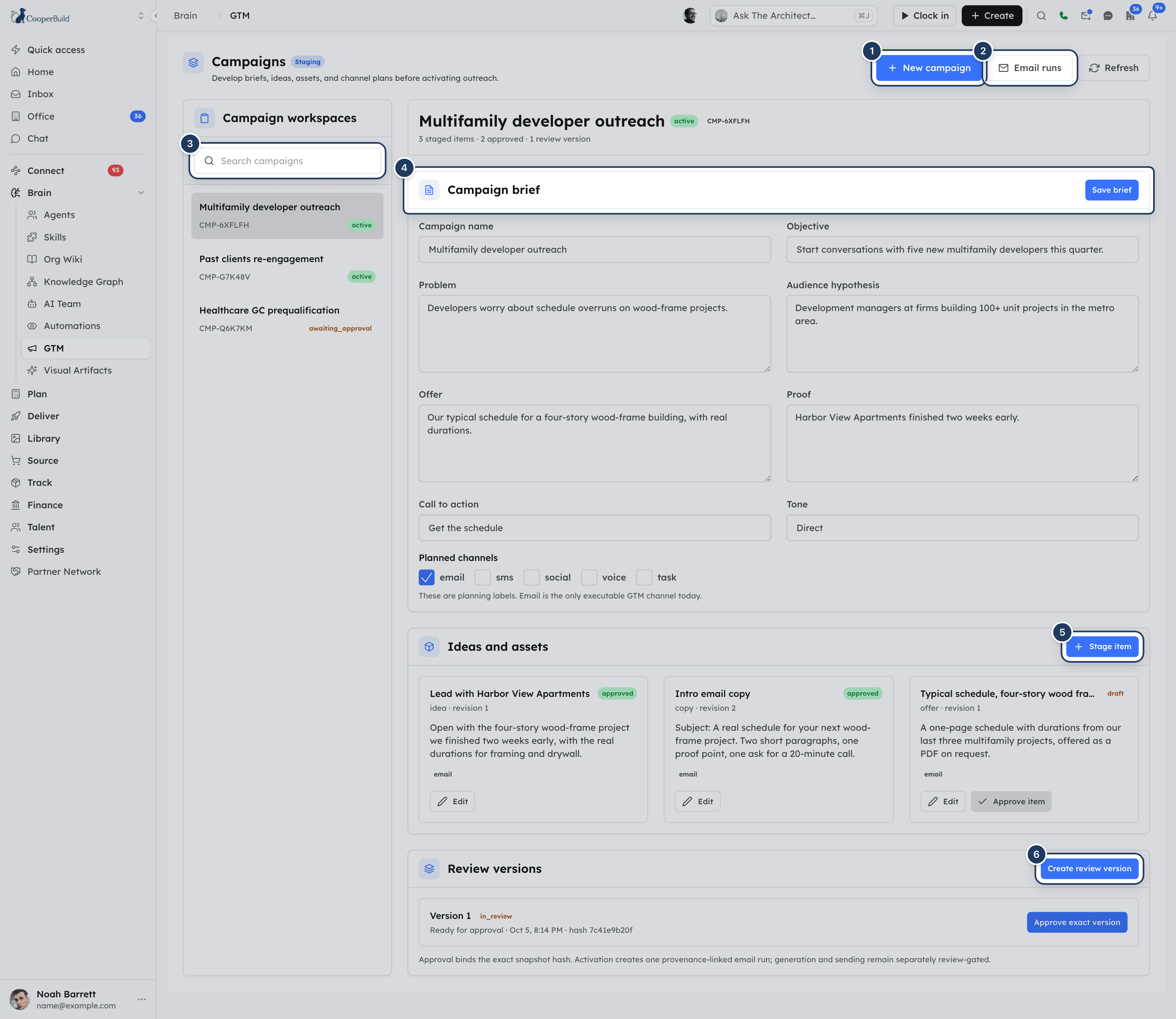
The left panel, Campaign workspaces, lists your campaign workspaces with their status. Type in Search campaigns to filter. Click a workspace to open it. The first workspace opens automatically.
Create a campaign workspace
Start the workspace
Click New campaign. The Create campaign workspace window opens.
Name it
Enter a Campaign name (required), for example "Fall owner outreach". Optionally enter an Initial objective.
Create it
Click Create workspace. Cooper shows "Campaign workspace created" and opens the new workspace.
Write the campaign brief
Under Campaign brief, fill in the fields and click Save brief. Cooper shows "Campaign brief saved".
| Field | What it means |
|---|---|
| Campaign name | Required. |
| Objective | What the campaign should achieve. |
| Problem | The problem your audience has. |
| Audience hypothesis | Who you think should hear this. |
| Offer | What you are offering. |
| Proof | Evidence, such as past projects or results. |
| Call to action | What you want the reader to do. |
| Tone | How the messages should sound. |
| Planned channels | Tick email, sms, social, voice or task. These are planning labels. Email is the only channel GTM can execute, and you must tick email to activate an email run later. |
Stage ideas and assets
Use Ideas and assets to collect the raw material for the campaign. Staged items never send anything.
- Click Stage item. The Stage campaign material window opens.
- Choose an Item type: Idea, Creative brief, Copy, Visual, Video, Document, Link, Offer, Experiment or Reference.
- Enter a Title (required), and optionally Content or idea, Working notes, a Source or asset URL and the Intended channels.
- Click Stage item. Cooper shows "Item staged".
Each item card shows its type, its revision number and its status. A new item starts as backlog. Click Edit to change it, then Save changes. Click Approve item to approve it. If you change the content of an approved item, it goes back to draft and needs approving again.
Create and approve a review version
A review version freezes the brief and all staged items as one exact snapshot.
Create the version
Click Create review version. Cooper checks the snapshot. If nothing blocks it, the version is in_review and Cooper shows "Immutable review version created". If something blocks it, the version stays draft and Cooper shows "Draft version created with blocking issues".
Read the checks
Each version shows Ready for approval, a number of blocking issues, or a number of planning notes. Blocking issues are listed in red after Blocking:. Planning notes are listed after Planning notes:.
Approve it
On a version that is in_review, click Approve exact version. Cooper shows "Exact campaign version approved". Any version approved earlier becomes superseded.
| Check | Type | How to fix it |
|---|---|---|
missing_campaign_name | Blocking | Enter a campaign name and save the brief. |
no_campaign_items | Blocking | Stage at least one item. |
unapproved_campaign_items | Blocking | Click Approve item on every staged item. |
no_channels_selected | Note | Tick at least one planned channel. |
missing_objective | Note | Fill in Objective. |
journey_not_configured, audience_not_configured | Note | Informational. You add the audience in the email run after activation. |
Approval binds the exact snapshot. If you change the brief or items afterwards, create and approve a new review version.
Activate an approved version into an email run
- On the approved version, click Activate email run. The button is disabled unless email was ticked in Planned channels when you created the version.
- In the Activate approved campaign window, choose the Email-run operator: the agent that will generate the drafts.
- Click Activate email run. Cooper shows "Approved campaign activated into an email run" and opens the new run on the Email Runs screen.
The new run takes the workspace's name and objective and keeps a link to the approved version. The version shows as activated with an Open email run button. You still add the audience and context in the run, and generating and sending are still reviewed separately.
Find your way around Email Runs
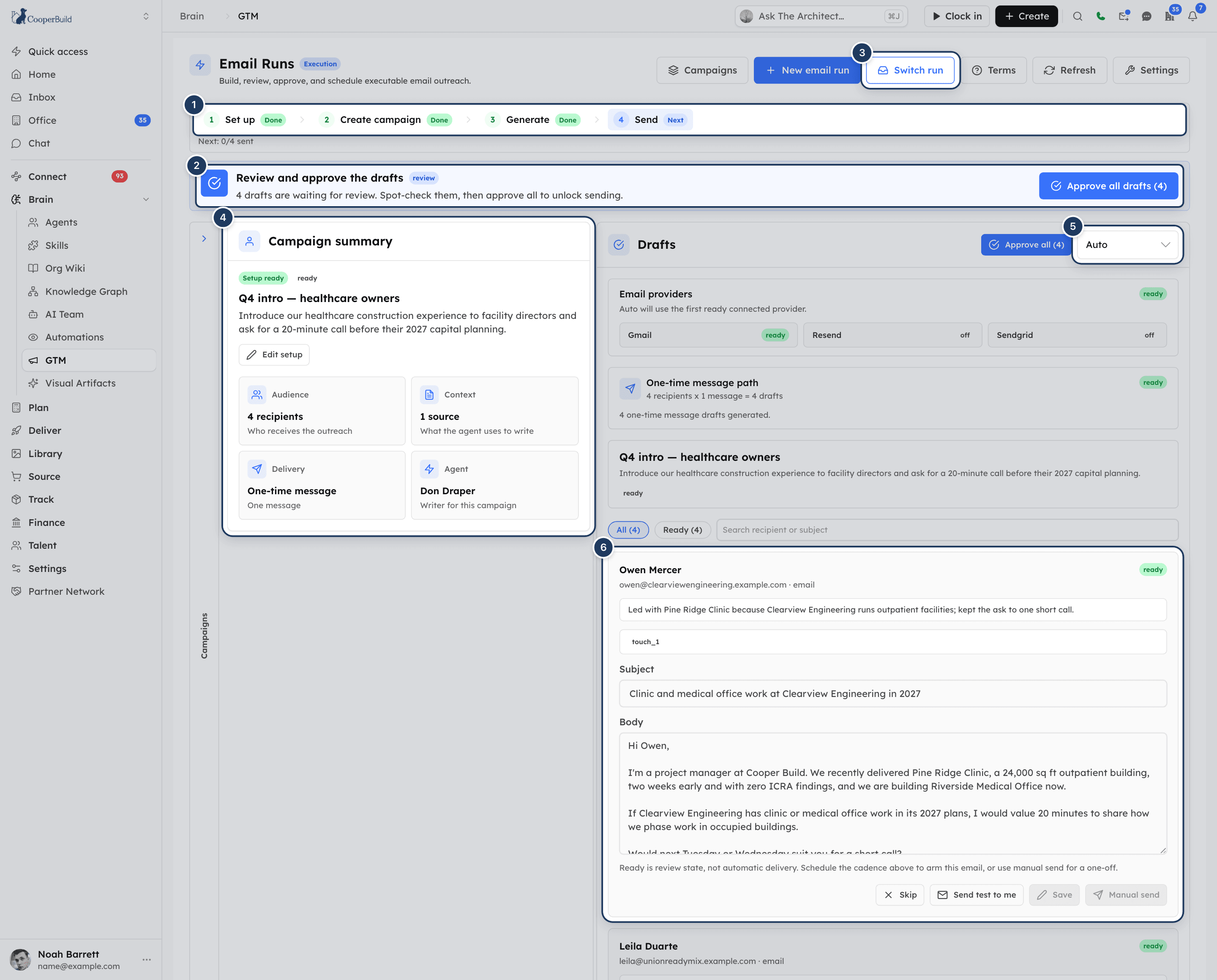
The Email Runs screen (header Email Runs) has:
- A progress bar of numbered steps. For a one-time message: Set up, Create campaign, Generate, Send. For a cadence: Set up, Create campaign, Configure cadence, Generate, Schedule. Each step shows Done, Next or Waiting.
- A next-step banner that says what to do now and has the button for it (see What the next-step banner means).
- The Campaigns list of email runs. It is collapsed by default. Click Switch run (or the Campaigns rail on wide screens) to open it, and Hide runs to close it.
- A left panel, Campaign setup (when you are editing) or Campaign summary.
- A right panel, Drafts, with the email provider, the cadence builder and the draft editors, followed by Tracking.
You can drag the divider between the left and right panels to resize them. The screen refreshes the list of runs about every 10 seconds.
Find an email run
In the Campaigns list:
- Type in Search campaigns to search by name, ID or objective.
- Click a filter: All, Active (the default), Review, Sent, Failed or Archived. All does not include archived runs.
Each row shows the run's name, ID, number of recipients, created date and status. Click a row to open the run.
Create an email run
Start a new run
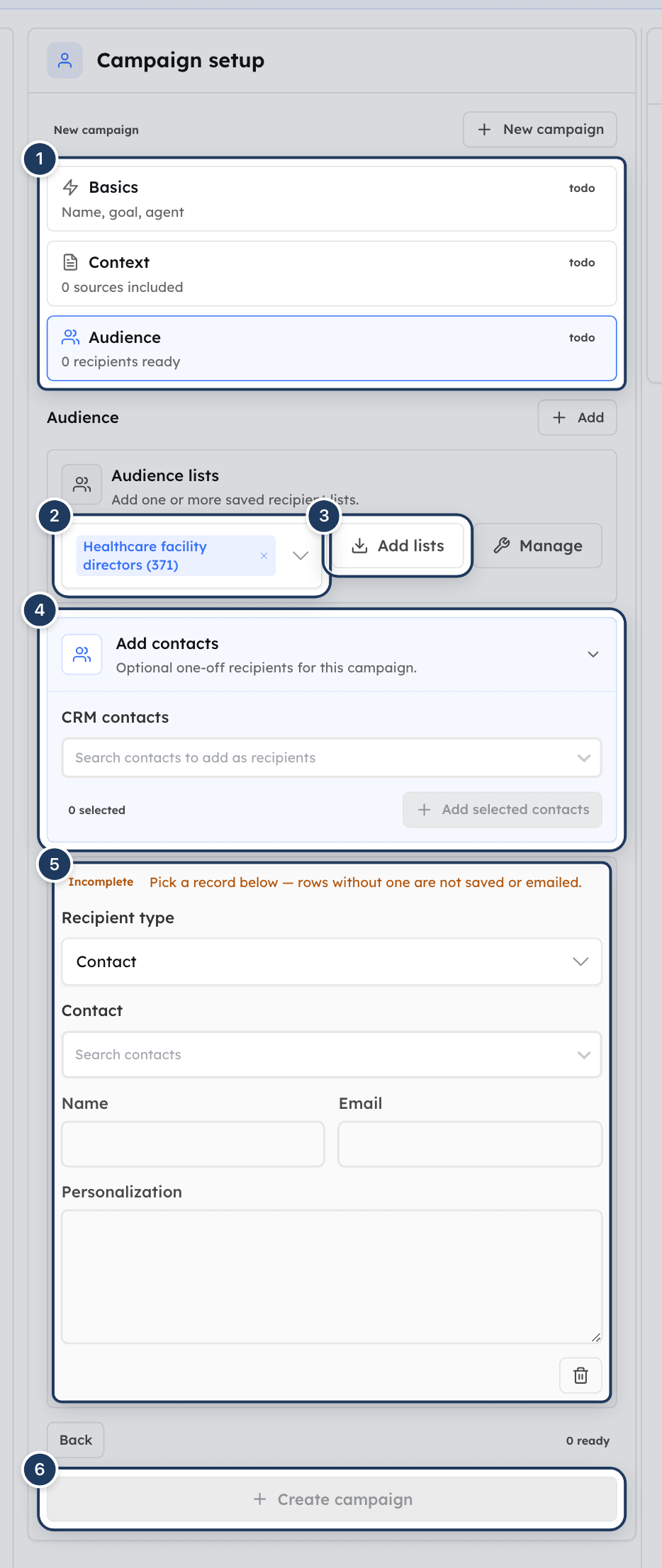
Click New email run in the header (or New campaign in the setup panel). The Campaign setup panel opens with three steps on the left: Basics, Context and Audience. Each step shows ready or todo.
Fill in the basics
Enter the Campaign name and the Objective. Choose the Delivery mode: One-time message (one message per recipient) or Cadence (timed multi-step outreach). Choose the Agent that writes the drafts. Click Continue to context. The button stays disabled until name, objective and agent are filled in.
Add context
Add at least one context source. See Give the agent context. Click Continue to audience.
Add recipients
Add at least one recipient. See Choose the audience.
Create the run
Click Create campaign. Cooper shows "Campaign created" and selects the new run. The button stays disabled until all three steps are ready.
Give the agent context
On the Context step, each context source is a card. Click Add for another card, and the trash button to remove one.
- Choose a Source type.
- Pick the record, or type the content.
- Optionally change the Title and add a note for the agent.
A card shows included when it is usable and empty when it isn't. Only included sources are saved.
| Source type | What you pick | Included when |
|---|---|---|
| Manual note | Type the facts in Note. | The note has text. |
| Project folder | Optionally narrow by Project filter, then pick a Folder (Search all folders or Search project folders). | A folder is picked. |
| Media file | Pick a Media file. | A file is picked. |
| Wiki article | Pick a Wiki article from your Org Wiki. | An article is picked. |
| Markdown file | Click Choose markdown and pick a .md or .markdown file. Its content is loaded into Markdown content. | The content has text. |
| Proposal | Pick a Proposal. | A proposal is picked. |
| Estimate worksheet | Pick an Estimate worksheet. | An estimate is picked. |
| Deliverable template | Pick a Deliverable template. | A template is picked. |
When you generate drafts, Cooper reads the live content of each picked record (for example the proposal's figures and deliverables, or the files in a folder). Very long sources are shortened.
Context quality
The Context quality box under the sources shows Sources, Resolved, Content (characters) and Citations. Before generation it is labeled "Draft readiness before generation"; after generation, "Resolved at generation preflight".
Every source type except Manual note is marked must cite: each draft has to cite it. A manual note is optional. If a picked source turns out to have no usable content when you generate, generation stops with "Context source(s) resolved to no usable content". Remove that source or pick a different record.
Choose the audience
On the Audience step you can combine three ways of adding recipients. Cooper skips anyone already in the run.
From saved audience lists:
- Under Audience lists, open Choose saved lists and pick one or more lists. Each list shows its member count.
- Click Add lists. Cooper shows how many recipients it added.
Click Manage to open GTM settings and edit your lists. See Manage audience lists.
From your contacts:
- Click Add contacts to expand it.
- In CRM contacts, search with Search contacts to add as recipients and select several people.
- Click Add selected contacts.
One row at a time:
- Click Add next to Audience for a new recipient row.
- Choose the Recipient type: Contact, Organization or Project.
- Pick the record in the search box below it.
- Check the Name and Email. Cooper fills them from the contact's email or the organization's work email. A project has no email, so type one.
- Optionally add Personalization: notes that apply only to this recipient.
A row shows Included once a record is picked, or Incomplete with "Pick a record below — rows without one are not saved or emailed." The counter at the bottom shows how many recipients are ready.
Recipients come from Humans and Organizations. A recipient without an email address gets a draft, but that draft can't be approved or sent.
Edit an email run's setup
When you open an existing run, the left panel shows the Campaign summary: Setup ready or Needs setup, the run's status, and tiles for Audience, Context, Delivery and Agent. Click Edit setup to open the setup editor (Editing selected campaign).
- Changes autosave about a second after you stop typing, as long as setup is complete. The badge shows Autosave pending, Autosaving, Autosaved, Autosave waiting (setup incomplete), Autosave paused (while drafts are generating) or Autosave failed.
- Click Save now to save immediately.
- Click Duplicate as new campaign to create a new run from the current setup. The new run has no drafts.
If you remove recipients who already have unsent drafts, Save now asks Delete drafts for removed recipients? and tells you how many. Click Save and delete drafts to delete those drafts permanently, including your edits. Sent and scheduled emails are not affected. Autosave never deletes drafts.
You can't change the setup while drafts are generating ("Cannot update batch setup while it is running").
Once a run has a cadence, you can't switch it back to One-time message. Cooper says "This campaign already has a cadence. Start a new campaign for a one-time message."
Generate drafts
For a cadence, configure it first
If the run uses Cadence, attach the cadence timing before you generate. See Set up a cadence. Generate stays unavailable until then.
Generate
Click Generate drafts (or Generate message drafts, Generate cadence drafts or Generate missing drafts) in the next-step banner or in the empty Drafts panel. Cooper shows "Message draft generation queued" or "Cadence draft generation queued (N expected)".
Wait for the agent
The banner says Draft generation is running, and Generation progress shows how many chunks are queued, running, completed and failed. Cooper writes drafts in chunks of up to 25 recipients. Click Refresh to update.
A one-time run expects one draft per recipient. A cadence run expects one draft per recipient per step: 10 recipients and 3 steps make 30 drafts. If some are missing, generate again. Cooper creates only the missing drafts and keeps existing ones.
New drafts start in draft status, waiting for your review.
Review and edit drafts
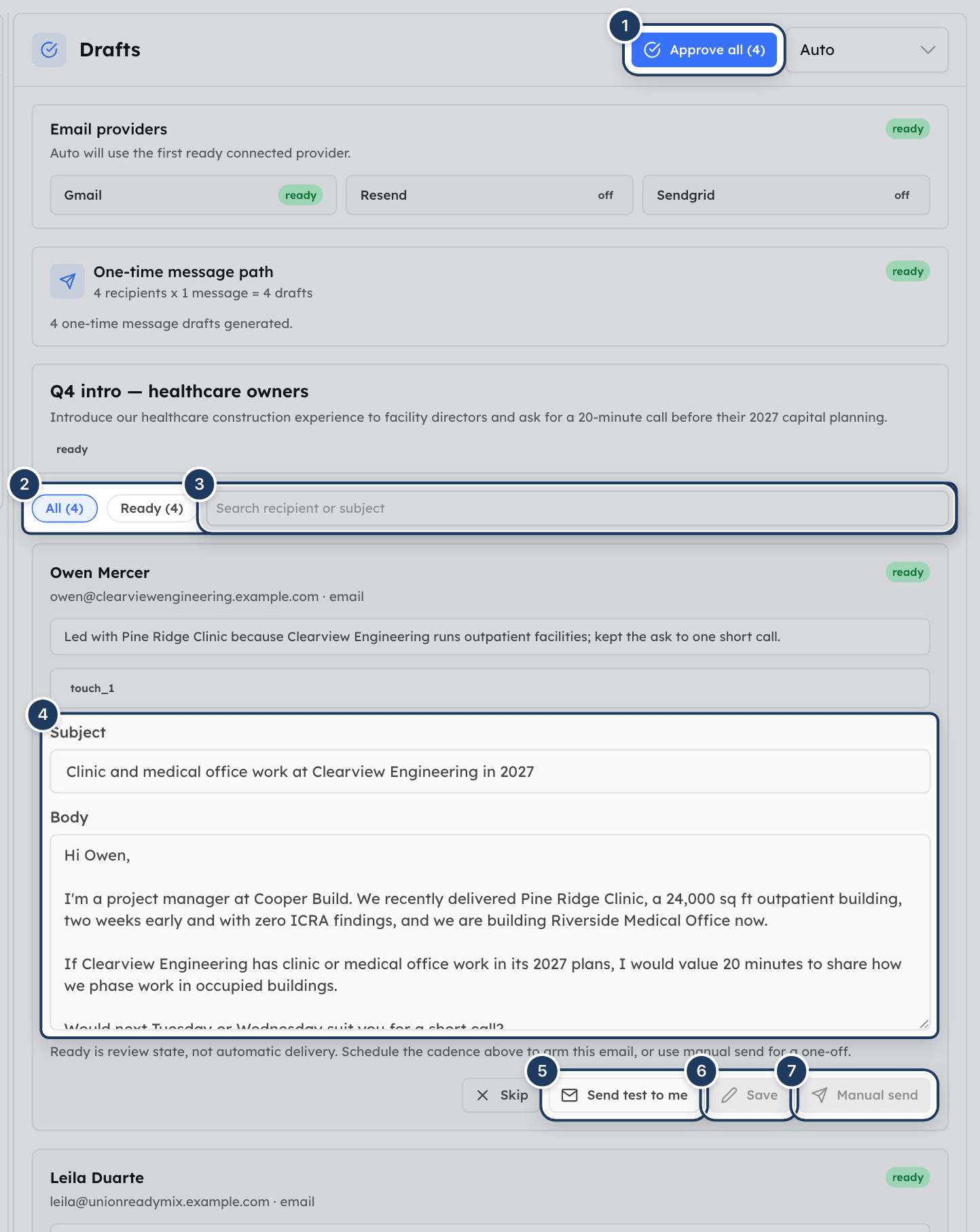
Each draft card shows the recipient's name, email and channel, the status, the agent's reasoning, and (for a cadence) the template name, step and scheduled time.
- Filter with the status chips: All and each status that has drafts, with counts.
- Search with Search recipient or subject.
- The list shows 25 drafts at a time. Click Show N more of N remaining to see more.
To edit a draft, change the Subject or Body and click Save. Cooper shows "Draft saved".
Editing a draft removes its approval
Saving a change to an approved draft puts it back in draft status. Approve it again before you send or schedule. If the draft was scheduled, the edit also cancels its scheduled send.
To leave a recipient out, click Skip. The draft becomes skipped and is never sent. Click Restore to bring it back as a draft.
Draft statuses
| Status | Meaning |
|---|---|
| draft | Generated or edited, waiting for approval. |
| ready | Approved. Not sent yet. In a one-time run you can send it; in a cadence run it waits to be scheduled. |
| scheduled | Queued to send at a set time. Locked for editing. |
| executing | Sending now. |
| sent | Delivered to the provider. Can't be edited. |
| failed | Sending failed. The error shows on the card. You can retry. |
| skipped | You skipped it, or the recipient is on the do-not-contact list. |
Approve drafts
Click Approve all (N) at the top of the Drafts panel, or Approve all drafts (N) in the next-step banner. Cooper approves every draft that has a recipient email, a subject and a body, and shows "Approved N drafts". Drafts missing an email or content are left as drafts and reported as skipped ("missing email or content").
Approving never sends anything. Approval covers the exact content you reviewed: Cooper refuses to send a draft whose content changed after approval.
Send a test email to yourself
On any draft that isn't sent or skipped, click Send test to me. Cooper sends the draft to your own account's email address with [Test] in front of the subject, through the selected email provider, and shows "Test email sent to ...".
- A test send doesn't change the draft's status and doesn't count as a campaign send.
- If you have unsaved edits, Cooper saves them first, which returns the draft to draft status.
- The button is disabled until the draft has a subject and body and an email provider is ready.
Choose the email provider
At the top of the Drafts panel, choose how to send:
| Option | Sends through |
|---|---|
| Auto | The first ready provider. A connected mailbox comes first, then the company's Resend or SendGrid. |
| My mailbox (Gmail / Outlook) | Your own connected mailbox. |
| Resend | Your company's Resend account. |
| SendGrid | Your company's SendGrid account. |
The Email providers box shows whether your choice is ready, checking or not ready, and shows ready or off for gmail, resend and sendgrid. While no provider is ready, drafts show "Execution is paused until an email provider is ready." and send buttons are disabled.
Send a one-time run
Approve the drafts
Approve the drafts you want to send. See Approve drafts.
Send them all
Click Send ready in the next-step banner. The Send N emails now window says how many reviewed drafts go to real recipients, through which provider, and how many previously failed drafts will be retried. Sending can't be undone.
Confirm
Click Send now. Cooper shows "Ready messages sent", or how many failed.
To send a single draft instead, click Manual send on its card. Cooper shows "Email sent". On a failed draft the button says Retry send. Manual send is enabled only when the draft is approved (ready or failed), has a recipient email, subject and body, and a provider is ready.
When the run has a cadence, Send ready and Manual send are not available. The button on each draft says Schedule cadence and Cooper says "Use Schedule cadence for cadence campaigns".
Set up a cadence
A cadence sends several timed emails to each recipient, for example an intro now, a nudge a day later and a final note a week later.
Open the Cadence Builder
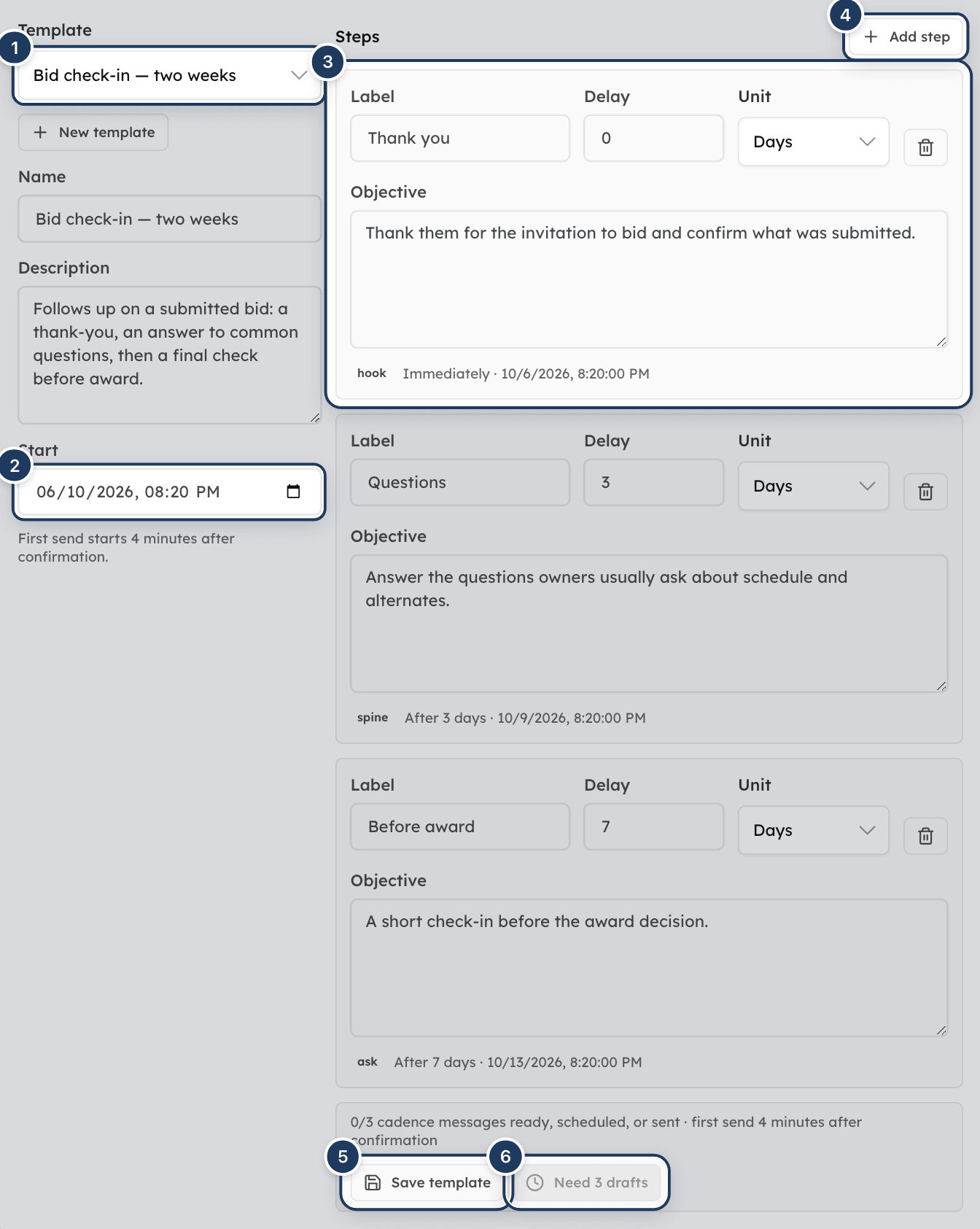
In a run with Cadence delivery, click Configure cadence (or Edit cadence) on the Cadence box in the Drafts panel, or in the next-step banner. The Cadence Builder opens. Click Collapse cadence to close it.
Pick or build the steps
Choose a saved Template. The first saved template is selected automatically. To start fresh, click New template, which loads a default three-step cadence: Intro (immediately), Nudge (after 1 hour) and Close loop (after 2 hours).
Adjust the steps
For each step, set the Label, the Delay and its Unit (Minutes, Hours, Days or Weeks), and the Objective for that email. The delay counts from the cadence start. Click Add step to add one and the trash button to remove one (a cadence needs at least one step). Each step shows its key, its offset (for example "After 2 days") and the resulting date.
Save the template
If you changed the steps of a saved template, click Save template first. Cooper shows "Cadence template saved".
Configure the cadence
Click Configure cadence. The Configure cadence window shows the template, provider, start and window, and each step with its planned count. It reminds you: "No email will send from this step. Generate drafts after this, review them, then schedule the cadence." Click Confirm setup. Cooper shows "Cadence configured: generate drafts for N steps".
If no saved template is selected, confirming also saves your steps as a new cadence template with the name in Name. If a saved template is selected, Cooper applies the saved version of that template, so save your step changes before you confirm.
Next, generate the drafts. See Generate drafts.
Schedule a cadence
Generate and approve every draft
Every recipient needs an approved draft for every step. Until then the button says Need N drafts and Cooper says "Generate all N cadence drafts before scheduling".
Open the schedule
Click Review schedule in the next-step banner, or open the Cadence Builder and click Schedule cadence. The button is disabled until an email provider is ready.
Set the start time
In the Schedule cadence emails window, set the Start date and time. The first step sends at this time and later steps use their offsets from it. The start must be now or in the future; otherwise Cooper says "Choose a current or future start time before confirming."
Check and confirm
Check each step's time and email count. A warning lists any step with no ready draft and any already-sent messages, which are not rescheduled. Click Confirm schedule.
Cooper confirms with a summary such as "Your campaign will start in 5 minutes, reach 12 people 3 times each over 2 days, and queue 36 emails." The banner then shows Campaign scheduled or Campaign in progress, and finally Campaign sent. When all scheduled emails are queued or sent, the schedule button reads Cadence armed.
A scheduled email sends automatically at its time. Cooper checks the do-not-contact list again at that moment.
Stop when someone replies
When a recipient replies and Cooper sees the reply in a connected mailbox, Cooper cancels that person's remaining scheduled steps. Cadence templates saved in the app always stop on reply. If the reply asks to be removed (for example "unsubscribe", "opt out", "remove me", "please remove" or "stop emailing"), Cooper also adds the address to the do-not-contact list. A hard bounce does the same: the address is added to the list and its remaining steps are cancelled.
Cancel scheduled sends
- All of them: in the Cadence Builder, click Cancel scheduled sends. The Cancel scheduled sends window says how many emails it stops. Click Cancel sends (or Keep schedule). Cooper shows "Cancelled N scheduled sends. The drafts are back in review."
- One email: on the draft, click Cancel scheduled send.
Cancelled drafts return to ready, already-sent emails are not affected, and you can schedule again afterwards. To edit a scheduled email, cancel its scheduled send first.
What the next-step banner means
| Banner | What to do |
|---|---|
| Finish the campaign setup | Click Finish setup. Cooper opens the first incomplete setup step. |
| Create the campaign | Click Create campaign to save the setup as a run. |
| Configure the cadence timing | Click Configure cadence. |
| Generate the message drafts / Generate N missing drafts | Click Generate drafts or Generate missing drafts. |
| Draft generation is running | Wait, then click Refresh. |
| Review and approve the drafts | Check the drafts, then click Approve all drafts (N). |
| Send the ready messages | Click Send ready. |
| Schedule the reviewed cadence / Review drafts before scheduling | Click Review schedule or Open cadence. |
| Campaign scheduled / Campaign in progress | Nothing. Use Open cadence or Refresh status to check. |
| Campaign sent | Every message is sent. |
| Review the generated drafts | Drafts exist but none are approved. Review and approve them. |
Track an email run
- Status chips on the Drafts panel count drafts by status.
- Generation progress shows how draft writing went.
- Tracking, under the Drafts panel, shows the eight most recent events with their time, such as drafts approved, test emails, sends, failures, schedule changes and suppressions.
- A failed draft shows the provider's error message in red.
GTM does not track opens or clicks. Sent, failed and suppressed are the delivery results it records.
Archive or restore an email run
- Open the Campaigns list and hover a run.
- Click the archive button (Archive campaign).
- In Archive this email run?, click Archive email run.
Archiving cancels the run's scheduled sends and hides it from active work. Already-sent emails are unaffected. You can't archive a run while it is generating or sending ("Wait for this campaign to finish before archiving it").
To restore, click Archived, then the restore button (Restore campaign) on the run. The run comes back as draft. You can't send from an archived run.
Manage audience lists
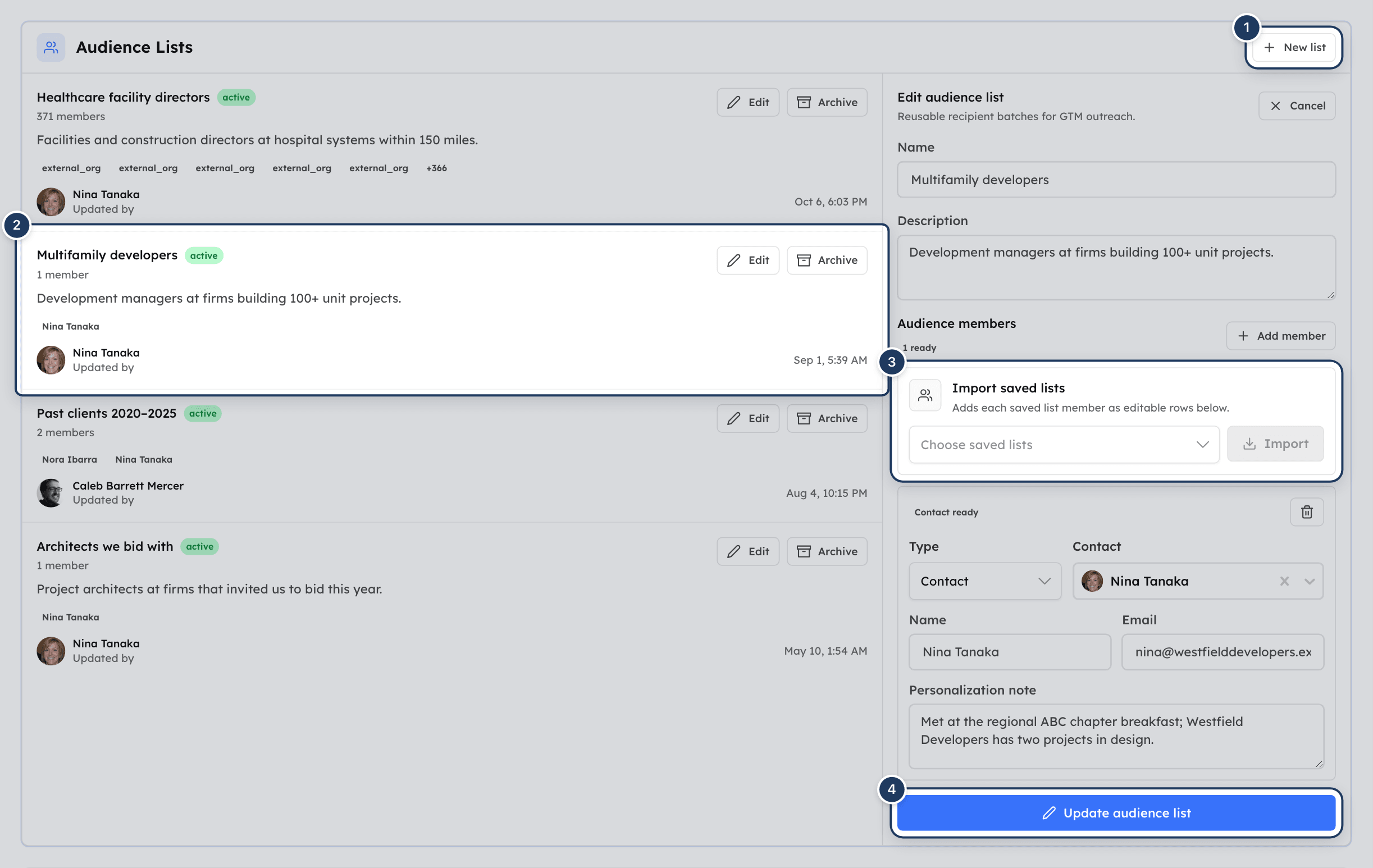
Audience lists are saved recipient lists you can add to any email run. Open GTM settings (Settings → GTM Harness, or Manage on the Audience step).
Start a list
Under Audience Lists, click New list. The form on the right is titled New audience list.
Name it
Enter a Name and optionally a Description.
Add members
Under Audience members, click Add member for each person. Choose the Type (Contact, Organization or Project), pick the record, and check Name, Email and the Personalization note. To copy members from other lists, choose them under Import saved lists and click Import.
Save
Click Create audience list. Cooper shows "Audience list created". The button stays disabled until the list has a name and at least one member with a picked record.
To change a list, click Edit on it, make your changes and click Update audience list. Click Cancel to stop editing. To remove a list from use, click Archive. Archiving a list doesn't change runs that already used it.
Each saved list shows its member count, the first five members, and who updated it and when.
Manage cadence templates
Under Cadence Templates in GTM settings:
- Click New template to start, or Edit on a saved template.
- Enter a Name and Description.
- Set the Steps: Label, Delay, Unit and Objective for each. Click Add for another step.
- Click Create cadence template or Update cadence template.
Each template shows its step count, time zone and steps. Templates take the time zone of the browser that saved them. Click Archive to retire one; runs that already use it keep their copy. You can also save templates from the Cadence Builder in an email run.
Step keys come from the labels, so every step in a template needs a different label.
Manage the do-not-contact list
GTM never sends to an address on the Do-Not-Contact List. Unsubscribes and hard bounces are added automatically; you can also add addresses by hand.
Add an address:
- Under Do-Not-Contact List, enter the Email address.
- Choose a Reason: Unsubscribed, Manual, Legal, Complaint or Other.
- Click Add. Cooper shows "... will no longer receive outreach".
Find an address: type in Search (Filter by email).
Remove an address: click Remove. Cooper shows "... can receive outreach again". There is no confirmation, so check the address first.
Each entry shows the address, where it came from (for example manual, unsubscribe_link, inbound_reply or gtm.execution), any notes, and the reason. Bounces and complaints are highlighted.
When a draft is due to send to a suppressed address, Cooper skips it: the draft becomes skipped with "Recipient is suppressed for email".
How unsubscribing works
Every outreach email gets a footer: "Don't want these emails? Unsubscribe:" with a personal link. The link opens a page that asks "Stop receiving outreach emails at ...?" with an Unsubscribe button. After the recipient clicks it, the address is on your do-not-contact list.
Channel capabilities
Channel Capabilities in GTM settings lists the channels and providers GTM knows about, such as email via Resend, SendGrid or a connected Gmail mailbox, plus SMS, LinkedIn and voice entries that still need setup. Each row shows the channel, provider, last update, status and an Enabled switch.
If the list is empty, click Seed capabilities at the top of GTM settings. Cooper shows "GTM capabilities seeded". Email Runs choose their provider with the provider selector on the Drafts panel, not from this list.
Fields reference
Email run setup
| Field | Required | What it means |
|---|---|---|
| Campaign name | Yes | The run's name. |
| Objective | Yes | What each email should accomplish. |
| Delivery mode | Yes | One-time message or Cadence. |
| Agent | Yes | The AI agent that writes the drafts. |
| Source type and record or note | At least one source | Facts the agent must use. |
| Title | No | The source's name in the context list. |
| Note (Note, Optional project note, and so on) | Only for Manual note | Extra guidance for the agent. |
| Recipient type | Yes, per recipient | Contact, Organization or Project. |
| Record (Contact, Organization, Project) | Yes, per recipient | Who the email is for. |
| Name, Email | Email needed to send | Filled from the record; you can edit them. |
| Personalization | No | Notes for this recipient only. |
Draft
| Field | Required | What it means |
|---|---|---|
| Subject | Yes, to approve or send | The email subject. |
| Body | Yes, to approve or send | The email text. |
Cadence step
| Field | Required | What it means |
|---|---|---|
| Label | Yes | The step's name. Must be unique in the template. |
| Delay | Yes | How long after the start this step sends. 0 means immediately. |
| Unit | Yes | Minutes, Hours, Days or Weeks. |
| Objective | No | What this email should do. |
The campaign workspace fields are listed in Write the campaign brief and Stage ideas and assets.
Permissions
GTM is controlled by the GTM permission in the Brain section of a role. An admin sets it in Settings → Roles.
| Action | Permission needed |
|---|---|
| See GTM, open runs, drafts and settings | GTM Read |
| Create and edit campaign workspaces, email runs, drafts, audience lists, cadence templates and the do-not-contact list; generate, approve, test-send, send, schedule, cancel and archive | GTM Write |
| See GTM Harness in the Settings sidebar | GTM Harness in the settings section of the role |
Without Write, the buttons that change things (New campaign, New email run, Save brief, Stage item, Approve all, Settings and others) are hidden or disabled, and you see the Campaign summary instead of the setup editor. Workspace owners can do everything.
Sending also needs a ready email provider, and generating needs an active agent and the GTM Artifact Generation AI service. See Before you start.
Tips and best practices
- Start small: run a one-time message to two or three colleagues, use Send test to me, then scale up.
- Give the agent specific context. A proposal or estimate worksheet gives it real figures; a manual note can list what to avoid.
- Use Personalization for one-line facts about a recipient ("met at the ABC expo", "bid the Main St job").
- Keep reusable lists and cadence templates in GTM settings so every run starts the same way.
- For a cadence, save the template before you configure it, and keep labels short and distinct.
- Spot-check drafts before Approve all. Approval covers every complete draft at once.
- Archive finished runs to keep the Active filter focused.
- Add people who ask not to be contacted to the do-not-contact list right away, even if they asked by phone.
Troubleshooting
Your role does not have the GTM permission in the Brain section, or your company's plan doesn't include GTM. Ask an admin to grant GTM Read in Settings → Roles.
You have GTM Read but not Write. Ask an admin to grant GTM Write.
Continue to context needs a campaign name, an objective and an agent. Create campaign also needs at least one included context source and at least one recipient with a picked record. Check that every setup step shows ready.
Pick a contact, organization or project in the row. Rows without a record are not saved or emailed.
The pickers load up to 100 records and search within them. Try a more specific name, or add the person to a saved audience list first.
Switch on the GTM Artifact Generation service in Settings → Integrations → AI Service Routing, and make sure its AI provider has a working key.
A picked source is empty or could not be read, for example an empty folder or a deleted record. Remove that source or pick another record, then generate again.
The agent was deactivated or archived. Choose another Agent in Basics.
The run uses Cadence delivery. Open the Cadence Builder and click Configure cadence first.
Connect your Gmail or Outlook mailbox in Inbox, or have an admin connect and verify Resend or SendGrid in Settings → Integrations → Email Delivery. Then choose that provider, or Auto, on the Drafts panel.
The draft must be approved (ready or failed), have a recipient email, a subject and a body, and an email provider must be ready. In a cadence run, use Schedule cadence instead.
Any saved change removes the approval. Approve it again with Approve all.
Every recipient needs an approved draft for every step. Generate the missing drafts, approve them, then schedule.
When a saved template is selected, Cooper applies the saved version. Click Save template, then configure or schedule again.
Scheduled emails are locked. Click Cancel scheduled send on the draft, edit it, approve it and schedule again.
The address is on the do-not-contact list. If it was added by mistake and the person agrees to hear from you, remove it in GTM settings.
A run that has a cadence stays a cadence run. Create a new run for a one-time message.
The approved version must include email in Planned channels. Tick email, save the brief, create a new review version and approve it.
The version has blocking issues and stayed draft. Fix the issues listed after Blocking:, then create a new review version.
Test emails go to your own account's email address. Add an email address to your user profile.
Wait until it has finished generating or sending, then try again.
For AI agents
Agents and MCP clients (see Connect AI agents) work with GTM through the gtm_* tools. Read tools need GTM Read and all others need GTM Write in the user's role.
The tools use different names from the screens:
| In the tools | On screen |
|---|---|
| campaign (campaign-builder campaign) | An email run on Email Runs. Pass its ID or its human reference, such as ART-1234. |
| draft | A draft. |
| sequence | A cadence template. |
| step | A cadence step. |
There are no tools for the Campaigns planning workspace (briefs, staged items, review versions).
| Tool | Use it for | Key parameters |
|---|---|---|
gtm_overview | Channels, provider capabilities and health, skills, and the recommended workflow. | skillSearch |
gtm_list_builder_campaigns | List email runs. | status, limit |
gtm_get_builder_campaign | One run with its drafts and event history. | campaignId |
gtm_save_builder_campaign | Create or update a run's name, objective, agent, audience, context and metadata. | campaignId (omit to create), input.ownerAgentId (required to create), input.audience, input.contextSources, input.pruneRemovedDraftArtifacts |
gtm_set_campaign_audience | Replace or append recipients. | campaignId, audience, mode (replace or append), pruneRemovedDraftArtifacts |
gtm_set_builder_campaign_status | Archive, restore or set a run's status. | campaignId, status |
gtm_list_recipient_lists, gtm_save_recipient_list, gtm_archive_recipient_list | Saved audience lists. | recipientListId, input.name, input.members |
gtm_list_sequences, gtm_get_sequence, gtm_save_sequence, gtm_archive_sequence | Cadence templates. | sequenceId, input.touches (each with offset.amount and offset.unit), input.stopOnReply |
gtm_configure_campaign_sequence | Attach a cadence template to a run before generation. Sends nothing. | campaignId, sequenceId, provider, startAt |
gtm_set_send_profile | Choose bulk (default, unsubscribe footer and headers) or personal (plain opt-out sentence). Not shown in the app. personal takes effect only when enabled for the environment and sending through Gmail; otherwise sends fall back to bulk and the tool returns warnings. | campaignId, profile |
gtm_generate_drafts | Queue draft generation. | campaignId |
gtm_create_channel_drafts | Save drafts the agent wrote itself. Never sends. | campaignId, drafts (each needs recipientSourceType, recipientSourceId, subject, bodyText; add cadenceTouchKey for a cadence) |
gtm_update_draft | Edit a draft's content, or set it to draft, failed or skipped. A content edit removes approval. | draftId, input.content, input.status |
gtm_approve_drafts | Approve drafts (draft to ready). Sends nothing. | campaignId, draftIds (omit for all complete drafts) |
gtm_send_test_draft | Send one draft as a [Test] email to an internal address. | draftId, to (defaults to the user's email), provider |
gtm_send_ready_drafts | Send approved drafts of a one-time run now. | campaignId, draftIds, provider, confirmedByUser: true |
gtm_schedule_sequence | Schedule approved cadence drafts. | campaignId, sequenceId, startAt, provider, confirmedByUser: true |
gtm_cancel_scheduled_sends | Cancel scheduled sends; drafts return to ready. | campaignId, draftIds, reason |
gtm_campaign_stats | Counts of drafts by status and send events, for one run or the whole workspace. No open or click data. | campaignId, from, to |
gtm_list_suppressions, gtm_suppress_recipient, gtm_remove_suppression | The do-not-contact list. gtm_suppress_recipient accepts up to 200 values per call and channel email, sms or all. | search, value or values, reason, suppressionId |
Workflow to follow:
- One-time:
gtm_save_builder_campaign, thengtm_generate_drafts, thengtm_approve_drafts, thengtm_send_ready_drafts. - Cadence:
gtm_save_builder_campaign, thengtm_configure_campaign_sequence, thengtm_generate_drafts, thengtm_approve_drafts, thengtm_schedule_sequence. - Get the user's explicit approval before any send or schedule, and only then pass
confirmedByUser: true. - Offer
gtm_send_test_draftbefore sending real outreach. - When someone asks to stop hearing from the company, call
gtm_suppress_recipient.
Common errors:
| Error | Fix |
|---|---|
| "ownerAgentId is required to create a GTM campaign" | Pass an active agent's ID in input.ownerAgentId. |
| "Use the approval action to mark an artifact ready" | gtm_update_draft can't set ready. Use gtm_approve_drafts. |
ARTIFACT_APPROVAL_REQUIRED | The draft isn't approved, or changed after approval. Approve it again. |
SEQUENCE_BULK_SEND_BLOCKED | The run has a cadence. Use gtm_schedule_sequence, not gtm_send_ready_drafts. |
INCOMPLETE_CADENCE_ARTIFACT_MATRIX | Not every recipient has a ready draft for every step. Generate and approve the missing drafts. |
EMAIL_PROVIDER_UNAVAILABLE | No ready provider for the requested option. Use auto, or ask the user to connect a mailbox or verify Resend or SendGrid. |
BATCH_BUSY | Generation is running. Wait and check again with gtm_get_builder_campaign. |
REQUIRED_CONTEXT_NOT_RESOLVED | A context source has no usable content. Remove or fix it. |
REQUIRED_CONTEXT_NOT_CITED / CONTEXT_CITATIONS_REQUIRED | Drafts from gtm_create_channel_drafts must cite every must-cite source in contextCitations. |
LLM_SERVICE_NOT_FOUND / LLM_SERVICE_INACTIVE | Ask an admin to switch on GTM Artifact Generation in AI Service Routing. |
AGENT_NOT_FOUND | The run's agent is inactive or archived. Set another ownerAgentId. |
NO_RECIPIENTS | Add recipients with gtm_set_campaign_audience. |
BATCH_ARCHIVED | Restore the run with gtm_set_builder_campaign_status before sending. |
GTM_SUPPRESSED (draft skipped) | The recipient is on the do-not-contact list. Don't remove the suppression without the user's explicit instruction. |
Related
- Agents: the AI agents that write GTM drafts.
- Org Wiki: articles you can give the agent as context.
- Visual Artifacts: published visuals that can appear in outreach emails.
- Automations: other work Cooper's agents run for you.
- Humans and Organizations: the contacts and companies you email.
- Inbox: connect the Gmail or Outlook mailbox GTM can send from.
- Connect AI agents: use GTM from Claude or ChatGPT through the CooperBuild MCP server.
Last updated on
Automations
Set up rules that run on their own in Cooper, on a schedule, when something happens, while a condition stays true, when mail arrives or when you run them, and follow every run, approval and item that needs your attention.
Visual Artifacts
Visual artifacts are interactive pages that Cooper's AI builds from your data, such as project dashboards, proposal summaries, contact cards and online forms. You can edit them with AI, keep every version, publish them at a stable public link, protect them with a PIN or password, and collect form responses.